I've had a think and actually the best solution for this particular circumstance is probably:
-
Create a New Macro Group:
- In the left pane, click on the "+" button at the bottom to create a new Macro Group.
- Name the Macro Group and set it to be available for the editor in question.
- In the right pane, under "Macros Activate", choose "Shows a palette for one action when:" and add a hotkey trigger (this is hotkey number 1, as per your question).
-
Add Macros to the Group:
- Either create new macros within this group or drag existing macros into the group from other macro groups.
-
Define Hotkey Triggers:
-
For each macro you want to trigger via a hotkey:
- Click on the macro to select it.
- Click the "Add Trigger" button (it looks like a green plus symbol).
- Choose "Hot Key Trigger".
- Define the hotkey you want to use for the macro. These can be thought of as hotkey number 2.
-
By default, Keyboard Maestro shows the hotkey triggers next to the macro names in the palette.
-
If they aren’t showing, ensure that you've assigned a hotkey trigger to each macro you want to have a displayed hotkey.
-
If they still aren't showing up, click on Palette Style and ensure that Trigger is ticked:
-
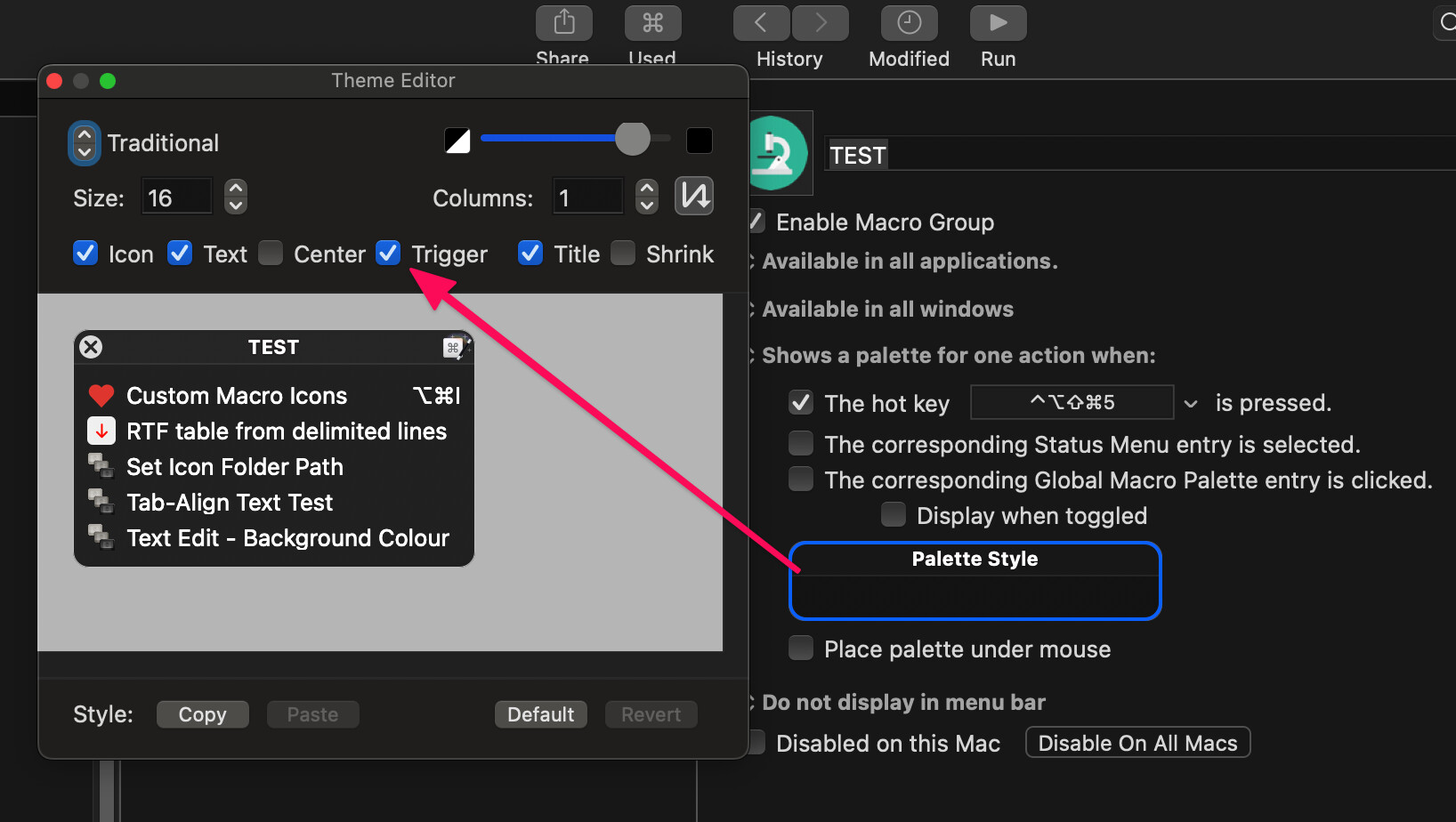
Now, whenever your editor is at the front and you press hotkey number 1, the palette will show up with all the macros and their associated hotkey triggers.
Therefore, hotkey number 1 followed by hotkey number 2 will give you the desired result, with the added benefit of a visual reminder of all your secondary hotkeys.