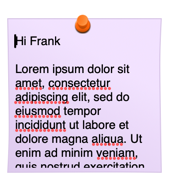
So here’s a thing I OFTEN find myself doing - I need to write something, do a little bit of formatting (plain text), so I switch to a text editor, open a new document, draft something then highlight, copy and close the window.
I was thinking that it would be really handy if I could trigger a little pop-up text editor from KM, where I can do this VERY basic writing editing and then dismiss it with ESC.
I don’t want to save anything, I don’t even need anything to be remembered from last time I drafted something. I also don’t need any toolbars of any kind
What could I use in KM to provide a basic text editor interface for this?
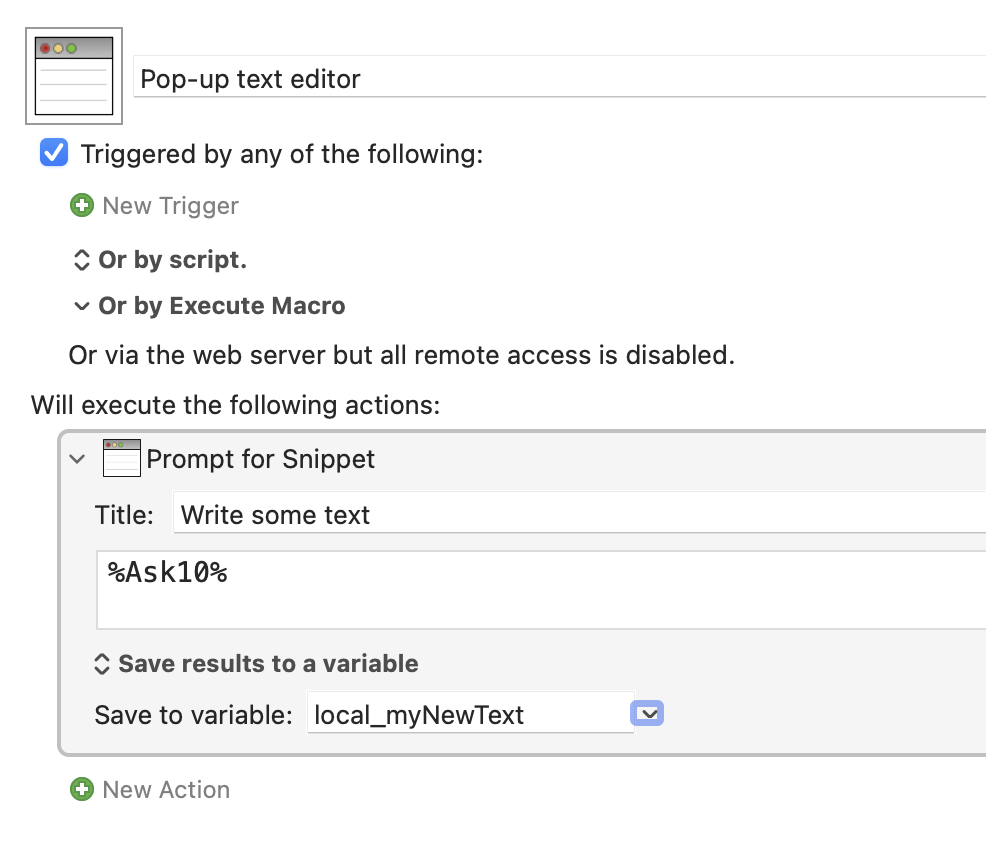
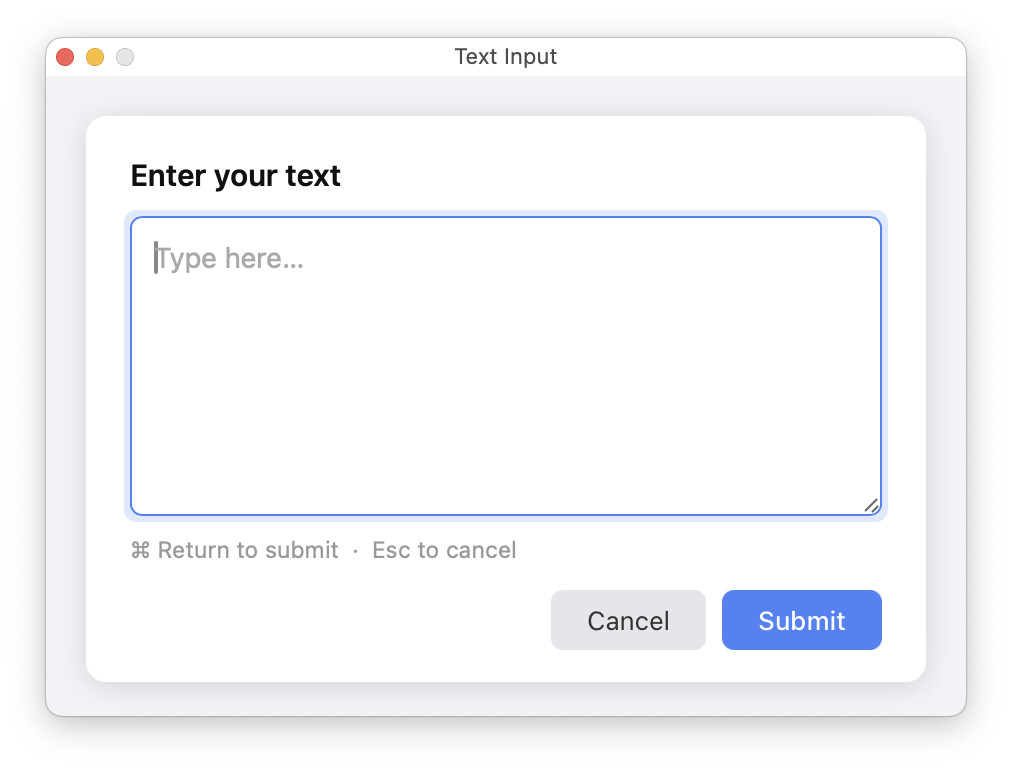
That'll create a 10-line text field for typing. But no control over anything, it's just a text typing spot. See the help for Prompt for Snippet for more options, but it's basically just a big form input box.
If you need something more complex, describe your needs...
You know what, that will probably do it! I really just want a simple plain text window that is not a single line so I can see line breaks etc and without switching windows.
I’ll try doing that and see if I find it restrictive, but it’s only for real simple/quick editing.
Ah, the only issue with this is that it’s not great keyboard-wise - easy to trigger with keyboard (hotkey), easy to dismiss with ESC, but once in that input you can’t commit what you have written using keyboard. I thought that maybe pressing CMD+ Enter would activate the OK button in the prompt, but the only way to OK it is to use the mouse.
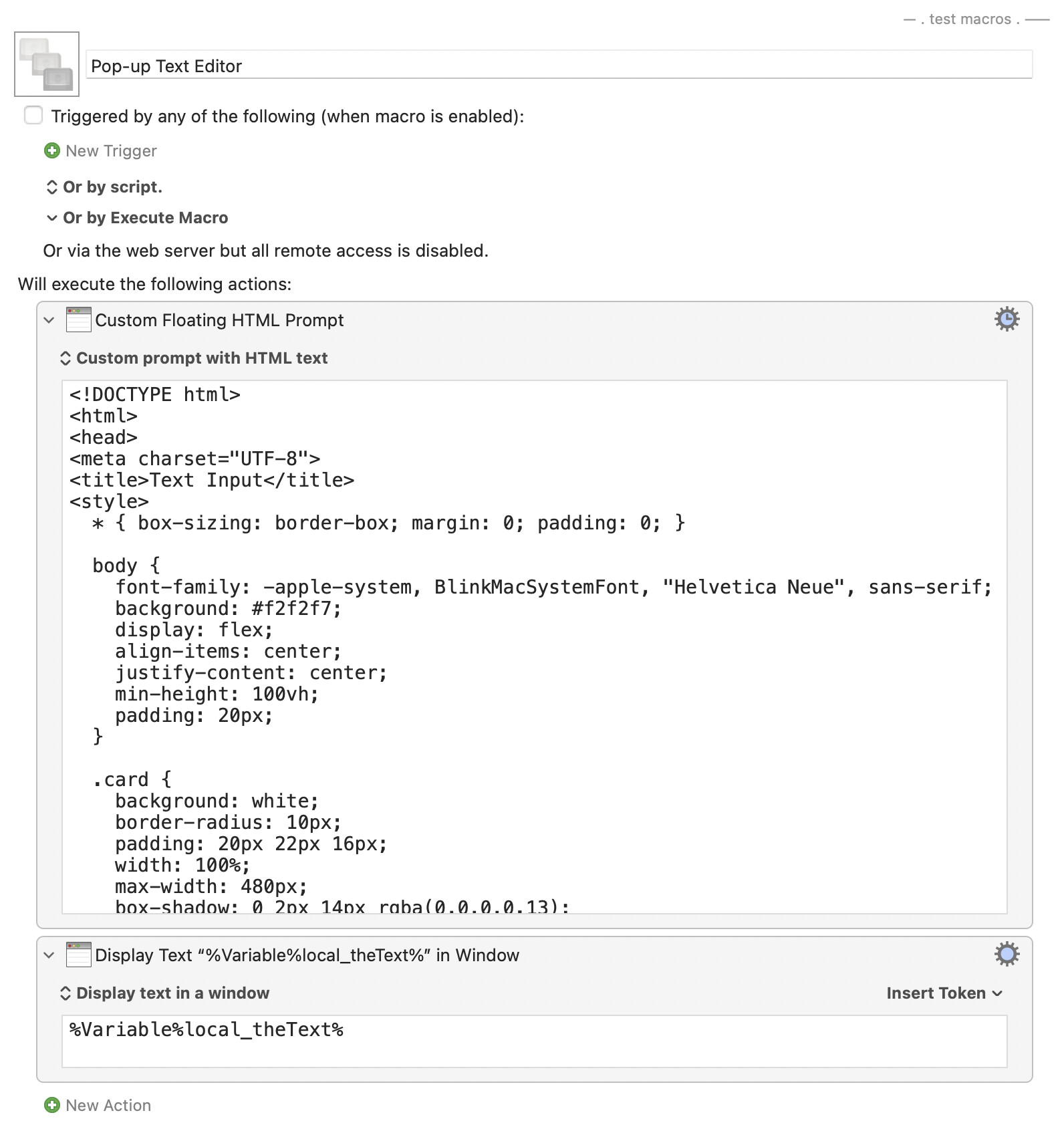
Yep, it's very limited. The other option is a Custom HTML Prompt, and it wouldn't be very hard to write one that works. But it's even easier to ask Claude to write one; here's what it came up with:
Total time, about two minutes, and it ran just fine (though my one contribution was the KMWindow() function to set the window size). My prompt to Claude was this:
Write a custom HTML prompt for Keyboard Maestro that lets me enter text - a multi-row input form, basically. The form should submit when the user presses Cmd-Return or Cmd-Enter, and store the returned values in a Keyboard Maestro variable.
Unlike when I ask Claude to write Swift, I do know HTML, CSS, and JS (to a minor degree), and there's nothing bad in here. Just a simple styled input box, with some JS to handle the key events.
Had I written this myself, it wouldn't have been so nicely styled, but would have worked fine ... and taken me probably 30 minutes of futzing about to get it right :).
If you did want to continue using a favourite text editor, a couple of very simple macros could help streamline your workflow.
Macro 1:
“switch to a text editor”
“open a new document”
“draft something…”
Macro 2:
“highlight” (select all)
“copy”
“close the window”
switch back to the other application.
Having said that… for me, all those atomic shortcuts to switch to an app, highlight all text, cut and switch back etc. are so ingrained that I wouldn’t really want the extra mental baggage of triggering macros, just to tie them all together!
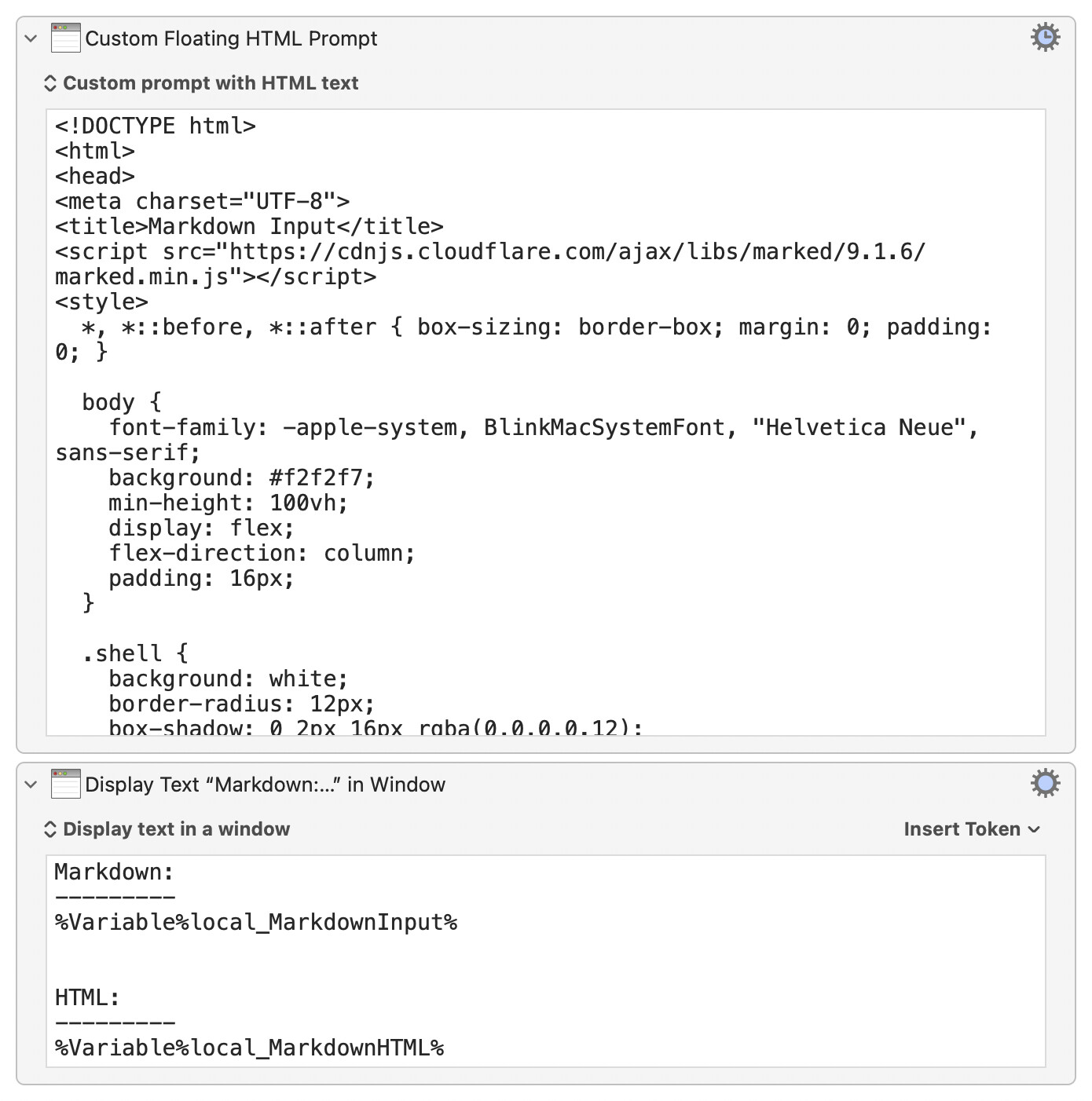
It outputs both HTML and the raw text, ready for whatever you want.
The code in the following macro is 100% AI-generated. Use at your own risk. (It's just HTML, CSS, and Javascript from a well-respected library, though.)
Macros are always disabled when imported into the Keyboard Maestro Editor.
The user must ensure the macro is enabled.
The user must also ensure the macro's parent macro-group is enabled.
System information
macOS 15.7.5
Keyboard Maestro v11.0.4
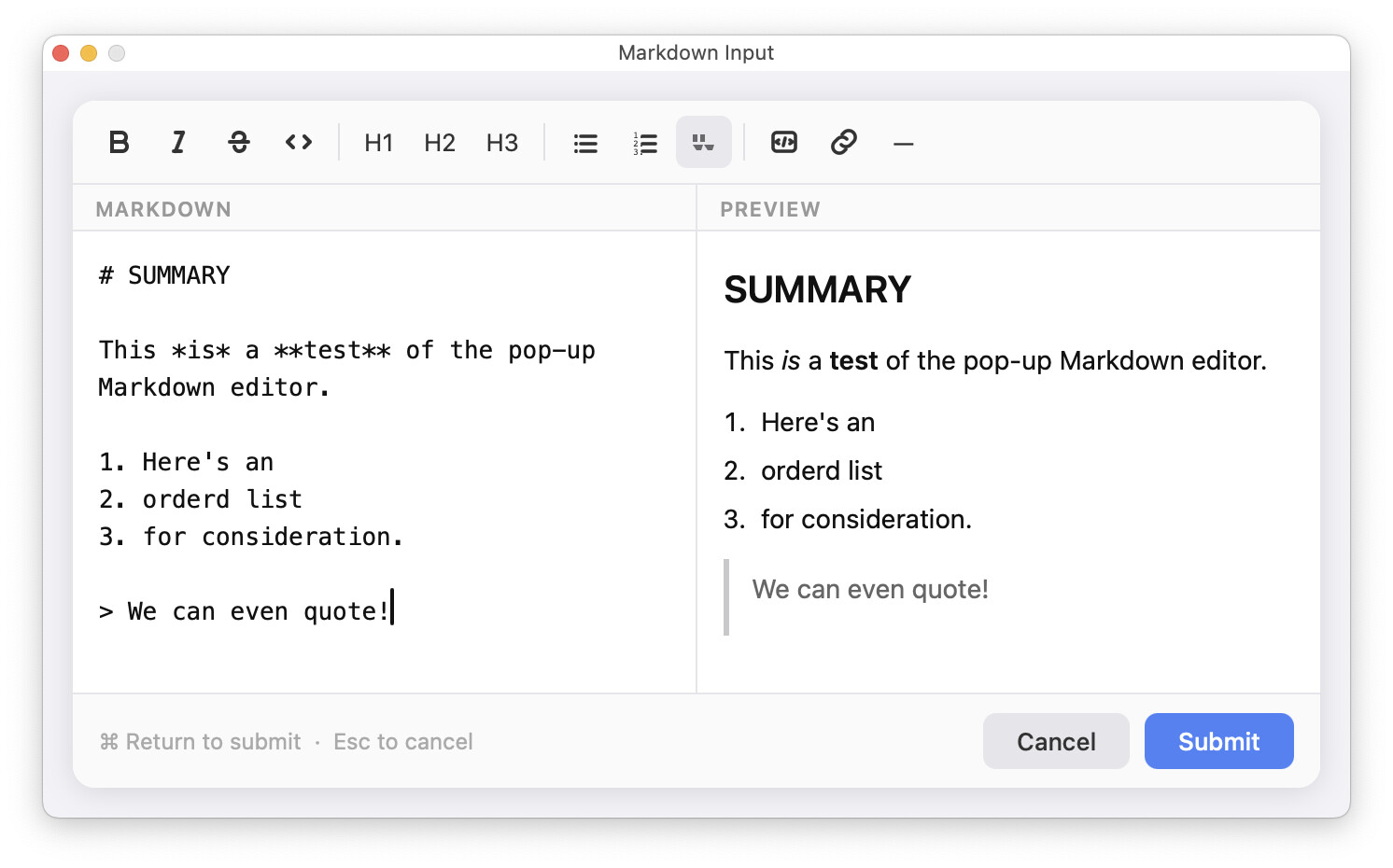
This relies on the Marked Javascript library to do the formatting work. Unlike the first macro, I do not understand all of the Javascript in this one :).
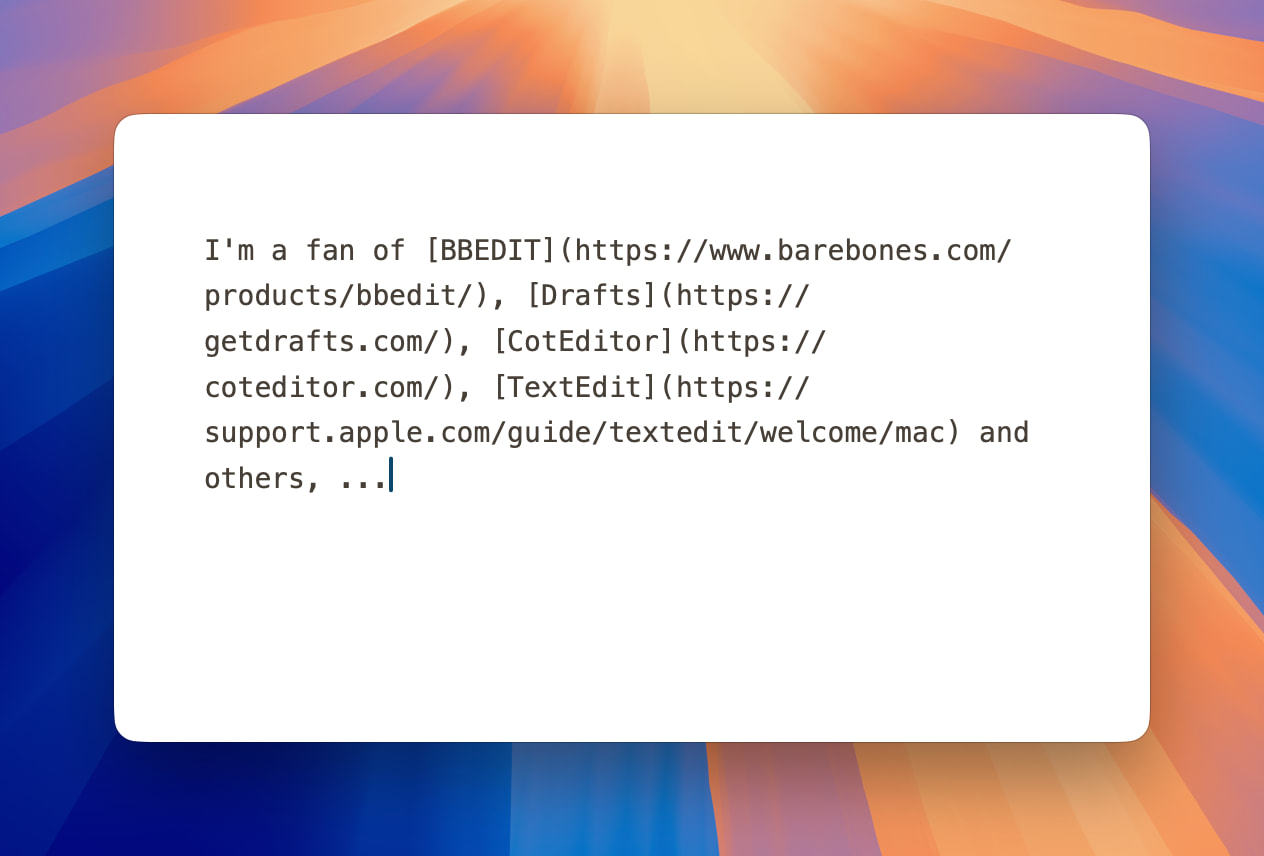
I'm a fan of BBEDIT, Drafts, CotEditor, TextEdit and several other text editors, but I often want to do exactly what you described. For that purpose, I agree that none of the traditional text editors fit the bill.
Coincidentally however, just yesterday I discovered this unique text editor:
Antinote has a very clean and simple UI, but is surprisingly powerful and configurable. For a nice introduction of this app, see this excerpt from the following YouTube video: Your Mac Is Missing All of These by Quinn Nelson of Snazzy Labs.
I created a very simple macro that opens Antinote and positions a small window in the upper-left of my display.
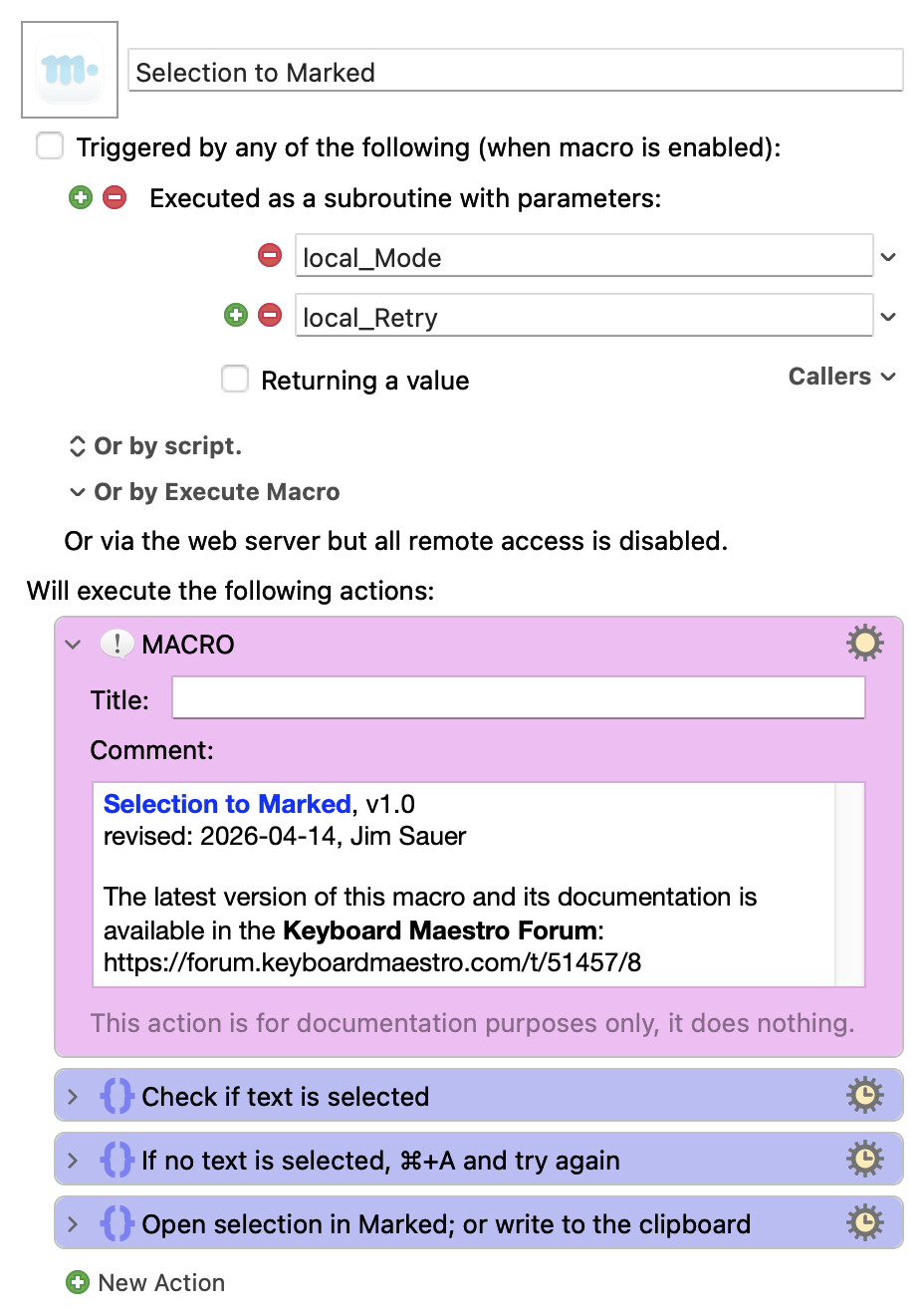
When I'm using snippets of text as mentioned above, the content is often markdown and generally I want to preview the markdown. For that, I created another simple macro that previews the markdown in Marked 2, an great utility app by Brett Terpstra.
This macro previews the selected text–or all text, if none is selected. Based on @kevinb's suggested workflow, I just added another tiny feature to the macro: it can now alternatively copy the same text to the clipboard (versus initiating the preview in Marked).
I’ve been trying this custom HTML prompt out and it’s been perfect for what I need. Well, almost perfect.
The only thing I would like to be able to do is to have the prompt window that KM produces to be truly modal. I can still switch to other apps, at which point the ESC key won’t dismiss the window, and I cannot switch back to it using keyboard. For me, speed using keyboard shortcuts is key. So, while having that prompt being modal is not for everyone, I’d love it if I can force it to stay on top until I dismiss it using ESC or CMD + ENTER.
Is there any way that I can force it to be modal? I could not see any option of that nature on the Custom HTML wiki page, but maybe there’s a wider thing that KM could use that might force it to stay on top?
No, it's just a window in an app. It can float (which it is), but it can't, by itself, block all other interaction. You could, in theory, maybe make a window as big as the display, but it'd still be movable.
But even a modal—like a Print dialog—doesn't prevent you from switching to other apps; it just blocks you from interacting with other windows in the active app.
You're looking for something that would be all-blocking, and not allow ANYTHING else to happen while it was onscreen?
EDIT: And if that is what you're looking for, you won't find an answer, even with a custom-built app. The "Mac way" is that no app can control the system. So while you could write an app that has a great input dialog that blocks anything else you want to do in that app, you're a simple mouse click or Command-Tab away from having full control over whatever app you switched to.
While you can't make it modal, you can switch to it using the keyboard. You could, for example, start the macro that produces the HTML window with an "if HTML window already exists then bring it to the front and then exit this macro" routine. This post should help you target the KM Engine and its windows
That’s an interesting suggestion, @frankb, but one problem with Stickies as a solution is that @Lloydi wanted to be able to dismiss the editor’s window with a key press (the escape key but let’s assume for now that ⌘W is acceptable), without saving.
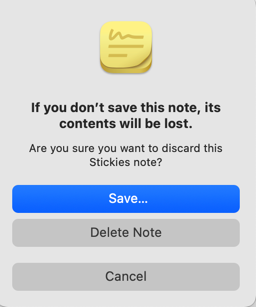
Under the version of MacOS that I am running (MacOS 15.7.5, Sequoia), closing a Stickies window that has just had text entered into it brings up this ugly and unnecessary dialog box (which also blights other applications—Apple, just go straight to the file selector! ):
And Apple didn’t even think to provide a ⌘⌫ shortcut, so one has to use the mouse to delete the note.
However, thinking along the same lines as Stickies, one could use Antnotes, which is available for free (and which has a cheap enhanced version too). It works like a more sensible and useful version of Stickies.
The relevance here is that when a note in Antnotes is closed (⌘W can be used), there is no prompting to save the note. It is automatically moved to the “archive”. Notes in the archive can be accessed in a panel that is brought up through the icon in the menu bar (only ) but there is also an option to “automatically delete closed notes older than month” which would suit this use case.
When I close a window, I no longer need its contents, so I delete it. I do this manually, but KM can certainly click the button too.
If I want to get a window out of the way but still keep it visible, I pin it (Cmd + Opt + F) and minimize it (Cmd + M). This can be reduced to a single shortcut mit KM.
Hi, @kevinb. Thanks for the suggestion. I'll check it out.
Hi, @Frankb You might want to also give Antinote a test run; I mentioned it above. It's really growing on me. It does cost $5 but includes a free trial period.
Double-clicking at the top of a note minimises it.
The reason I was interested in Antnotes was that, with the enhanced version, notes can be attached to applications; that is to say, one can have notes that only appear when a particular application is in the foreground.
Antnotes is not actually a program that I use very often at all, but it is good at what it does.



 ):
):

 ) but there is also an option to “automatically delete closed notes older than month” which would suit this use case.