Faster-Responding Multi-Taps

When I have a macro with a hot key trigger, at times, I like to use two taps, three taps, and/or long pressed for alternate behavior of the same macro.

For example, suppose you have four palettes of macros that you want to use with a macOS application. One macro could be configured with four Show Palette of Macros actions; one press of the hot key could be used to display the primary palette, two presses to display the secondary palette, etc.

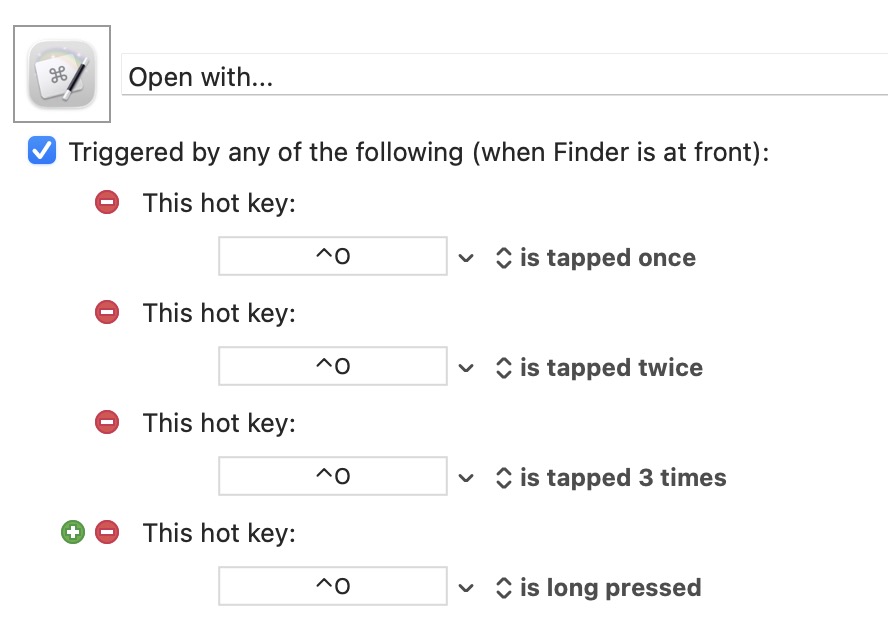
The above requirement can be achieved with hot key modifiers:

  • hot key is tapped only once
  • hot key is tapped only twice
  • hot key is tapped only 3 times
  • hot key is long pressed

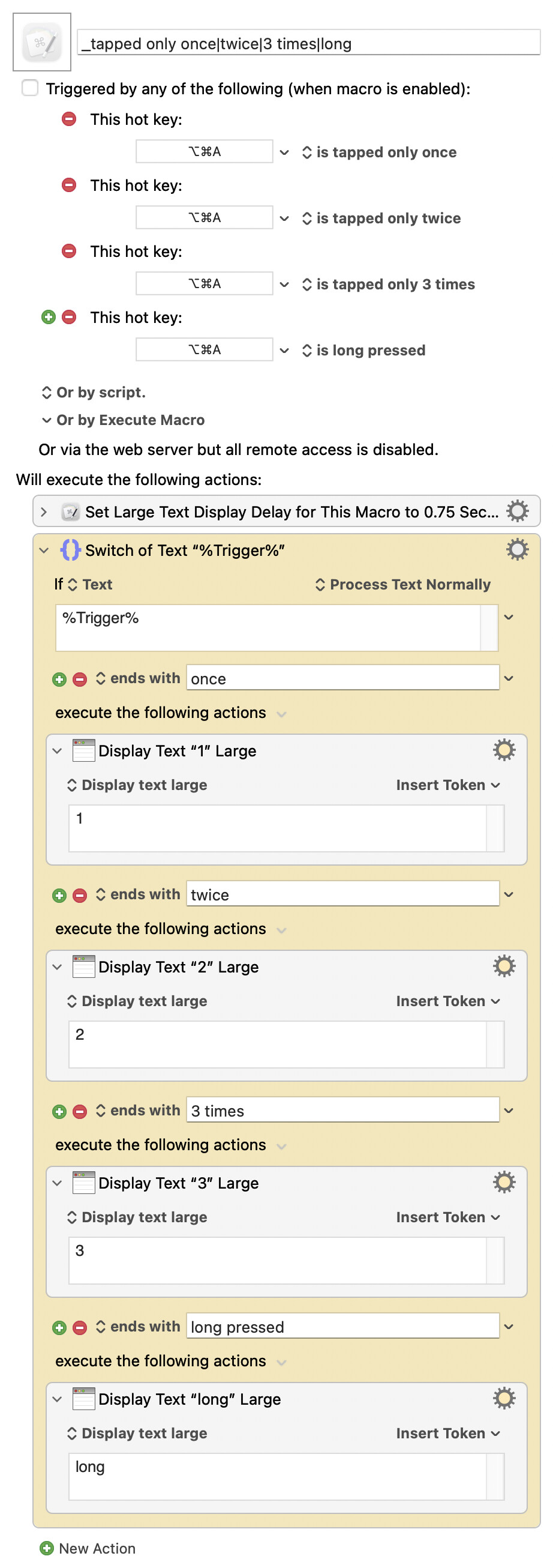
Here's an example macro with the above only hot key modifiers...


Download: _tapped only once|twice|3 times|long.kmmacros (5.1 KB)
Macro-Image


Macro-Notes
  • Macros are always disabled when imported into the Keyboard Maestro Editor.
    • The user must ensure the macro is enabled.
    • The user must also ensure the macro's parent macro-group is enabled.

System Information
  • macOS 26.1 (25B78)
  • Keyboard Maestro v11.0.4

Although the above approach works as expected, I find it non-ideal because the trigger response is somewhat sluggish.


With respect to multi-taps, the Keyboard Maestro wiki states...

... if you tab tap the key three times in quick succession, these triggers would happen:

  • is pressed

  • is released, is tapped, and is tapped once.

  • is pressed

  • is released, is tapped, and is tapped twice.

  • is pressed

  • is released, is tapped, and is tapped 3 times.

Due to this concurrent triggering, the faster-responding hot key modifiers (tapped once, tapped twice, and tapped 3 times) cannot be directly applied.

However, I've found that I’m able to use the native triggers if this short group of actions is inserted at the top of the macro, I've been able to achieve the requirements with snappier responses.
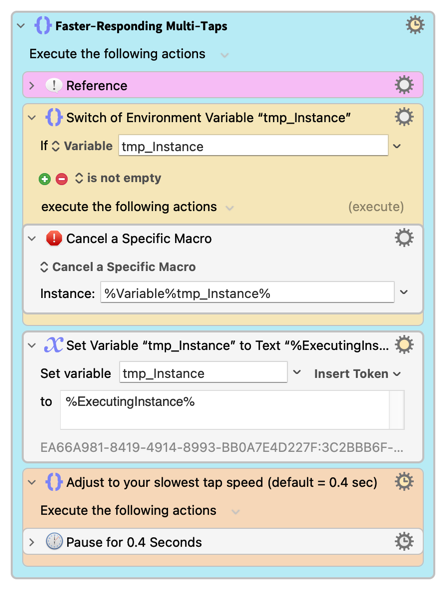
Like with any group of actions, you can easily add this to your Favorite Actions (Actions > Add to Favorites).


Here's an example macro...


Download: _tapped once|twice|3 times|long.kmmacros (9.5 KB)

Macro-Image


Macro-Notes
  • Macros are always disabled when imported into the Keyboard Maestro Editor.
    • The user must ensure the macro is enabled.
    • The user must also ensure the macro's parent macro-group is enabled.

System Information
  • macOS 26.1 (25B78)
  • Keyboard Maestro v11.0.4

This might seem like an insignificant benefit, but if you compare the two example macros, I think you will find the difference to be substantial.


2025-11-17 Update

As @Zabobon mentioned below, these actions can be moved to a subroutine and then called from a macro. Here's how that goes...
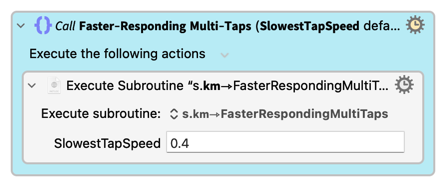
A SlowestTabSpeed of 0.4 seconds is a good setting for most. But if you can comfortably issue the multi-taps more rapidly, then 0.3 might be preferred as the response will seem even faster. (Note that SlowestTabSpeed is the time between taps, not the total duration for all taps.)


Here's the subroutine...

Download: s.𝗸𝗺⇾FasterRespondingMultiTaps.kmmacros (4.4 KB)
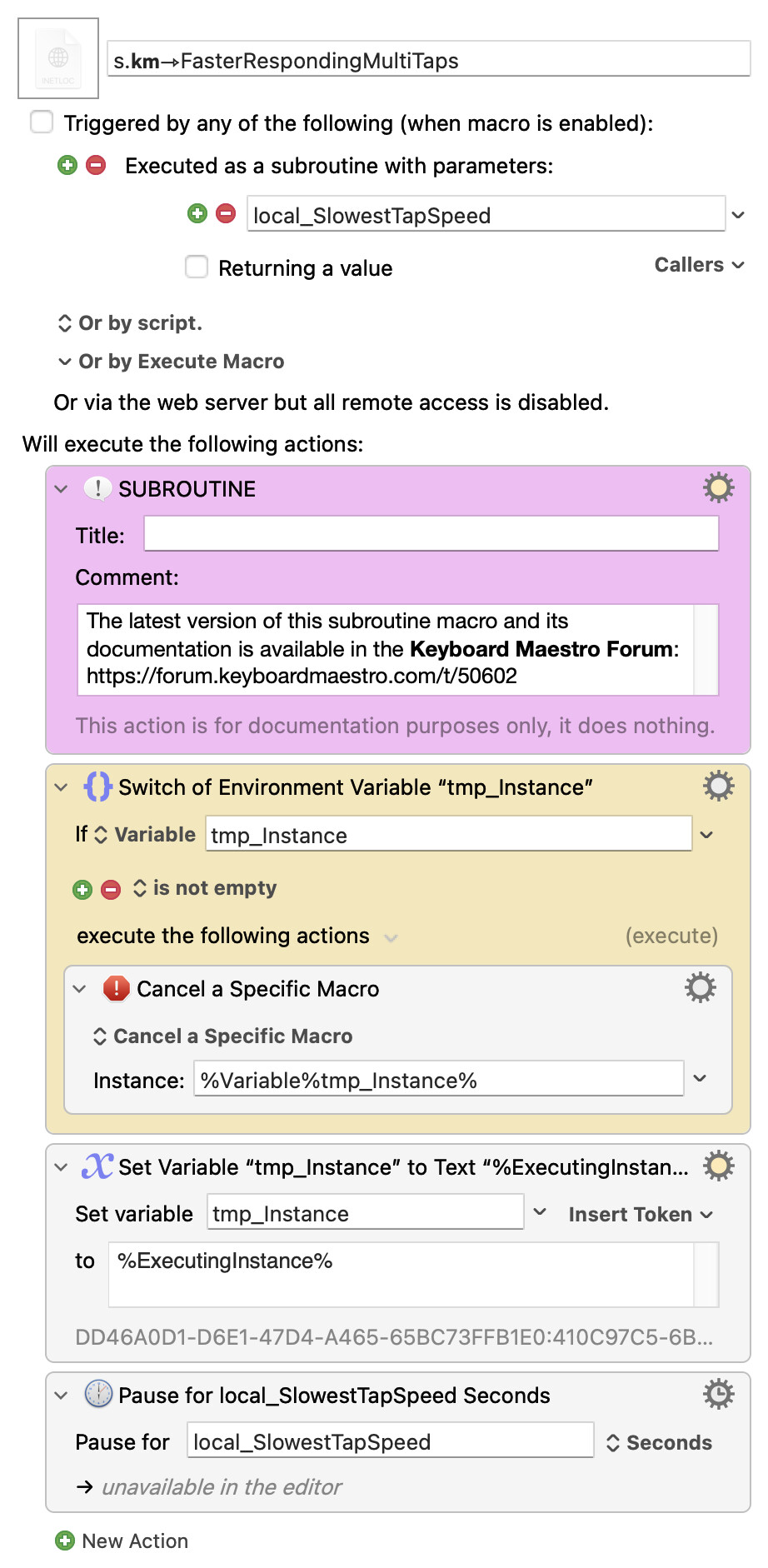
Macro-Image


Macro-Notes
  • Macros are always disabled when imported into the Keyboard Maestro Editor.
    • The user must ensure the macro is enabled.
    • The user must also ensure the macro's parent macro-group is enabled.

System Information
  • macOS 26.1 (25B78)
  • Keyboard Maestro v11.0.4

An an example caller...

Download: _tapped once|twice|3 times|long (via Subroutine).kmmacros (6.2 KB)
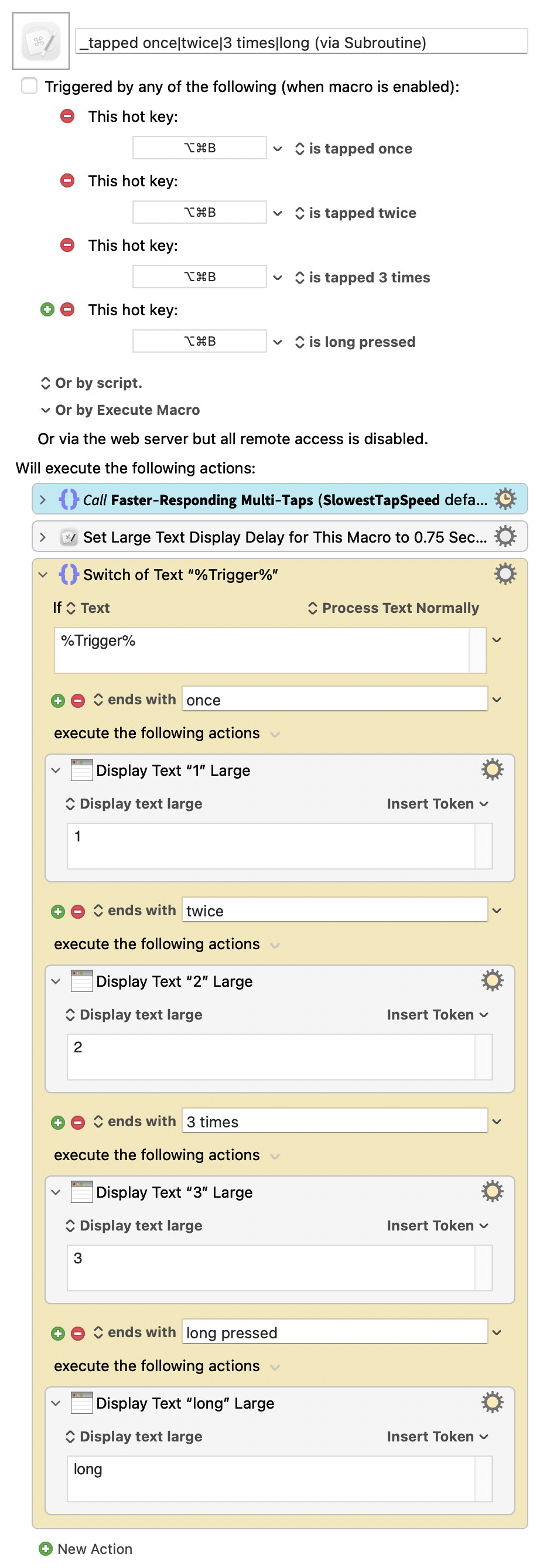
Macro-Image


Macro-Notes
  • Macros are always disabled when imported into the Keyboard Maestro Editor.
    • The user must ensure the macro is enabled.
    • The user must also ensure the macro's parent macro-group is enabled.

System Information
  • macOS 26.1 (25B78)
  • Keyboard Maestro v11.0.4

4 Likes

nice,

Is it possible to make the long tap display the text (or perform the ‘long’ action) after a set period of time and not have to wait until the trigger is released?

cheers

1 Like

Hi, @troy. I think the native long pressed modifier is always triggered on release, but there are ways to roll your own. Check out this thread: How do you configure the long press time?

Also, I think you could also use Karabiner Elements or BetterTouchTool.

This is really good! I have made it into a Subroutine and it seems to work just as well:

2 Likes

What’s the subroutine look like in full Zab? Basically, with the Slowest Tap Speed part. For us subroutine rookies. :slightly_smiling_face:

1 Like

Thanks, @Zabobon. I thought to do that, but then forgot (maybe because the action count is fairly low). But now that you've mentioned it, I'll add a subroutine and subroutine call to the OP.

2 Likes

Good stuff @_jims and @Zabobon!

Love this stuff!

Thanks for sharing,

KC

2 Likes

Yes, there's maybe not a huge advantage of having it as a subroutine as the Switch Case action anyway has to be added to any new Macro that uses your technique. Making a template Macro that contains all the elements is probably the way I will go. But the nice thing about sub routines is that if you ever make a tweak to the method in the future only the single sub routine Macro needs to be edited, not lots of Macros that use the technique.

I would just like to add that this method of yours makes these multi-tap triggers actually useable for me for the first time. So, a huge thank you for sharing.

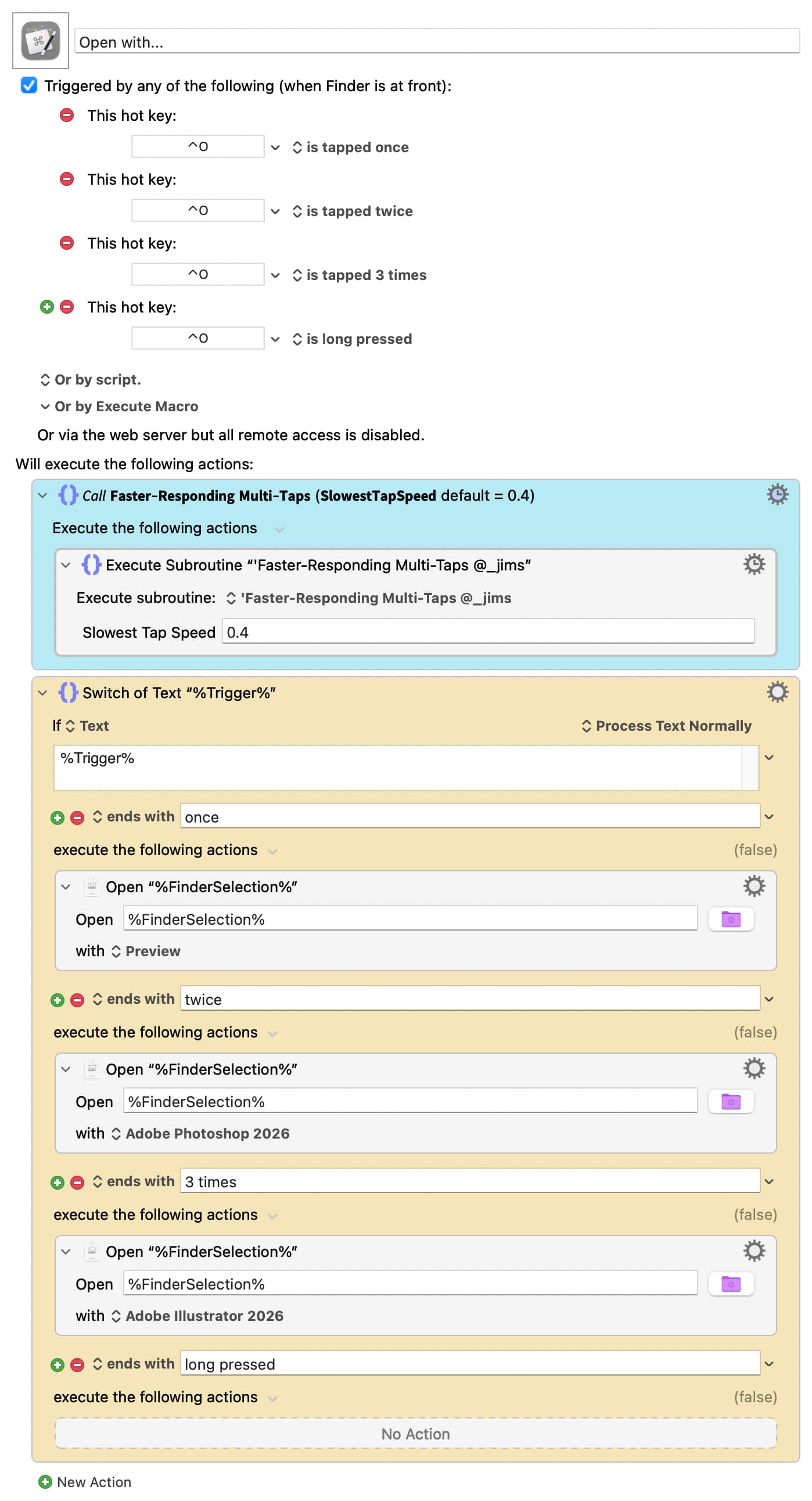
Just in case it inspires others, here is an obvious use from me - to open a selected file in the Finder with one of several Apps. I put this Macro in my Finder Group so that it is only active when I am in the Finder. I'm not uploading the actual Macro as each user would need to set it up depending on what Apps they have etc but the screenshot should make it clear how to replicate it.

1 Like

This is my go-to for multi-presses.

Does this new method have any advantages over it?

1 Like

Hi @noisneil - for me this method seems simpler to set up. The native Keyboard Maestro multi-tap never worked for me as it triggered multiple macros but now by adding @_jims's single group of Actions the native solution works and triggers as expected.

1 Like

Just wondering if it's any different in practice from the macro I posted above. Here's an example of that one in use:

It seems like this is easier to set up as you only need a press and a release trigger for access to every press type. It also works for KMLink Stream Deck buttons, MIDI triggers etc.

1 Like

Great. I will give it a try again. I think what I like about the solution here is that the triggers are set up as per normal and now just work as expected. I find this easier to understand and I think I'm more likely to implement for future macros.

3 Likes

Oh I see. So it's more of a fix to the existing native method. Clever!

2 Likes

Hi, @noisneil. I suspected you'd chime in; and I'm glad you did!

Somehow I missed that you had moved the logic to a subroutine. Apparently I'm using an older version that includes in-line actions. At times I've found that version to be bit finicky and I've mistakenly triggered the wrong option. (Disclaimer: It's possible that it's been operator error; I've just never taken the initiative to dig into it.)

But now...

I've downloaded the currently posted version of your subroutine (specifically for Hotkeys & USB Device Keys) and tried it out. It seems rock-solid!

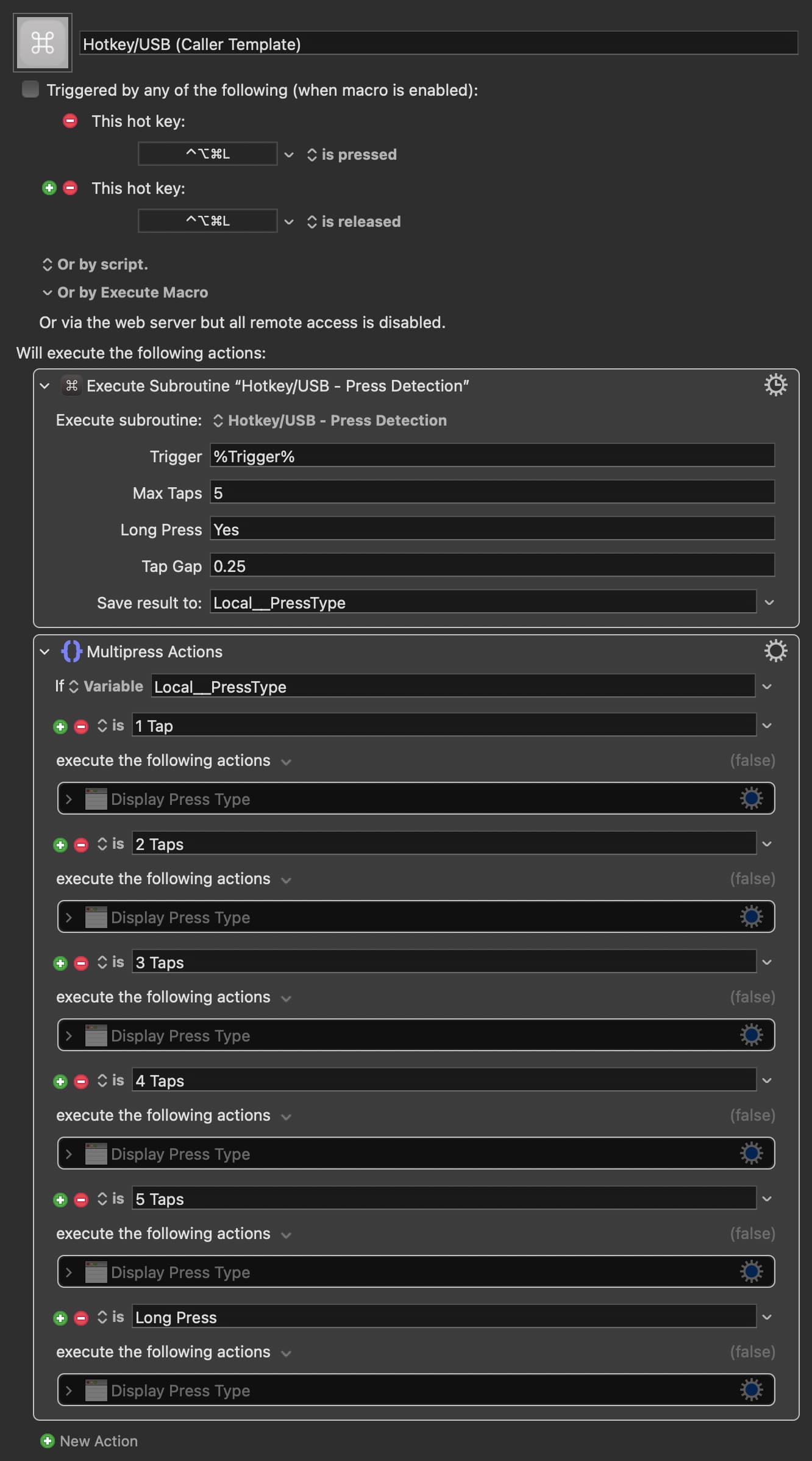
For comparison with what I've shared above, here's a calling macro for your Hotkey/USB - Press Detection subroutine.


Download: _tapped once|twice|3-5 times|long (via @noisneil's 'Hotkey-USB - Press Detection' subroutine).kmmacros (6.1 KB)

Macro-Image


Macro-Notes
  • Macros are always disabled when imported into the Keyboard Maestro Editor.
    • The user must ensure the macro is enabled.
    • The user must also ensure the macro's parent macro-group is enabled.

System Information
  • macOS 26.1 (25B78)
  • Keyboard Maestro v11.0.4

It is if you use @noisneil's subroutine.

Same as this, right?

1 Like

Yes, just wanted to show it here for comparison sake.

I've found that the only triggers can be made more responsive if the MaxTapUpTime preference is adjusted using Terminal. For example:

defaults write com.stairways.keyboardmaestro.engine MaxTapUpTime -float 0.3

@peternlewis, could the adjustment of MaxTapUpTime have some side effects?


Note that the preference MaxTapUpTime does not exist by default. If you experiment with it and subsequently decide that you want to delete the preference, you can use the following command:

defaults delete com.stairways.keyboardmaestro.engine MaxTapUpTime
2 Likes

I doubt it, that is what it's designed for.

If you make it too small, then you'll not be able to do things like double tap since the single tap will fire instead.

2 Likes

Interesting. So, presumably to achieve the same adjustment as the original post you would use "-float 0.4" ?

Trying this out myself I still find that using your original extra Action in combination with "tapped once" "tapped twice" etc (i.e. solution in your first post) gives a faster response.

When I tried 0.3 I thought the response was very comparable. YMMV.

Overall, however, I think it is hard to beat the latest version of Multi-Press Macros, by @noisneil.

I can think of one scenario that might make the technique I shared above a good option. Suppose you are sharing a macro with users that are very inexperienced Keyboard Maestro users. For them there might be friction setting MaxTapUpTime or installing a supporting subroutine.

2 Likes