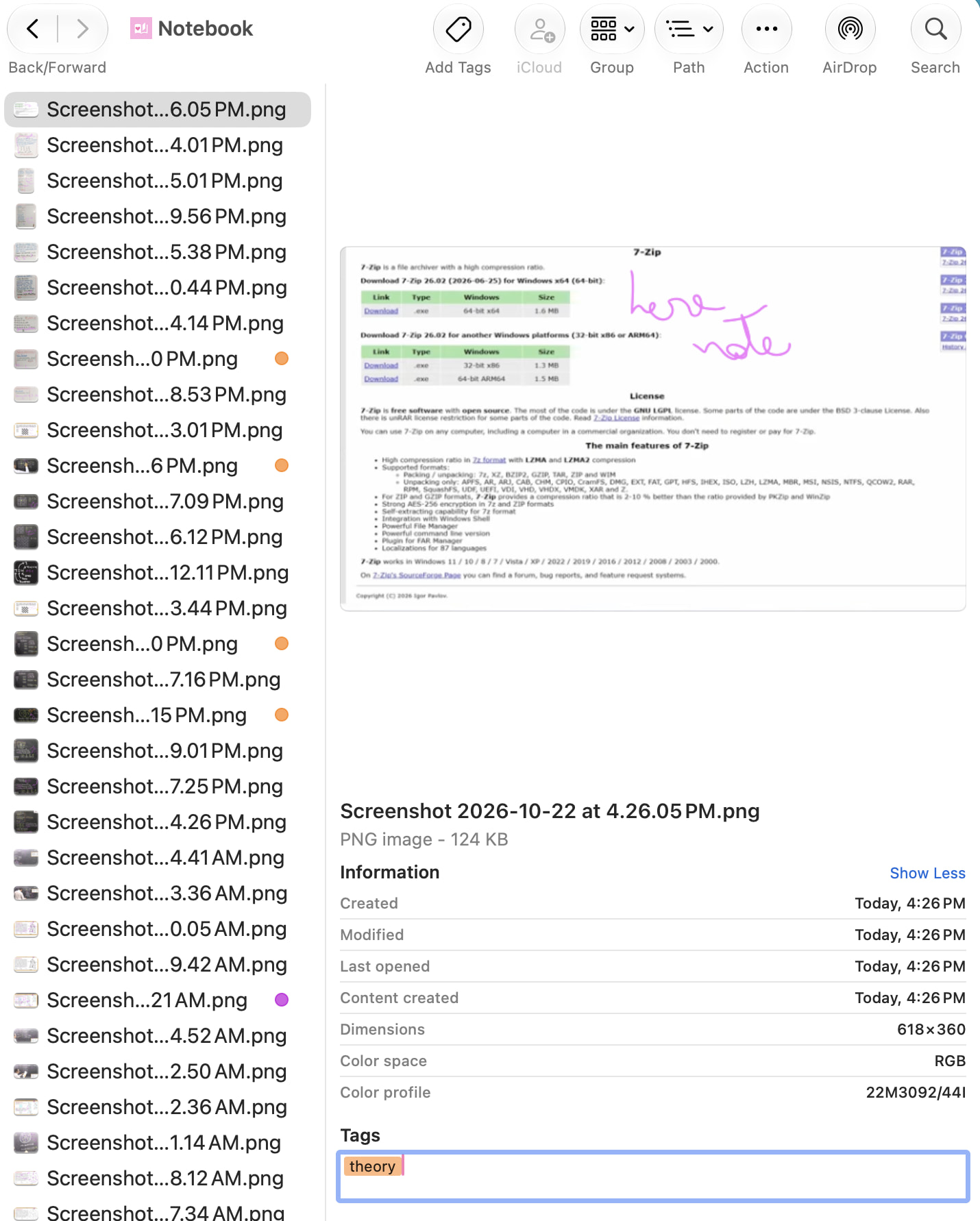
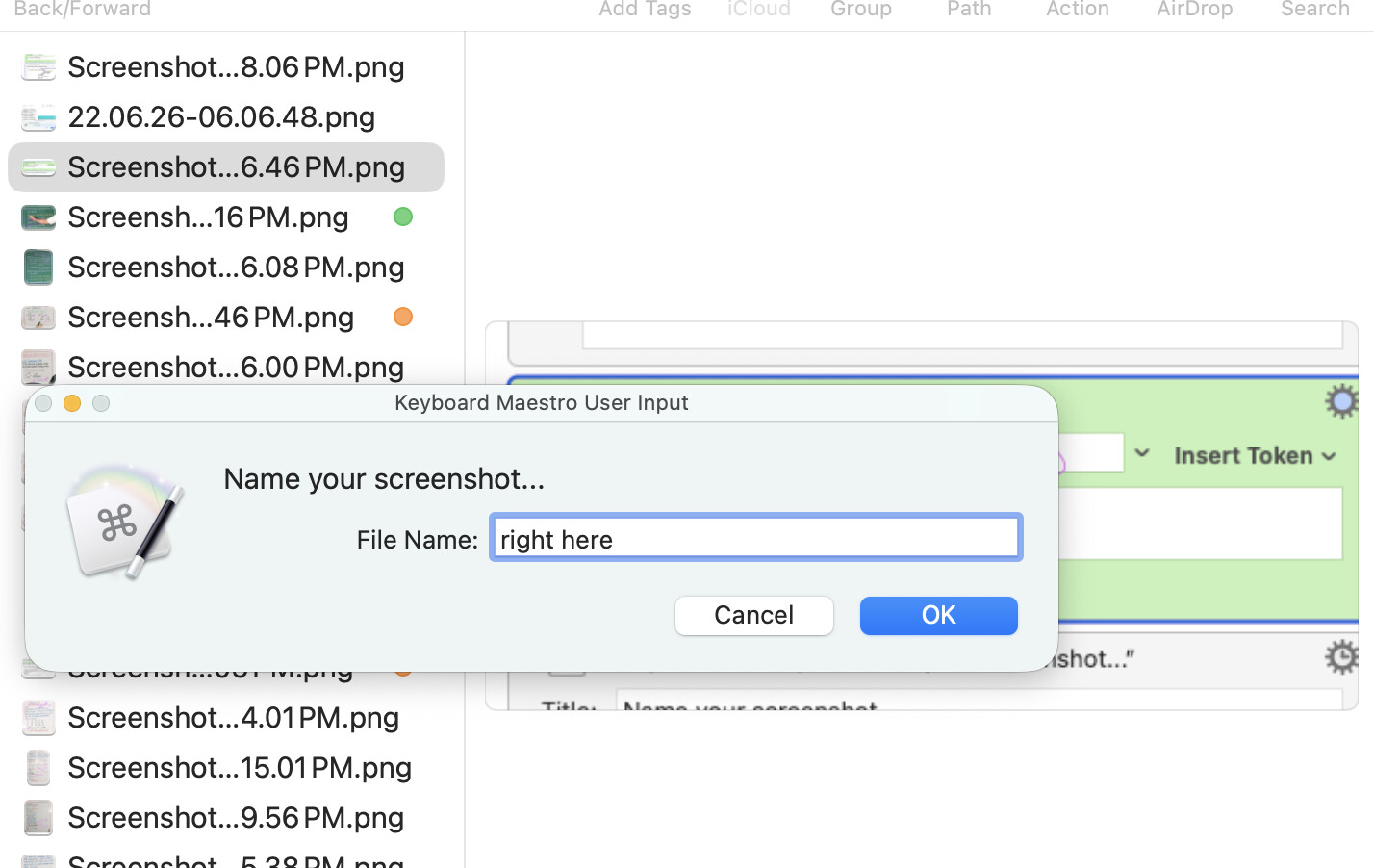
I scribble and when saving it. It automatically names itself with the time and date when the screenshot was taken, is there a way to name it before it saves or shall it be afterwards. Current folder looks like this with all my screenshot
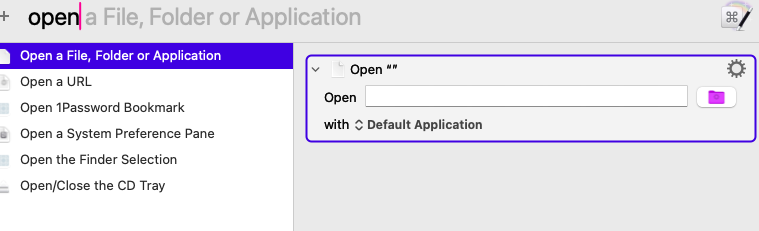
If I want to change the name of my note, i gotta do it manually, any tips on an easier method? Mainly heard about open folder, but that's as far as Im aware.
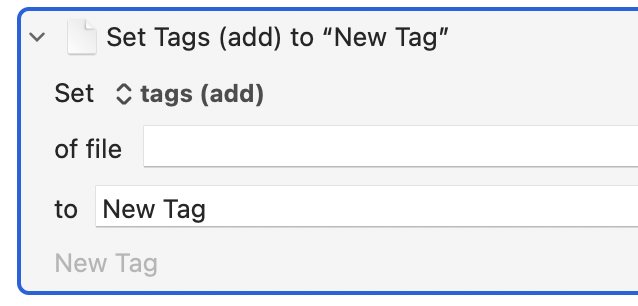
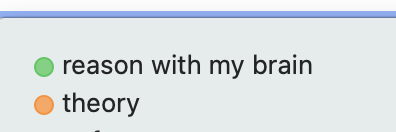
Also, how to automatically use a tag on said screenshot. You can see I got some orange dots/tags on some screenshots, those are classified as "Theory" - so I can get back to it quickly than surfing through all my notes.
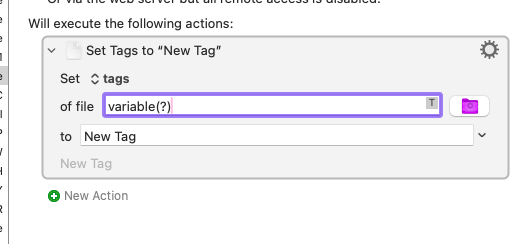
Thought about the action "Select at Image" but not sure...(?)
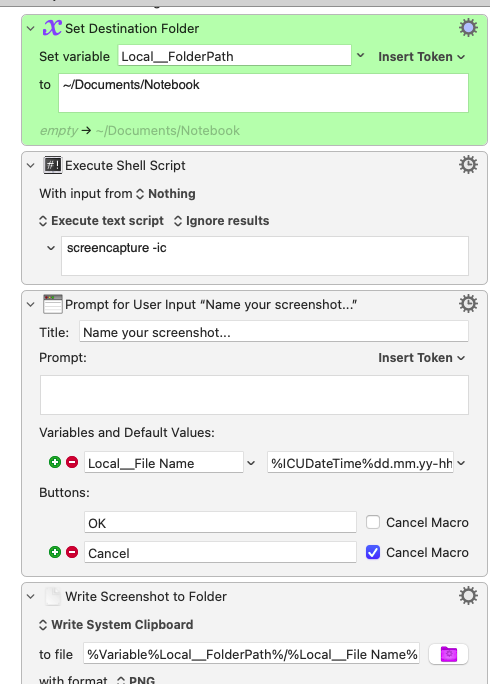
Issue: after I try to do my usual screenshot - scribble on it, the macros has not picked up my scrible and rather another duplicate and then naming that rather the one I'm trying to 1. name and 2. tag
and still a little lost for the tag action, shall I make a variable? Note: didnt add the tag action as I'm unsure on the first issue how to resolve it and then checking on the tag.
I was going to ask if you wanted this to work with the previous "move window" macro...
You've a few problems here:
The file isn't saved until you click the "Done" button in the screenshot editor
It can take a moment for the file to be written to disk
The time stamp in the file's name is when you release the mouse button after dragging out an area
All of which means we can't infer the file name from any of our macro's Actions. And if we don't know the original name we can't change it.
The easiest (though not 100% reliable -- DUCY?) way around this is to:
Grab the number of files in our target directory that start with "Screenshot"
Initiate the screenshot process
Pause until the number of "Screenshot..." files has changed
Get the name of the most recent "Screenshot..." file
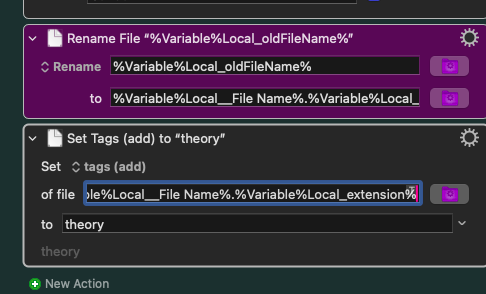
Use that to change the file name
I had to disable two of your Actions and replace them with my own -- disable my green "Keystroke" and "Set Destination Folder" Actions, enable your versions.
The six extra Actions needed for 1-5 above are the magenta ones.
Have been working with it thus far, this is so awesome!
Yep, already modified it for my specific keystroke and folder where I would like the screenshots to go to.
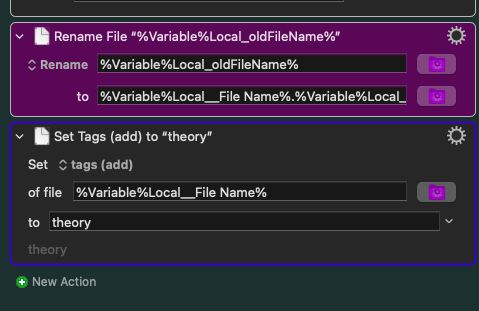
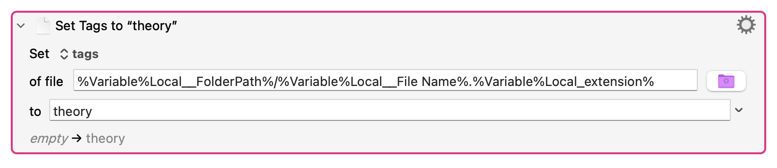
Have been trying to figure out how to add tags to it too. Rob suggested this action while I thought adding the "final variable" of the final renamed screenshot would work but I'm again lost
I have tag: theory and would like to get it assigned to said renamed screenshot
You have the file's parent folder -- it's your "Destination Folder" or Local__FolderPath. You have the new name -- Local__File Name -- and extension -- Local_extension.
So the complete path for your renamed file will be: