More likely my bad explanations! So...
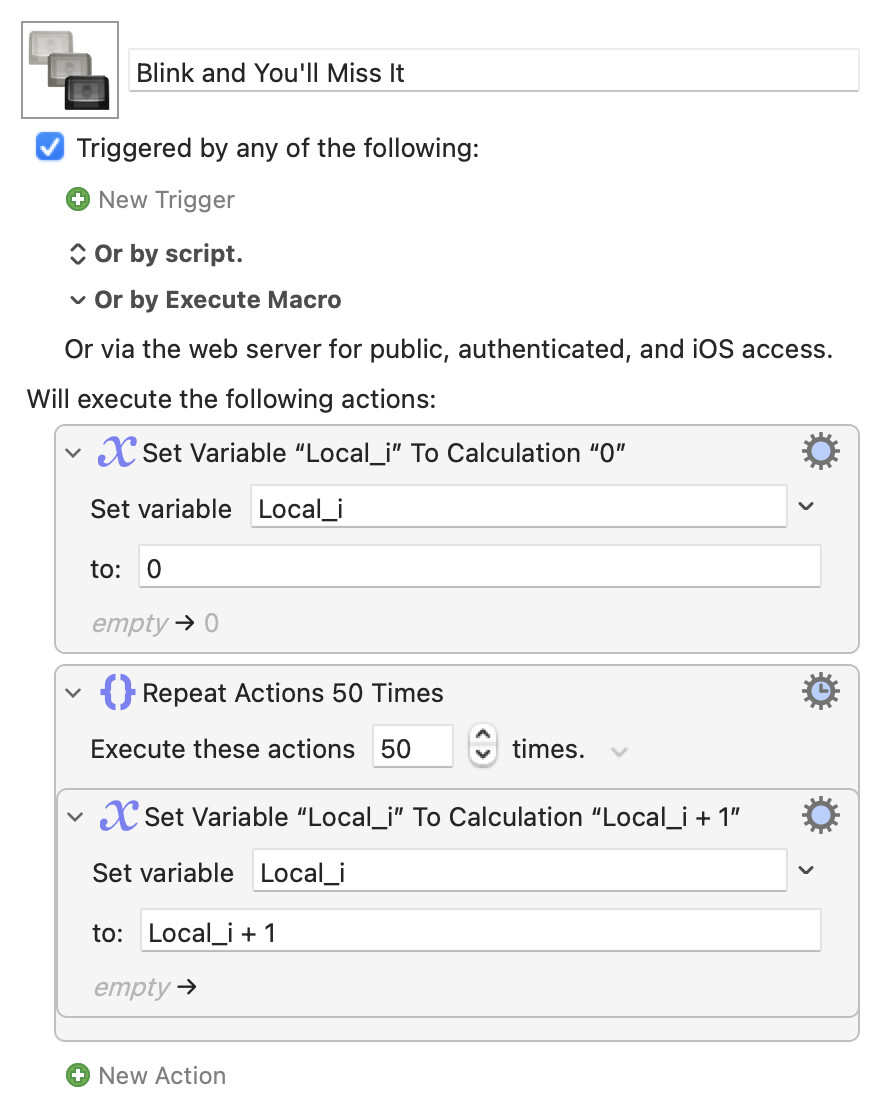
Note: All these demos will use "Pause" actions as stand-ins for "here's one or more actions that will take some time to complete". Without the pauses, progress dialogs for fewer than 100 loops are very much blink-and-you'll-miss-it, as this shows:
Blink and You'll Miss It.kmmacros (2.1 KB)
Image
There are two ways to use KM's "Display Progress" dialog during your macros:
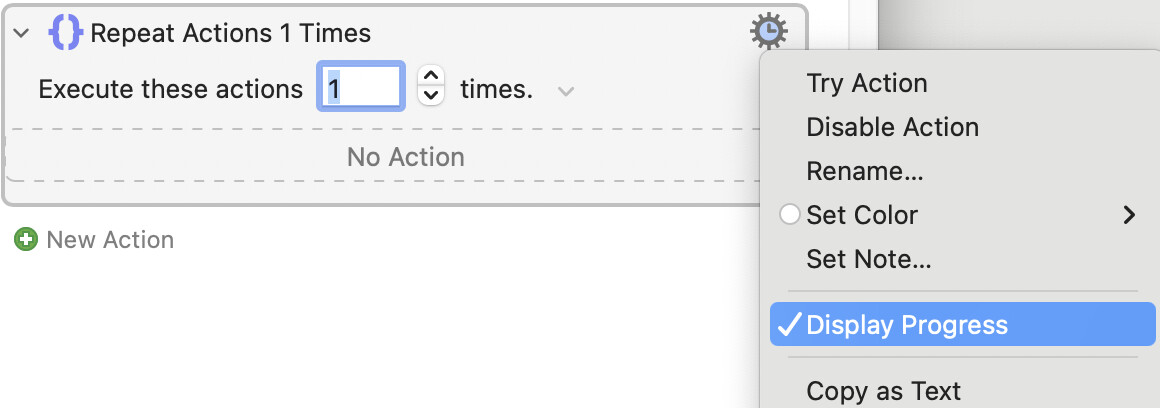
- Automatically, using the "Repeat" or "For Each" actions' built-in "Display Progress" option:
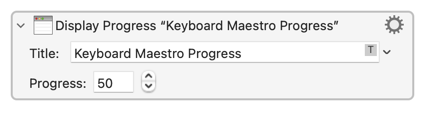
- Manually, using the "Display Progress" action:
Automatically
This does the work for you, and is most like other progress bars for Finder copies etc.
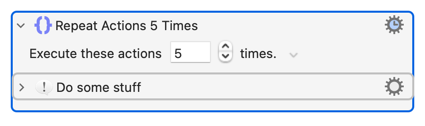
At the start of the "Repeat" or "For Each" action the "expected" number of loop iterations is evaluated -- the number, variable, or calculation for a "Repeat" or the number of items in the gathered Collection for a "For Each". Call that n, so for
...n is 5.
Since progress starts at 0% and is complete at 100%, each iteration of the loop advances progress by 100/n. So our example progress bar will be set to 20% complete after the first time through the loop, 40% after the second, etc
More generally: At the end of iteration i of the loop the progress bar will be set to 100/n x i
The progress dialog is closed when "Repeat" or "For Each" action completes, either because every repetition has been performed or because the looping action has been stopped with a "Break from Loop" or the entire macro has been cancelled.
Have a play with this demo to see all the above in action, enabling/disabling the "Break" and "Cancel" actions to see different behaviour:
Auto Progress Demo.kmmacros (4.0 KB)
Image
Notice how the progress bar never reaches 100%, because a value of 100 closes the dialog.
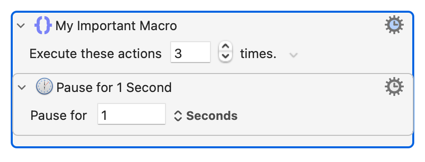
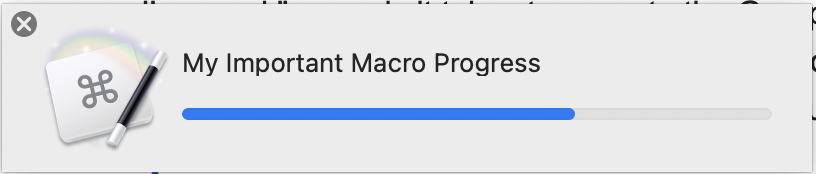
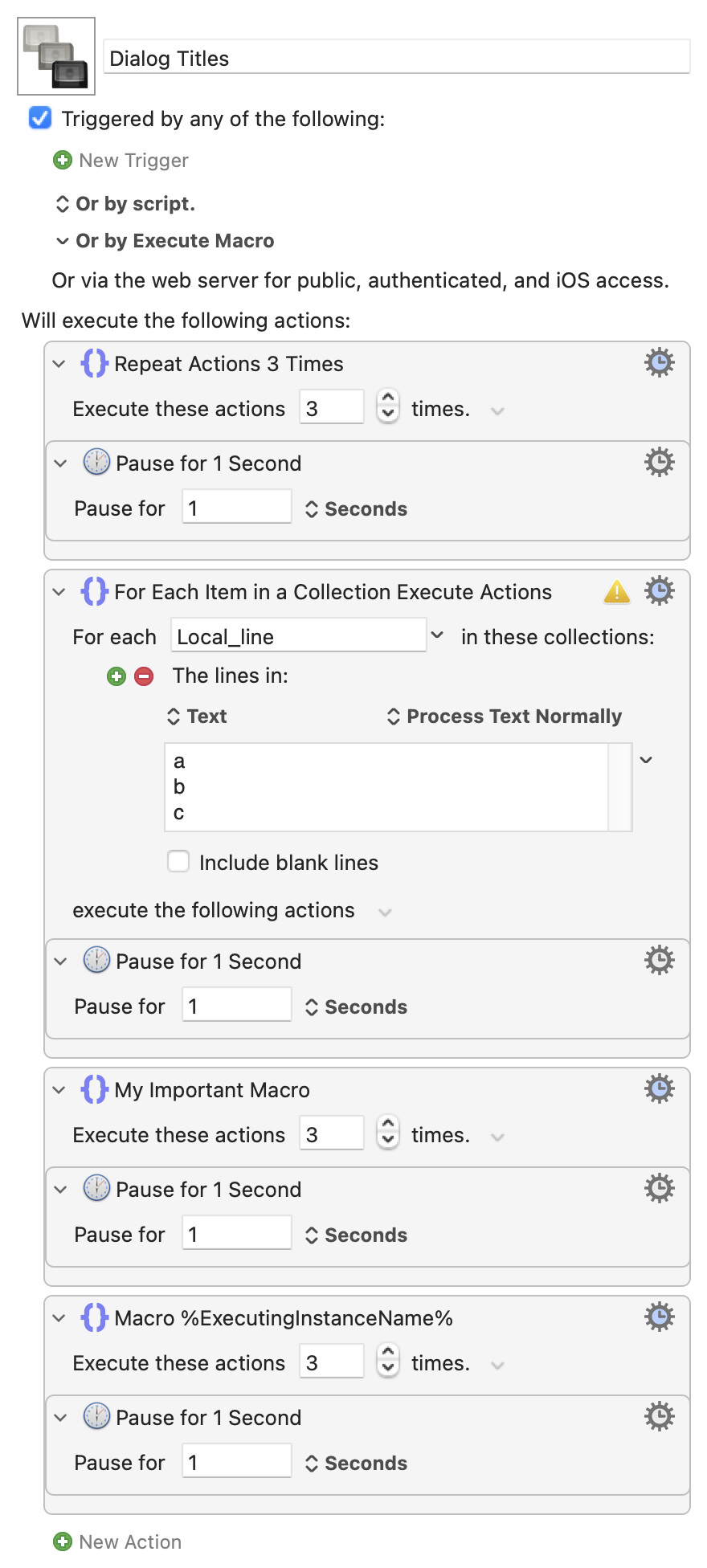
The dialog title will be "Keyboard Maestro Repeat Progress" or "Keyboard Maestro For Each Progress" unless you rename the action and then the title is "<actionName> Progress":
Demo: Dialog Titles.kmmacros (4.0 KB)
Image
Notice that you cannot use text tokens in the action name to customise the title at runtime.
Manually
You can use the "Display Progress" wherever in your macros you want to display or update progress. The length of the progress bar depends on the evaluation of the action's "Progress" field -- that's a "Numeric" field so can contain numbers, functions, variable tokens, calculations...
There are three number ranges you can use:
0...99 (actually 99.999996 or something  ) to set the percentage completion shown by the bar
100+, which closes the dialog since progress has completed<0, i.e. any negative number -- while the Wiki states "the progress will display an indeterminate value" what you currently get is a rather natty back-and-forth of the bar:
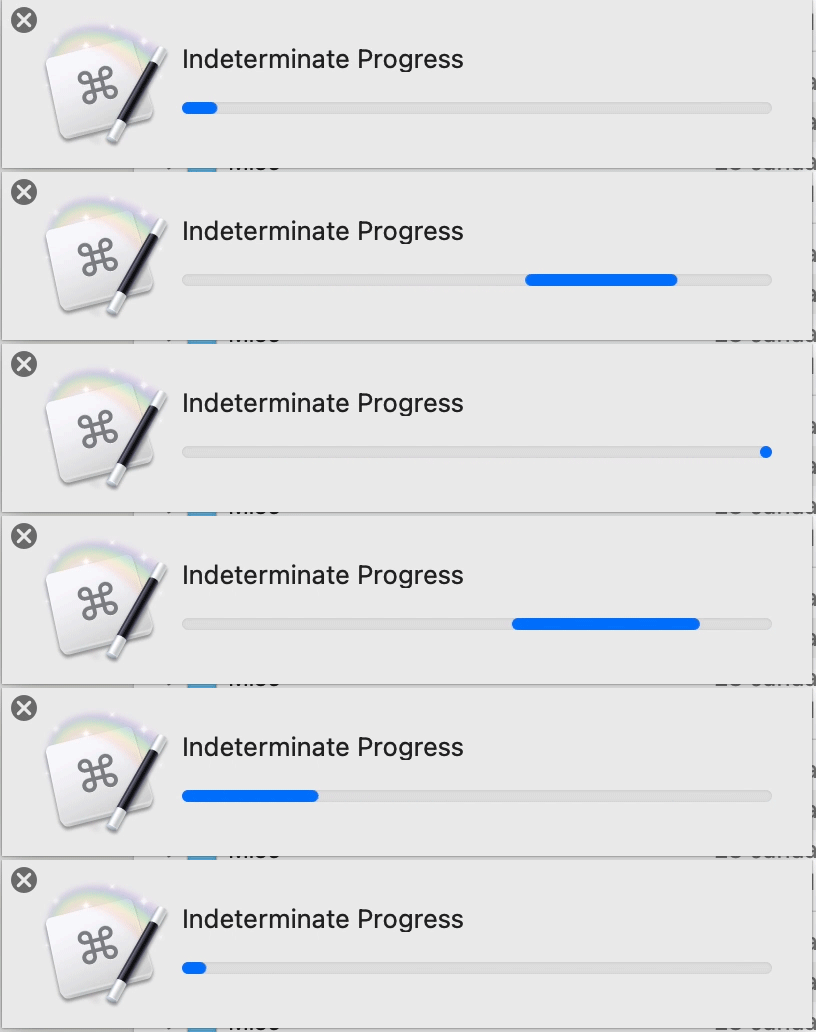
...which can be useful when you want to show something is happening but have no idea how long it will take.
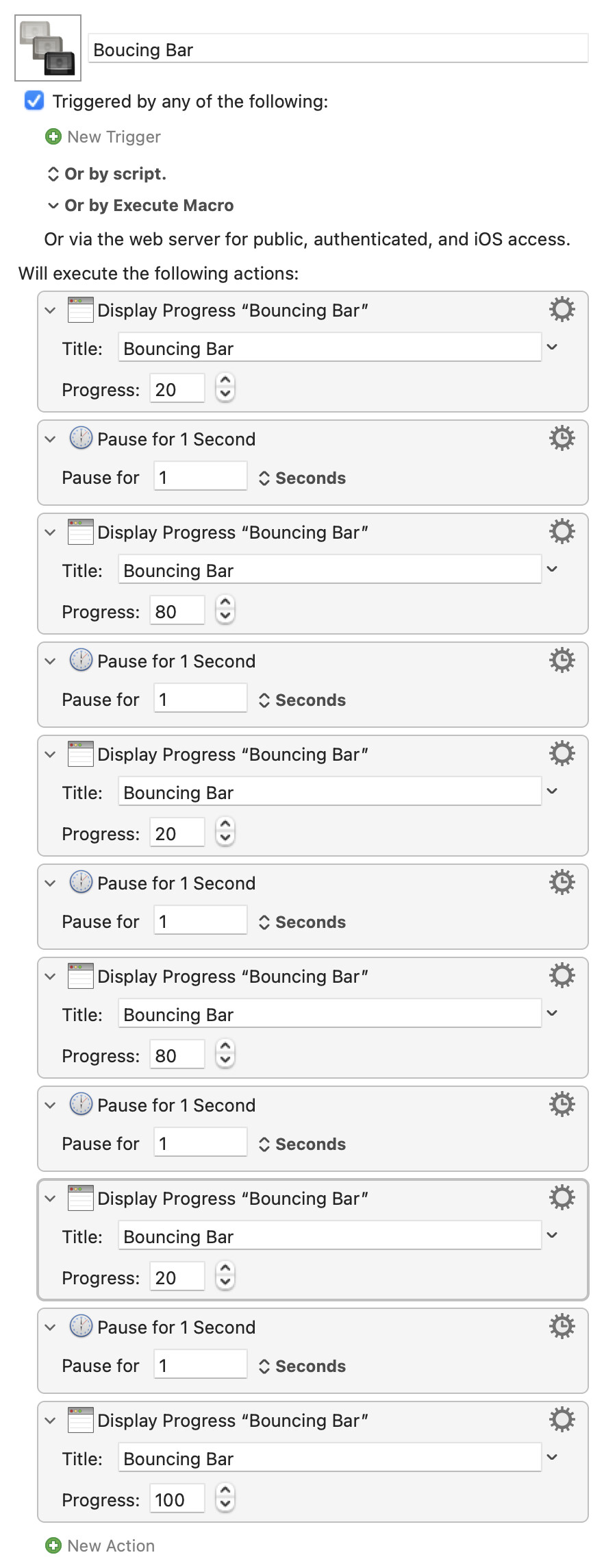
Since you can set the bar to any value you want there is no need to "progress" as the "automatic" bar does, you can forwards and back as you want:
Boucing Bar.kmmacros (3.8 KB)
Image
...although more usually you would indicate progress in the normal way:
Hardcoded Progress.kmmacros (3.4 KB)
Image
Notice that when "Progress" is set to 100 the dialog closes. And it doesn't close until progress has been set to 100, even if the macro has finished -- disable the last action of the above macro to see that. (The user can still close the dialog manually, of course.)
So the upsides of the "Display Progress" action are that you can display a progress dialog whenever you want, set to whatever you want, with a title determined at runtime. The downside, compared to the "automatic" version, is that you have to add the action and supply the information! And that's where a knowledge of KM's Tokens, Variables, Calculations (and maybe Functions) comes in.
The three common ways of setting progress are
- Hard-coded
- Incrementally
- Absolute
Hard-coded we did above, in the "Hardcoded Progress" macro. You decide how much progress to show at each point when you write the macro.
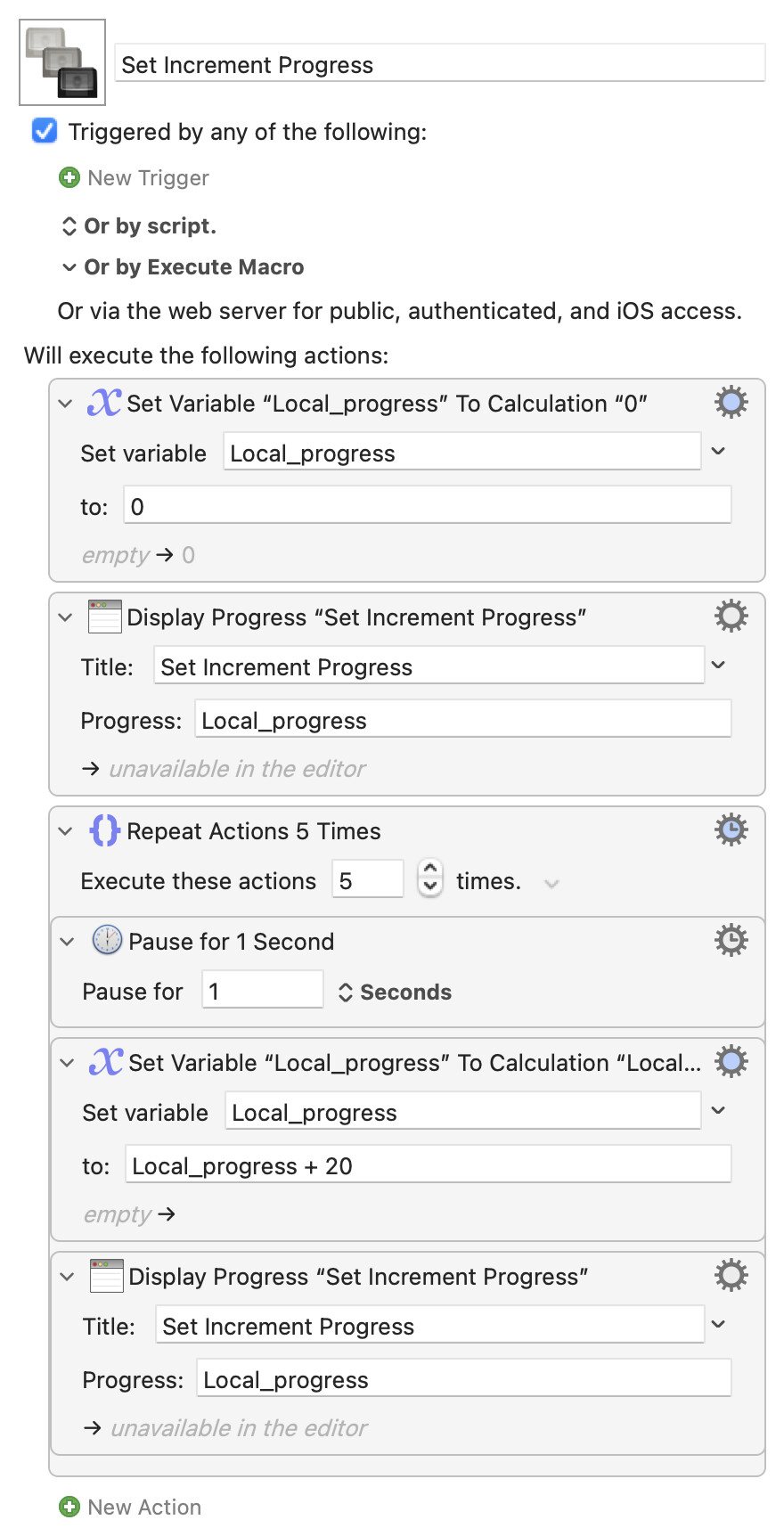
Incrementally is "get whatever the progress was, add a bit, use the new value". If you know the number of repetitions expected you can hard-code the increment:
Set Increment Progress.kmmacros (2.9 KB)
Image
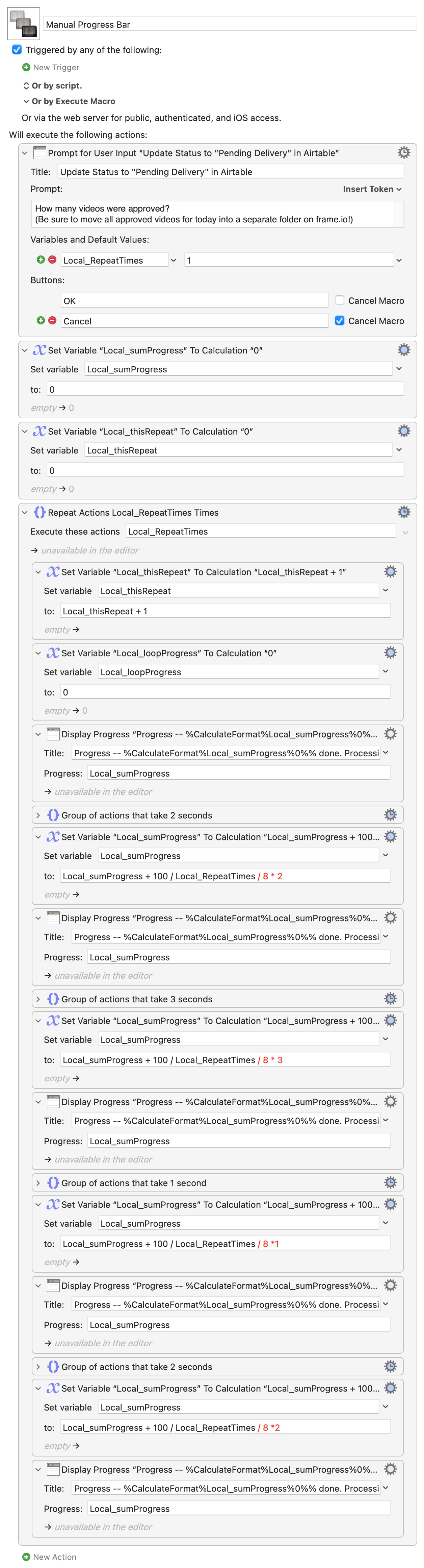
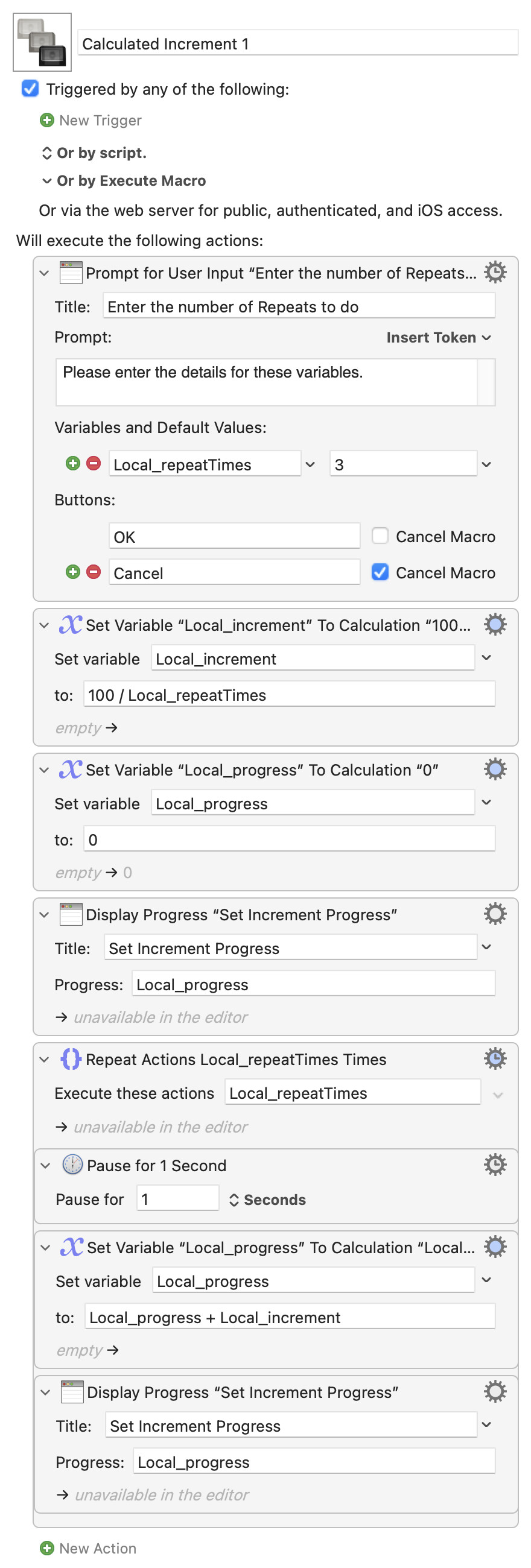
If the number of repetitions can vary, as with your macro where you ask the user, you can calculate the increment, either as a separate action after which you can add the calculated value as with the "Set Increment" macro:
Calculated Increment 1.kmmacros (4.2 KB)
Image
...or you can do the increment calculation in the "Display Dialog" action's "Progress" field:
Calculated Increment 2.kmmacros (3.9 KB)
Image
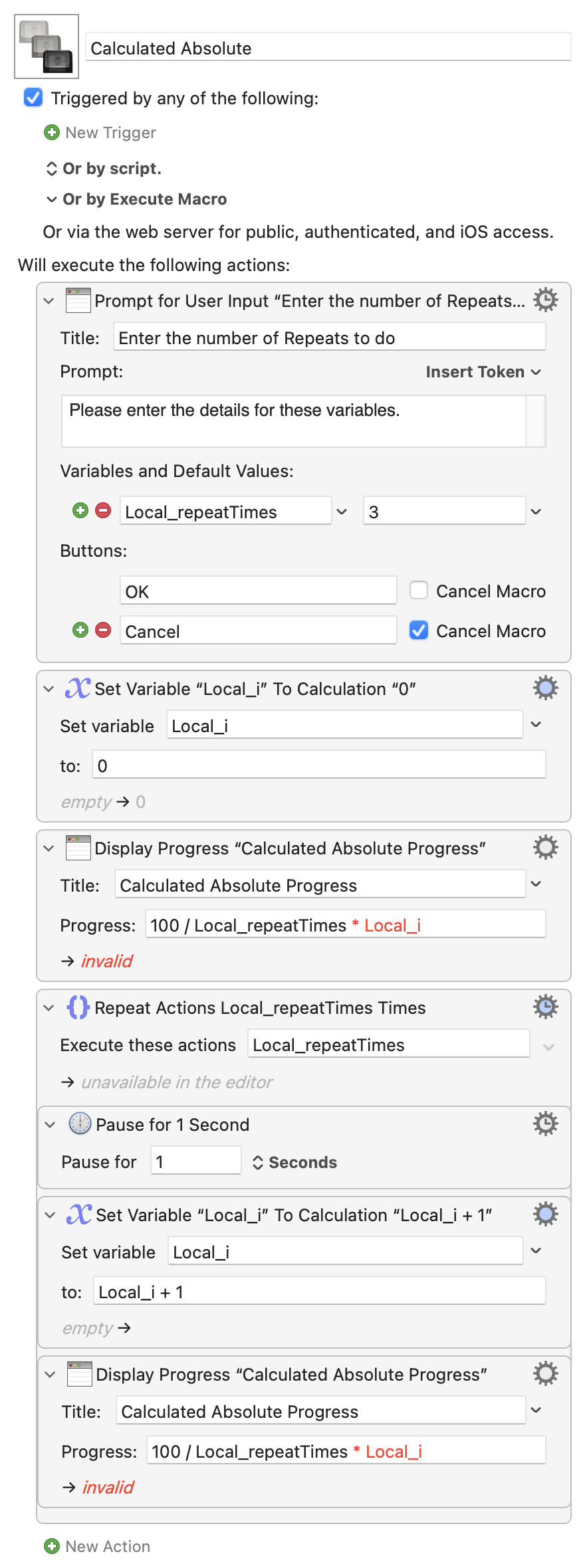
Absolute is where you calculate the absolute value of progress every time, generally using the 100/n x i formula mentioned earlier -- except you have to maintain your own count of i, the number of loops done:
Calculated Absolute.kmmacros (3.8 KB)
Image
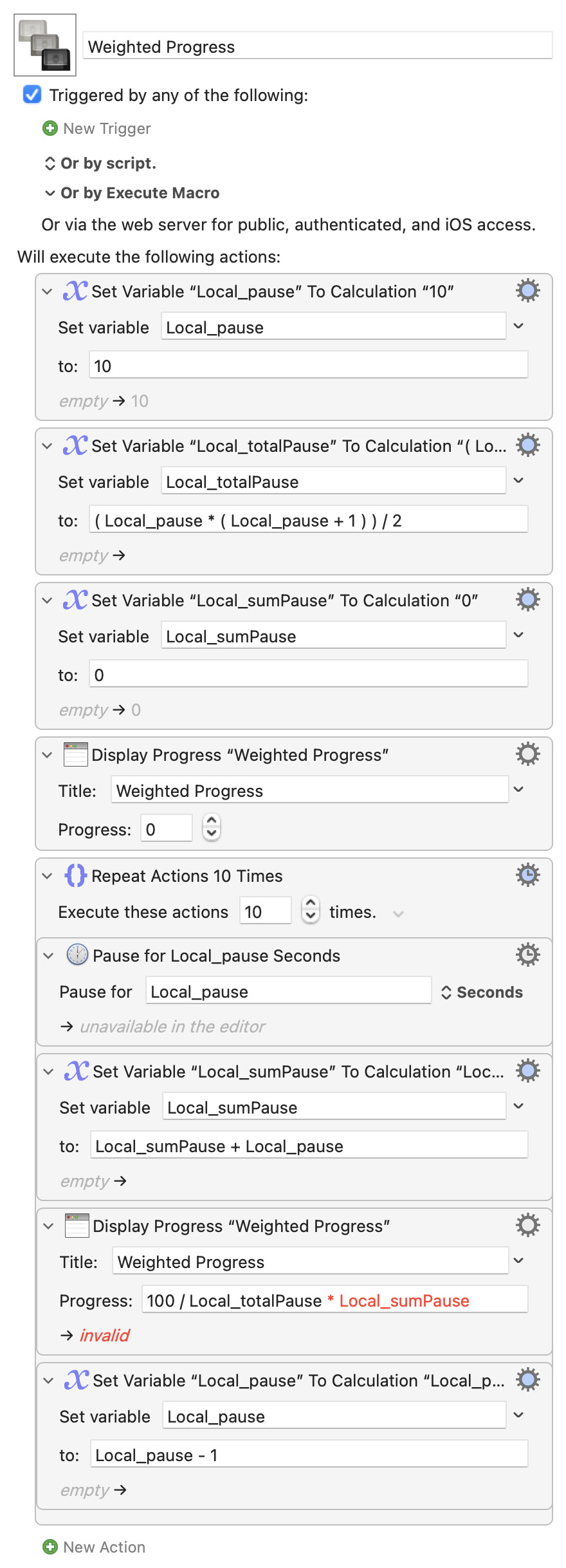
While that looks more complicated it can allow you to do some useful things, like displaying progress based on the time each loop is taking. Or something like this, which simulates repeatedly processing an ever-decreasing list where each loop would take less and less time -- the progress bar more accurately represents the proportion of work done rather than the number of loops completed:
Weighted Progress.kmmacros (3.9 KB)
Image
As you can see, you can make "manual" progress dialogs as simple as you want or as complicated as you need! And we haven't even covered using tokens in the "Title" field -- but that's just the usual Text Field rules.
Important!
There is only one "Display Progress" dialog at any time.
You can't have a progress dialog for Macro A and another for Macro B on screen at the same time -- the two macros will fight over the same dialog. After importing this set of macros, run "Main" for an example of what can happen:
Dualling Progress Macros Macros.kmmacros (6.6 KB)
The "automatic" progress display supercedes the "Display Progress" action.
As soon as a "Repeat" or "For Each" action's optional "Display Progress" dialog is invoked, that action has control of any progress dialog. Again, import this Group and run "Main" for an example:
Progress Option Supercedes Macros.kmmacros (5.8 KB)
If you look closely (and you've a slow enough machine!) you'll see that Macro A does in fact update the dialog but Macro B quickly overwrites it -- the action refreshes its optional progress dialog way way more frequently than "once per loop". To really see this, try setting Macro A's "Display Progress" action's "Progress" field to 100 -- the dialog will close and almost immediately reopen.
So while progress displays are useful feedback to the user, be careful not to use them too often -- particularly in situations where they might clash, like sub-macros and subroutines.
Wrap-up
Phew! That grew like Topsy...
Hopefully that'll give you some ideas on how you can use progress displays.
If there's one take-home I'd hope it's that using them can be very simple -- turn them on in the options for "Repeat" or "For Each" actions or call/update them with the "Display Progress" action.
You can make it very complicated, scattering tokens and calculations all over the place to customise your dialog at runtime, but that's not a requirement! And they're the same tokens and calculations, used in the same way, that you use throughout your other macros so your dialogs can get more complicated as your KM experience grows.
IMO, if you want to learn KM then nothing beats poking around. Take some of the macros above or write your own, move stuff around or change some values, see what happens, and work out why.
Addendum:
I hope you don't mind that I carried this on "in public". My belief is that any question asked on this Forum is also being asked by dozens of KM users who don't even know this place exists -- maybe some of them will web-search "keyboard maestro progress dialogs", stumble across this thread, and pick up something useful.
It also means that the various gurus on the Forum can leap in and publicly correct my (doubtless many) mistakes