Why not change your order of operations? The insertion point is always at the point you want immediately after you "Reply" to an email, so do that stuff first and whatever with reply's fields later.
Otherwise...
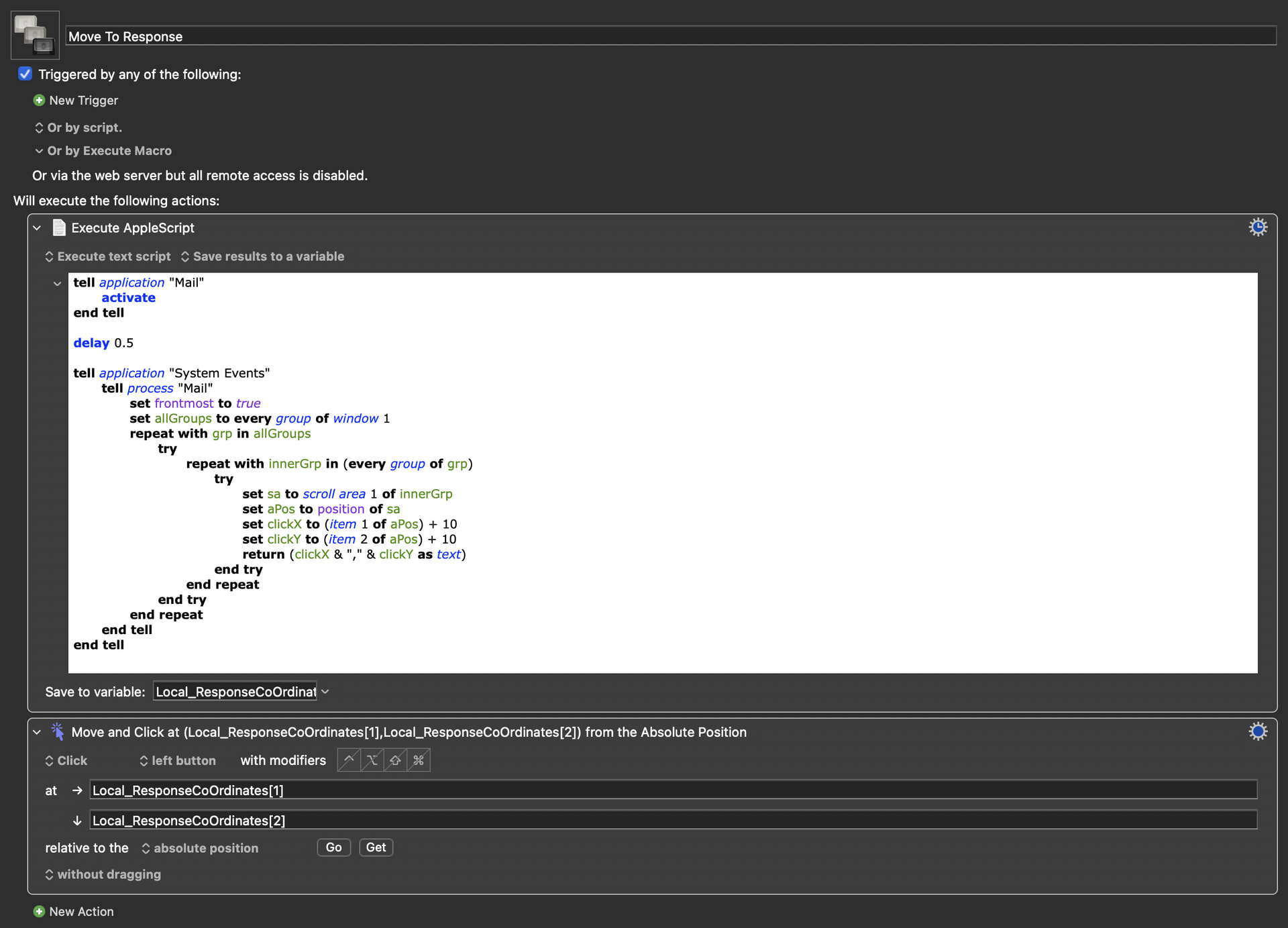
With "native" KM Actions, "Click at" just inside the bottom-left corner of the email window then "Keystroke: ⌘↑" to force the insertion point to the start of the reply's text.
Or run this -- tested on Sequoia but you'll probably have to change the element hierarchy for Tahoe (and with every OS update after that  )
)
tell application "System Events"
	tell process "Mail"
		set focused of UI element 1 of scroll area 1 of group 1 of group 1 of window 1 to true
	end tell
end tell
It does assume your reply is the frontmost Mail window...
I was going to reply with a definite "No" -- but Mail seems a bit weird... I don't know if this will work for you, but give it a go.
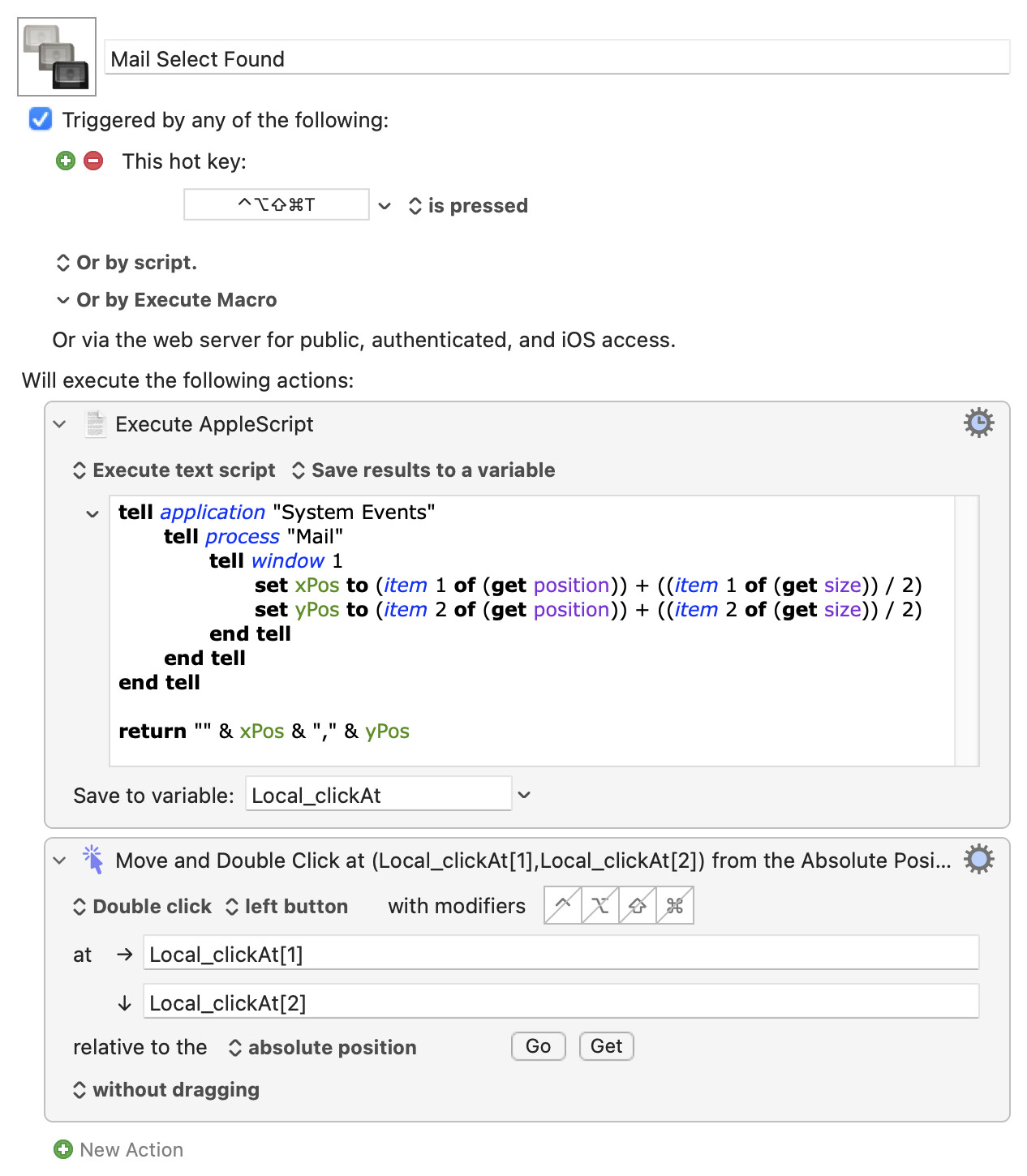
It appears that when you have a successful "Find" in Mail a new "overlay" window is created with bounds slightly larger than the found selection. You can get those bounds, find the middle, double-click there:
Mail Select Found.kmmacros (3.3 KB)
That should work for single-word searches. Multi-words you can't select with double-clicks, while matches that spread across the end of one line and the start of the next will have unusable bounds.
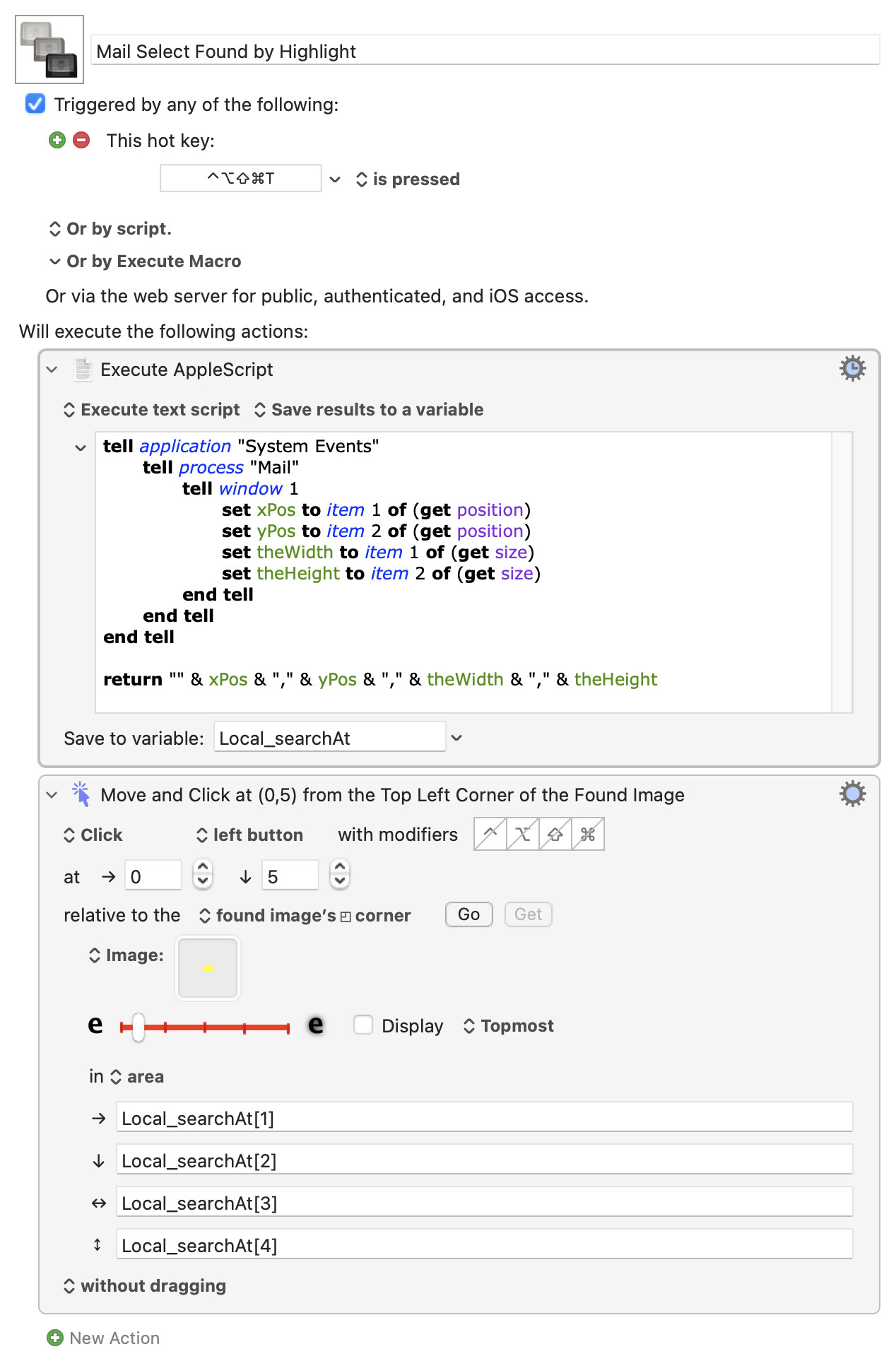
But it does suggest another method. Finding the selected text by image detection is difficult -- even restricting it to the front window can lead to false positives when just looking for a couple of pixels of your highlight colour. But now we have a way to restrict the search area -- much better!
Mail Select Found by Highlight.kmmacros (9.9 KB)
You may have to play around with the colour and the down-offset, depending on your settings. This even works for multi-line selections, playing on the fact that (I think!) image detection "scans" left-to-right, so the first match will be the left-most of our explicitly-set "Topmost".
This is more fragile (image detection!) but has the advantage that the selection is maintained so you can Cut, Copy, move to before or after with arrow keys, and so on.
Once more -- choices, choices!