Is there a way to start an application minimized? I need to start a bunch of applications, but I only want one of them to have a visible window centered. Currently, I use “Activate Application” for each app I want to start and then use the “Minimize Front Window” action to minimize it. Another problem is that I don’t know how to properly wait for the application to open, because the minimize action doesn’t work reliably without an unclean pause of x seconds that waits until the application is opened and it has visible window
Before I try to answer, I want to clarify something. Apps can be hidden or not hidden, while windows can be minimized or not minimized. It's even possible for an app to be not hidden while it has no visible windows. And there are some apps which have windows but don't comply with the macOS API for regular windows. So any solution may be dependent upon the apps you are using, and you didn't say which apps you want this to work with.
For example, at one point you say you use "activate application" then you attempt to minimize it. But that's not the correct terminology since you don't minimize apps, you minimize windows. An app can be fully activated but then it can take additional time for its window to manifest itself. So the fact that an app may be frontmost does not necessarily mean it has any windows open. This is a common problem with macOS.
You also said it takes x seconds for an app's window to be open. Yes, that's a reflection of what I was saying above. That's how Apple decided macOS should work. It's not always a clean design, but KM can usually handle complications like that.
But any solution will have to deal with the quirks of the apps you want this to work with. Can you specify which apps?
I don't think macOS has an option to launch a process minimized (let alone hiding the process's windows). But KM has ways to simulate an app's "hide windows" command (which you can usually find under an app's main menu with the CMD-H command.) So for example if you launch an app like this:
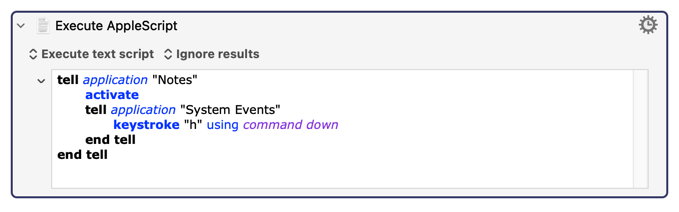
Then it will launch, and once launched, issue the CMD-H command to hide all its windows. This will usually work, but again, it depends on the app, and you haven't specified which app you want this to work with.
@kmNerd , Welcome to the forum.
As @Airy said, "minimized" acts upon windows, "hidden" on apps.
One thing you might try is the shell 'open' command in an Execute Shell Script action with flags -ja :
open -ja TextEdit
The "j" flag launches the app hidden.
The "a" flag launches the text parameter as application.
You can then use the Activate a Specific Application action to open and activate the one app you want to see.
For more options, open the Terminal app and type:
man open
Then press return
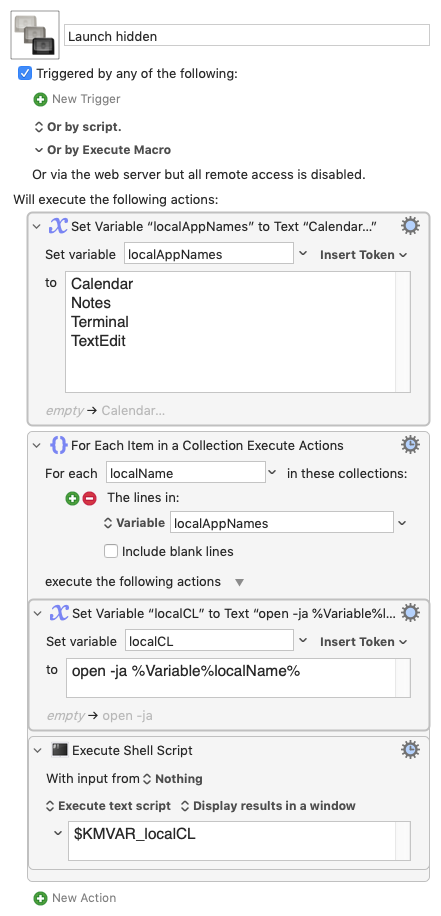
Launch hidden.kmmacros (3.0 KB)
That's good to hear. If your apps are all well-behaved, then you may find a single solution works for all of them. But there are many apps out there which behave strangely and may require some hand-holding.
One question about this: If the app name contains spaces, this won’t work. I didn’t know how to fix it. I tried adding quotes around the app name, but that doesn’t seem to help.
Right. I should have thought of that in advance. 
An easy remedy is to use the app's unique bundle identifier instead. It will never contain spaces.
Just replace the "a" flag with "b", which takes the bundle id instead of app name, so:
open -jb com.stairways.keyboardmaestro.editor
will open:
Keyboard Maestro.app
That's it.
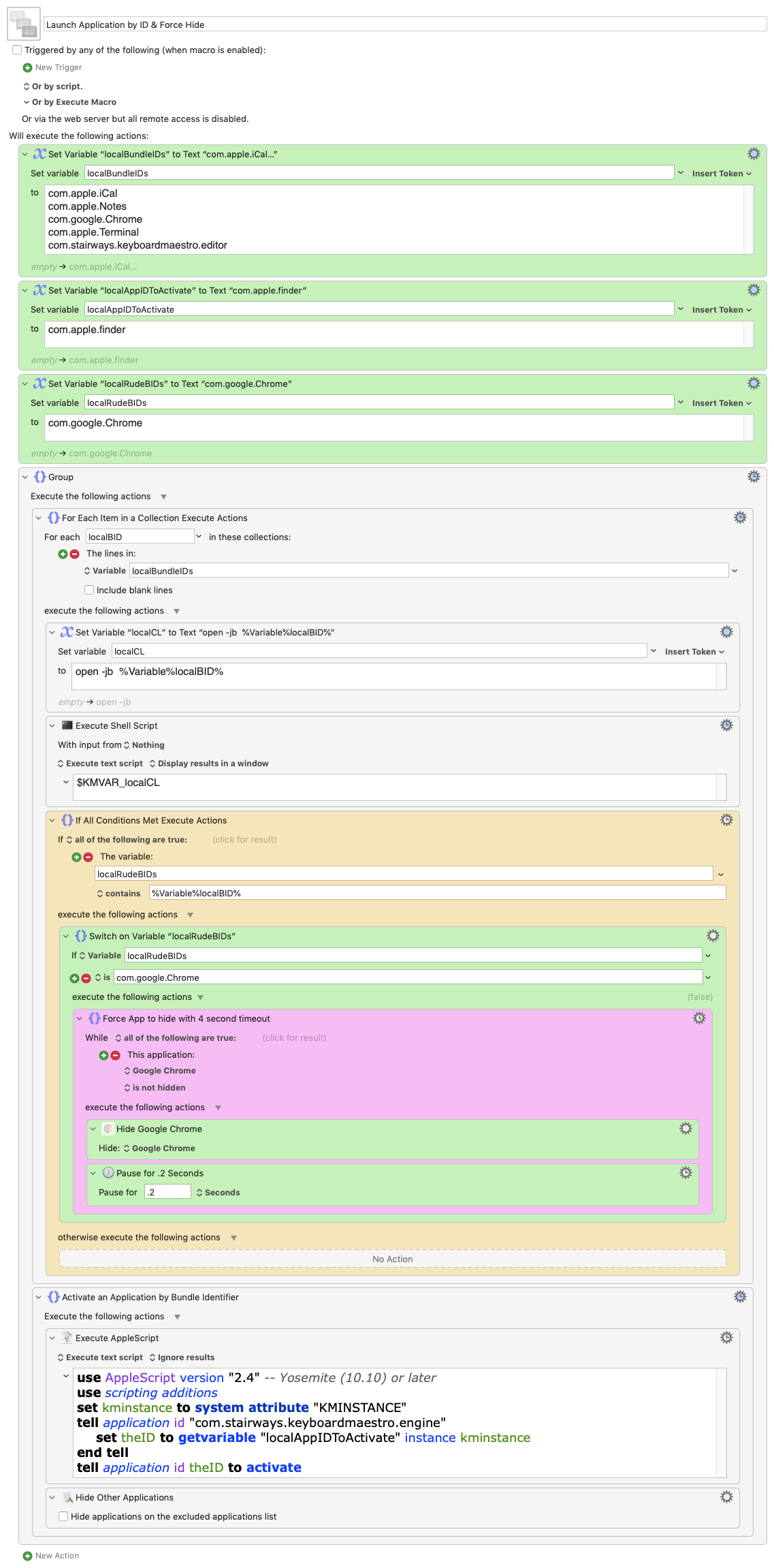
I've uploaded the macro revised to use bundle ids.
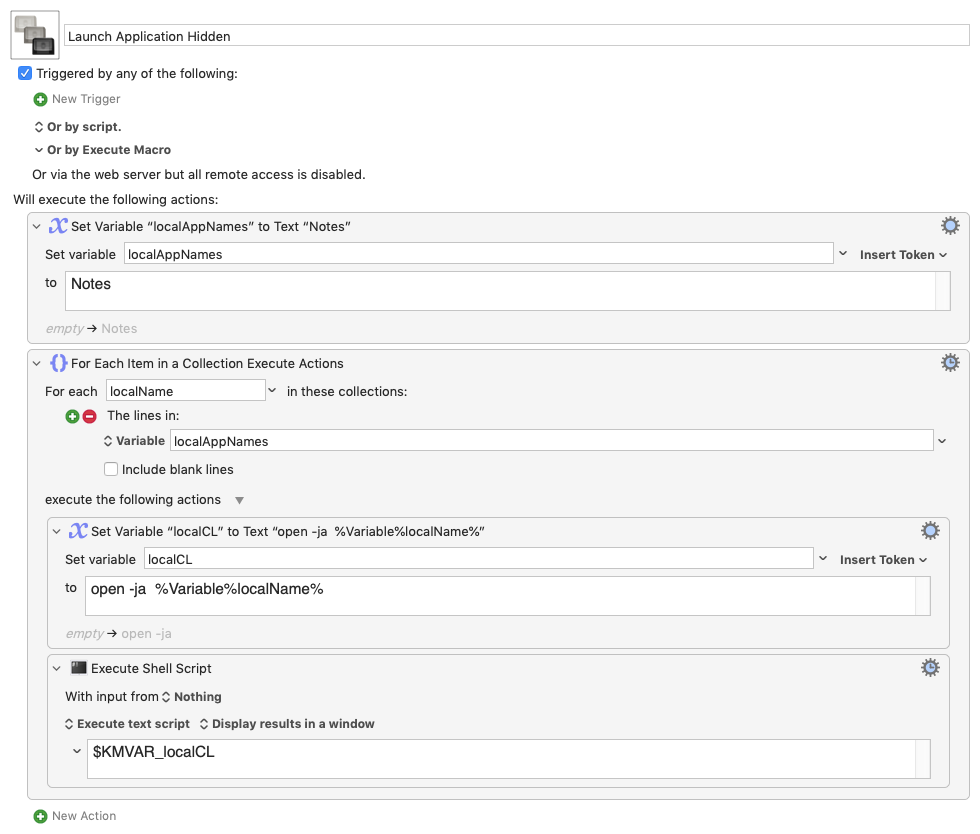
How do you get bundle identifiers?
The upload includes a handy macro for copying bundle ids from either:
- running processes
OR - any installed applications
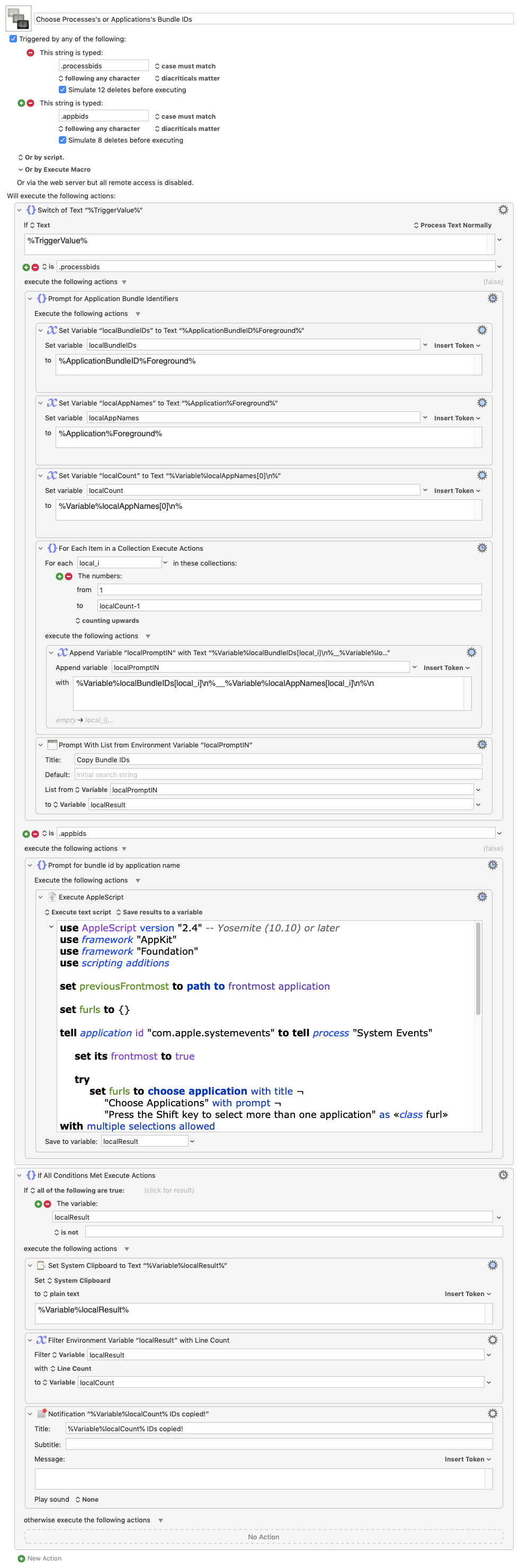
To run the macro, type one of these 2 Typed String Triggers
- .processbids
- .appbids
-
A Prompt From List presents with names of active applications.
Press the Shift key to select contiguous names.
Press the Command key to select non-contiguous names.
-
An AppleScript Choose Applications dialog presents the names of all installed apps.
Use the same method to choose applications.
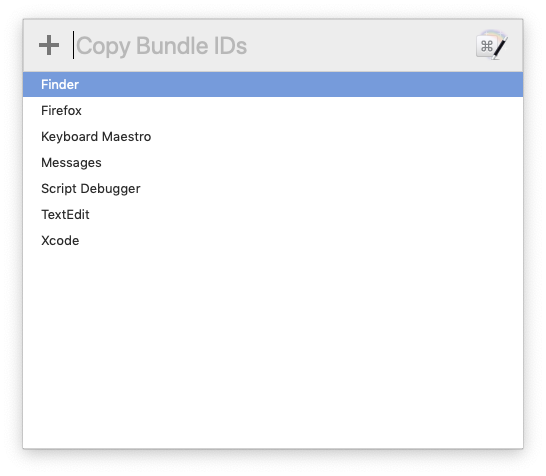
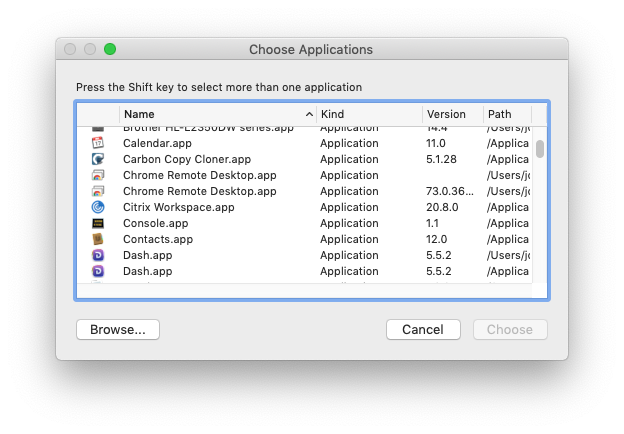
After selections are made press return and a notification will show how many ids have been copied to the clipboard.
Now you can paste them into the first action of the revised macro.
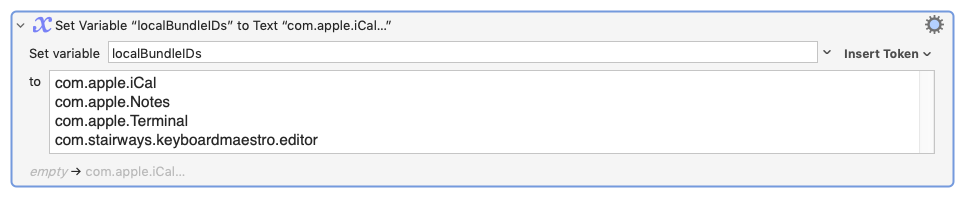
Launch Application by ID Hidden and Get Bundle IDs.kmmacros (12.8 KB)
EDIT: Sorry for all the edits. Need more coffee. Hopefully, the macro images match the macro which should now run correctly.
Wow! Thanks a ton! Very helpfull and lot’s of useful information. 
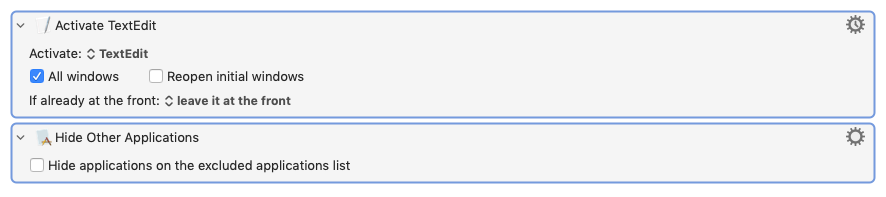
It might be that all you actually need is to put the app you want to be visible into a Activate Specific Application action that runs last, followed by a Hide Other Applications action:
Nonetheless, I've uploaded one more version of the original macro to deal with the ill-behaved apps that @Airy cautioned us about.
Viz. Google Chrome is particularly ill-behaved--at least on my setup--in refusing to launch as hidden. Not only does it ignore the hide flag, -j, it also strenuously resists commands to hide by stealing the focus until it is good and ready.
I've revised the macro so that you can "special case" and force these sorts of apps to hide as you find them.
To adjust the macro to deal with apps that won't launch as hidden is a two step procedure:
- Go to the variable named, localRudeBIDs.
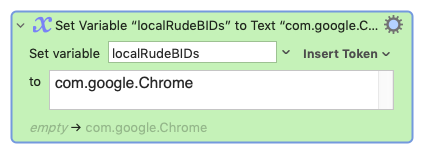
Enter each bundle identifier of a non-compliant app on to a separate line
-
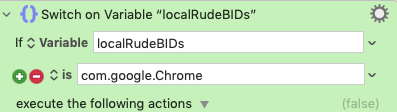
Go the green Switch action named: Switch on Variable “localRudeBIDs”
Click the Green plus button to create a new "Is" test condition and enter the bundle identifier.
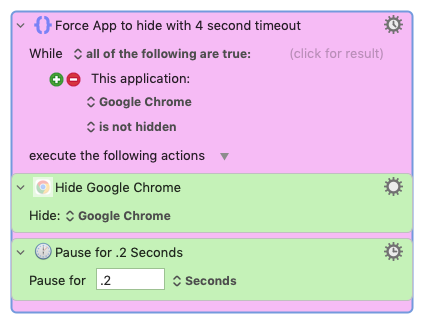
Select and copy the Magenta Group action named: Force App to hide with 4 second timeout.
Paste it into the new empty Switch Action area.
Change the name of the Application in the two Green actions (currently set to Google Chrome) to the name of the application that should be forced to be hidden.
In this version of the macro, you may also enter the bundle id of the application you want to actually be visible.
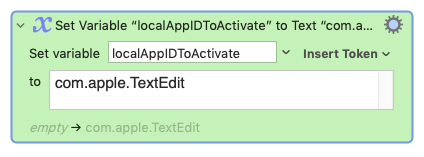
It will be activated last.
For good measure, the Execute an AppleScript that activates the app is followed by a Hide Other Applications action.
This is last action may have been actually all you needed as it will guarantee that any apps that have escaped flags/commands to hide will be hidden. Any other app that was open before the macro began running will also be hidden. The actions to launch app as hidden may prevent some (not all) of the annoying flashing of windows as apps activate.
Here, as a separate upload, is the macro to get bundle ids again.
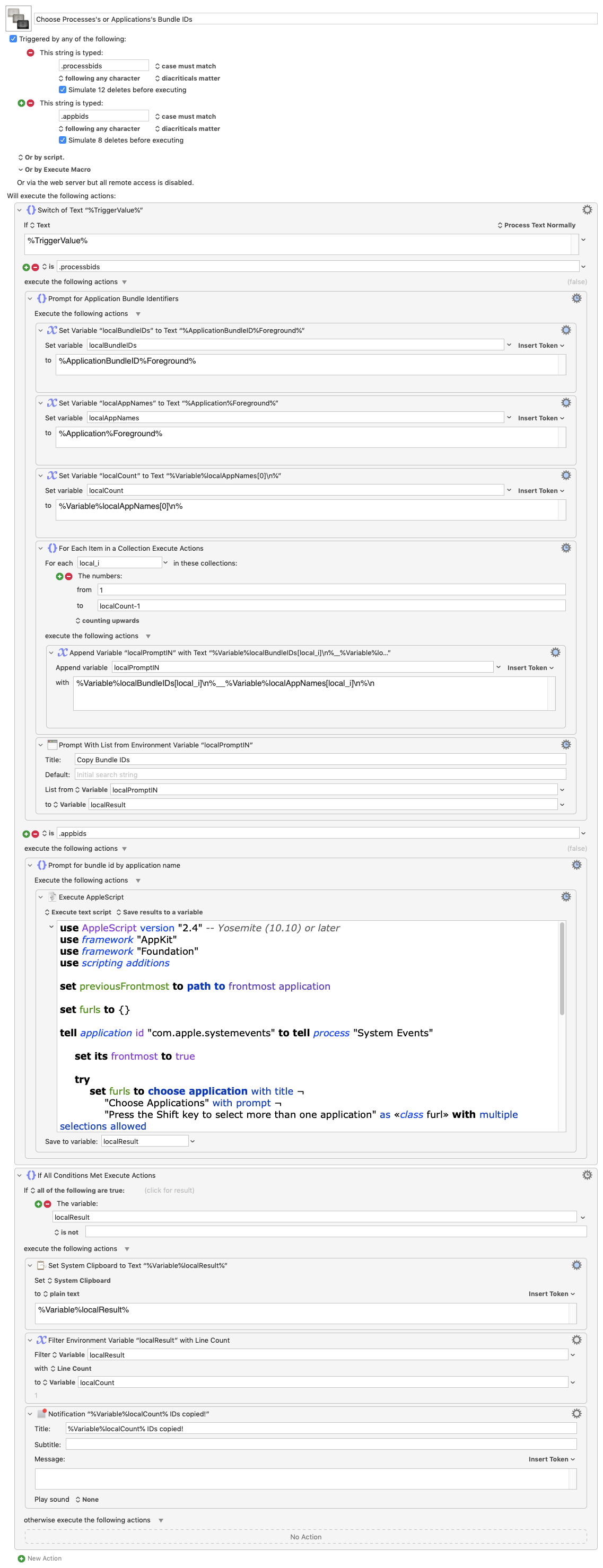
Choose Processes's or Applications's Bundle IDs.kmmacros (9.9 KB)
And the revised macro:
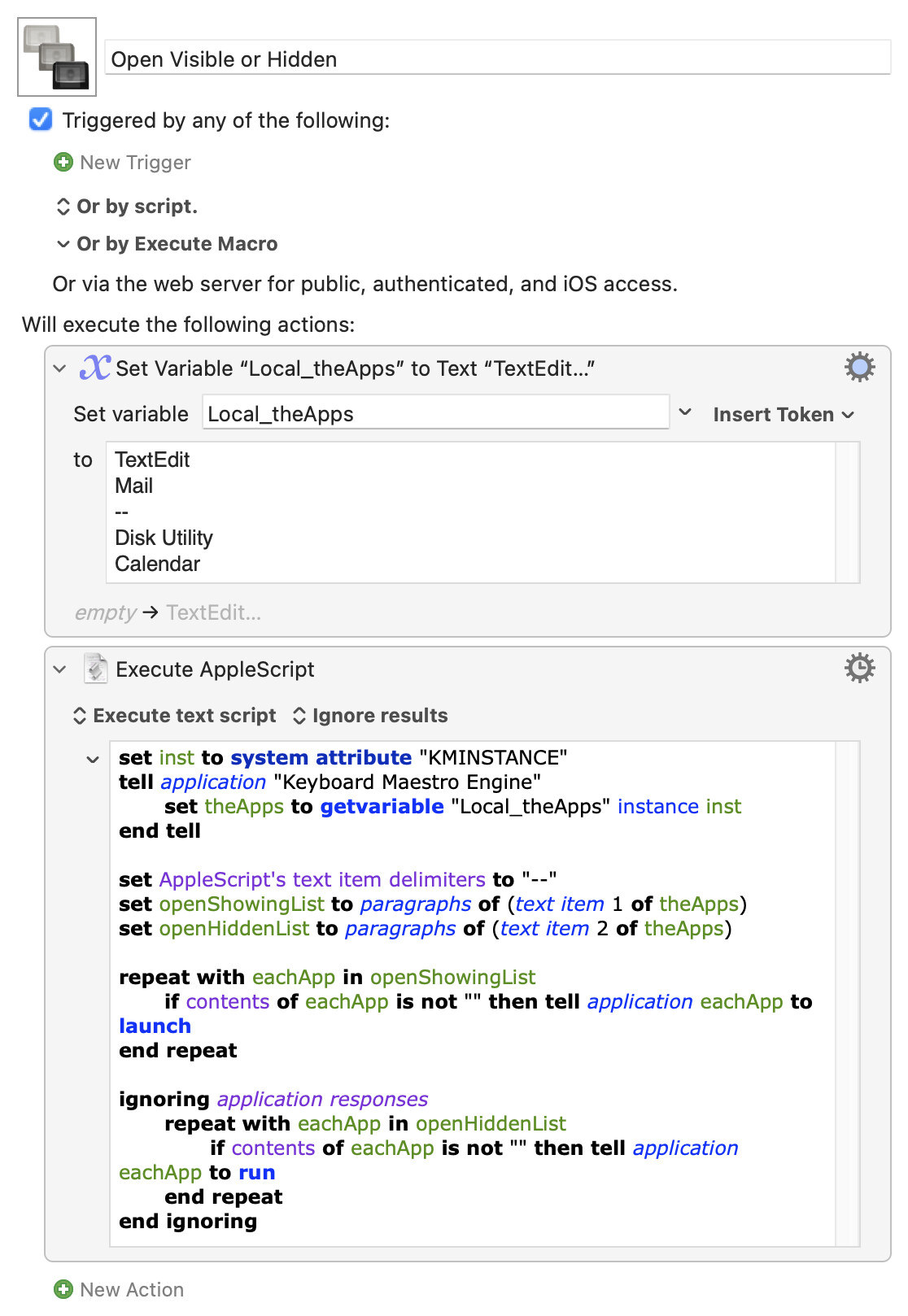
For those who like AppleScript versions of things, note that the run verb will open applications hidden (same as opens -j):
tell application "Disk Utility" to run
Which lets us do something like this, where apps are listed in the first action and those above the -- are to open visible and those below are to open hidden:
Open Visible or Hidden.kmmacros (2.7 KB)
Nice!
I knew The launch command was the equivalent of shell, open -ga. Each launch an app in the background with startup windows visible in the background.
I didn't quite realize that the run command was the equivalent of the shell, open -ja, Each launch the app in the background such that startup windows are hidden.
When an app does not support launch/open -ga or run/open -ja it may force its way to the foreground regardless. On my set up, Google Chrome continues to try to come foreground until it is fully loaded.
In that case, one way to deal with it is to hide it after it has come to the front.
Another is to see if the app has a command-line switch for launching in the background.
For example, this seems to work for Chrome in Execute a Shell Script:
'/Applications/Google Chrome.app/Contents/MacOS/Google Chrome' --no-startup-window >/dev/null 2>&1 &
In an Execute an AppleScript like this:
do shell script "'/Applications/Google Chrome.app/Contents/MacOS/Google Chrome' --no-startup-window >/dev/null 2>&1 &"
Again -- you cannot minimise an app. You hide apps, minimise windows.
Which, or what combination of the two, do you want to do?
Maybe the app Autostarter is what you are looking for?