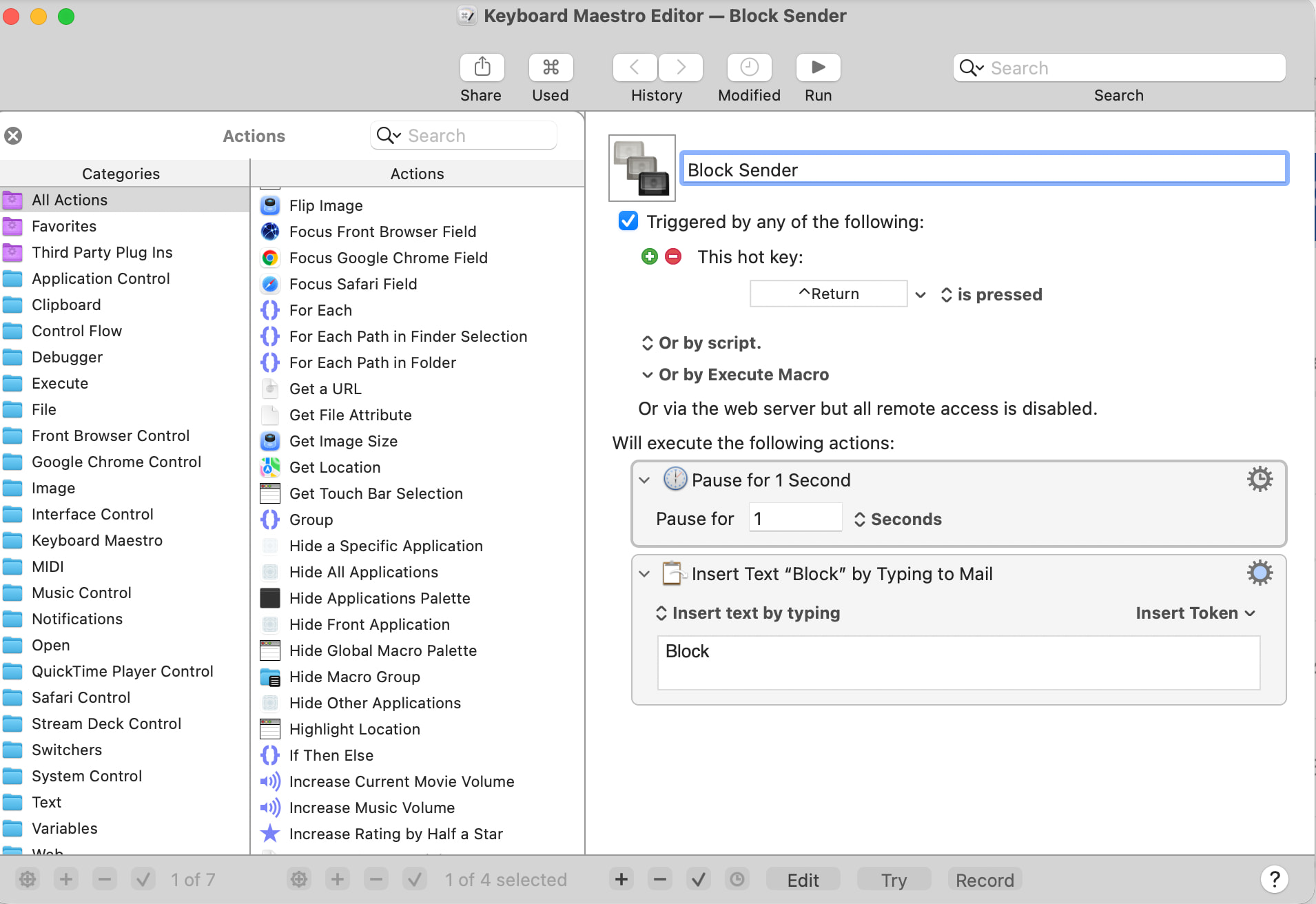
I just installed Keyboard Maestro, so I could create a keyboard shortcut for Block Sender and Delete in Apple Mail. Am I on the right track? (see screenshot below).
I emailed support, and Peter said this:
It looks like Block Sender / Block Contact is only available in the contextual menu.
So if the email message is selected, you can use the sequence:
Do you have a specific question based on Peter's reply? Everything he said is true—you need to select the message first in order to get to the contextual menu.
Thanks for your reply. Keyboard Maestro is very confusing. I watched the video, but I still don’t understand it. I tried to follow Peter’s instructions and set up the Macros, but I think I am missing something. When I run the Macros, click on a message, and click, “control return”, it does not block the sender. I would pay someone to do a screen sharing with me to help me set it up if anyone is willing.
You have configured your macro with a Hot Key trigger of Control-Return.
My instructions were to use the Type a Keystroke action to type Control-Return, which modern systems take to mean "activate the contextual menu on the selection".
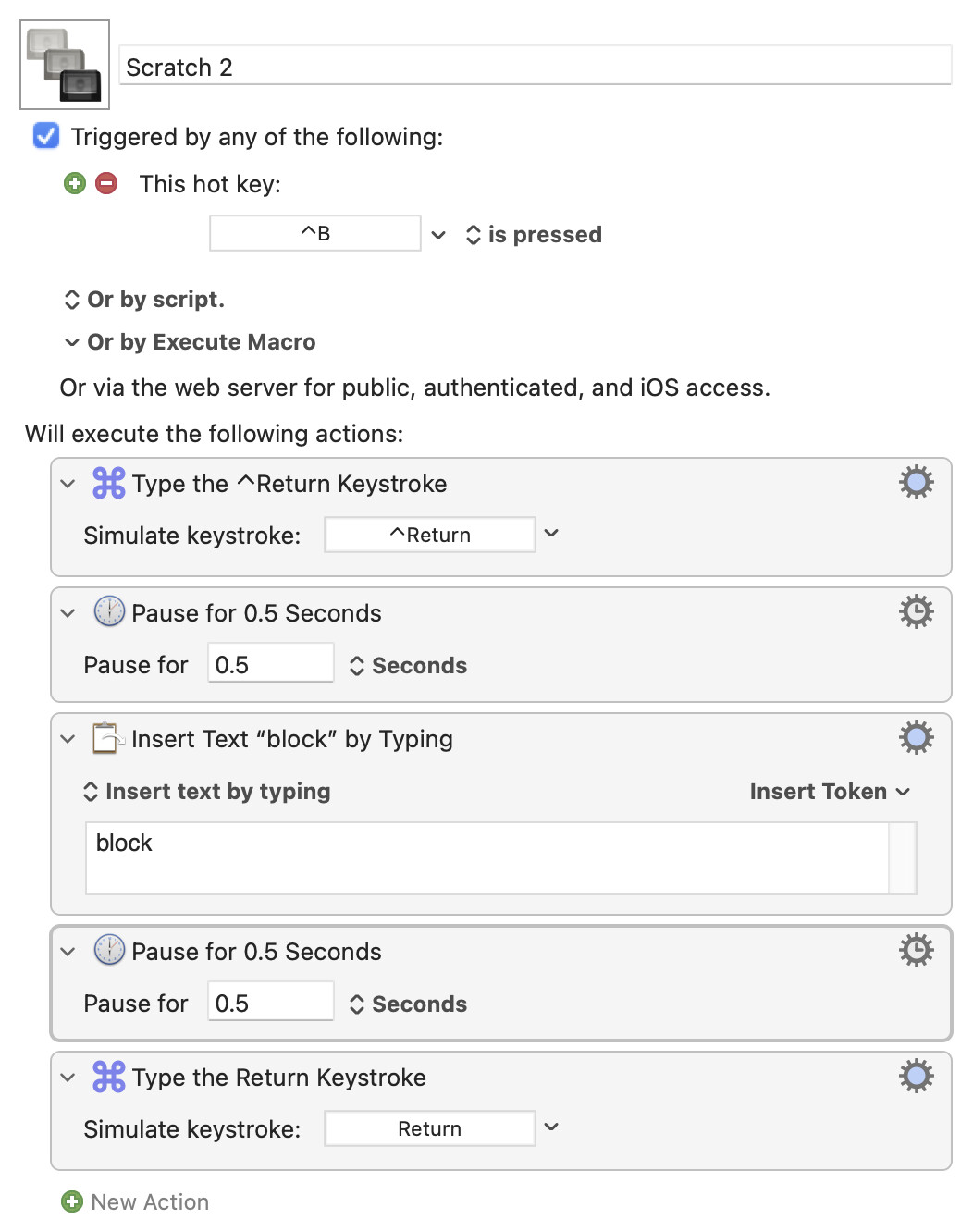
Almost, but you've used ⌃Return as the macro trigger when you should be simulating that keystroke so the OS acts on it.
Here I've used ⌃B as the hot key trigger (the keyboard shortcut to run the macro). And it's good to start with longer Pauses so you can see the macro in operation -- once you know it works as you want you can try shorter Pauses to speed things up.
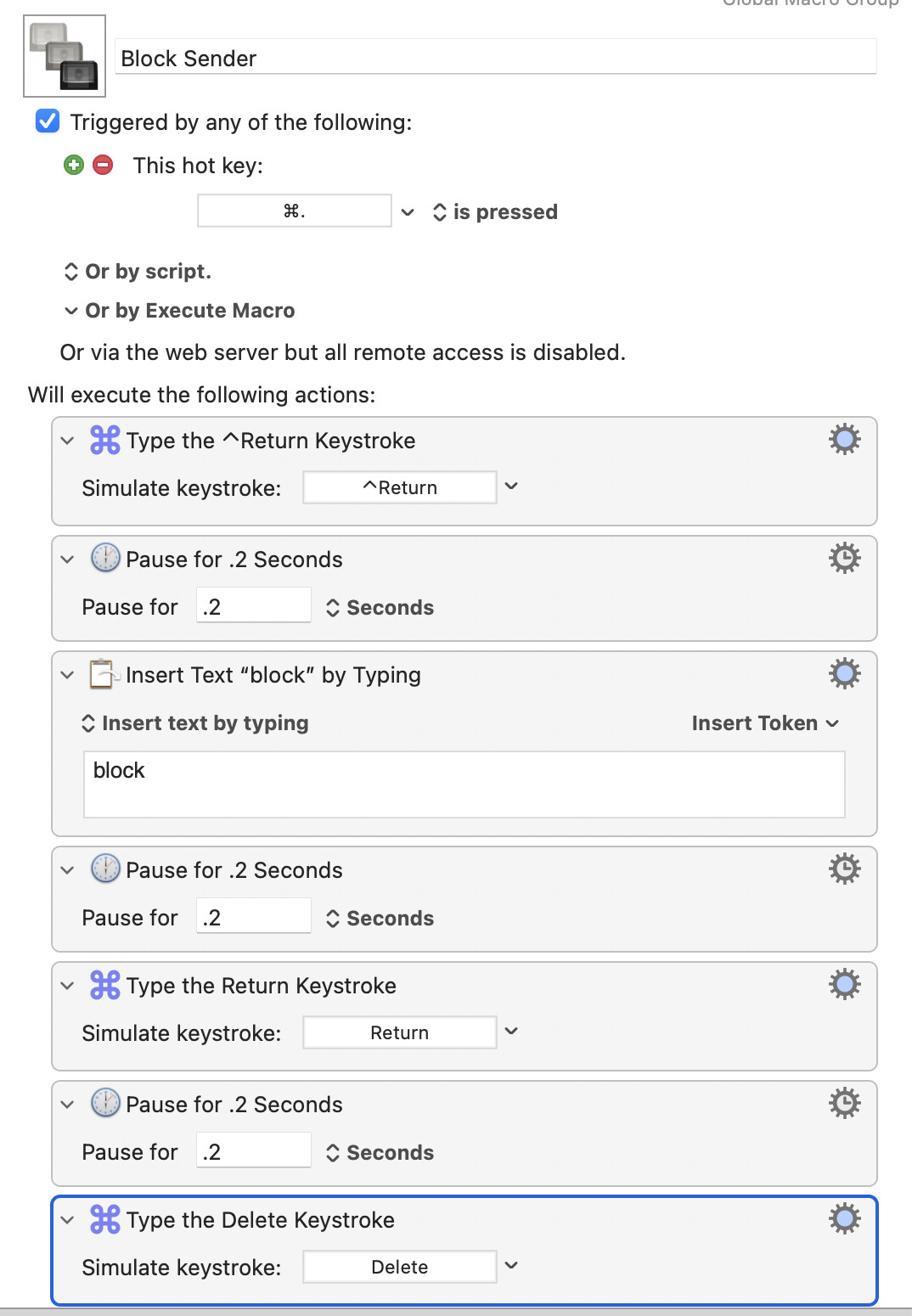
A word of caution about your selected hot key trigger, though. ⌘. is the global "Cancel" command and you can use it to "press" the "Cancel" button in dialogs, stop a web page from loading, and abort many operations in particular apps. If you use it as your hot key here then, because "Block Sender" is in your Global Macro Group and available everywhere, you won't be able to use ⌘. normally anywhere -- it will always trigger your macro, and if you forget that you may have some unexpected keystrokes and, particularly, deletions going on.
It's worth taking a moment to look at the macro more closely.
The macro is run when it is "triggered" -- in this case that's "when hot key combo ⌘. is pressed", and you'll find many more triggers on the "Triggers" Wiki page.
When the macro runs it works sequentially through what you see in the Editor, from top to bottom:
Simulate pressing ⌃Return on the keyboard
Pause for 0.2s
Type "block"
Pause for 0.2s etc
And that shows how you develop your next macro:
Decide what you want to do
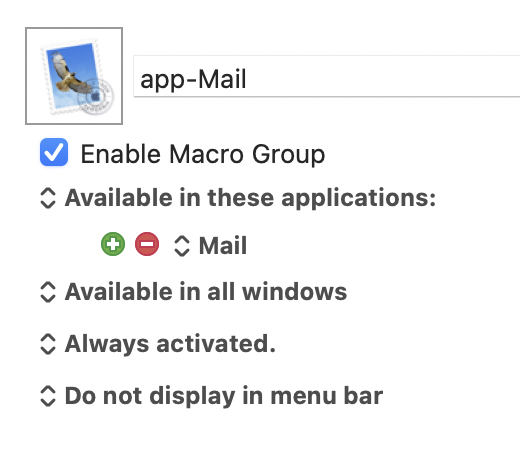
Run through the process manually a couple of times while making a note of every key pressed, every menu item selected, every decision you make -- and, importantly, any assumptions (here we've assumed that "Mail is the active application and one or more emails are selected")
Translate each step into KM by looking for Actions that do what you want and Tokens and Functions that get the data you need (maybe the subject of an email, the current date, the number of lines in some text)
Test your macro, refine your plan, change the Actions etc, test again until it works how you want it to
That's not all there is to KM, not by a long shot, but it will form the basics of almost every macro you'll make.
And if you ever find yourself stuck for more than a few minutes -- post a question to the Forum! Never think a question is too simple to ask, we were all where you are now when we started so understand how confusing it can be.