(This is a marginal note to the main discussion, so please don’t be distracted. )
The “Manual Upload” method is in fact described on the aforementioned page. I don’t know, but since it is often held to be the the easiest option (so I gather from reading forum), perhaps it should be listed first, @peternlewis?
I linked to the page in the first reply in this thread, following which it has been linked to twice more, so I note that I should perhaps make such linking more eye-catching, rather than “inline” in a sentence (wiki style?).
Thank you for your helpful response. The pauses are inserted as, without them, it seemed as though things were moving entirely too fast - both for me to observe, but also for the computer to be able to execute. When I inserted pauses everything began to run smoother.
By “window” do you mean “screen”? If so, yes, they are all on the same screen. It is a different finder that I am trying to click on / select, which is now now being selected properly.
This macro used to work perfectly for a very long time. For whatever reason, recently, it doesn’t.
But I’m very open to other ideas. What I want to do is select and resize a couple of different windows. Is there a better way you can suggest than my current method?
I think you’re on to something here. I do ask for your patience as a lot of these terms are new to me and I genuinely just don’t understand some of what you are explaining.
Let me start to simplify it along the trajectory that you’re proposing, because it’s possible that that is a key to this (which is strange as this macro has worked perfectly for the longest time): the folders are always going to be in the same exact physical proximity. But they will not always have the same name. That is usually dependent upon what was opened up in that finder window at the time of shutting it down. When I boot up, as I have “open windows up in the same collection” selected (or whatever it says), the folders appear as they apoeared when being shut down.
So the proximity and placement are always the same.
It’s the content in them and the sizing (via moving the diving pane) that I am trying to affect.
Yes, and the solution I proposed will do exactly the same thing as your Pause actions, which means you can delete all your pause actions and it will work just the same. Have you tried?
No, when I say window I mean window. At no point in the code that you showed us did you ever click on the second window, which means all your actions will work only on you first window. And that’s what you showed in your video.
The only thing that I can fix is what I see. And I see a problem with your macro, and Nige seems to think I was right. So you need to fix that. The fact that “it used to work” is not something I can do anything about. All I can deal with is the present. So you should try fixing the problem that I have identified in your present code.
So, since you are having to move the column resizer, the columns widths change during your working day but their positions don't? You probably can't guarantee the stacking order (that gets restored too, I think) and you don't know what they'll be named.
You could just click in each window to activate it but, as you've seen, clicking can be a bit of a fragile Action so it's better to use other methods if available.
Honestly, I wouldn't rely on the positions being the same either and I would start again at every login. So I would:
Close every window on the left of the screen (assuming you want to keep the ones on the right)
Open the bottom window, targeting the correct folder, resize it and then move the column divider
Open the one-from-bottom window, targeting the correct folder, resize it and then move the column divider
Open the one-from-top window, targeting the correct folder, resize it and then move the column divider
Open the topmost window, targeting the correct folder, resize it and then move the column divider
Working backwards like that means the topmost window will be the active window when you finish, but you can change the order to suit however you want them to be stacked at the end of the macro.
Doing one window at a time means you can use your current "move the divider" mouse-click Actions, since the right window will be active.
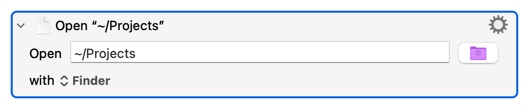
You can open a Finder window that targets a particular folder with the Open a File, Folder, or Application" Action. So if you wanted to open the "Projects" folder in your home folder:
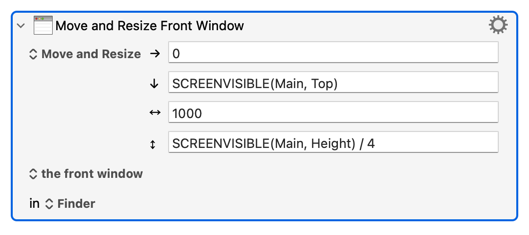
As you can see, you can use numbers, Functions, and Calculations to position and size the window. Take a look at the "SCREEN Functions" Wiki page to see what's going on here, and ask if you've any questions.
You've already got the "click and drag the column divider" Actions so you can re-use those -- you may have to tweak the coordinates if your new window sizes are different to before.
Give it a go and see how you get on -- changing from "clicky-clicky" to the Actions above will make your macro more robust, plus you'll learn a couple of tricks that'll be very useful in many more macros.
But if you get stuck for more than 5 minutes and the above Wiki links aren't helping -- stop and post questions here. We were all new to this once, and while it's difficult to pitch advice at the right level without knowing both your Mac and your prior programming experience, the people here are happy to keep trying to help until you're sorted out.
Thanks for this. When I program each of the windows to open individually (as opposed to relying on clicking on them when they are already in place) then things are working well enough.
Wasn’t looking, asking, or expecting you to. I was stating my previously successful experience to provide context to the hope that it would still work in the future, as opposed to it being something new and untested.
 )
)