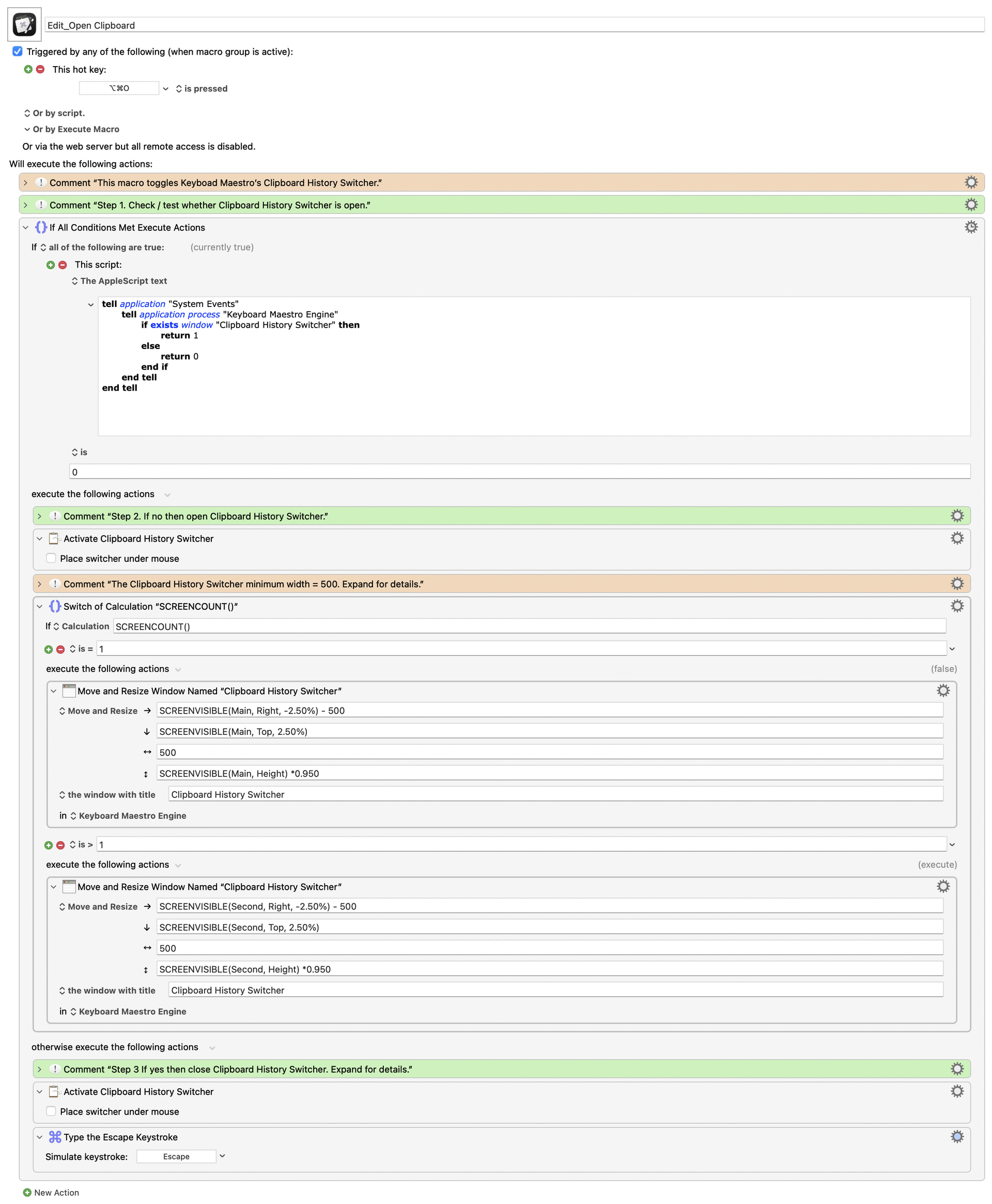
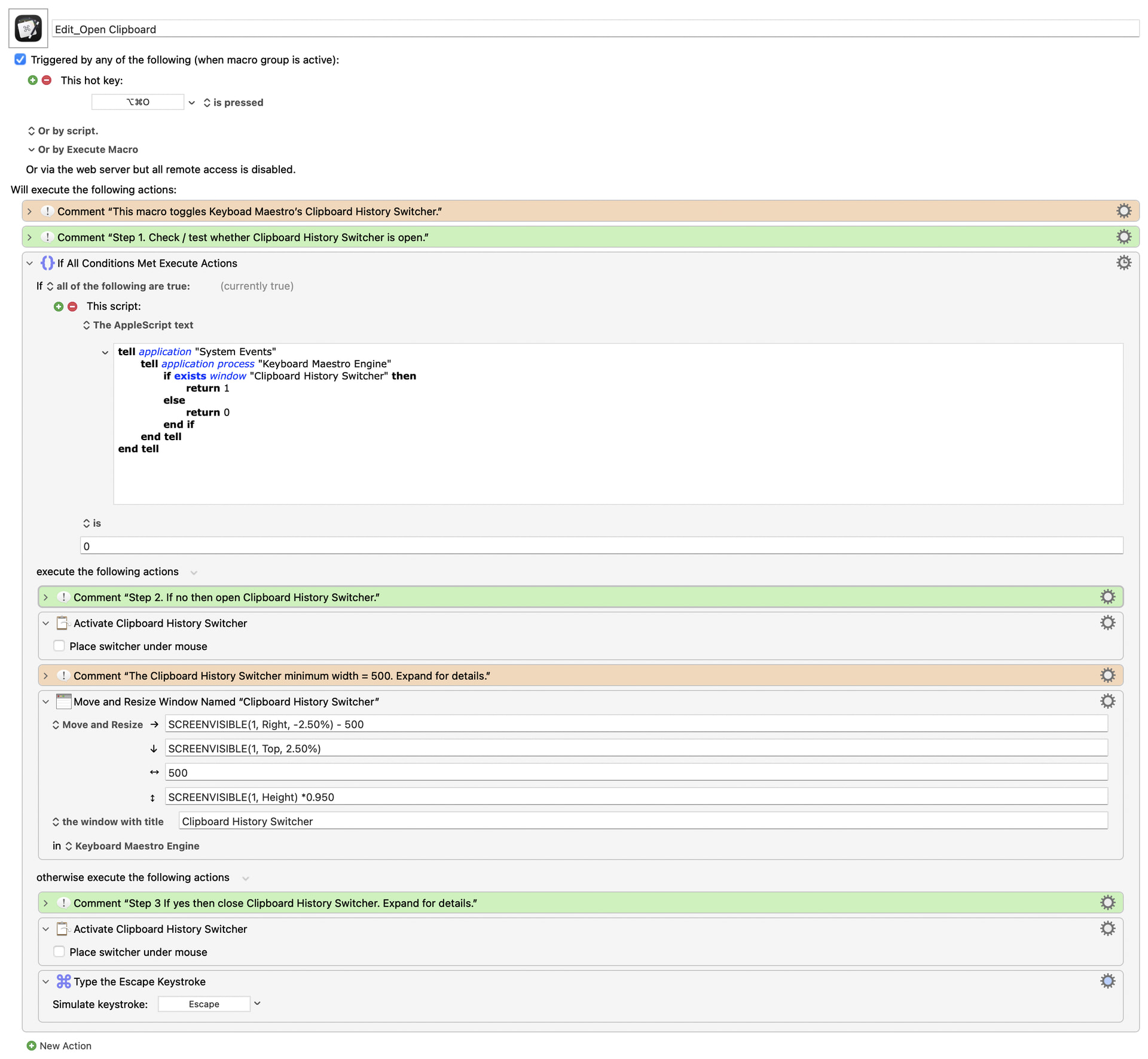
I am using this macro:
Edit_Open Clipboard.kmmacros (2.9 KB)
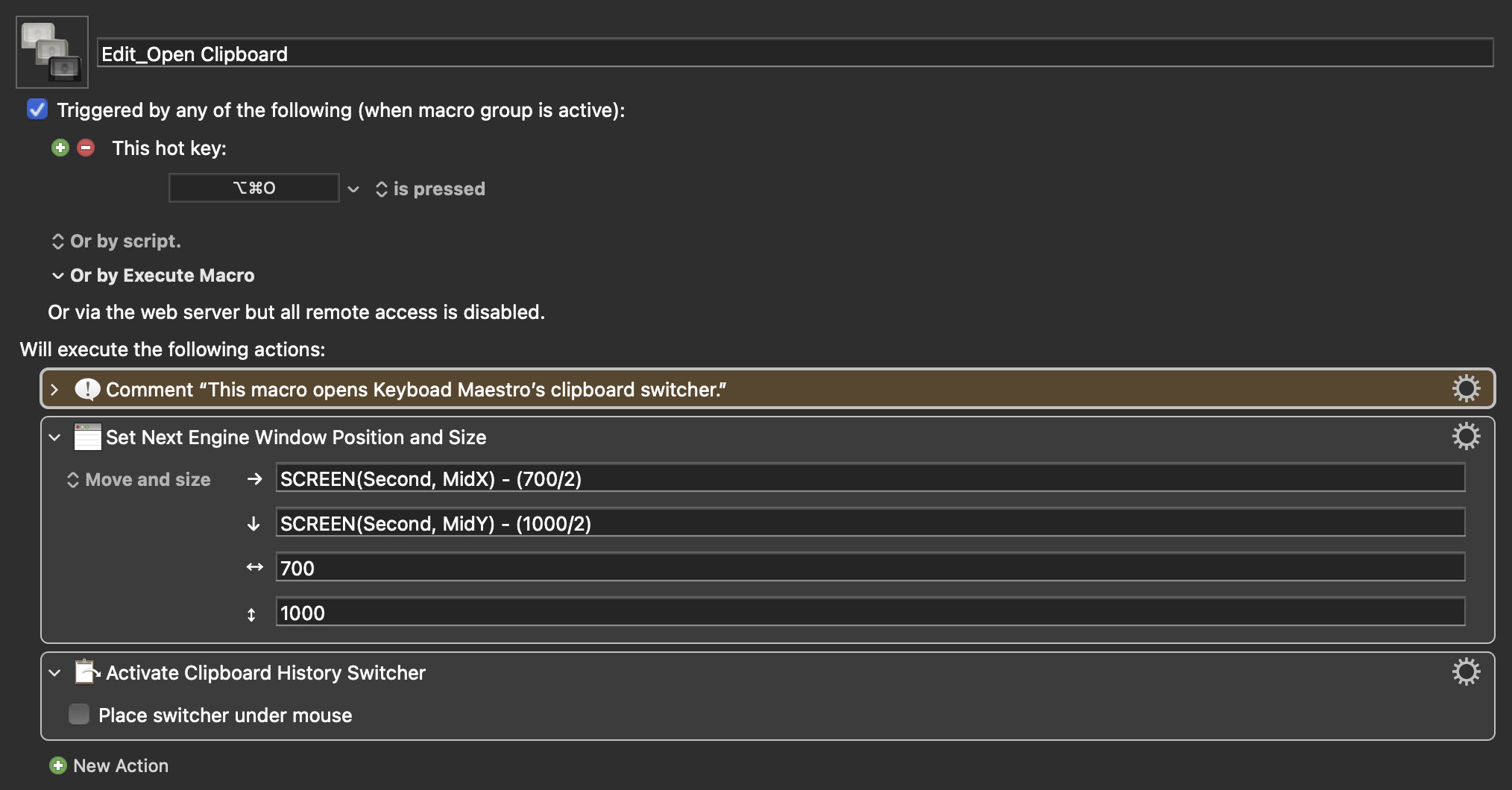
The Clipboard Switcher has a mind of its own and is not responding to the Set Next Engine command.
Would appreciate assistance in getting this t work.
Thank you!
I am using this macro:
Edit_Open Clipboard.kmmacros (2.9 KB)
The Clipboard Switcher has a mind of its own and is not responding to the Set Next Engine command.
Would appreciate assistance in getting this t work.
Thank you!
@peternlewis , good evening.
I have been fighting this one for a while.
Is it even possible to use the Set Next Engine action to control the location and size of the Clipboard Switcher?
Thank you.
It's a pretty easy test: If you have a Set Next Engine action, and then a Show Clipboard Switcher action, and it doesn't do what you want…then you can't control it that way. The problem, I believe, is that like with a Display Text window, that that window isn't really a Keyboard Maestro engine window.
The solutions @Nige_S has presented for those windows should, in theory, work for the clipboard switcher window. I don't have time to dig any further right now, but if a window in Keyboard Maestro doesn't react to the Set Next Engine Window action, then it's not controllable—it's an easy binary test :).
-rob.
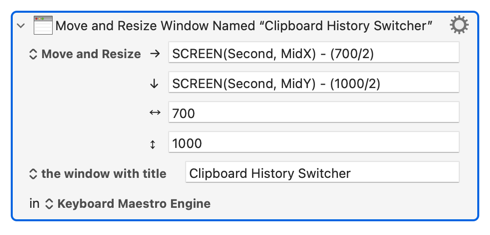
Just use the "Manipulate a Window" Action after activating the Switcher:
The trick is to make an alias of the Engine so you can select it from the "Other..." dialog. To make the alias:
/Applications/Keyboard Maestro.app/Contents/MacOS/Fair point.
In my experience Display Text windows are controllable by placing the Set Next Engine window action before spawning the Display Text window.
Much thanks, will take a look.
My bad, wrong example…there are other windows that don't respond, but I can't think of them at the moment. I remember running into this, though, with some Keyboard Maestro window. (There are many you can't set the size of, but I know I've seen at least one instance where I couldn't set the position.)
-rob.
Appreciated, I will give it a try, in a meeting at the minute.
I am trying to learn so please help me understand why i) the Set Next Engine cannot control the window before spawning but ii) the Move and Resize Window can control the window after spawning.
Thank you.
A bug, IMO. The Wiki explicitly says it should work:
The Set Next Engine Window Position action allows you to specify where the next Keyboard Maestro Engine window will be placed. This applies to pretty much any window, such as text displays or the clipboard history switcher.
(Emphasis mine.)
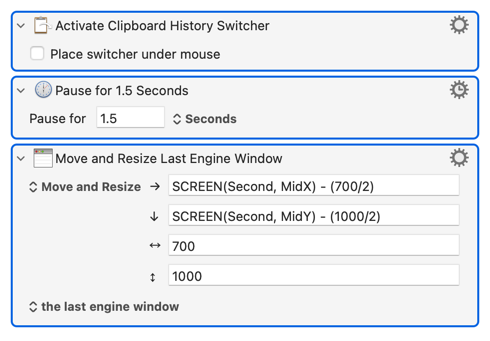
If I try to "Manipulate: the last engine window" after activating the Clipboard History Switcher:
...an error will be thrown:
2026-03-25 14:59:44 Action 100983616 failed: Manipulate Window failed to find engine window with id “”
2026-03-25 14:59:44 Manipulate Window failed to find engine window with id “” in macro “Scratch” (while executing Move and Resize Last Engine Window).
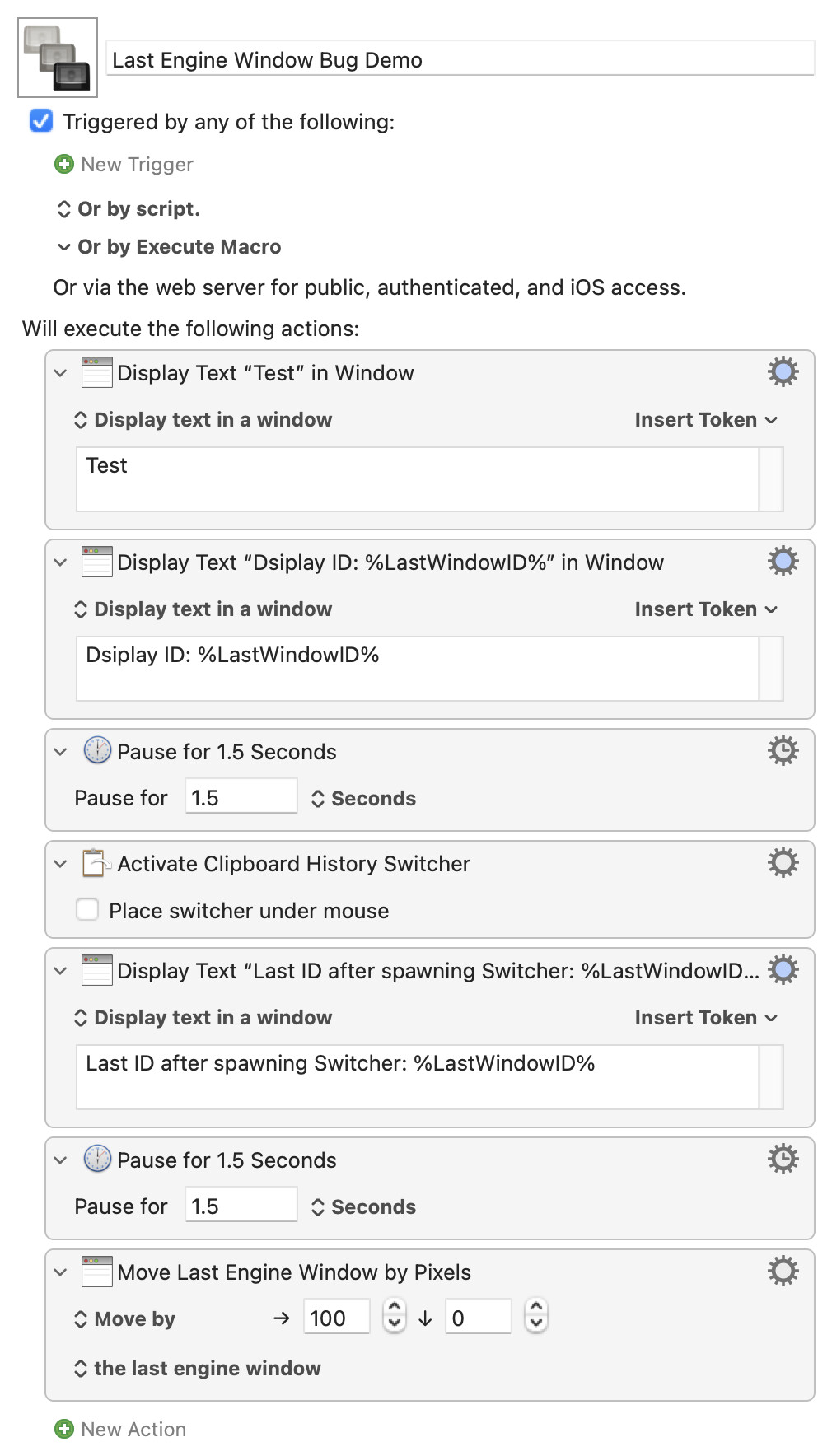
...and if you spawn a "Display Text", then activate the Switcher, and then "Manipulate: the last engine window" it's the "Display Text" window that gets moved, even though you can see that LastWindowID is properly updating:
Last Engine Window Bug Demo.kmmacros (5.8 KB)
Paging @peternlewis...
Appreciated on all fronts including:
Confirming that I was not missing something per the Wiki (which has become my main reading these days).
Interesting analysis in the macro. The spawning of both a Display Text window and the Clipboard History Switcher moves the Display Text window.
The solution, which works perfectly with (I am assuming) the secret sauce being specifyng Keyboard Maestro Engine.
Very interested in @peternlewis response.
As always, great to have this resolved and much thanks.
No. The Set Next Engine Window Position action does not currently apply to the Clipboard History Switcher. I will resolve that for the next version.
Yes, this was not supported either. Also added for the next version.
Appreciate the clarification.
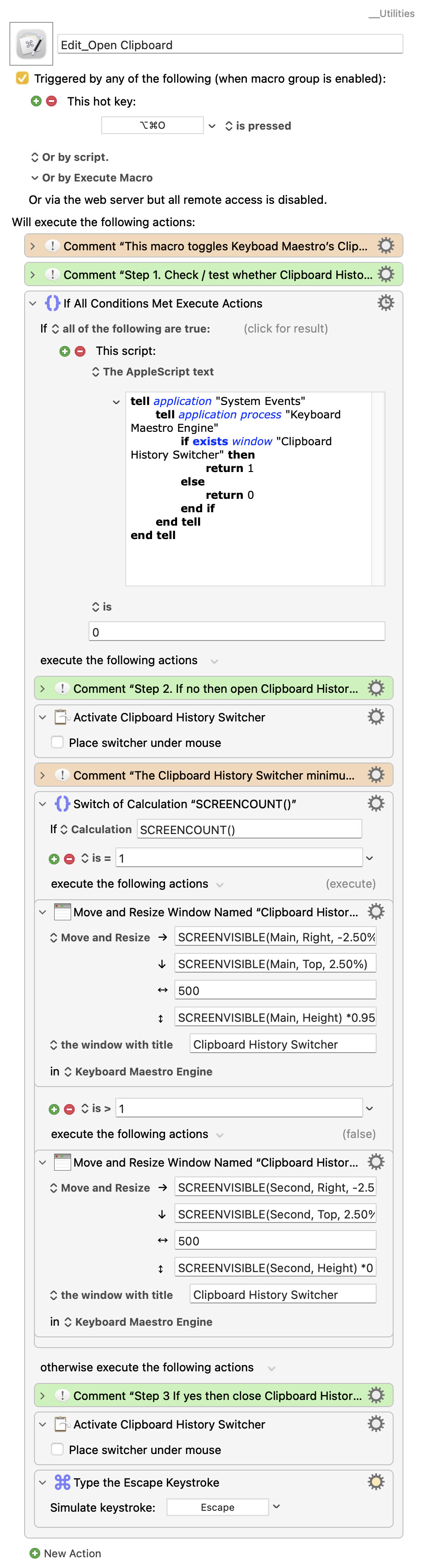
If anyone is interested, here is a macro that toggles the Clipboard History Switcher open / closed as well as positions its window as follows:
It appears that the window has a minimum width which is my testing is ~500 pixels.
Edit_Open Clipboard.kmmacros (13.3 KB)
Do you need the "Switch/Case"? If you only have one monitor then it is, logically, also the leftmost! And since SCREEN(1) is the leftmost screen (and may or may not be the Main screen too) you can probably replace the "Switch" and its contents with a single Action that uses SCREENVSIIBLE(1,...) in its calculations.
You could even go a step further -- you don't need to test for the presence of the Switcher, just set the "Manipulate" Action to silently fail without aborting if the window isn't present. It all depends on why that final "Keystroke: Escape" is there...
Appreciated. I will try that.
I do know that SECOND does not fall back to MAIN when there is only 1 display. I tried this and got windows all over the place. This is why I constructed the script with the switch case.
I will test see whether 1 falls back to 0 / Main when there is only 1 display.
Lean macros are best!
"Keystroke: Escape" is there to close the Clipboard History Switcher.
Interesting and tested.
While SECOND does not fall back to MAIN when moving from two screens to one screen, "1" does fall back to "0" when moving from two screens to one screen.
With much thanks!
Revised macro:
Edit_Open Clipboard.kmmacros (11.0 KB)
Hi, @Joel. Thanks for sharing your macro!
On my system, the esc is unnecessary. If the CH is visible, the Activate Clipboard History Switcher action closes it.
Also, here's a tip when sharing macros: if you set the editor to a more narrow width, the macro images will be much more readable. For example, with what you shared above:
On my macBook Pro, before I share anything I normally set the Keyboard Maestro editor to the right half of the display.
If it's not already there, I need to add that tip to this post: Entering and Enhancing Forum Posts