I can see in KM prefs that this sets the pixel colour to SystemClipboard, but when I hit cmd+v to paste the value in an app, nothing happens. Am I misunderstanding how the clipboard works?
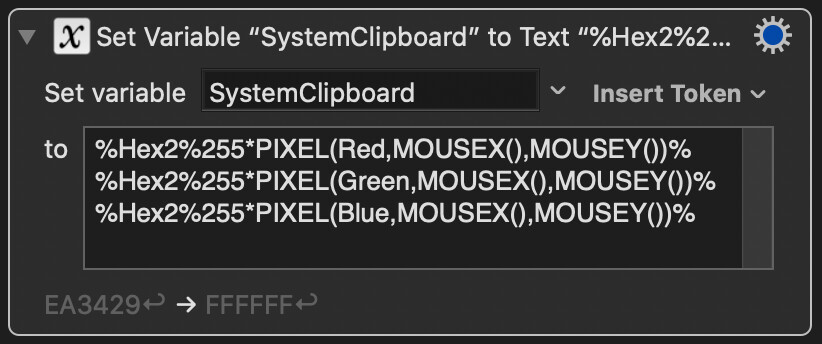
You are setting a Keyboard Maestro Variable, named “SystemClipboard”.
You need to use the Set Clipboard to Text action or the Insert Text by Pasting action.
1 Like
Thankyou!!!
1 Like
Just chiming in, this helped me in 2025, what a great solution to an issue I was having! Thanks from the future!
1 Like
This looks great. How would the calculation work to return RGB values instead of HEX values? So, 255,255,255 for white?
The PIXEL function returns the comment as a fraction from 0-1. So to get 0-255 you would multiple by 255 and get the integer value. Use Dec1 instead of Hex2 in the example I gave (use the Dec token).
2 Likes
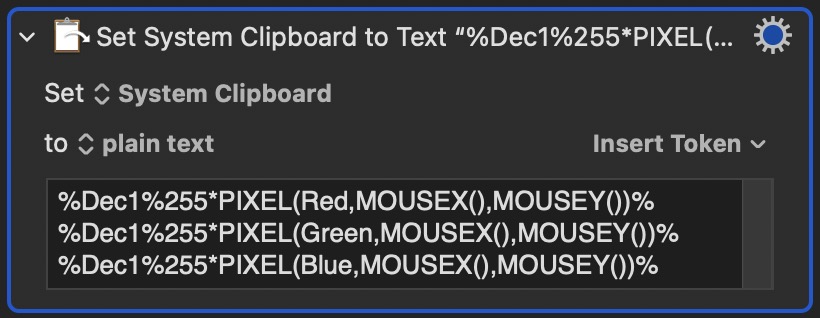
Hi
I tried Pixel function to get RGB values.
However, I can see difference in number between KM and app like Pika.
Is there a reason behind this difference ?
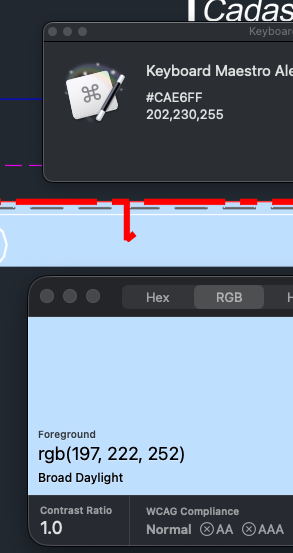
I know that pika is closest to the color set in my software (autocad) : 191,223,255
One way to test what's happening is to move the blue image on your screen so that the image goes all the way to the bottom left corner of the screen. Then run both of your apps (KM and Pika) to detect the same pixel at the bottom left corner of your screen. I think it's likely that both apps will agree on the colour of the same pixel when you do that. The reason I'm asking you to try this is that I suspect that the image, which you think is a solid colour, is actually coming from a compressed image (like a JPEG file) and this is what causes many pixels to differ in colour (because you aren't testing the same pixel in your two apps.)
1 Like
Thanks for your reply.
I tried the same pixel but I still have a difference between KM and the other app.
By using my exact instructions, or by doing something else?
Your instruction 
I move a colored image to the bottom right of my screen and compare the same pixel.
Okay, then what I would do next is get a third opinion. MacOS comes with a utility called Digital Color Meter. It's in the Utilities folder inside the Applications folder. Compare the three values from the three apps and find out if they are all different or if two are in agreement.
It's a really fun utility.
2 Likes
Ok here the result :
- Digital color meter : 146, 187, 67 (native values).
- Pika : 146, 187, 67.
- KM : 162, 196, 84.
Yes, I can confirm that with
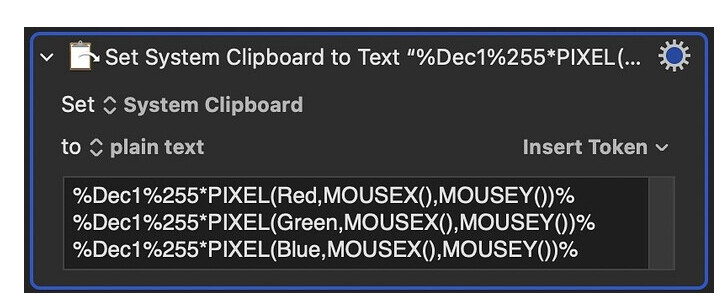
Pure White RGB 255,255,255 matches Digital Color Meter and KM
Pure Black RGB 0,0,0 matches Digital Color Meter and KM
But any colour in between is off in KM.
Then my only thought is to request @peternlewis to explain how this is possible. I’m stuck.
Keyboard Maestro’s pixel system is based on copying the image from the screen and then interprets that pixel value.
Essentially it:
- Gets the image of the screen as a bitmap
- Gets the pixel color from that bitmap
- Coverts the color to the NSDeviceRGBColorSpace
- Reads the redComponent value
I believe the difference is that the other apps are using NSCalibratedRGBColorSpace. If I change the code to NSCalibratedRGBColorSpace, then the values are within 1 of each other in my tests.
I checked the system color picker and it seems to be using the calibrated versions, so I will switch the PIXEL function to use that for future versions (hopefully this subtle change does not break macros).
Note that there is no calibrated CMYK color space, only a device one, which is probably why I chose the device spaces in the first place.
2 Likes
@peternlewis Brilliant. Thanks for looking into this. It is a genuinely useful function as it can be incorporated as a part of Keyboard Maestro Macros.
@Airy - I did not know about that very useful native Mac utility Digital Color Meter, so thanks for that.
1 Like
Thanks for your feedback !