I have a music recording app on my MacBook with a volume fader. The app itself does not allow me to control the volume fader with a midi fader. Is there a way using Keyboard Maestro that I can control the volume fader with the midi controller. In essence to move the mouse - click on the volume fader and drag it to different volume settings.
Probably -- but it's impossible to say how without knowing more details. The name of the music recording app is a good place to start.
I have a Macbook. I am running Audio Hijack which is a music recording app on which I record radio shows. Audio Hijack does not support midi control. The AH volume control can be moved by clicking on the fader with the mouse and dragging the fader to lower or raise the volume. I want to be able to use a midi fader called Arduino. It sends MIDI status 176 and Midi Code 3 and then MIDI values of 0-127 to represent volume levels 0 (silence) to 127 (loud). So can Keyboard Maestro act as a conduit taking the Midi control signals and converting them into actions which control the mouse and move the fader in Audio Hijack.
AFAIK, Audio Hijack doesn't have a general "Volume" control -- everything is done through Blocks and their popovers. So you'll need to say which block you want to work with, and whether that's via a popover.
Also AFAIK -- while Audio Hijack does have some scripting via JavaScript, support for block objects is very limited and doesn't include much beyond setting the name and if it's enabled or disabled. So unless you can set the level on the active UI element by typing in the number you want you may be limited to mouse clicking or click-dragging.
Perhaps a screen shot, where you mark up the element you want to adjust?
Were you referring to the “Mixer” block, @MusicRadio?
You could try using a Move or Click Mouse action, but not, I suspect, in a way that would end up with the fader’s response being in any way “smooth”!
Can you tell us more about what your aim is? When making straightforward recordings, it will be best to eatablish the best volume level of the source of the audio and then, if necessary, adjust the fader level… and then leave it alone. If, however, you were thinking of mixing in real time, I don’t think AH will be the most suitable tool for the job.
Yes, this discussion on Reddit might give some ideas, in addition, of course, to the application’s documentation.
Thanks for the responses. I am using the audio hijack block called volume which enables me to fade the music. I need to be able to fade the music when I do a voiceover. I don’t like the ducking system they have. I prefer to fade to the volume of my own choice. And I need to do the volume fading within audio hijack because that is the system that is actually recording and broadcasting the Radio program. The developers of audio hijack have indeed confirmed to me that there is currently no way of passing midi signals via audio hijack. Hence my question. Whether it is possible to use keyboard maestro to directly move the mouse, click on the volume button to adjust it, as I would if I were doing mouse control, but all from the midi Fader. If that makes sense.
I have used Audio Hijack in the background to tell my KM macros when there is a sudden drop or increase in volume (eg, breaks between music tracks or when someone stops speaking for more than two seconds.) So I have some relevant experience here. But I would need you to explain what you mean by “Midi fader.” Are you referring to a piece of hardware connected to your Mac, or a piece of software that you use with keyboard/mouse to do the same thing?
There are people already helping you who are much more experienced with KM than I am, so you should probably listen to them more than to me.
I’m tinkering with the volume slider now in Audio Hijack. It is a bar that lets you use the mouse to set a volume. And it has a text string above it to tell you what the current volume is. And it allows you to click on the bar to change the volume, which is wonderful. But it does have a small problem: if you click inside the button, the button doesn’t move. The reason this is a problem is because if the volume is set to 35%, and you want to change it to 32%, you can’t simply use a single click - you have to click on the button and drag it until the number reaches 32%. This doesn’t make the job impossible, it just makes it harder. How much precision do you need? I presume you want perfect precision between 0% and 100%.
Perhaps if you compromise and tell us exactly which values you may need, for example 30% and 100%, this could be a lot simpler.
WAIT! I found that if you click on the block icon you can get single digit control, and you can even use the arrow keys to increase the setting by 1%, and SHIFT-Arrow keys to adjust be 10%. This is great news. KM could use this. So the main thing you need to do now is explain what exactly your fader is - hardware or software, and if software, which software?
The midi fader is hardware which connects by usb to my MacBook. It has 3 faders which slide to change volume levels. 2 of them are used successfully with my app which plays the music - MegaSeg.
Well then that is good news. KM can intercept any MIDI signal from that device and use that to decide when to adjust your Audio Hijack Volume control panel. The main task now is to write the KM code that performs the necessary clicks on your volume block pop up window to adjust the volume. I think this is an easy problem now. What I worry about is that you may not be happy if the Audio Hijack session has to be frontmost whenever you change the volume. You may find that to be slightly annoying.
It's a different physical control, with a different way of working, so you shouldn't try to do exactly the same thing.
It's a knob that turns. Does it have a settled mid-point? Then you could turn it anti-clockwise to reduce the volume, clockwise to increase it -- use the MIDI to fire off left- or right-arrow keystrokes respectively, add Shift to change in units of 10. You'll have to first click the Volume slider's button to adjust it from the keyboard, though.
Does it turn to a point and stay there, like a normal volume dial? Then you could map 0-127 to 1-100% and click at the appropriate position -- but note that you can't click "behind" the knob, so small changes will be difficult. If you want a smooth transition you'd still be better off using the keyboard arrows.
While you can't use AppleScript directly, you could use System Events. This script should work, you just have to find a way to get the desired number from the MIDI controller into line 1:
set targetVolume to 30

tell application "Audio Hijack" to activate

tell application "System Events"
	tell process "Audio Hijack"
		tell window 1
			tell UI element 2
				tell item 1 of (get every button whose name starts with "Volume")
					set focused of slider "Volume" to true
					set currVol to ((characters 1 thru -2 of (get value of slider "Volume")) as text) as integer
					if targetVolume < currVol then
						set keyCode to 123
					else
						set keyCode to 124
					end if
					set i to 0
				end tell
				repeat while targetVolume ≠ currVol and i < 100
					--delay 0.1
					tell item 1 of (get every button whose name starts with "Volume") to key code keyCode
					tell item 1 of (get every button whose name starts with "Volume") to set currVol to ((characters 1 thru -2 of (get value of slider "Volume")) as text) as integer
					set i to i + 1
				end repeat
				return {item 1 of (get every button whose name starts with "Volume"), targetVolume, i}
			end tell
		end tell
	end tell
end tell
So you've got a lot of options (and are getting more with every reply, it seems!). You just need to think about how the "knob" will control the volume, then find a way to convert the MIDI signal to what you need.
Thanks so much. The. Volume fader on audio hijack is not a knob that rotates it is just a left right fader. So it ought to be possible to move the button on the fader from say coordinates 750, 150 to 700 150 which would reduce the volume. I got as far as getting the KM to find the position but I couldn’t work out the code to get it to click on the volume knob and drag it to the left or right. Do you know what code would do that please.
Not Audio Hijack -- the device you are trying to control it with via MIDI.
That has an up down fader.
I drafted some code that seems to work for me. It’s not 100% complete code, but it shows you the approach that I used to get it to work for me. Notice a few things: (1) How I located a blue button on the Pop-up Volume panel to find the location of the window. (2) How I subtracted values from that location to get the location of the words “Volume 75%” on the pop-up panel. (3) How I read the words “volume” and the current volume percentage from that window. (4) How I used the SHIFT-Arrow keys to adjust the volume towards your desired percentage.
Since I don’t have a MIDI device, I was not able to include a MIDI trigger for you. But this screenshot shows you the other half of the problem, adjusting the audio to the desired level.
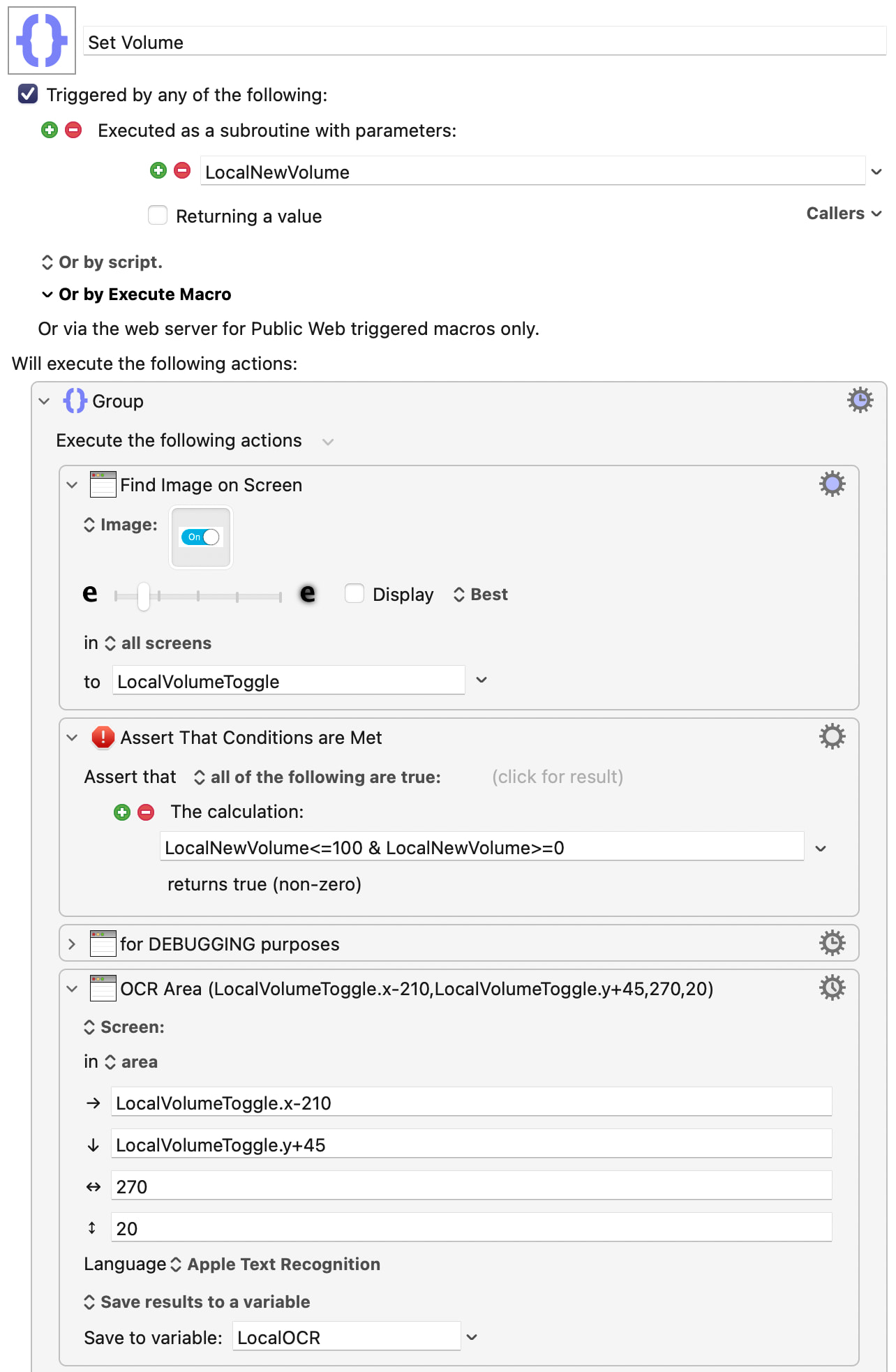

My code isn’t bulletproof yet, or complete. It just shows you how I would approach this problem. There are probably other valid approaches as well. And if I uploaded my code, it wouldn’t run on your computer, because it has one image and a few coordinates that you have to adjust anyway. I recommend that you re-create this macro manually so that you learn how every action works.
So it goes from 0-127, which you want to map from 0-100, and it stays where it's put.
Does it repeatedly signal as it moves, so sliding it from 50 to 55 sends 51 then 52 then 53 then 54 then 55, or does it send once it has stopped moving?
@DocOck's macro assumes that the Volume block's pop-over is open -- will that be the case?
The click-and-drag is very easy to do. But
- You don't know where the knob is positioned on the slider! You are probably going to have to use image detection for that, it's a poorly-defined target (you can't include anything to either side of the button, and only a few pixels above and below it), you'll probably need another image detection on the block's title bar so you can limit the search area, and you may have to cater for both not-running and running session colours and maybe light/dark mode for both
- Unless your Volume block is always positioned in exactly the same place on your screen or, preferably, in the same position relative to the window's corner, you don't know where the slider bar is -- so how do you know where to slide to?
Much better, if you can, to use keystrokes to do the movement.
Yes, but there is a way to “pin” the pop-over on top of the screen. However in order for my macro to send keys to that window, I would still have to put Audio Hijack in front. I didn’t want to add complexity to my macro at this point, so I just provided the core actions that are needed.
There are even more fine points that I could mention, but I wanted the person to try my code himself and see what those issues are.
My method avoids doing that. Doing that would be a mess. My solution of using arrow keys and OCR is really tidy.
My method also solves that problem.
Many thanks for all the advice received. I shall try the various options tomorrow and see how far I get. But I am really grateful for all the advice and how quickly you have responded.
Since I was responding directly to OP's comment that it
...it doesn't matter what your method does. And you'll see that my AppleScript avoids all that entirely -- though still, unfortunately, requiring simulated arrow keys.
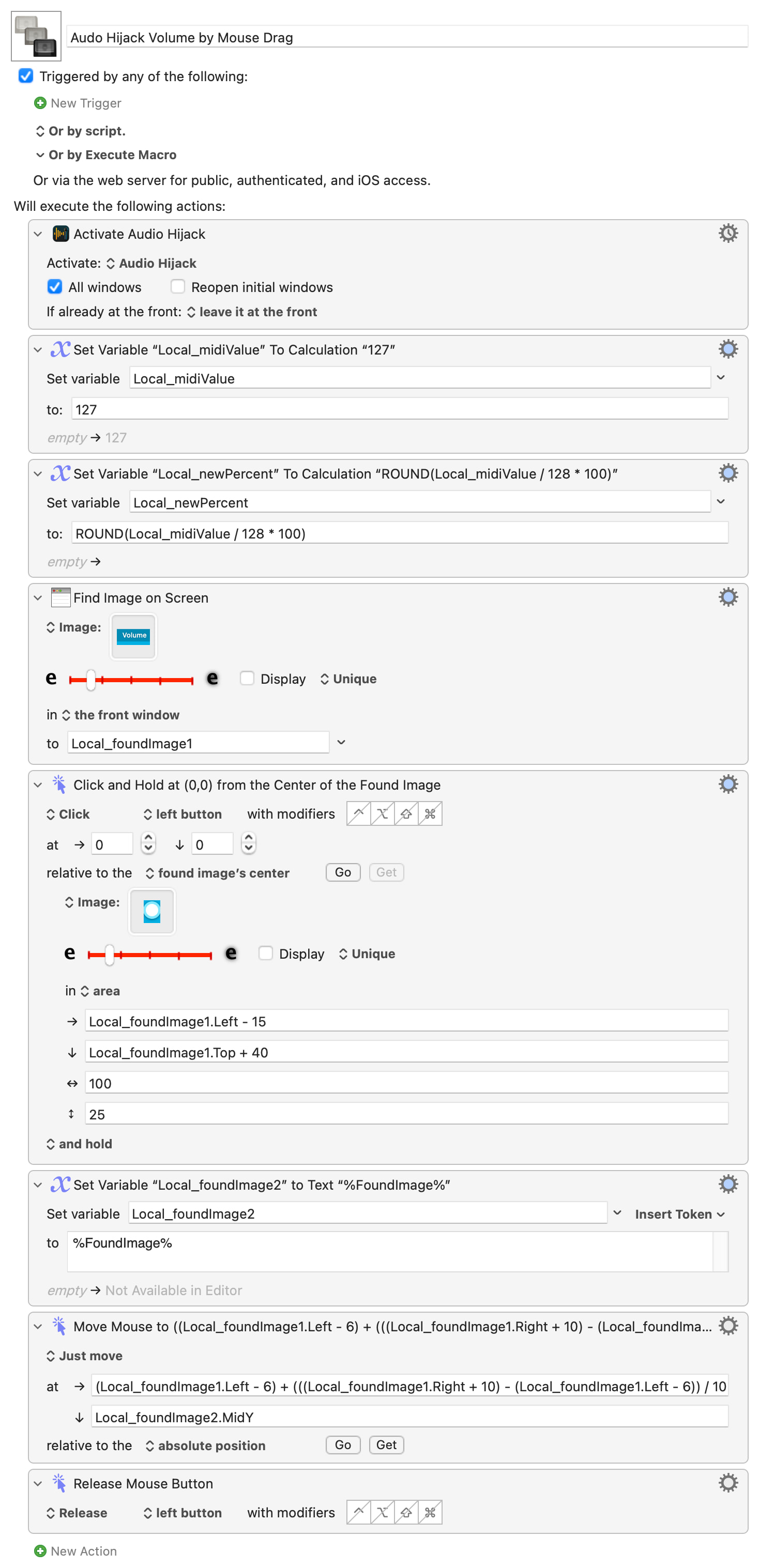
If you do want to use click-and-drag, try this. It isn't yet tied into your MIDI commands, so set a MIDI value (0-127) in the second Action.
The images work for me with Audio Hijack looking like:
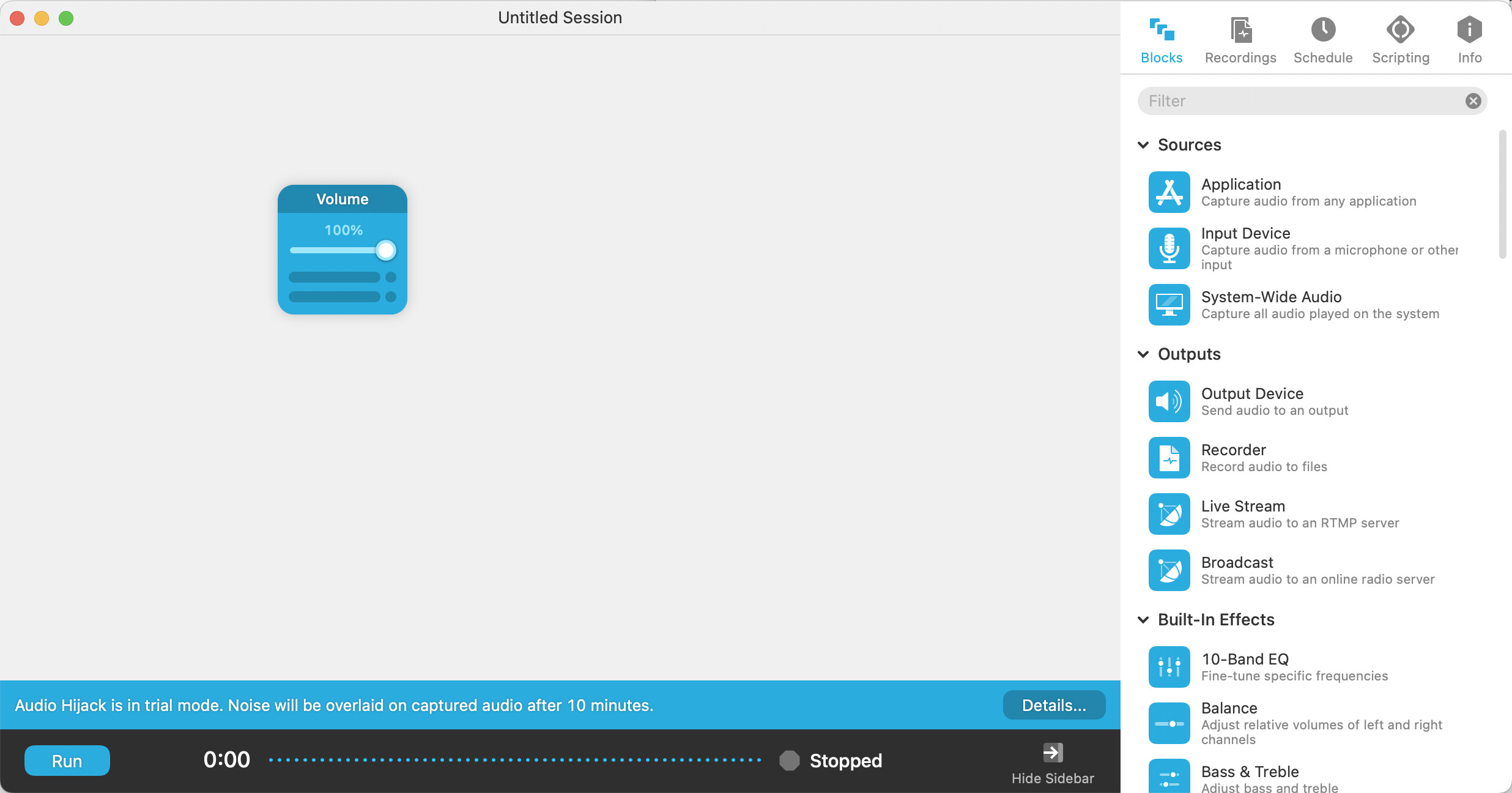
...but if you use Dark Mode or are "Run"ning AH you'll need to screen shot your own. If you do you'll need to change the offsets in the calculations -- anything referencing Local_foundImage1 is based off the top-left corner of your screen shot of the "Volume" title bar.
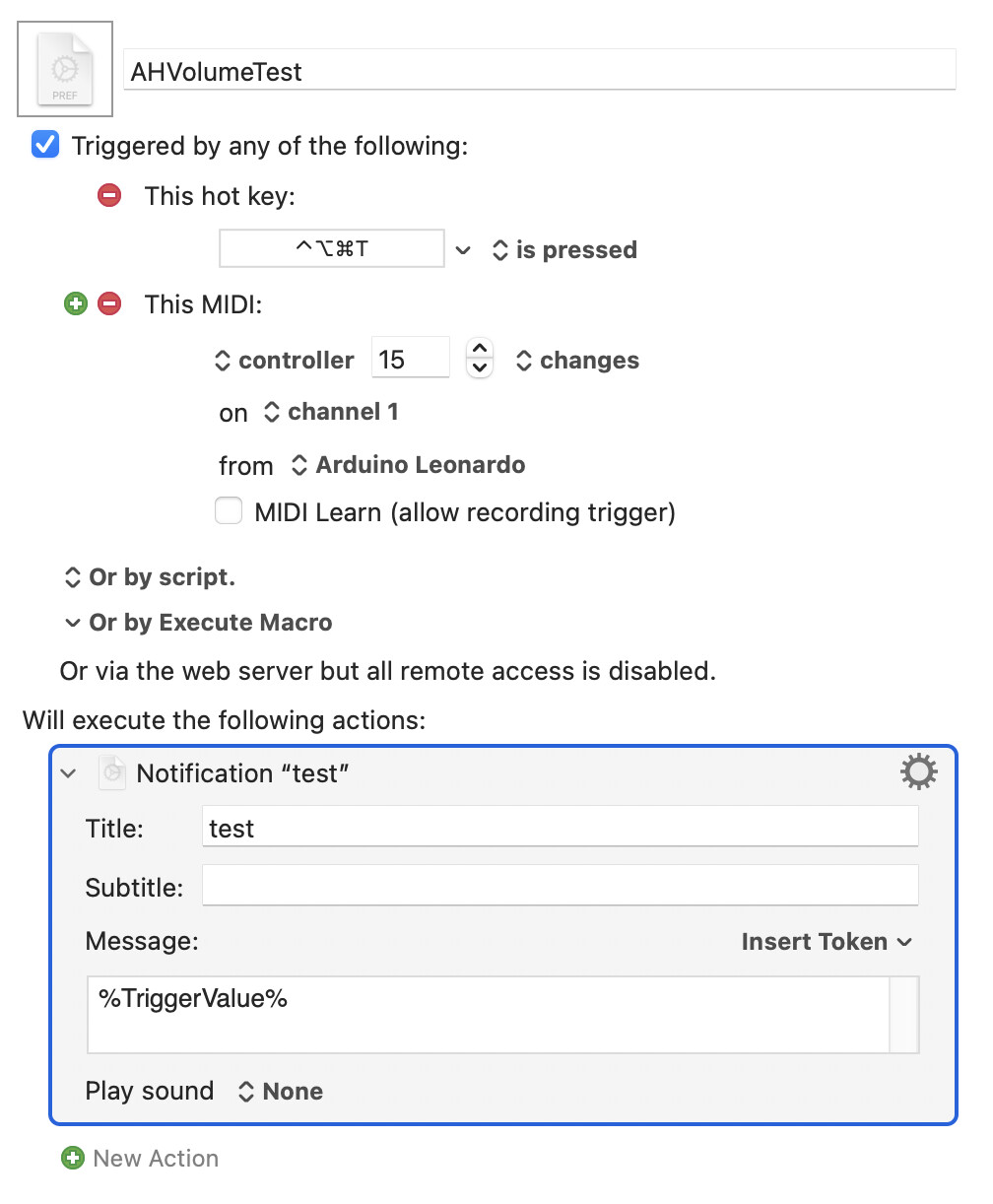
I have got stuck. I am at the point where I am trying to get Keyboard Maestro to receive midi signals from my Arduino midi controller. I am doing a simple test. I have created a midi trigger. Using midi learn picks up the Arduino. I have then set a print message action for test purpose. But when I switch off the MIDI learn and then move the Arduino MIDI fader nothingM happens. But as you will see if I trigger the message with a keyboard combination there the message appears. Does anyone know why KM is not receiving changing midi controller values once I switch off MIDI learn. One more point I have changed the “change” setting to “changes” or “increases” or “decreases” but nothing triggers the message. Graphic attached I hope.