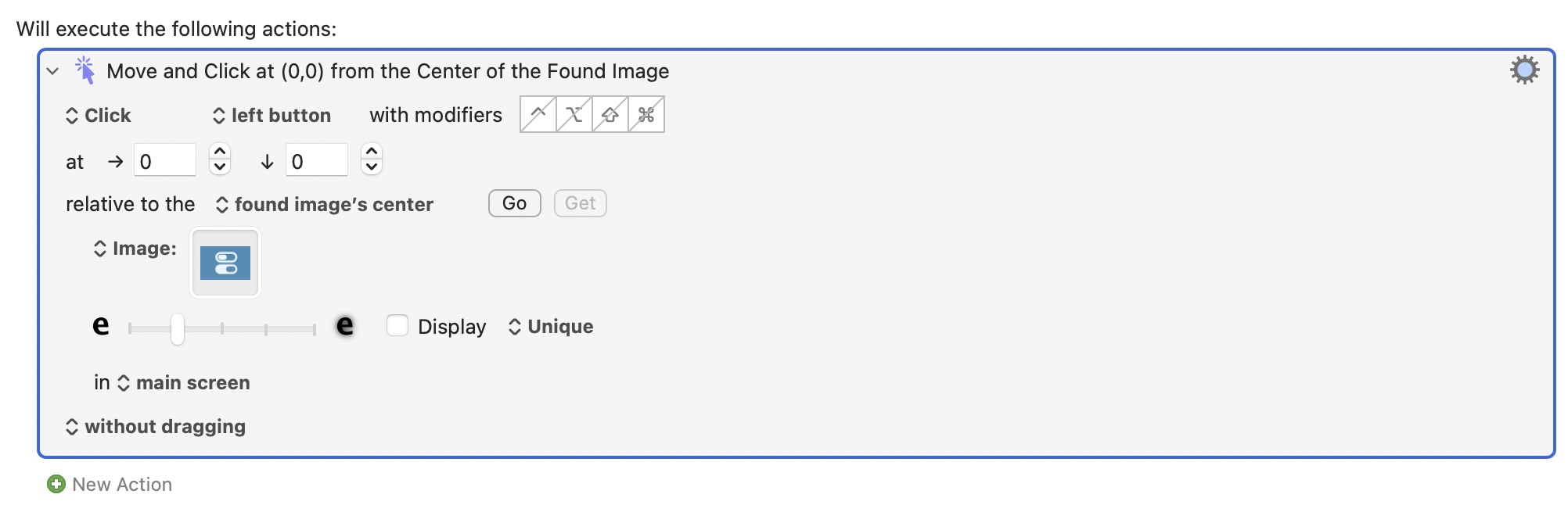
I am trying to automate changing the Display Presets at different times of the day with the first step being clicking on the Control Centre icon in the menu bar.
I have been trying to use Move or Click Mouse action but cannot get it work.
It would help if you showed your not-working attempt.
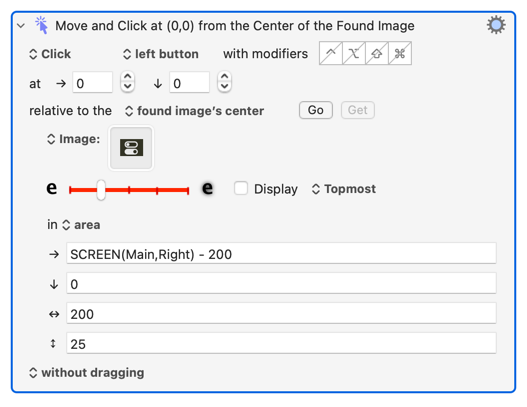
This works for me, though using an image may be problematic if you are using macOS 26's see-through menu bar. Note how the search area is constrained to a)speed things up and b) reduce false positives:
If neither of the above work for you, try AppleScript. We covered this in one of your other threads but, for completeness:
tell application "System Events"
	tell process "Control Centre"
		tell menu bar 1
			tell item 1 of (every menu bar item whose description is "Control Centre")
				click
			end tell
		end tell
	end tell
end tell
You may want to use AppleScript anyway, since you'll likely need it for subsequent actions in Control Centre.
For complete completeness , the following script also works. However, although it is more compact than @Nige_S’s method, it lacks its clarity.
tell application "System Events" to tell process "Control Centre"
	click menu bar item 2 of menu bar 1
end tell
We have all been referring to the “Control Centre”. Those on systems which use USA spelling would need to change that to “Control Center” in either script.
Yes, and I wonder whether it might be possible to bypass the Control Centre, depending upon the aim.
Is item 2 a given now, with macOS 26's Control Centre menu bar configuration options? You can't drop anything between that and the date/time on Sequoia, but I haven't tried it on Tahoe.
I see! I am still using MacOS 14.8.2 Sonoma for now.[1] In hindsight, it makes sense that Apple’s tinkering would have broken that script, especially since it is, as I mentioned, opaque—at least to me. I just change the digits till it works for any particular case!
I will upgrade MacOS when the software I need, not Apple, demands it. ↩︎
Not at all -- AS is just another tool you can use in KM.
You should be able to do what you want with KM "native" actions, particularly since there's always "Click on Found Image" to fall back on. That would, perhaps, be a better way to become "proficient" in KM before turning to AS, because the tricks you learn when finding/waiting for images are more generally applicable.
How are you getting the image to put in the action's image well? The most reliable method is to ⌃⇧⌘4 then drag over the area you want to put the screenshot on the Clipboard then Paste into the image well -- other methods, like capturing to a file which you then open in Preview and Copy an area from, often have problems with resolutions.
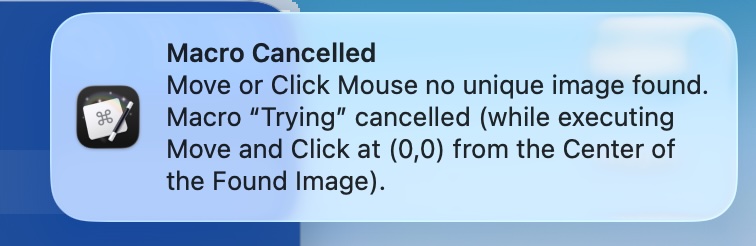
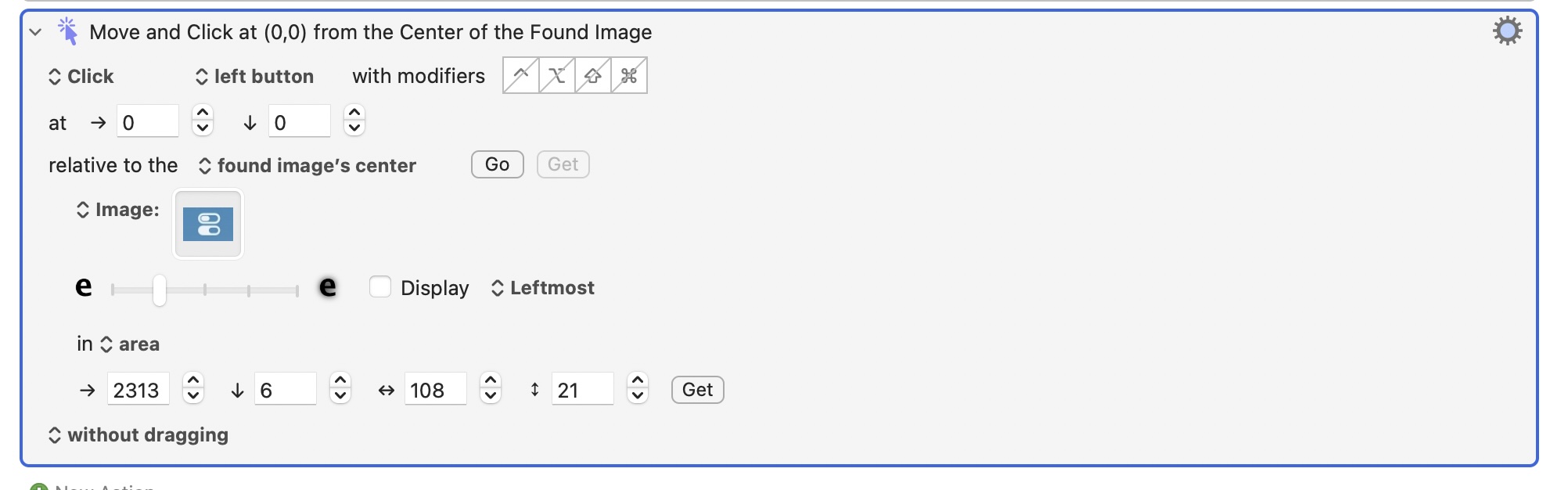
And beware the error message! It's the same when either no image is found or no unique image is found so it's a good move to troubleshoot, as you did above, by changing "Unique" to something else.
It's working for me, now on Tahoe with both transparent and non-transparent menu bar.
Start by trying your "main screen" version with the "topmost" option -- that'll take the area out of the equation and stop it from making multiple matches. If that works you can start narrowing things down.
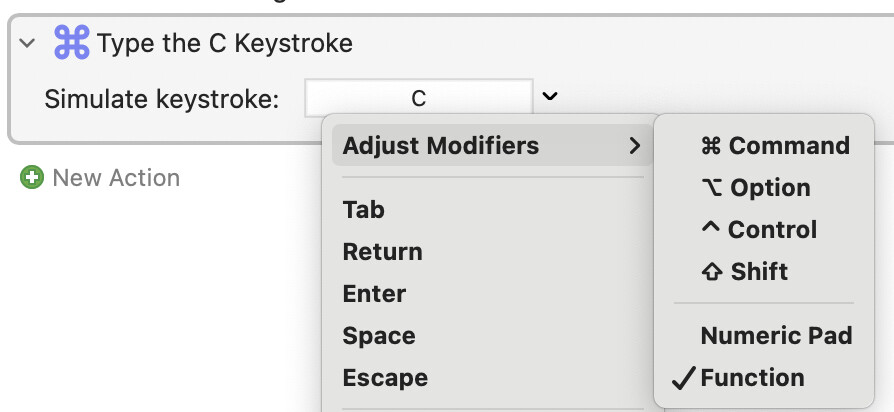
If it doesn't work, try the Fn (or Globe key) C method. Once you have popped the window you may have better luck using image detection to target the panel you're after -- or, since the layout is pretty static, you could use "Click at: x,y" with absolute coordinates.
I am onto an another approach which is through system settings which is close to working. Will keep you posted though I suspect will abandon this as it is too had under macOS 26 with the liquid display.
In the meantime please the post here which is a working versions of the main objective (i.e., still a few tweaks to go)
 , the following script also works. However, although it is more compact than