Xxx Xxx xxxx, Xxx Xx xxxx xxx xx Xxx xxxxx, xxxxxxxxx xx Xxx xxxxxxxx; xxx xxx xxxx xxxx xxxxxxxx
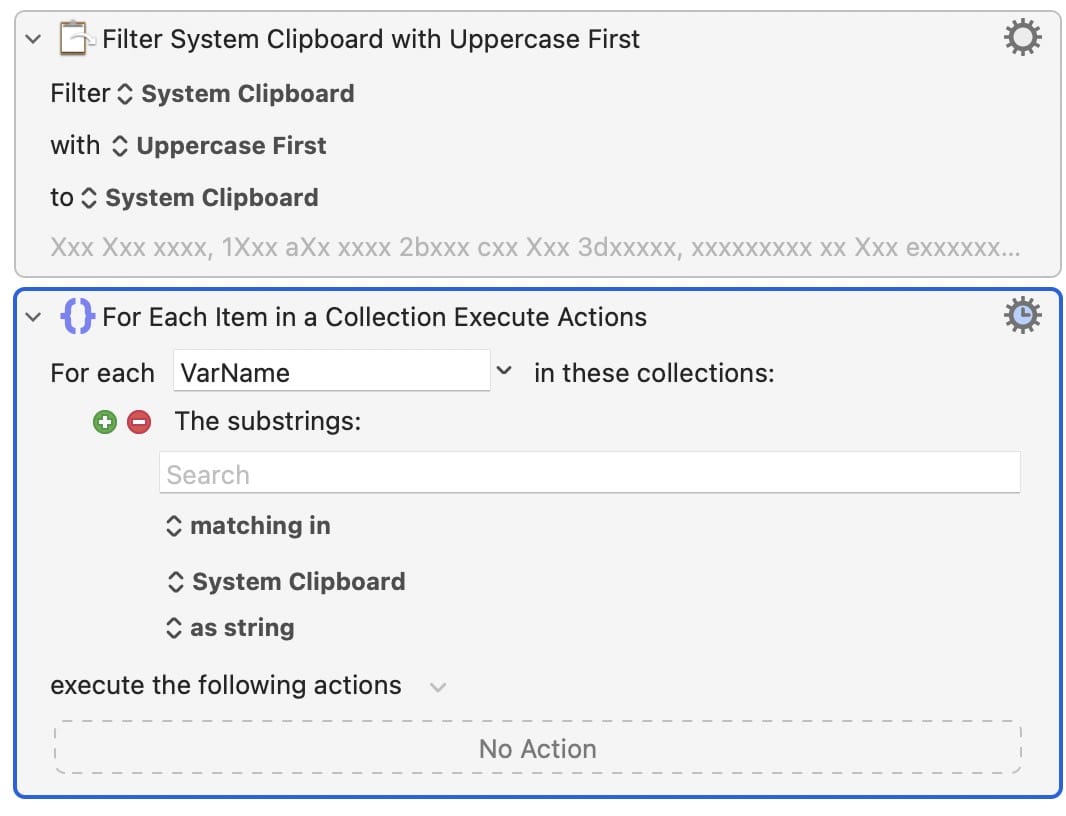
My first thought was to use the Filter System Clipboard or For Each Item actions but it seems they do not work on styled text. Neither does Regex, it seems.
You haven't said where the text is coming from, nor what format it is in, not where it'll end up. So any answers will be pretty general.
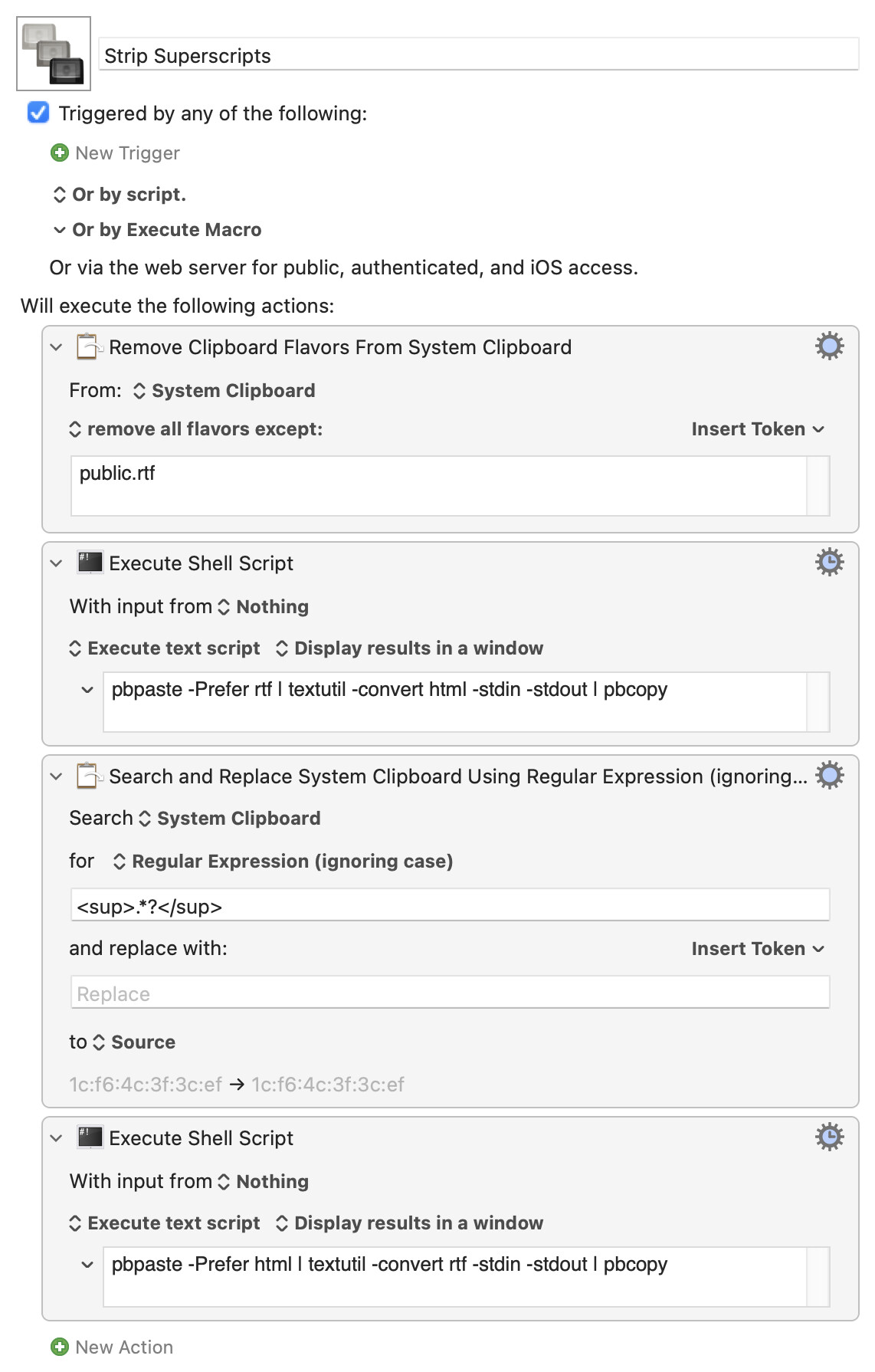
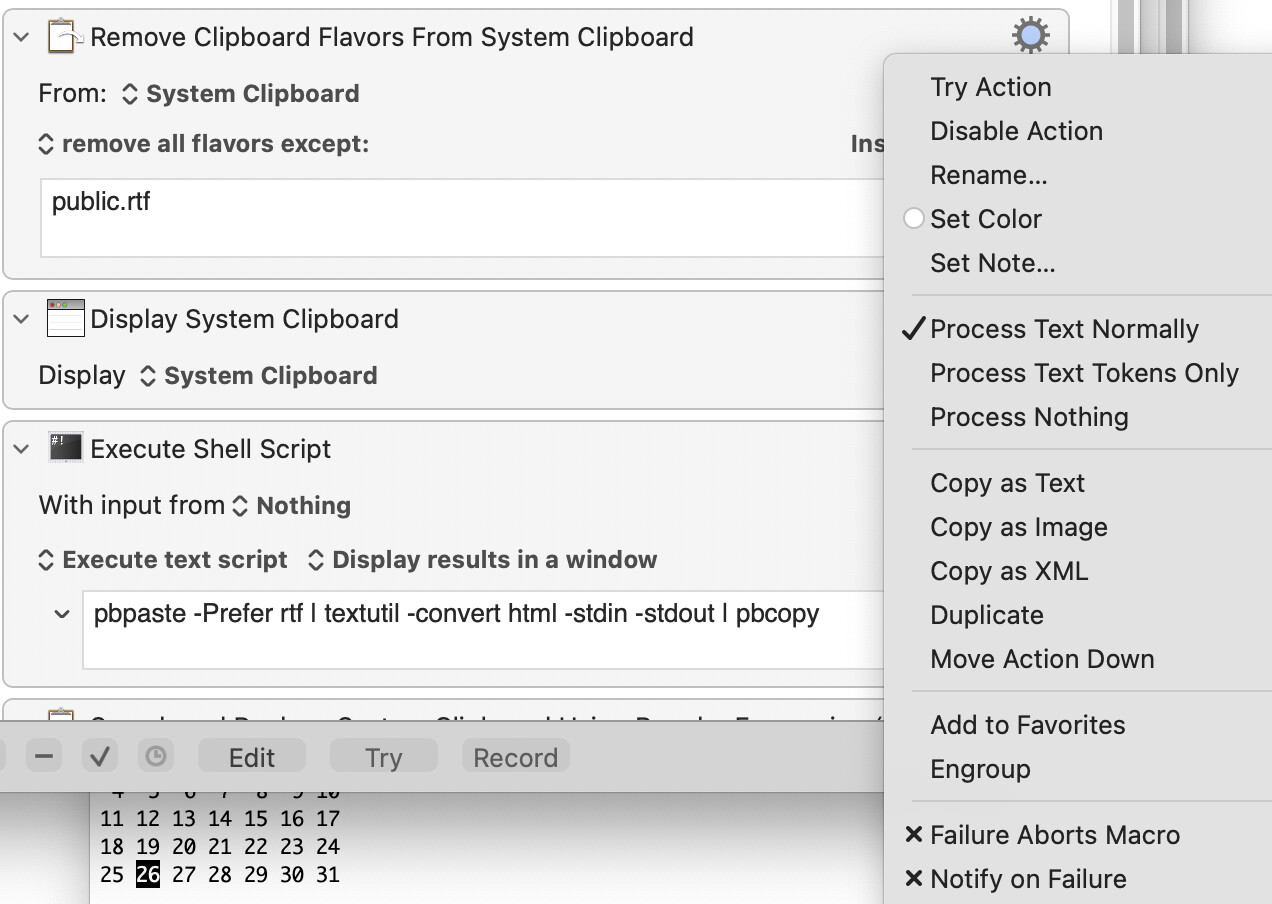
Assuming there's RTF amongst the Clipboard flavours you could bounce the text to HTML and back to RTF, stripping the HTML superscript entities in-between. You'll probably lose some formatting, but that's HTML for you.
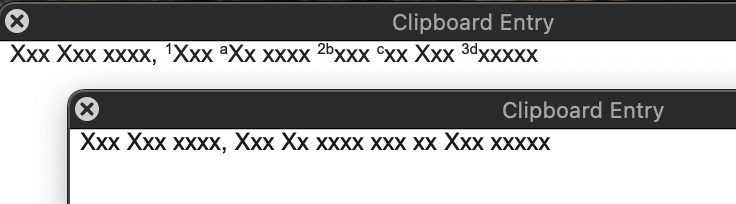
@Nige_S I’m copying this text from a website, and not sure how to answer your other questions. I’m attaching a superscripts.docx to show what it’s like when pasted from the website into Word.
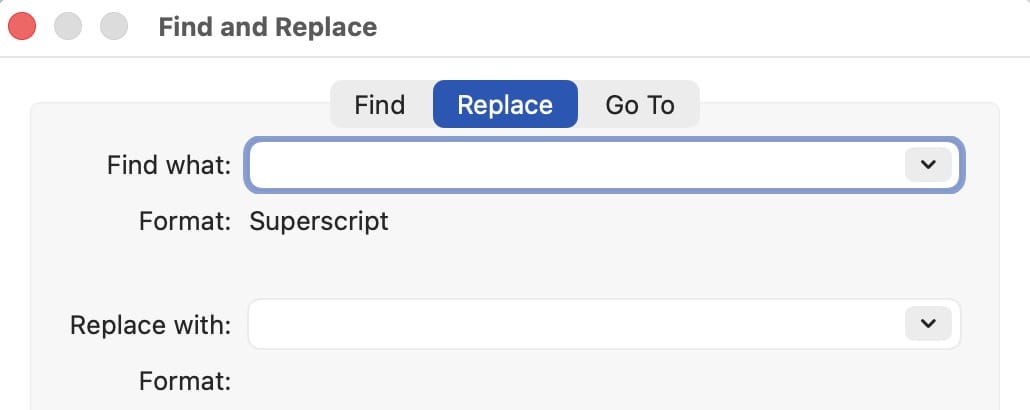
One way I can remove just the superscripts is via Microsoft Word’s advanced find and replace which allows searching for formatting. Should I write a macro to do that? I’m trying to use VBA less and KM more.
If so, I’m guessing the slowest step would be opening/closing Word. I’m used to being able to do that in the background with VBA. We all use the tools we know best, and to be honest even though I’ve spent years with KM, I’m still a novice/hack.
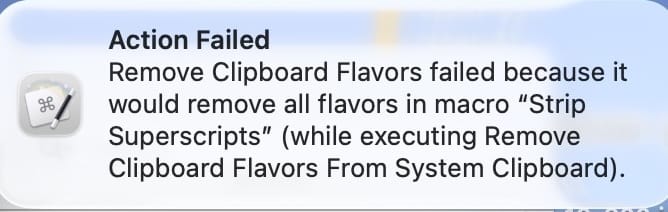
...but for some reason you aren't getting RTF when copying.
The problem is that when you Copy the "donor" app loads the Clipboard with the selected data in a variety of, hopefully useful, formats (flavours). When you Paste the "receiving" app picks the format that it can make the best use of, then does its own thing to the data. So what ends up in Word doesn't tell us what you originally Copied!
Which answers the unanswered question -- you're using Chrome.
Short answer -- try in Safari instead. Or Copy from Chrome, Paste into TextEdit to "translate" to RTF, Copy what you Pasted then run the macro.
Longer answer -- Chrome has its own ideas about what should go on the Clipboard, RTF isn't part of that, you might be able to find some way to extract public.html and work directly on that with the search and replace.
Thanks for the link. I did read it, and I would say the main Takeaway that I got from this thread is that the clipboard is complicated when it comes to rich text.
Unfortunately, I am often quite interested in styled text, especially wanting to find and replace based upon it as can be done with advanced find and replace in Microsoft Word. I want to learn how to do that using KM.
There will be an option in Chrome (or any other Web browser) to view the page source, via a menu item or key shortcut. So it would be possible to make a little macro to search the page for items wrapped in the HTML <sup> tag (either directly or by copying the page contents to the clipboard).
I won’t go into more detail because whether or not this idea is of any use, and how exactly it would be implemented in a macro, would depend upon user requirements and preferences! However, I am sure you will see the basic idea.
By the way, @Tony, for general browser usage, if you wish to use one from the Chromium family and want to keep Google at a safer distance, try replacing Chrome with Brave Browser.
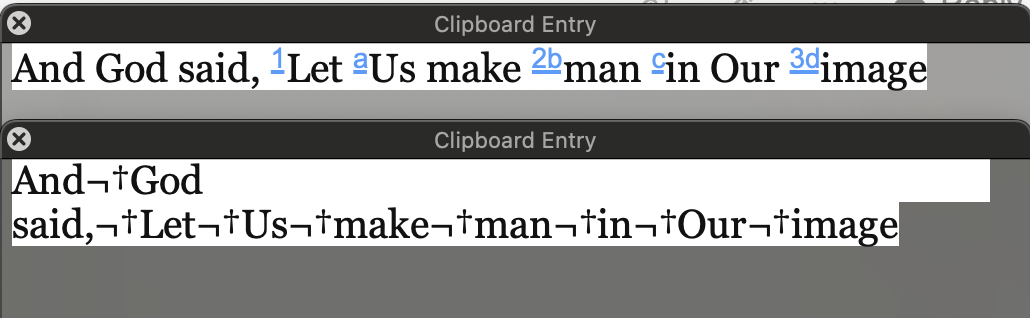
I actually found a way to almost do what OP wants but in Chrome -- problem was that the Copied public.html had extra "bits" in that RTF didn't so after stripping the superscripts:
Obviously that just another search-and-replace to fix -- if those extra characters are consistent.
For completeness, here's the AppleScript I used to get the public.html format off the Clipboard and turn the binary object into KM-usable text:
set thex to (the clipboard as «class HTML»)
set f to (path to "temp" from user domain as text) & "temp.txt"
-- Writes to a file named "temp.txt" in "Macintosh HD:Users:[userid]:Library:Caches:TemporaryItems:temp.txt"
set newFile to open for access file f with write permission
set eof of newFile to 0
write thex to newFile
close access newFile
set newFile to open for access file f
set theHTML to read newFile
return theHTML
I'm sure the ObjC gurus here could come up with something better!
I’ve worked some more on this as I indicated I would above
I would say the main Takeaway that I got from this thread is that the clipboard is complicated when it comes to rich text.
Unfortunately, I am often quite interested in styled text, especially wanting to find and replace based upon it as can be done with advanced find and replace in Microsoft Word. I want to learn how to do that using KM.
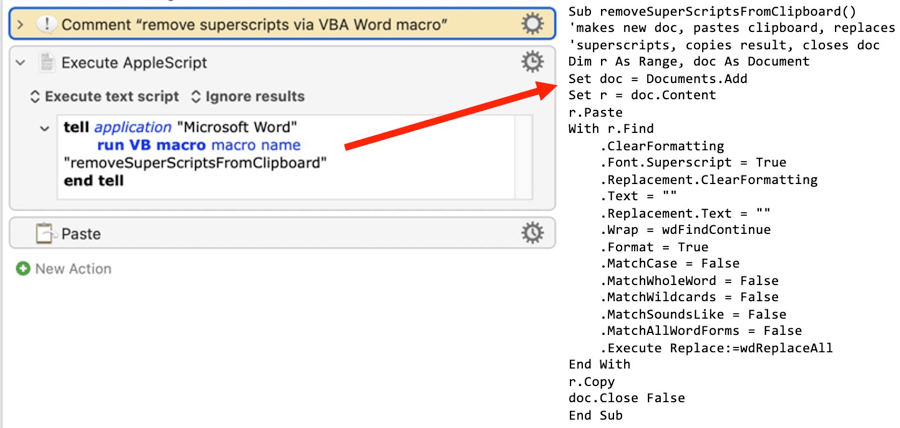
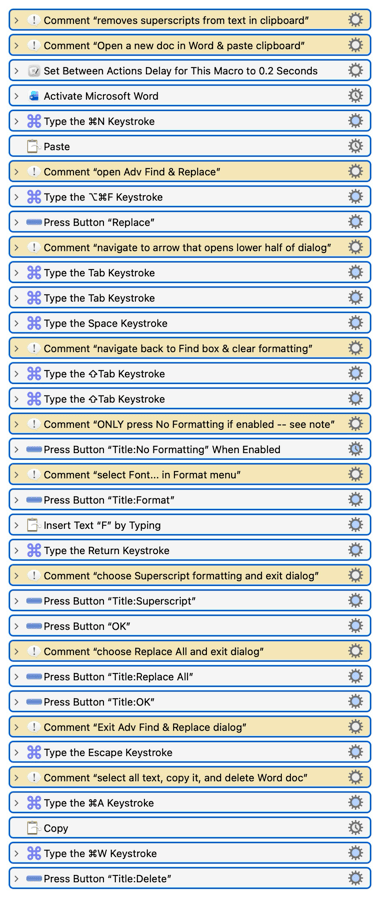
Attached are 2 macros I made to solve the original problem: removing superscripts from text copied to the clipboard. The first uses VBA and works flawlessly in my hands. The second uses only KM via a lot of Push Button actions in Word and works as long as the dialogs within Word are in their initial state.
Of course, that last phrase is the rub: I don’t know the secret to making those dialogs be in their initial state. For example, the Advanced Find & Replace dialog in Word will spawn various new dialogs as you push buttons and they sometimes remember what you did last time and stay in that state – which causes the macro to fail.
This is a more general problem I’ve had; for example, I have some KM macros for manipulating tables in Google Docs and they also fail when dialogs don’t stay in their initial state.
If anyone has an answer for that, I’m eager to listen – otherwise, I offer these macros to continue this thread.
Here’s the one where KM calls a VBA macro (I have that VBA code in my Normal template):
If you can identify the different states, you should be able to use multi-conditional checks to act appropriately—if there's a button named Superscript, do this, if it's named Subscript, do this, etc.
But honestly, calling the VBA seems like a much simpler solution, so I'm not sure it's worth the effort :).