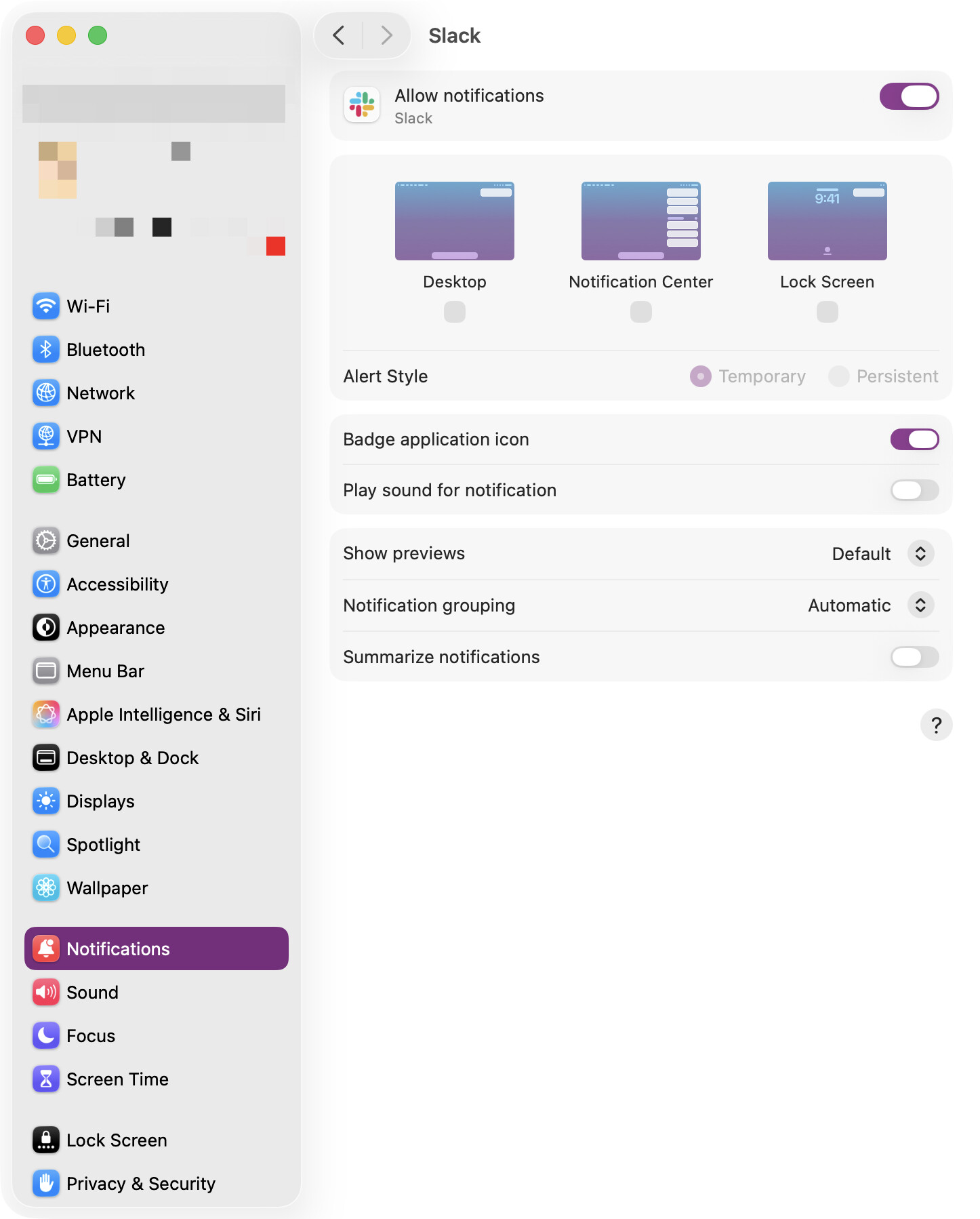
I would like to use an AppleScript on macOS 26 to disable notifications from Slack. (I want it to check/uncheck the “Allow notifications” button or even just “Badge application icon”.)
I’m clueless when it comes to programming so I have asked an LLM for some help…
The script successfully goes to the Slack notifications settings but it does uncheck anything after that, so I have added some keystroke actions to my macro.
Anyone has any ideas to complete the script? Thanks.
-- Example 1: try to open notifications settings for Slack, then toggle “Allow Notifications” if visible
set targetApp to "Slack" -- adjust as shown in Settings
set bundleID to "com.tinyspeck.slackmacgap" -- slack’s bundle identifier

-- Open Settings → Notifications for that app
do shell script "open \"x-apple.systempreferences:com.apple.preference.notifications?id=" & bundleID & "\""

tell application "System Settings" to activate
delay 1.5 -- wait for UI

tell application "System Events"
	tell application process "System Settings"
		tell window 1
			try
				-- Try to find UI element: list / table / row selection
				-- This path may or may not exist depending on macOS version
				tell splitter group 1 of group 1
					tell outline 1 of scroll area 1 of group 1
						-- Not selecting anything, just wait for list
					end tell
				end tell
			end try
			delay 0.5
		end tell
	end tell
end tell
You need to then tell the "Allow notifications" button to do something -- a click will be enough to toggle it. The problem is finding the "path" to that button -- this works for Sequoia, but you may need to tweak it for Tahoe (I've used the verbose way of doing the "path" so you can see how the UI elements nest):
set targetApp to "Slack" -- adjust as shown in Settings
set bundleID to "com.tinyspeck.slackmacgap" -- slack’s bundle identifier

-- Open Settings → Notifications for that app
do shell script "open \"x-apple.systempreferences:com.apple.preference.notifications?id=" & bundleID & "\""

tell application "System Settings" to activate
delay 1.5 -- wait for UI

tell application "System Events"
	tell process "System Settings"
		tell window 1
			try
				tell list 1
					tell splitter group 1
						tell list 2
							tell group 1
								tell scroll area 1
									tell group 1
										tell checkbox 1
											click
										end tell
									end tell
								end tell
							end tell
						end tell
					end tell
				end tell
			end try
		end tell
	end tell
end tell
But before you go any further -- have you considered using a Focus Mode for this? You could have a Focus that "Silenced" Slack (and any other apps you didn't want Notifications from), without having to go through System Settings every time.
Thank you for chiming in. This doesn’t work but I will keep digging…
The issue with a Focus mode is that it wouldn’t work. Essentially, I want to keep Slack open (work policies…) while on a pomodoro but remove the Badge icon so it doesn’t distract me.
So, badges are the only type of notifications I have enabled. With that in mind, a Focus mode wouldn’t be of much use, which is why I’m looking for a way to quickly enable/disable badges.
set targetApp to "Slack" -- adjust as shown in Settings
set bundleID to "com.tinyspeck.slackmacgap" -- slack’s bundle identifier

-- Open Settings → Notifications for that app
do shell script "open \"x-apple.systempreferences:com.apple.preference.notifications?id=" & bundleID & "\""

tell application "System Settings" to activate
delay 1.5 -- wait for UI

tell application "System Events"
	tell process "System Settings"
		tell window 1
			tell group 1
				tell splitter group 1
					tell group 3
						tell group 1
							tell scroll area 1
								tell group 1
									tell checkbox 1
										click
									end tell
								end tell
							end tell
						end tell
					end tell
				end tell
			end tell
		end tell
	end tell
end tell
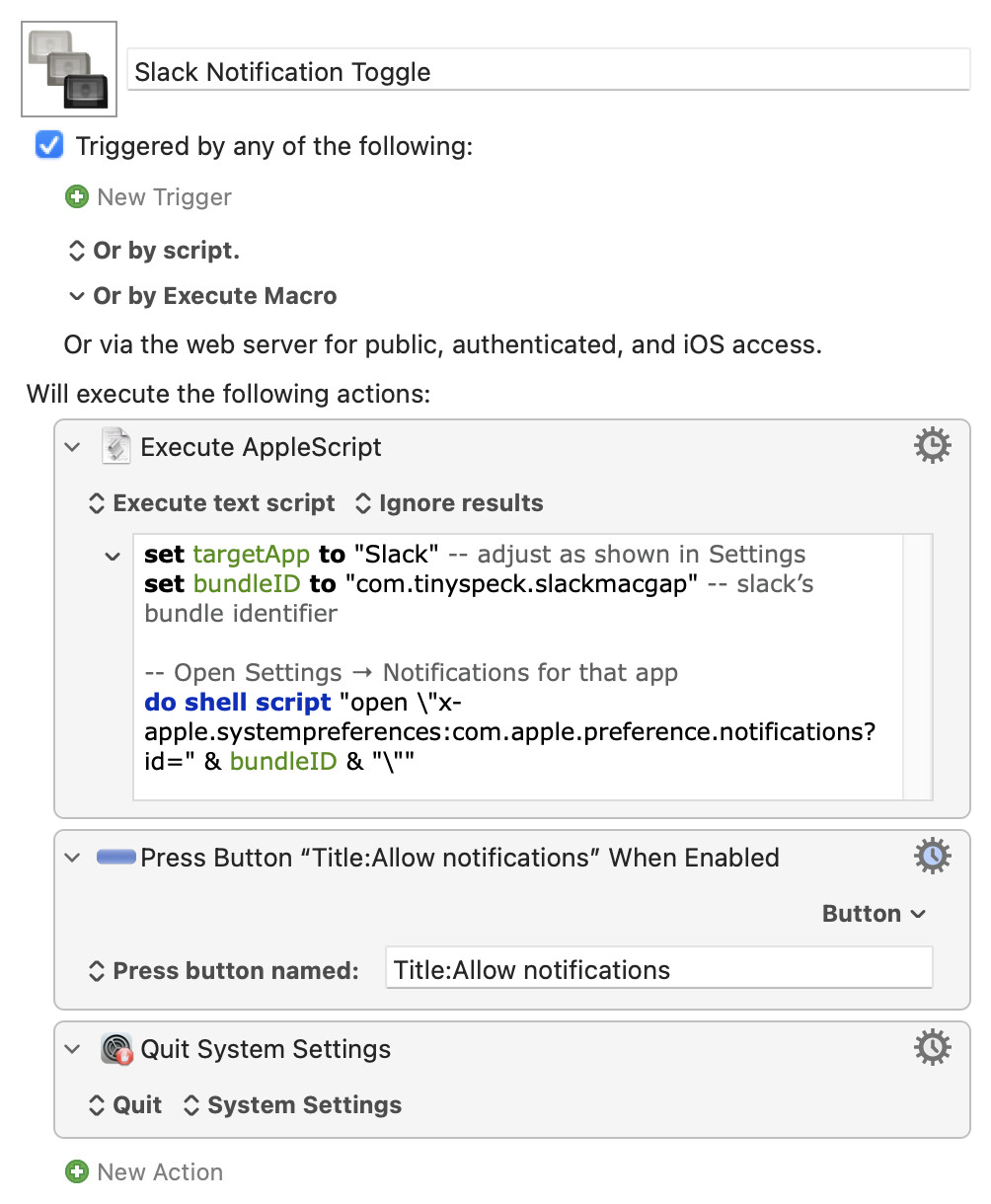
You might find it better to use the AppleScript method to open Notification settings (it's the easiest way to drill down to a particular app) and KM Actions for the rest:
 I am new around here.