Export as PDF... for each selected email in apple mail

A year and a half ago, I posted a question about “For each selected email in Apple Mail.”

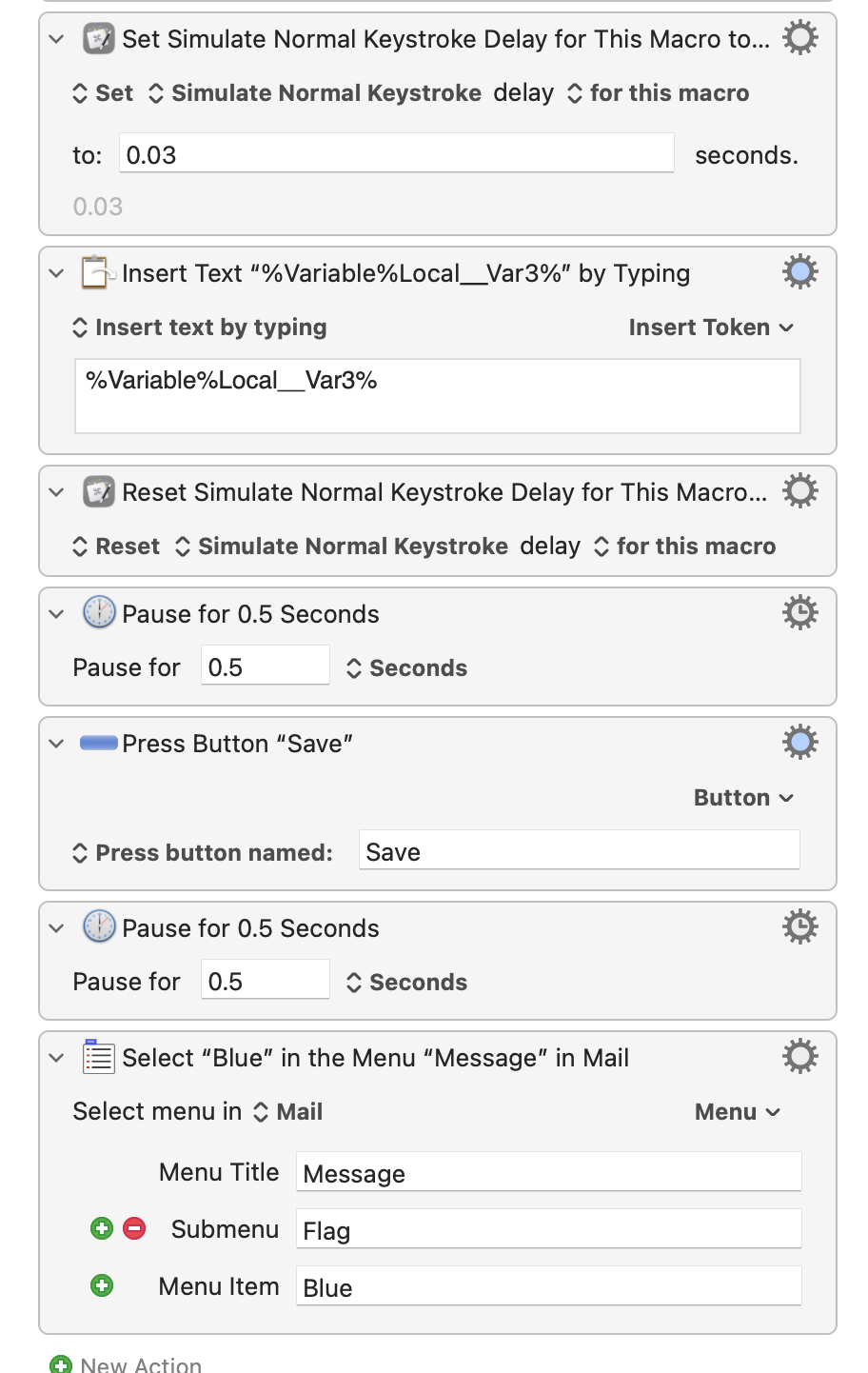
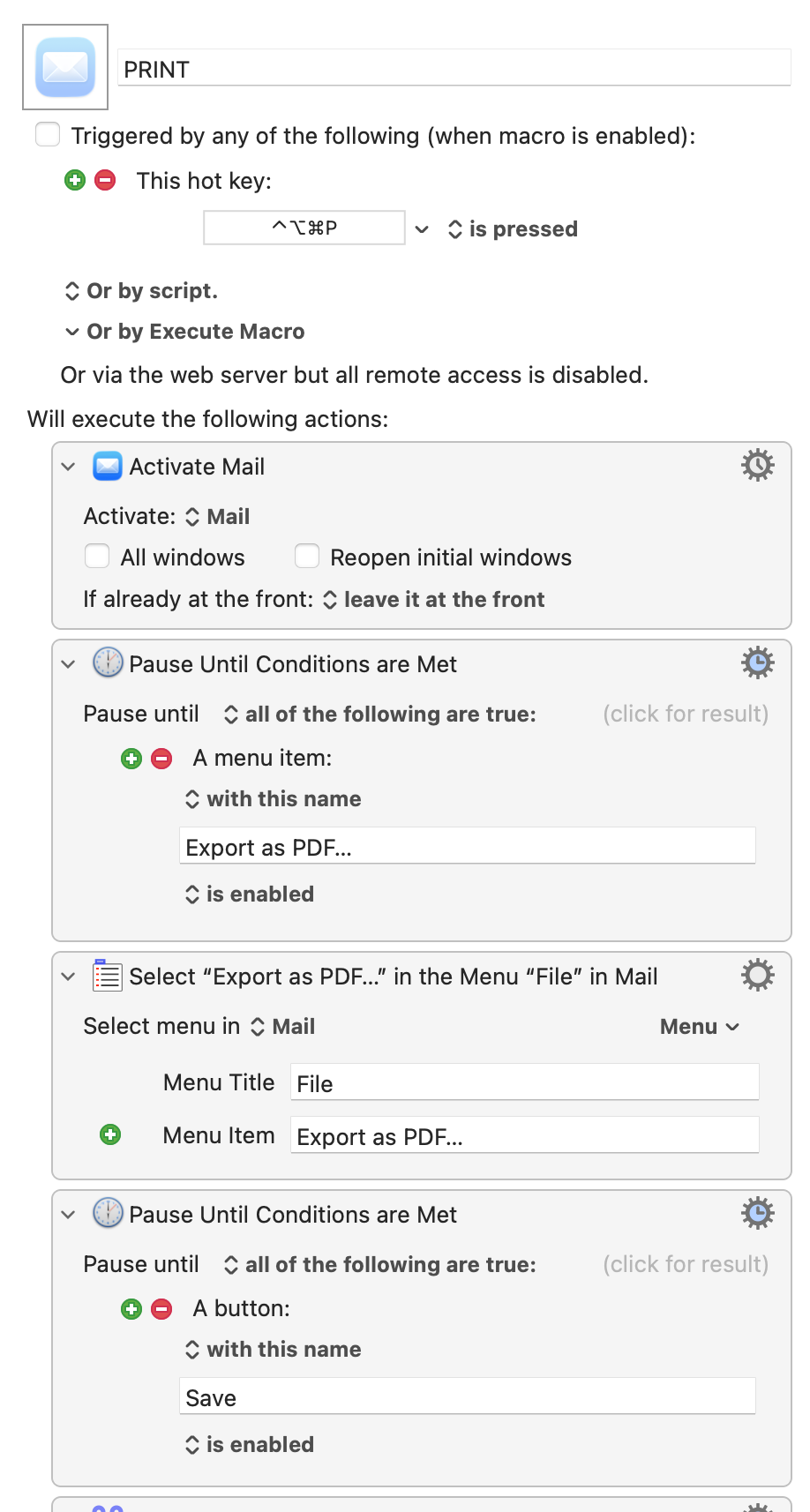
The answer came promptly, and I use the solution several times a day, but this time I have the same question in connection with the Mail - File - Export as PDF... function. Since the answer at that time was a JXA script, I can't use it here... My macro looks very simple...
It uses the Mail - File - Export as PDF function and applies a bit of regex.

I don't want to do this manually every time with a hotkey trigger for each email, but rather in a “loop” with a “for each selected email,” but I can't figure out how. With the help of Open AI, Google AI, and AppleScript, I haven't been able to create a simple version because there is some kind of bug with the message ID that mixes up the emails every time...
Maybe someone can help me...

If what I have in mind isn't possible because Keyboard Maestro can't do it, you're welcome to explain your approach to me...

PRINT.kmmacros (9.4 KB)

This bit appears to be missing from your screenshot. Which could be important, because an alternative solution would be to export all the selected emails in one go -- you get a PDF for each -- and then rename them. You could use a folder trigger for the renaming.

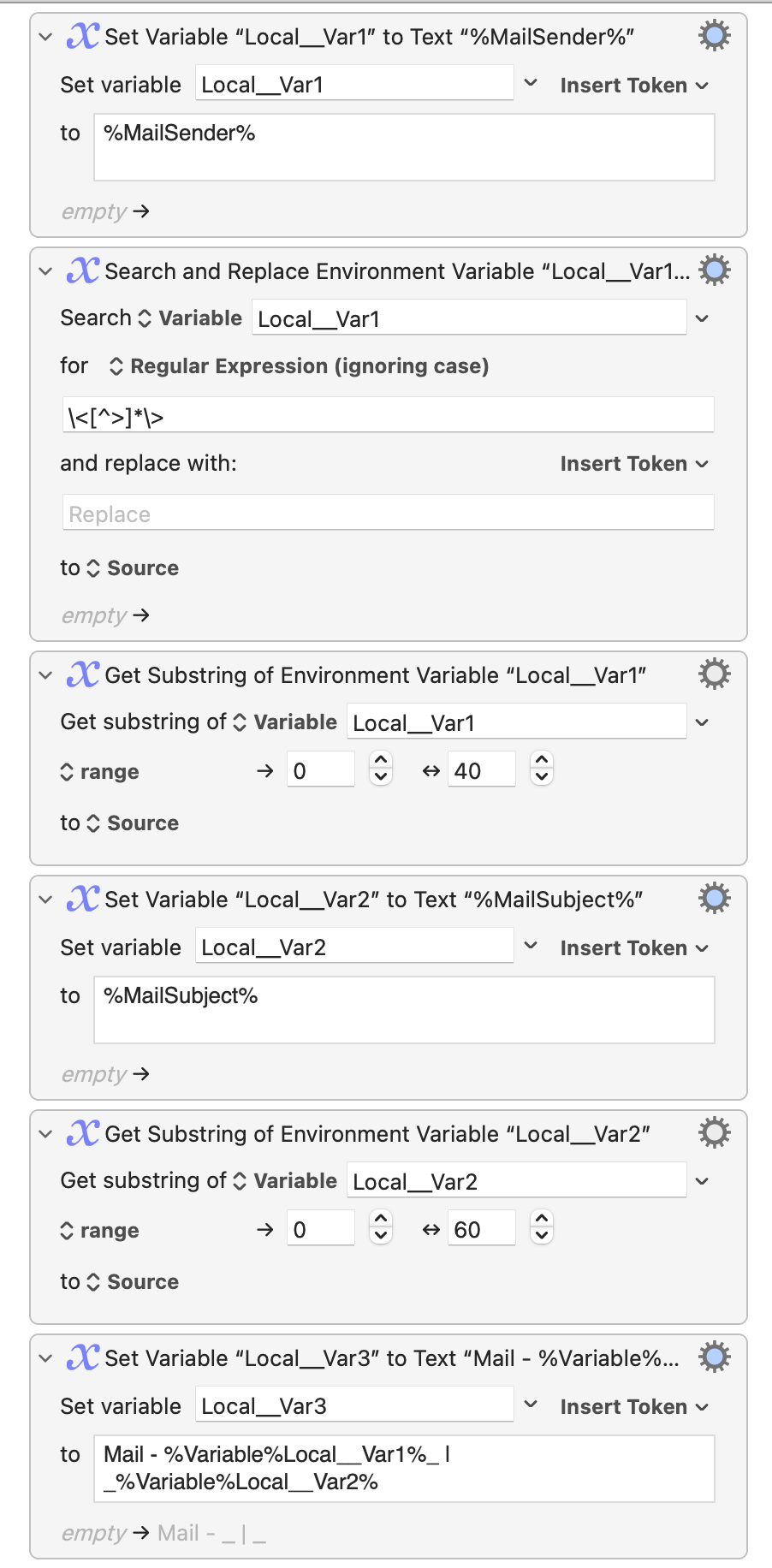
The middle part of the macro is actually missing, here it is:
It saves the tokens %MailSender% und %MailSubject% to local Variables and then cleans up the two tokens and then brings them back together again at the end…

In which case -- yes, you're probably going to have to go one email at a time.

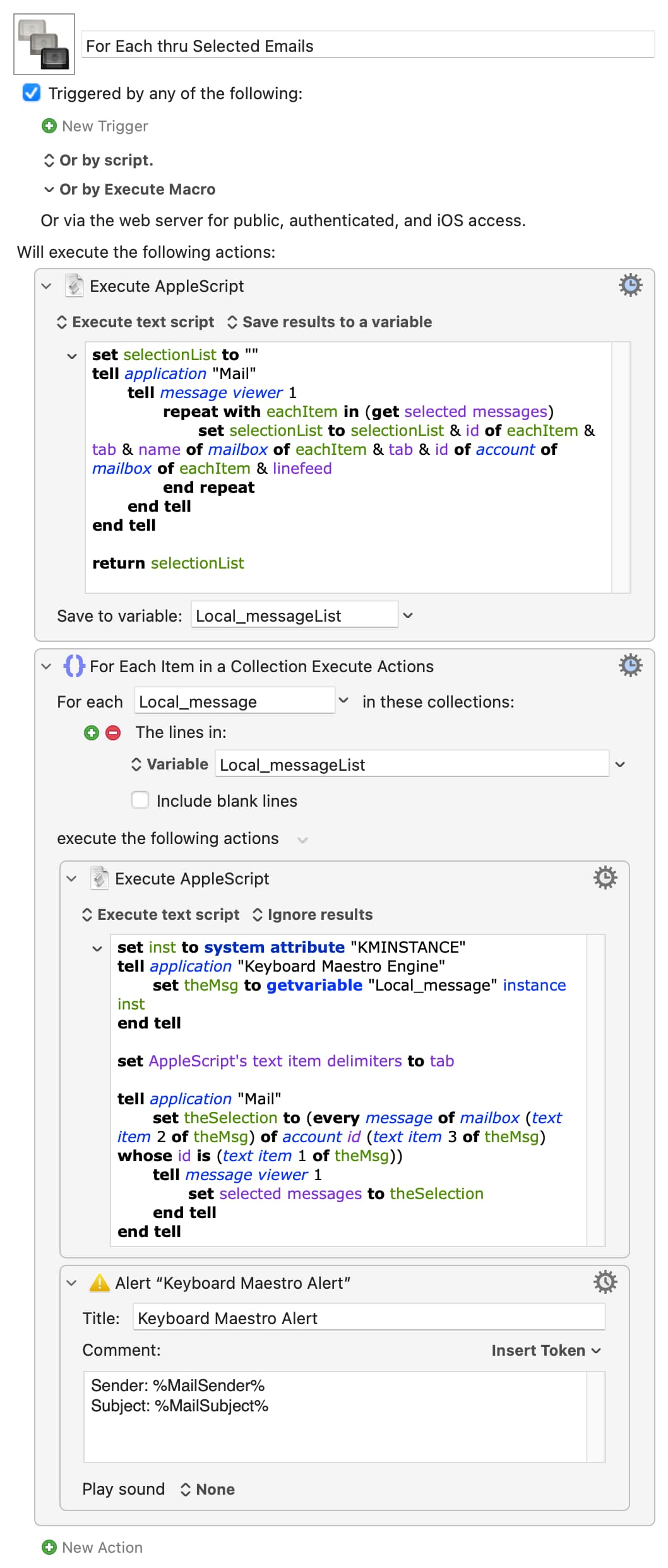
That means we have to get the list of currently-selected emails in a format that KM can use with to feed them back, one at a time, in a format AS/Mail can use...

This should work for both getting the list and then "For Each"ing to select each email in turn. You can use the "Alert" output to check it is working as intended and, when happy, you should be able to replace the "Alert" action with all your export-with-manipulated-name actions...

For Each thru Selected Emails.kmmacros (4.5 KB)

Image

I have to use Outlook so I'm afraid my Mail scripting is a bit rusty -- shout if there are any problems. And maybe someone more practiced than me will come up with a better way of doing this...

I've been testing the macro for about half an hour now... An error occurs and even with the help of ChatGpt I couldn't fix it... The first AppleScript works when I insert a display %Variable%Local_messageList%, it shows me exactly that many entries. (and the IDs seem to be correct...), but then an error occurs with the second AppleScript:
For example, if I select 4 emails out of 100, it runs the script four times, but one email was never selected and one email that was selected is not processed. If I then enter the 4 emails in a mailbox with exactly 4 emails, it runs again, but one email is executed twice and one is omitted again...
I tried it yesterday, but both OpenAi and Google Ai claim that it can't work because of bugs in Apple Mail... That can't be right, can it?

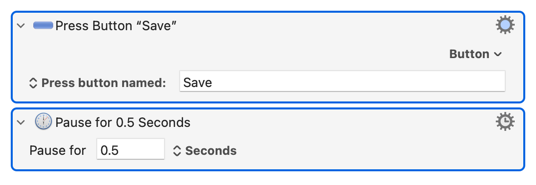
This bit:

...worries me. It can quite easily take more than half a second to generate a PDF, during which time you can't set the message flag and probably can't select the next message.

Try "Pause Until...", looking for an indication that it is safe to proceed. Since you're going to set the flag next, waiting for that menu item to be available would seem to be a sensible option -- but on my machine it becomes available between the "Save" dialog disappearing and the "Generating..." dialog coming up.

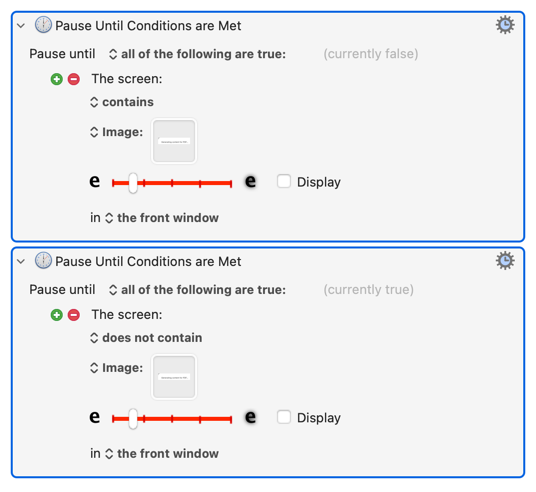
Instead, use two "Pause Until..." actions -- one that waits for the "Generating..." dialog to appear followed by one that waits until it has gone:

...where the image I used was

image

...screen-grabbed during a manual PDF export of a large email.

Selecting Mail by id isn't buggy as such, but it can be unreliable because ids change if you rebuild the mailbox and (I think) are particular to that Mail on that computer -- you can't use an id to reference an email on both home and work machines, for example. Neither of those should apply here.

I haven't entered my print template into the “for each item in a collection” action yet. The error occurred even with the basic framework. The alert action showed me a different email each time. I wanted to see if the basic framework worked first.

That's what it should do -- an individual alert for each email selected when you started the macro.

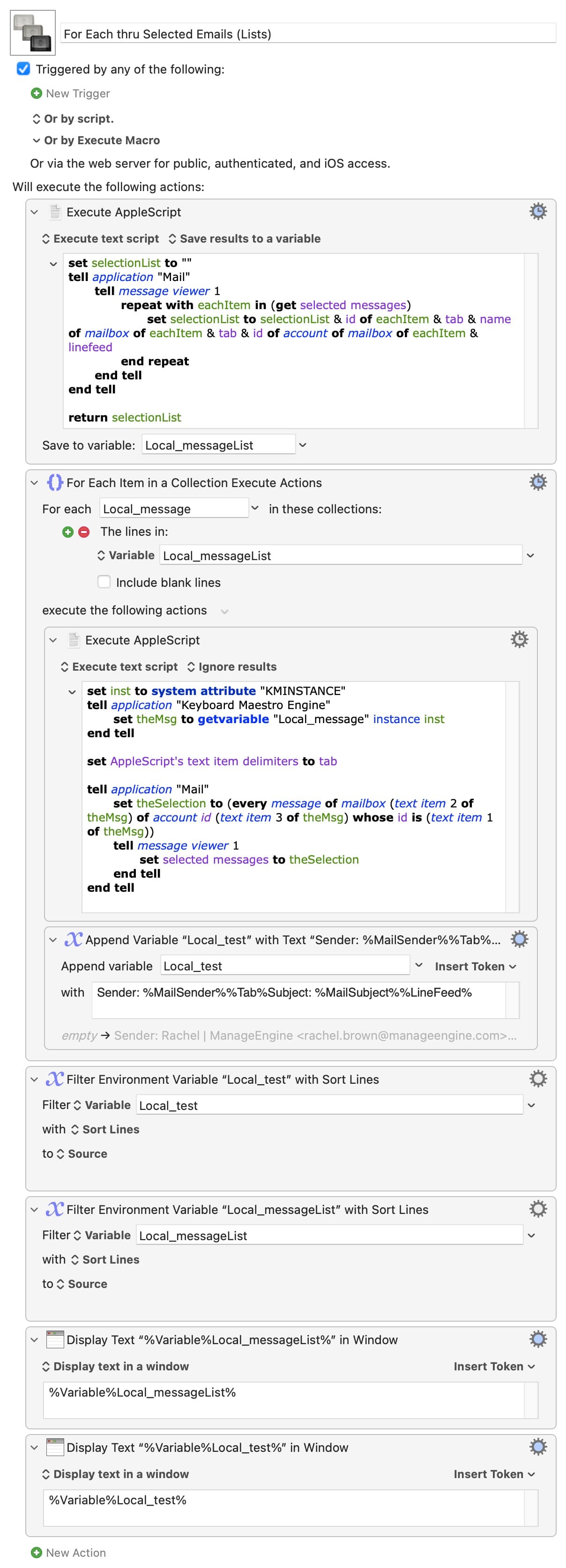
Try this instead -- it'll do the selecting as before, but at the end present you with sorted lists of a) the messages it went through, and b) the sender and subject lines of those message. Sorted because that makes it easy to spot duplicates (and, by extension, missed mails).

For Each thru Selected Emails (Lists).kmmacros (7.3 KB)

Image

That works perfectly for me with 100 emails selected.

But it doesn't work with nested mailboxes (which I hadn't considered) so make sure you're testing on a top-level box and not a nested or "smart" mailbox.

Forgive the silly question, but why are you exporting as PDFs rather than (more portable, and retain email metadata) .eml files?

And one for the future -- how will you cope when trying to save an email but a file with the same name already exists?

Thank you very much for your latest answer.

First of all, if anything was misunderstood, it might be because English is not my native language and I used a translation tool.

Here’s a bit of background:

In Safari, I use a macro that goes through every single tab in the frontmost window and exports each one as a PDF. The idea came from this thread:

https://forum.keyboardmaestro.com/t/export-all-open-safari-tabs-to-pdf/19332

With that in mind, about one and a half years ago I thought there should be something similar for Mail. That’s why I kept the title of my original thread rather general. Extracting links was just one example — there are many possible applications.

For instance, I’d like to export multiple emails as PDFs (the current case), but also perform other actions like setting multiple flags or moving several emails at once.

Of course, I could write separate JXA or AppleScripts for each task, but since my coding skills are limited, I prefer to handle things using Keyboard Maestro’s built-in functions whenever possible. Thanks to ChatGPT, I’ve meanwhile built up a nice little collection of short AppleScripts and other scripts I created myself.

The email printing workflow is a special case. I’ve been using Keyboard Maestro since late 2018 / early 2019, and printing emails has been my last “unfinished project.” ChatGPT has helped a lot here as well.

For public or work-related emails, I use a timestamp in the filename, and with Hazel (executing a Shortcut) plus ChatGPT, the files are renamed automatically. For private emails, I use the sender and subject instead (as described above).

I’ve been thinking about how to archive around 10,000 old emails in bulk. I’ve tried different approaches — Export as PDF, Print workflows, Print Services, custom keyboard shortcuts (à la MacSparky), and of course .eml files were also an option.

In fact, I had already asked a question about .eml files back in 2019:

https://forum.keyboardmaestro.com/t/email-automation/14165

None of the methods really convinced me back then. Only recently, with the help of ChatGPT, I discovered how many more options there actually are.

Still, Apple Mail remains somewhat buggy, which is why I opened another thread — because, according to Google AI, there’s supposedly a three-step solution I couldn’t quite get to work.

Your suggestion now goes exactly in that direction.

Regarding the specific issue:

When I select, say, five emails for the loop, the script runs five times, but each time it processes four selected emails plus the first unselected one. This happens for both of your scripts, at least on my system.

However, I tested again yesterday and realized this doesn’t actually matter for my main use case — printing 10,000 old emails or saving as eml files.

By flagging each processed email and moving it to another folder after printing, I can easily work around this issue. I just want to get rid of those old emails anyway.

Also, creating .eml files is quite simple with a bit of AppleScript help.

One last question, if I may:

People here often recommend tools like Hazel, BBEdit, or HoudahSpot — I use them all.

But could you recommend any advanced .eml management app besides Apple Mail?
The problem, as you're finding, is that it can be difficult to programmatically select a particular email in Mail's UI -- but you have to because you can't export email to PDF using AppleScript alone.

I'm still not sure why, if you want to archive email, you don't just archive email by exporting a mailbox or saving .eml files. Creating PDFs is a bit like backing up all your Word docs by printing them out. Sure, you've a copy of the information -- but in a different format and missing useful metadata.

Any email client worth the name should be able to open .eml files and import .mbox files. I don't know what "management" you need that Apple Mail doesn't have, but you could try Outlook, Thunderbird, Spark, Superhuman...

But I suspect we have different ideas of what "archiving" and "management" means -- perhaps you are stuck with some compliance requirement that thinks PDFs are an uneditable point-in-time snapshot, or you want to repurpose everything into DevonThink, Notion, or similar for some AI-analysis fun.

If you can't get the AppleScript method to work (and you'll have to troubleshoot yourself since it's been flawless on the four machines I've tested on) then you may have to re-think your approach. You could, for example, have a Smart Folder based on a "to process" flag -- flag 100 emails from your other folders, switch to the Smart Folder, select the first message, then have a KM macro that loops through

process selected message
down-arrow in the Mail window to select the next message

...until you've worked through all the emails in the Smart Folder. Then select all and remove the "to process" flag to empty the Smart Folder, ready to go again.

Basically doing everything via KM Actions and Tokens and the Mail GUI, avoiding AppleScript altogether.

Thank you very much for your detailed explanations and for your patience.

To an outside observer, what I’m trying to do might not seem to make much sense.

To understand why I want it this way, it helps to know that years ago I faced the challenge of transferring Safari content and open tabs from my iPhone and iPad over to my Mac.

This thread solved it for me — simply, definitively, and reliably:

I still have some old emails from before that time, and for those, archiving them as .eml or .mbox files doesn’t really make sense — at least from my perspective. The most practical solutions are either PDF files (created via Export as PDF, not via Print) or plain text files.

Since I currently have some spare time, I decided to finally tackle this project.

I have to admit, I would never have thought of your Smart Folder approach.

Because the AppleScript version doesn’t run reliably for me (for reasons I haven’t figured out), I created a simple Repeat for Each loop, which works perfectly for my purposes.

I’ve marked your AppleScript solution as the official answer.

Attached below is the Repeat for Each macro template I created for myself:

repeat template.kmmacros (5.8 KB)

According to ChatGPT, the “Arrow Down” action should be placed at the beginning, but personally, I find it works better at the end.

If you can, unmark and mark yours instead -- better to have an official answer that works than one that doesn't!

And then we can go to work on your answer. How about getting rid of the prompt and the need to enter the correct number messages?

You say that part of your processing is to flag each message as "processed" or similar. If we're going the Smart Mailbox route then every message in that mailbox is to be processed. If we start at the top and down-arrow then we'll have finished when the down-arrow doesn't do anything because we are already on the last email -- and we'll know that's happened because the now-selected email will already have been processed and flagged.

Demo:

Work thru emails - processed stop.kmmacros (6.4 KB)

Image

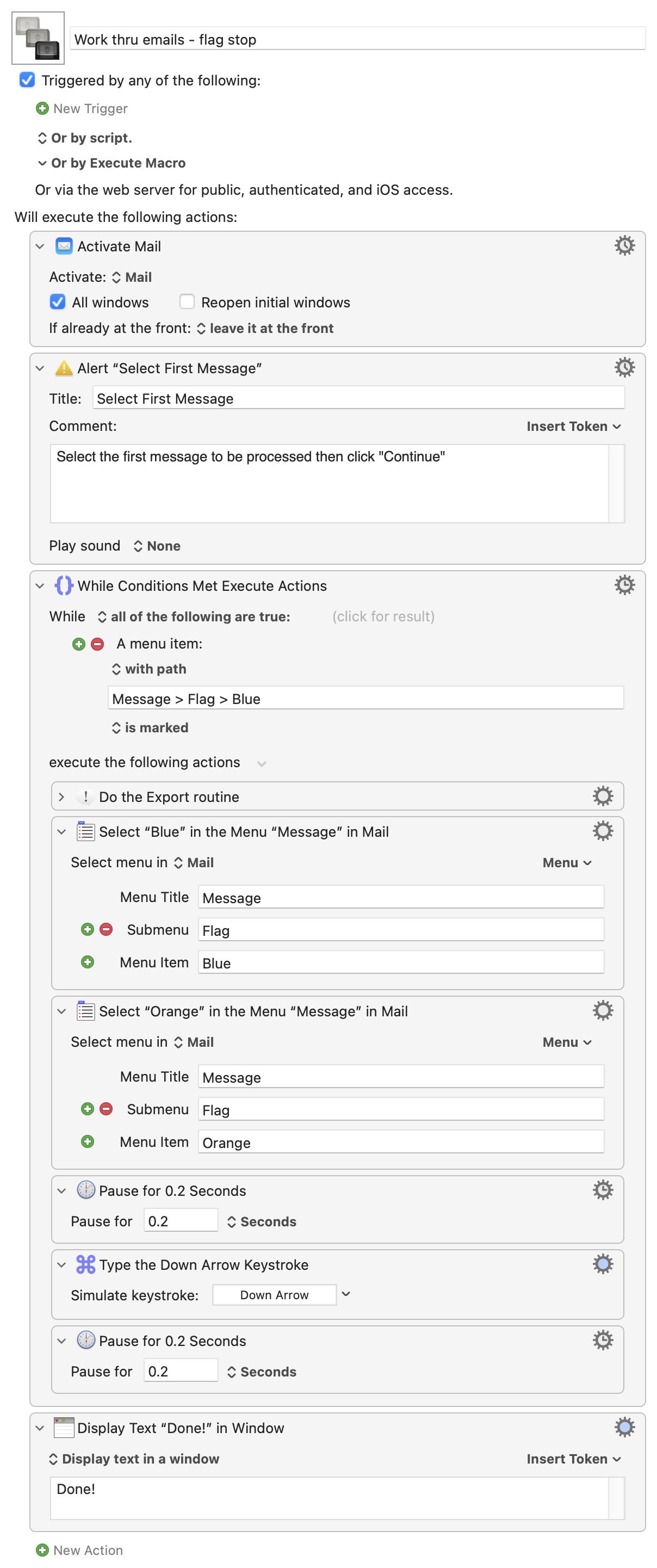
Or you can go the other way and work down a contiguous list of messages that have been flagged to be processed, stopping when the selected message isn't flagged. You could run this in the middle of a mailbox, manually selecting the first message to be processed.

This will run through a list of "Blue"-tagged messages:

Work thru emails - flag stop.kmmacros (7.1 KB)

Image

While it would be nice to be able to reliably process a selection, it's not that much extra work to instead use flags as a proxy.

Waffle follows -- feel free to ignore :wink:

And that, of course, is the nub of any problem. There's also constraints, assumptions, etc, so a lot of problem solving is questions, suggestions and refinement -- whereas I do tend to jump straight to my solution, which is rarely the best. Sorry about that!

"Archiving" is a broad field, archiving emails no less so. Where I work, much of the time the "best" approach is mbox export -- by year, project, or person. But HR work "per person" and need to store multiple data types together, so it makes sense to drag .emls to a person's folder to sit alongside their contract (PDF), holiday sheet (Excel), etc. The Purchasing team's software requires files attached to orders to be PDFs, so emails relating to a purchase order are archived in the way that you are doing. I get a couple-of-hundred emailed backup reports a day, but I only need to "archive" the data so they get processed into a database (Mail rules and AppleScript) then deleted.

Which is a long-winded way of saying that there's no right way to do this -- but there is a way that's most right for your needs. And, hopefully, we're now on the way to creating a reliable automation that meets those needs.