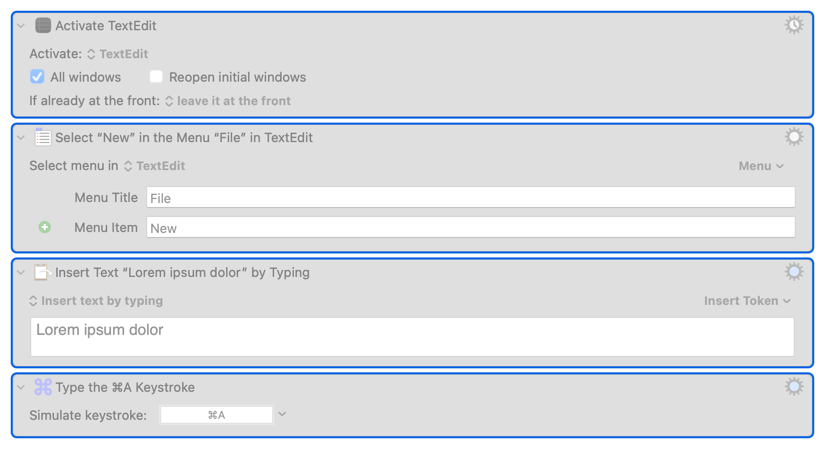
That's just my text to describe the block of actions.
For the AppleScript, try not telling it the bundle ID, just the application name:
tell application "Default Folder X"
    Disable
end tell
Something like this should work:
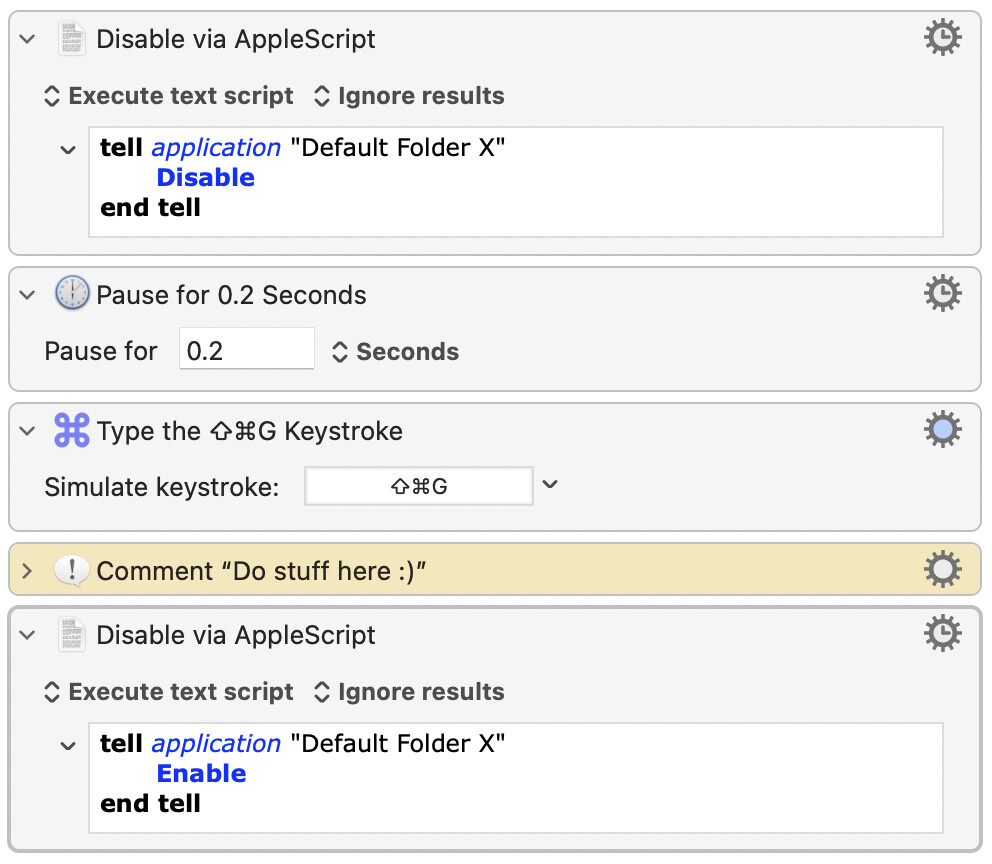
-rob.
Hi okn,
I'll take a look at your post in a bit but before the discussion gets too far along I want to offer some clarifications to keep in mind.
I think the main points are the Go To dialog can be reliably invoked via KM using Type ⌘⇧G action to front application.
If so it would appear that the DFX overlay--at least on your machine--is receiving the ⌘⇧G keystroke you meant for MacOs.
If you want to go the UI scripting route you'll need to get it out of the way.
As @griffman says, quit the app or run an AppleScript to disable it before and after your Save dialog. Its Scripting Dictionary says of Disable: disable Default Folder X in file dialogs (from the Default Folder X suite). If you have it in the menu bar, it will continue to show and work from there. If you quit, no functionality remains.
I mentioned the Show/Hide toolbar shortcut mainly to demonstrate that it is indeed the overlay specifically that is playing a role in making ⌘⇧G keystroke seem unreliable. Dismiss it with UI Scripting and the km Type ⌘⇧G summons the Go To dialog as usual .
The other point is that if you want to script the Save dialog with DFX, you will need two bits bits of UI scripting. One to summon the dialog, the other to click save. In between you can programmatically set file destination and file name via DFX.
Both routes are available to you.
I'm afraid Show/Hide Toolbar was a distraction. But, yes, DFX remains active in the Save dialog, but if you are using ⌘⇧G it shouldn't matter and as you discovered requires sprinkling pauses everywhere, because it is really, for your purposes another UI scripting tool.
The Disable command makes DFX inactive--in the dialog alone. DFX will no longer respond to custom dialog keystrokes or dialog AppleScript commands, but again that shouldn't matter if you are going the UI Scripting route with ⌘⇧G .
Hi okn,
@Griffman has shown one way to keep the DFX overlay out of the way to make way for UI scripting the Go To dialog in the Save dialog with ⌘⇧G .
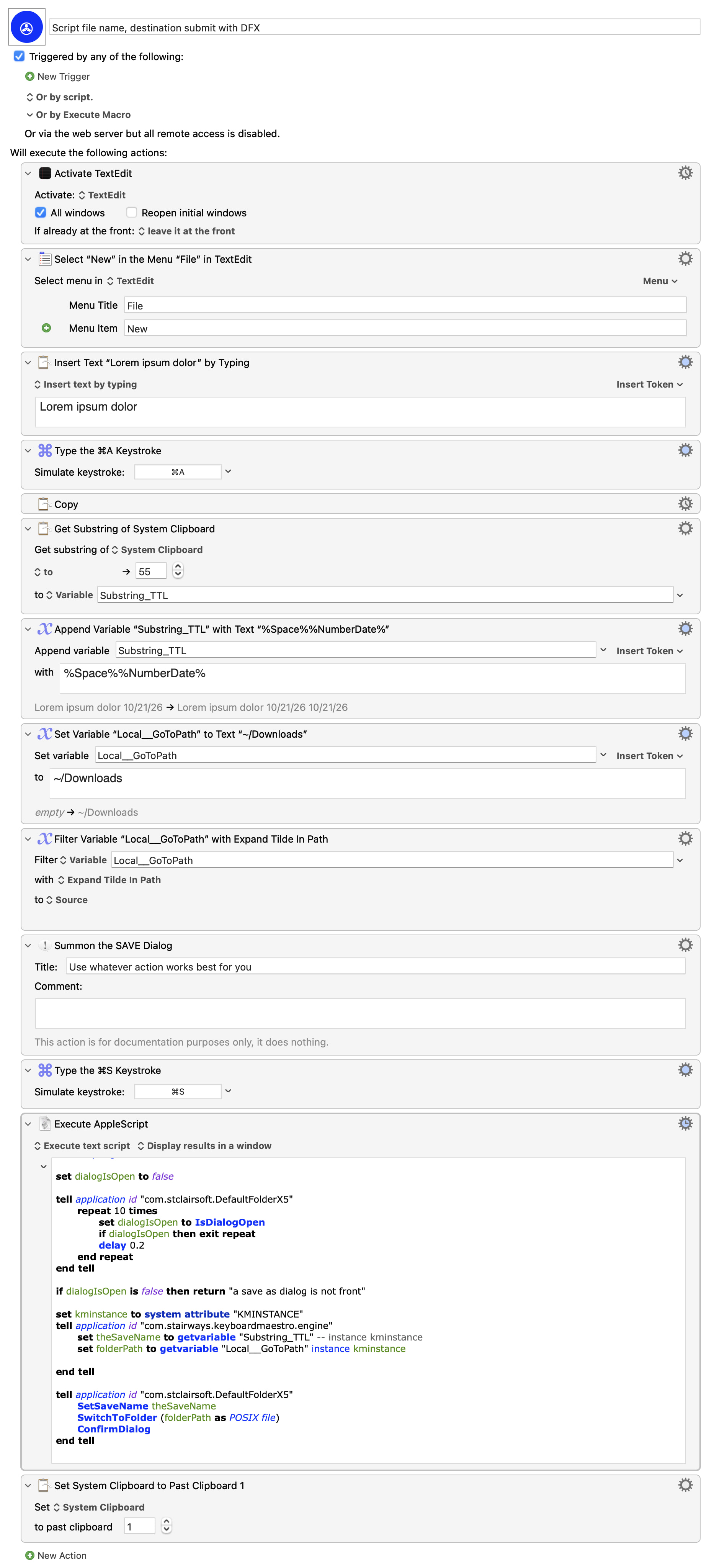
Here's a DFX dialog scripting approach to try.
It is only a slightly more complete version of the first sample macro that scripts the Save dialog with DFX AppleScript.
It still uses TextEdit.
It opens in the Global Macros Group.
Script file name, destination submit with DFX.kmmacros (7.5 KB)
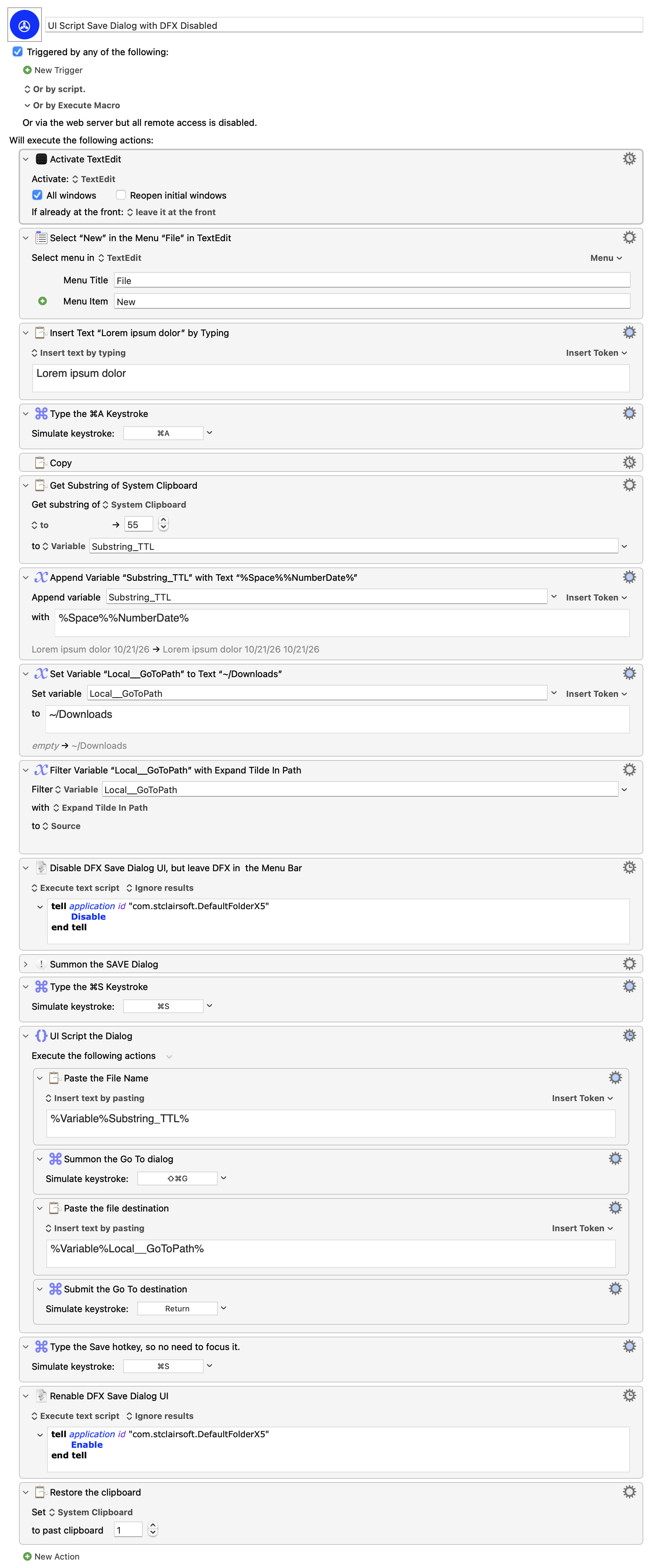
Here is the UI Scripting version with DFX temporarily disabled.
Very good and fast macro!
(Ul Script Save Dialog with DFX Disabled) D8o
Added a 1.5 Pause before the ⌘ S.
Question:
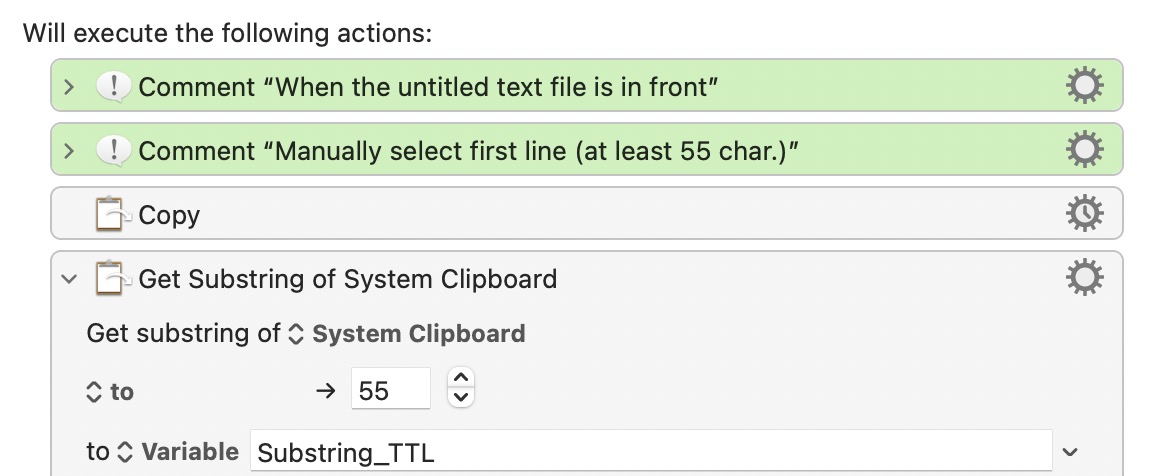
How could this macro be adapted
when the user has an untitled file with new text in front, and he will then manually select a line of max 55 characters,
after which he'll invoke the macro?
Yay!
I'm always relieved to learn when an upload doesn't fail on another setup. (I'm curious to know how the DFX version fared.)
KM has myriad options for triggers and input, but I think these are your steps:
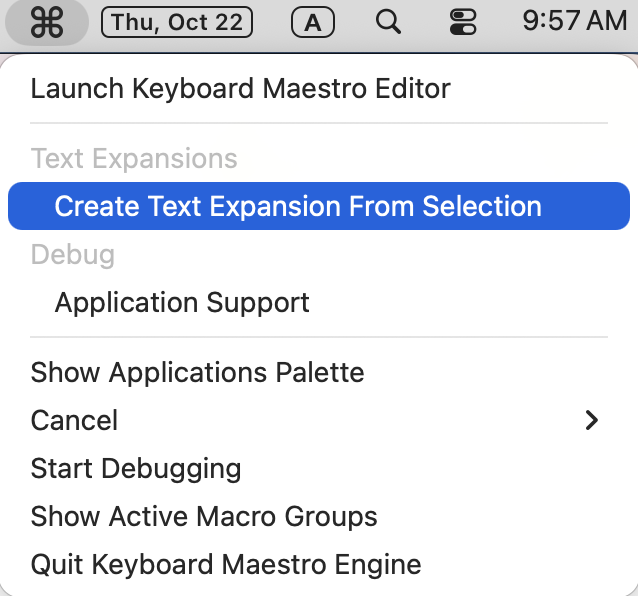
Here is an invaluable Text Expander macro maker macro that uses the Status Menu Trigger.
It copies selected text, gets input for Typed String Trigger from a Prompt for User Input action and makes a macro that types the selected text.
https://forum.keyboardmaestro.com/t/macro-to-create-a-text-expansion-macro-from-the-selected-text/
I use the Typed String Trigger in a lot of macros--including this one.
So I trigger the macro by typing ".dot." instead of selecting the macro in the Status Menu.
The macro deletes ".dot."--my typed string trigger.
After which, I select text and copy.
From the wiki Copy entry:
The Cut and Copy actions wait until the clipboard changes before proceeding.
So in my case, after the macro is triggered:
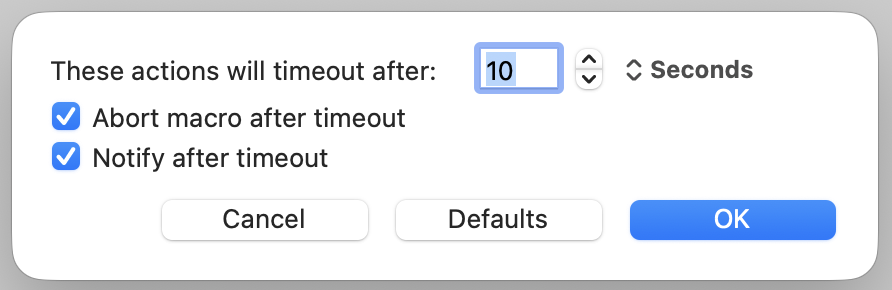
Copy's default timeout looks to be 10 seconds.
I use Copy's defaults but you can find them here:
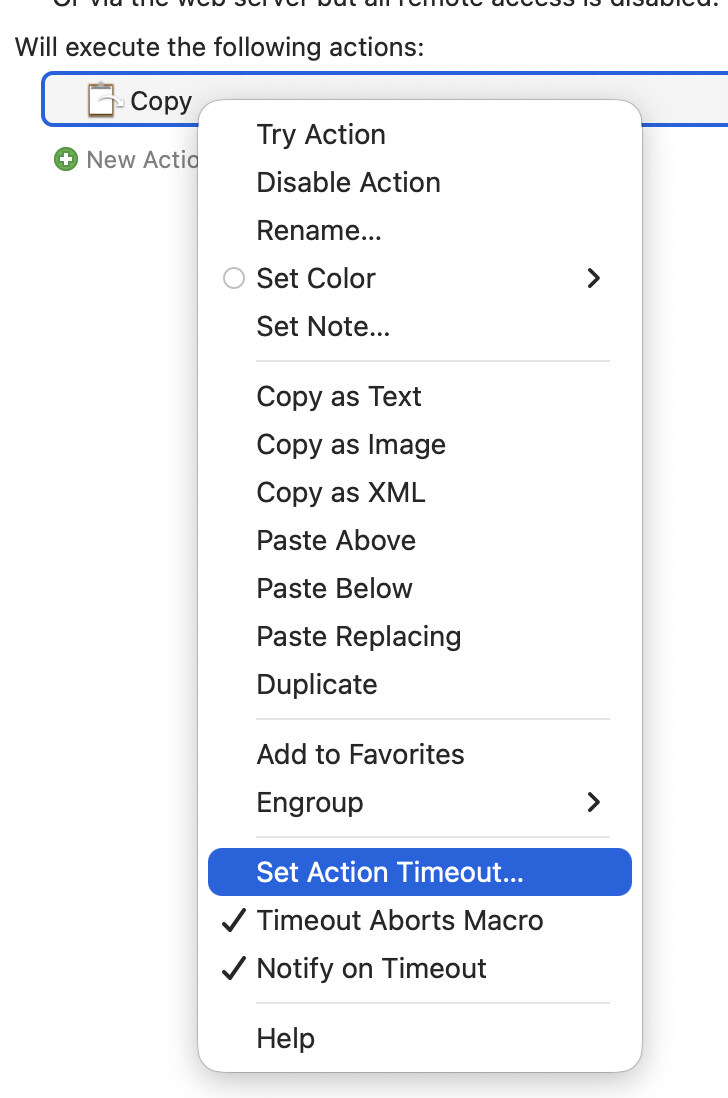
And adjust them like this:
Hej @CRLF
Maybe it's not possible to upgrade your macro ( UI Script Save Dialog - D8) in such a way as I will describe in what follows?
Because with your macros the DFX interference is eliminated.
Also on a tangent,
the original macro (4c) at the top of the page, was mainly the creation of our collegues from the KM forum, not mine.
When I have problems with a macro, the most I can do is throw in some pauses to slow things down!
And yes, hopefully I learned one or two things as well.
The purpose of the macro
is to facilitate steps "to land the file in" a designated folder.
In macros D7 and D8, the text has to be entered into Keyboard Maestro first of all, but why not start with an empty file with text and go from there (as in 4c)?
PS:
This macro (Script file name, destination submit with DFX - D7) did also work very well.
/okn
Yes, I am on the same page with you there.
But also?
Which, now, along with:
I take to mean:
Copy the text and set the file name to its value?
Since 4c--if I am referencing the right macro-- starts with a Copy action:
We add a second item to purpose.
I am taking:
To mean:
The path of a "Set Variable to Text " action in the macro, fixed and unchoosable.
So:
the document can be anything--but must be frontmost.
The filename can be anything and must be selected--so that it can be copied.
Both of these need to be automated to be slotted into Save dialog's filename and destination.
If so...
Instead of
• Make the Copy action first in the macro.
I should have just said:
Disable or Delete these actions in either of the versions:
Because, then, copy will end up as the first action--exactly as it is in 4c.
(I put those there as a placeholder--for myself and anyone else trying out the macros--for your target app, which I took to be non-scriptable and needed km macro-izing. But, now that the macro seems to be working for you, , can be taken out.)
If I've got this right, i believe that's all you will need to make either version do your bidding. 

However, even though:
(routes now = working versions)
I would caution against mixing the two together, because, in that case, at the very least:
but also, as the bard might say:
"that way madness lies..."

Went back to another earlier version D5b
and with DFX manually entirely quit (and therefore not visible at top menu)
this worked!
My question is
tell application "Default Folder X" Disable end tell
the same as
tell application "Default Folder X" to quit?
The first one merely disables the overlay in file dialogs, and that's the thing that causes troubles in Keyboard Maestro. The second completely quits the app.
-rob.
Yes, so true!
I tested both variants right now, and they have the same effect, the ⇧ ⌘ G is free and the macro is working!!
Bye,
Wish everyone a healthy weekend and hopefully no war.
/okn
Excellent! You are getting the hang of this!
Not quite:
I haven't extensively tested what other functionality remains with "disable", but I'd be interested in what your findings. As for quit, I'd be surprised--and alarmed--if it meant any thing other than what you might expect from any app: absolutely no more functionality.
In either case, you want to make sure that app is reenabled/reactivated to restore selective dialog/entire functionality.
I tried to make sure that a failure in the macro would not short-circuit that, but if you rejigger an old macro, you may wish to wrap operations that may fail in a try/catch action, where you reenable/reactivate DFX in the Catch block.
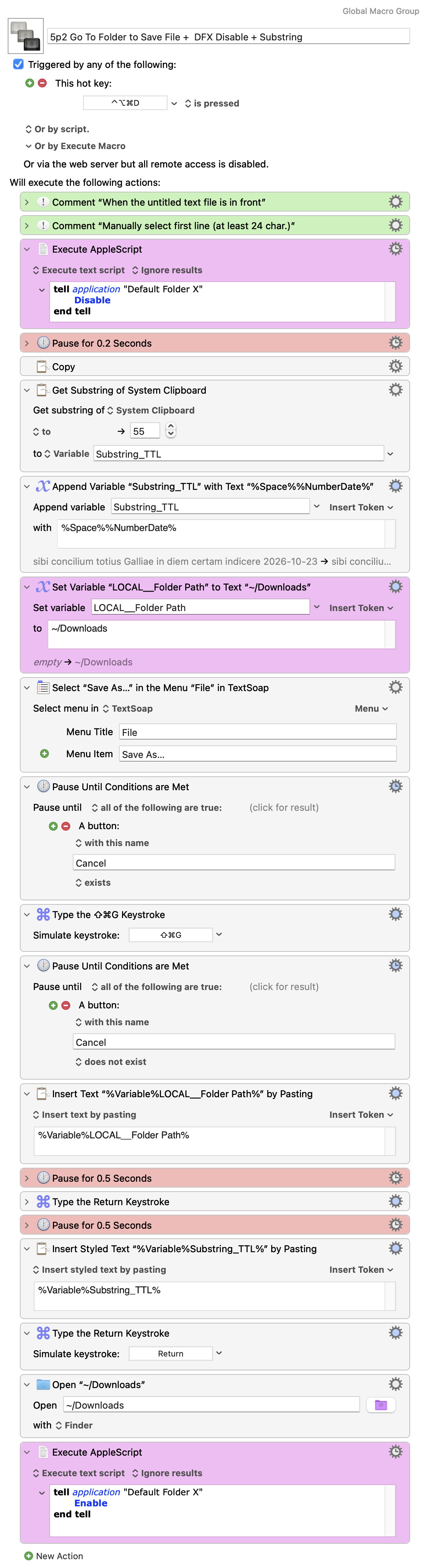
Here is the latest version of the functioning macro, and it has reduced pauses.
To be clear, this macro is specifically for those who have Default Folder X on their machine.
The only so-called cooperation with Default Folder X is that the app Default Folder X will be disabled and at the end of the macro enabled.
5p2 Go To Folder to Save File + DFX Disable + Substring.kmmacros (12 KB)
Any comments for improvements are welcome!