Find and replace styled text (clipboard)

Hello,

I would like to know if there is at the current state any way to find and replace text inside the clipboard and paste preserving the style of the text in the clipboard.

It would be used in an app where there are no real workarounds like internal find and replace function.

Thank you

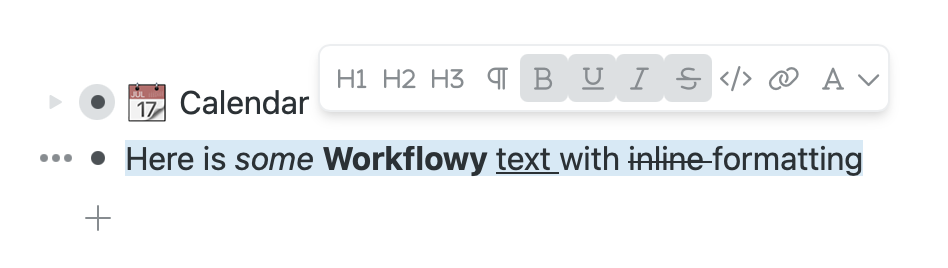
Not trivial.

Find and replace operates over linear sequences of plain text,
while styled formats have content nested in markup.

{\rtf1\ansi\ansicpg1252\cocoartf2869
\cocoatextscaling0\cocoaplatform0{\fonttbl\f0\fnil\fcharset0 HelveticaNeue;\f1\fnil\fcharset0 .SFNS-Regular_wdth_opsz110000_GRAD_wght2580000;\f2\fnil\fcharset0 HelveticaNeue-Italic;
}
{\colortbl;\red255\green255\blue255;\red27\green31\blue35;}
{\*\expandedcolortbl;;\cssrgb\c14118\c16078\c18431;}
\deftab720
\pard\pardeftab720\partightenfactor0

\f0\fs32 \cf2 \expnd0\expndtw0\kerning0
\outl0\strokewidth0 \strokec2 Find and replace operates over 
\f1\b linear
\f0\b0  sequences of 
\f2\i plain
\f0\i0  text, while 
\f2\i styled
\f0\i0  formats have content 
\f1\b nested
\f0\b0  in markup.}

HTML may be more tractable than RTF (more tooling to help you, and things like textutil supply RTF ⇄ HTML conversion), but still not a picnic:

Expand disclosure triangle to view HTML source
<head>
    <meta charset="UTF-8">
</head><span
    style="caret-color: rgb(36, 41, 47); color: rgb(36, 41, 47); font-family: -apple-system, BlinkMacSystemFont, &quot;Segoe UI&quot;, Helvetica, Arial, sans-serif, &quot;Apple Color Emoji&quot;, &quot;Segoe UI Emoji&quot;; font-size: 16px; font-style: normal; font-variant-caps: normal; font-weight: 400; letter-spacing: normal; orphans: 2; text-align: start; text-indent: 0px; text-transform: none; white-space: normal; widows: 2; word-spacing: 0px; -webkit-text-stroke-width: 0px; background-color: rgb(255, 255, 255); text-decoration: none; display: inline !important; float: none;">Find
    and replace operates over<span class="Apple-converted-space"> </span></span><strong
    style="font-weight: 600; caret-color: rgb(36, 41, 47); color: rgb(36, 41, 47); font-family: -apple-system, BlinkMacSystemFont, &quot;Segoe UI&quot;, Helvetica, Arial, sans-serif, &quot;Apple Color Emoji&quot;, &quot;Segoe UI Emoji&quot;; font-size: 16px; font-style: normal; font-variant-caps: normal; letter-spacing: normal; orphans: 2; text-align: start; text-indent: 0px; text-transform: none; white-space: normal; widows: 2; word-spacing: 0px; -webkit-text-stroke-width: 0px; text-decoration-line: none; text-decoration-thickness: auto; text-decoration-style: solid;">linear</strong><span
    style="caret-color: rgb(36, 41, 47); color: rgb(36, 41, 47); font-family: -apple-system, BlinkMacSystemFont, &quot;Segoe UI&quot;, Helvetica, Arial, sans-serif, &quot;Apple Color Emoji&quot;, &quot;Segoe UI Emoji&quot;; font-size: 16px; font-style: normal; font-variant-caps: normal; font-weight: 400; letter-spacing: normal; orphans: 2; text-align: start; text-indent: 0px; text-transform: none; white-space: normal; widows: 2; word-spacing: 0px; -webkit-text-stroke-width: 0px; background-color: rgb(255, 255, 255); text-decoration: none; display: inline !important; float: none;"><span
        class="Apple-converted-space"> </span>sequences of<span class="Apple-converted-space"> </span></span><em
    style="caret-color: rgb(36, 41, 47); color: rgb(36, 41, 47); font-family: -apple-system, BlinkMacSystemFont, &quot;Segoe UI&quot;, Helvetica, Arial, sans-serif, &quot;Apple Color Emoji&quot;, &quot;Segoe UI Emoji&quot;; font-size: 16px; font-variant-caps: normal; font-weight: 400; letter-spacing: normal; orphans: 2; text-align: start; text-indent: 0px; text-transform: none; white-space: normal; widows: 2; word-spacing: 0px; -webkit-text-stroke-width: 0px; text-decoration-line: none; text-decoration-thickness: auto; text-decoration-style: solid;">plain</em><span
    style="caret-color: rgb(36, 41, 47); color: rgb(36, 41, 47); font-family: -apple-system, BlinkMacSystemFont, &quot;Segoe UI&quot;, Helvetica, Arial, sans-serif, &quot;Apple Color Emoji&quot;, &quot;Segoe UI Emoji&quot;; font-size: 16px; font-style: normal; font-variant-caps: normal; font-weight: 400; letter-spacing: normal; orphans: 2; text-align: start; text-indent: 0px; text-transform: none; white-space: normal; widows: 2; word-spacing: 0px; -webkit-text-stroke-width: 0px; background-color: rgb(255, 255, 255); text-decoration: none; display: inline !important; float: none;"><span
        class="Apple-converted-space"> </span>text, while<span class="Apple-converted-space"> </span></span><em
    style="caret-color: rgb(36, 41, 47); color: rgb(36, 41, 47); font-family: -apple-system, BlinkMacSystemFont, &quot;Segoe UI&quot;, Helvetica, Arial, sans-serif, &quot;Apple Color Emoji&quot;, &quot;Segoe UI Emoji&quot;; font-size: 16px; font-variant-caps: normal; font-weight: 400; letter-spacing: normal; orphans: 2; text-align: start; text-indent: 0px; text-transform: none; white-space: normal; widows: 2; word-spacing: 0px; -webkit-text-stroke-width: 0px; text-decoration-line: none; text-decoration-thickness: auto; text-decoration-style: solid;">styled</em><span
    style="caret-color: rgb(36, 41, 47); color: rgb(36, 41, 47); font-family: -apple-system, BlinkMacSystemFont, &quot;Segoe UI&quot;, Helvetica, Arial, sans-serif, &quot;Apple Color Emoji&quot;, &quot;Segoe UI Emoji&quot;; font-size: 16px; font-style: normal; font-variant-caps: normal; font-weight: 400; letter-spacing: normal; orphans: 2; text-align: start; text-indent: 0px; text-transform: none; white-space: normal; widows: 2; word-spacing: 0px; -webkit-text-stroke-width: 0px; background-color: rgb(255, 255, 255); text-decoration: none; display: inline !important; float: none;">formats
    have content<span class="Apple-converted-space"> </span></span><strong
    style="font-weight: 600; caret-color: rgb(36, 41, 47); color: rgb(36, 41, 47); font-family: -apple-system, BlinkMacSystemFont, &quot;Segoe UI&quot;, Helvetica, Arial, sans-serif, &quot;Apple Color Emoji&quot;, &quot;Segoe UI Emoji&quot;; font-size: 16px; font-style: normal; font-variant-caps: normal; letter-spacing: normal; orphans: 2; text-align: start; text-indent: 0px; text-transform: none; white-space: normal; widows: 2; word-spacing: 0px; -webkit-text-stroke-width: 0px; text-decoration-line: none; text-decoration-thickness: auto; text-decoration-style: solid;">nested</strong><span
    style="caret-color: rgb(36, 41, 47); color: rgb(36, 41, 47); font-family: -apple-system, BlinkMacSystemFont, &quot;Segoe UI&quot;, Helvetica, Arial, sans-serif, &quot;Apple Color Emoji&quot;, &quot;Segoe UI Emoji&quot;; font-size: 16px; font-style: normal; font-variant-caps: normal; font-weight: 400; letter-spacing: normal; orphans: 2; text-align: start; text-indent: 0px; text-transform: none; white-space: normal; widows: 2; word-spacing: 0px; -webkit-text-stroke-width: 0px; background-color: rgb(255, 255, 255); text-decoration: none; display: inline !important; float: none;"><span
        class="Apple-converted-space"> </span>in markup.</span>
3 Likes

Welcome to the forum, Giggi.

If you could let us know which application this is about, that might help someone to suggest a solution. In the meantime…

Apple’s applications Pages and TextEdit (for example) offer “Paste and match style” under the Edit menu. Does your application offer such a feature? If so, I wonder whether an imperfect solution might be possible by operating on plain text in the Clipboard and then using Paste and match style within your application. Note that this approach would only be fully satisfactory when copied text used only one style.

Maybe someone who uses styled text more often than I do (I favour plain text wherever possible!) could please comment on this thought..?

1 Like

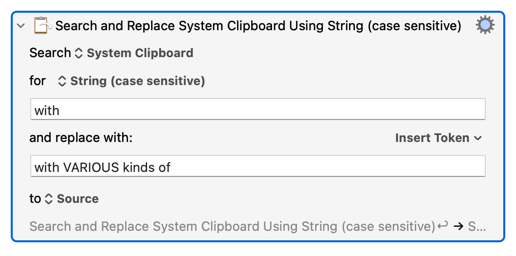
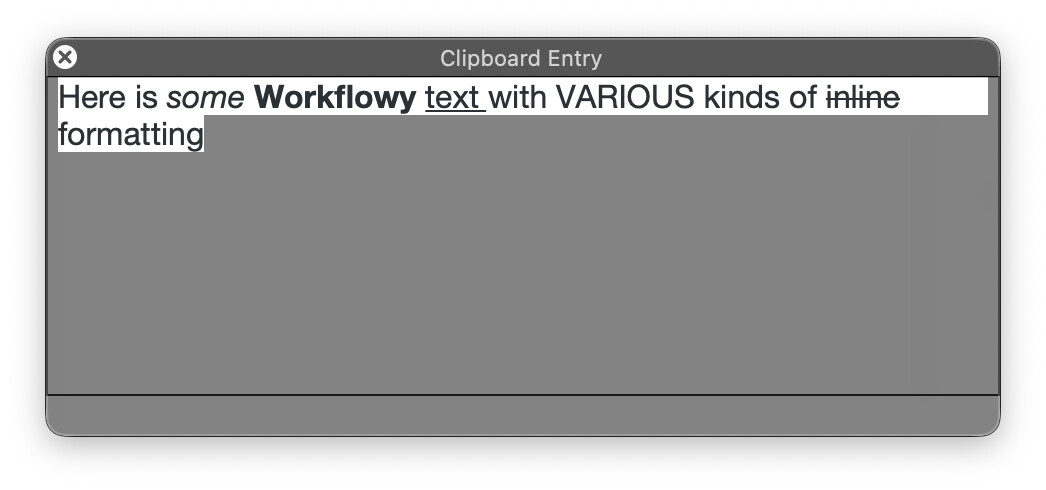
The Search and Replace action can work on the system clipboard and when it does the replacement is styled the same way as the original.

2 Likes

Thanks ComplexPoint, that’s actually a very clear explanation of the issue

1 Like

Hi kevinb, thank you. I would use this action on Worfklowy, an online checklist and text editor.

In the meantime I found a workaround (basically avoid formatting text), but it may still be useful in some other contexts. The text in Workflowy supports both more common formatting options (bold, underlined and italics) and highlight/change character color, and the idea was to develop a macro to remove quickly some placeholder text (like a #check tag) with a simple shortcut.

To do this the macro should select the text in the bullet (or in the notes under the bullet), copy it to the clipboard, remove the specified tag/word from the text in the clipboard and then paste it again preserving highlights and other formats if present.

1 Like

Hi peternlewis, thanks, but I tried multiple times and after replacing the text the original formatting is lost.

1 Like

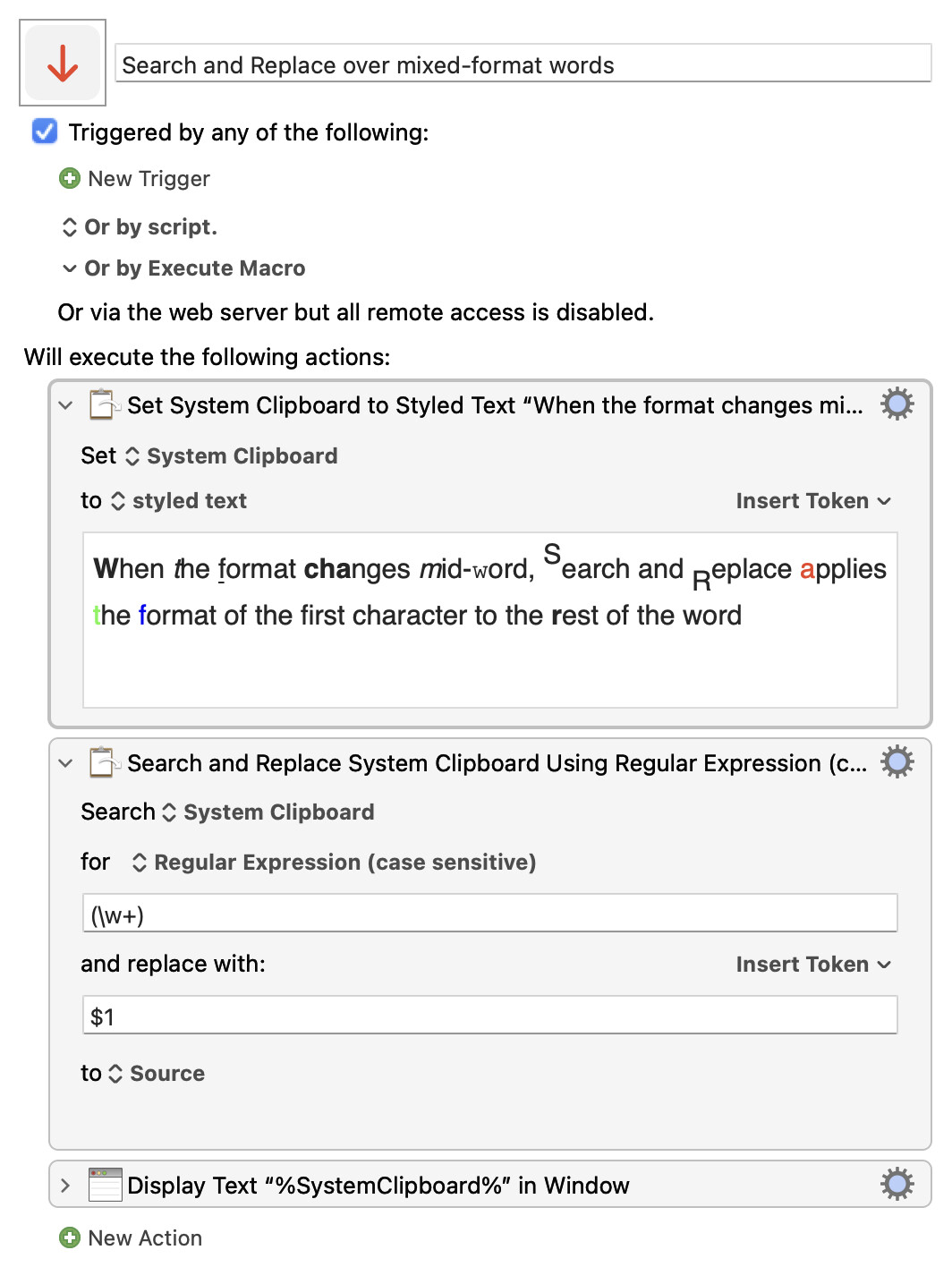
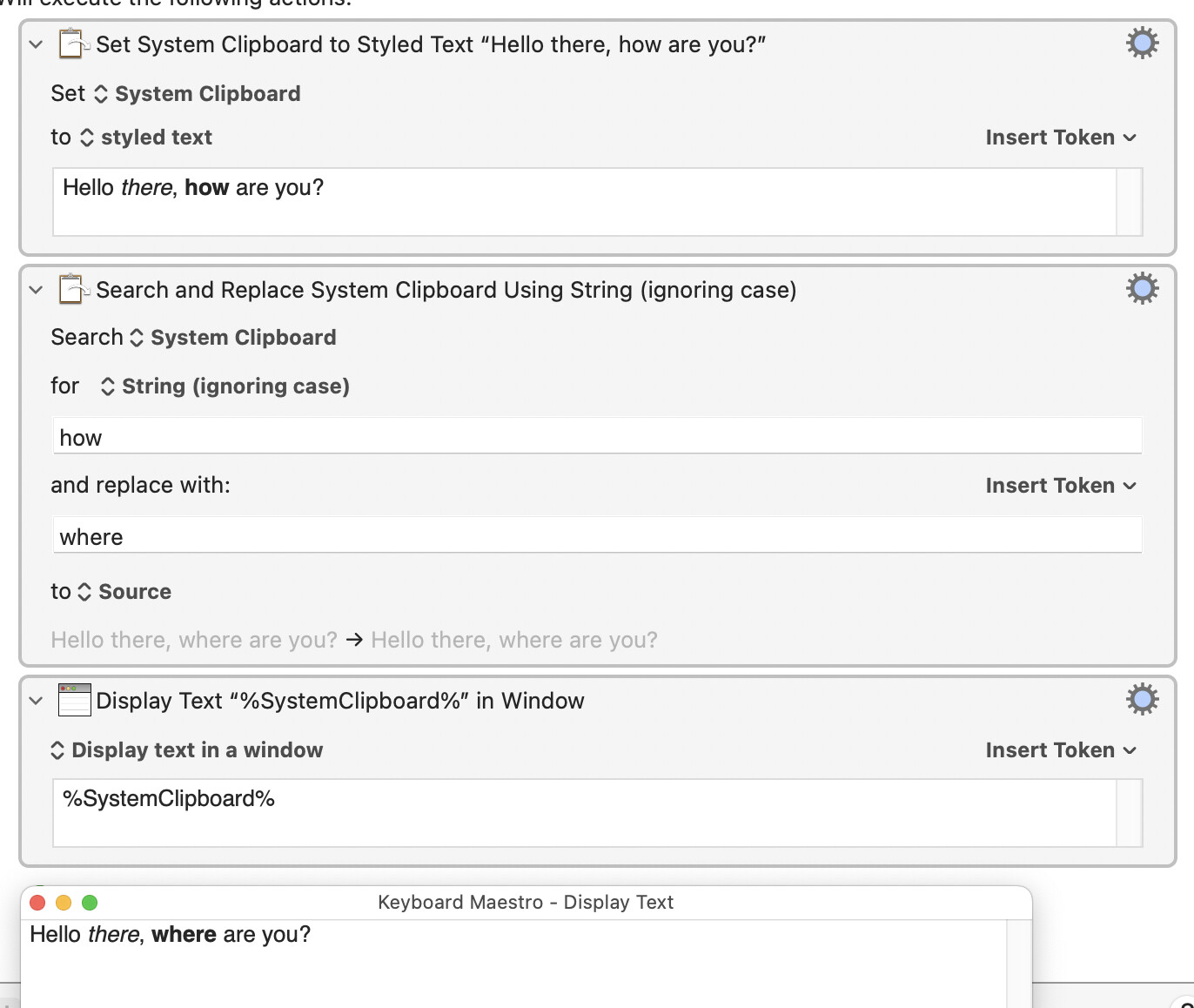
I'm not sure what exactly you are doing, but this works for example:

1 Like

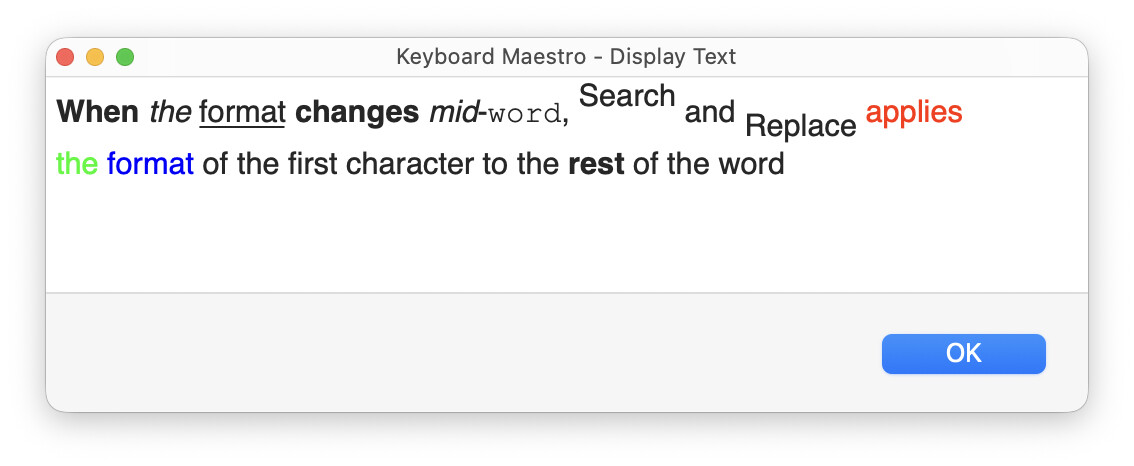
I wondered how words with mixed formats were handled.

Very sensibly, I see :slight_smile:  Good system.

2 Likes

Hi peternlewis, I noticed some odd behaviors:

I tried the same thing as you showed and it worked, if I first use the action “Set System Clipboard to Styled Text“.

If however I copy some formatted text and I then display the text in a window, the format is always removed.

I also have a few named clipboards with formatted text, and if I try to paste the named clipboard I get the properly formatted text.

I also get the properly formatted text if I copy some text and then use the KM action “Paste” (therefore KM retains the format in the system clipboard).

If I try however to search and replace the named clipboard and paste it, the format is removed and I moreover get many newlines in the text pasted.

Styled text on the Mac varies in format. Keyboard Maestro will work with styled text if the system can read the clipboard into an attributed string (NSAttributedString).

If that cannot be done, then as far as Keyboard Maestro is concerned, the text is just plain text (presuming there is a plain text variant it can read which will almost always be the case).

See:

1 Like

Hi Peter, not sure if I understand correctly, anyway the issue I spotted is that when I do Command C on some styled text and then I paste it in the same document, the formatting is preserved, while if I do Command C and ask KM to display the text, the format is removed (which doesn’t happen with the action “set clipboard to styled text”).

So it seems that while the system retains the format of the copied text, KM is not able to process styles of copied content, unless the style is applied inside the app (as in the action “set clipboard to styled text”).

Yes - there are different ways of storing styled text in the clipboard, some of which work with some applications, and some of which work with other applications.

Two things going on here:

  • There's a difference between "styled text", an actual format as @ComplexPoint should above, and "text which has been styled"
  • The System Clipboard Copies multiple "flavours" of data, as provided by the "donor" app. The "recipient" app chooses the flavour it can make most sense of when you Paste (or, in this case, "Display")

I don't use Workflowy myself but, since it's an Electron app, I'm willing to bet that the editable text fields aren't "proper" Mac text fields but are HTML form fields -- those don't use "styled text" but have "text that is styled using HTML". So when you Copy from it the flavours put onto the Clipboard will be:

  • HTML
  • Plain text

KM can't "Display" rendered HTML in its dialog so the most appropriate thing to use is plain text. Similarly when you use a "search and Replace" Action.

So, as you say, you must first use the action "Set System Clipboard to Styled Text". That'll look at the flavours on the Clipboard, decide it can make best use of the HTML text, and convert that to styled text complete with formatting. Now that you are working with proper styled text both "Display" and "Search and Replace" will work as you want.

There's a lot happening behind the scenes in what we think is a "simple" Copy and Paste -- hopefully the above will help when you run into similar issues in other macros.

2 Likes

Workflowy's Copy (⌘C) places all of the following clipboard "flavours", (or pasteboardItem types) in the system pasteboard:

  • com.apple.traditional-mac-plain-text

  • com.apple.webarchive

  • com.apple.WebKit.custom-pasteboard-data

  • public.html

  • public.rtf

  • public.utf16-external-plain-text

  • public.utf16-plain-text

  • public.utf8-plain-text

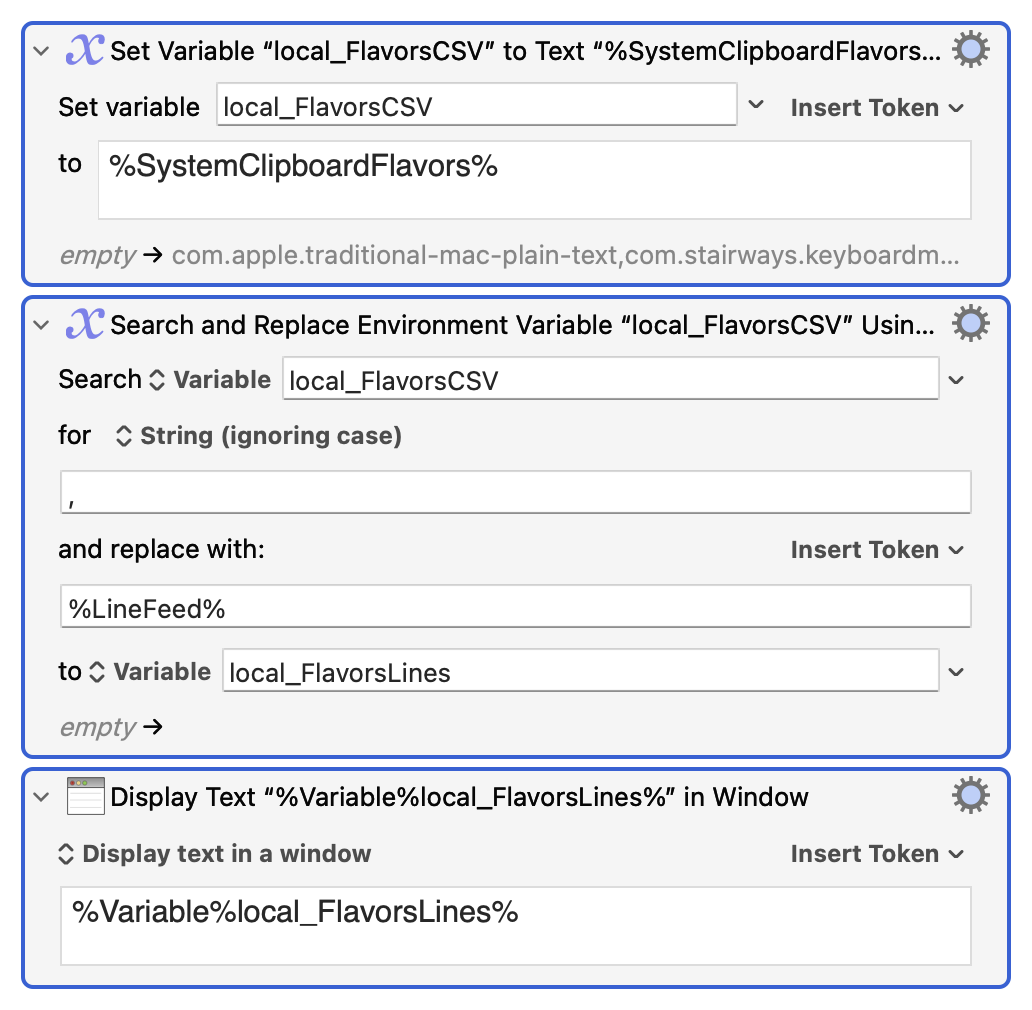
To see this:

While the copying app can throw an unlimited variety of things into the clipboard, with little thought for posterity, the pasting app is forced to choose just one flavor, ignoring the rest.

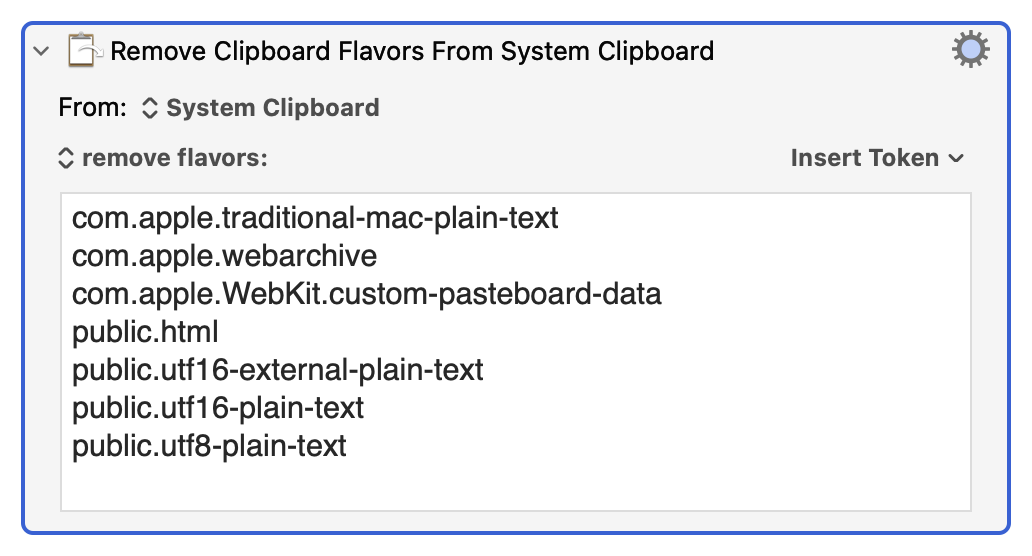
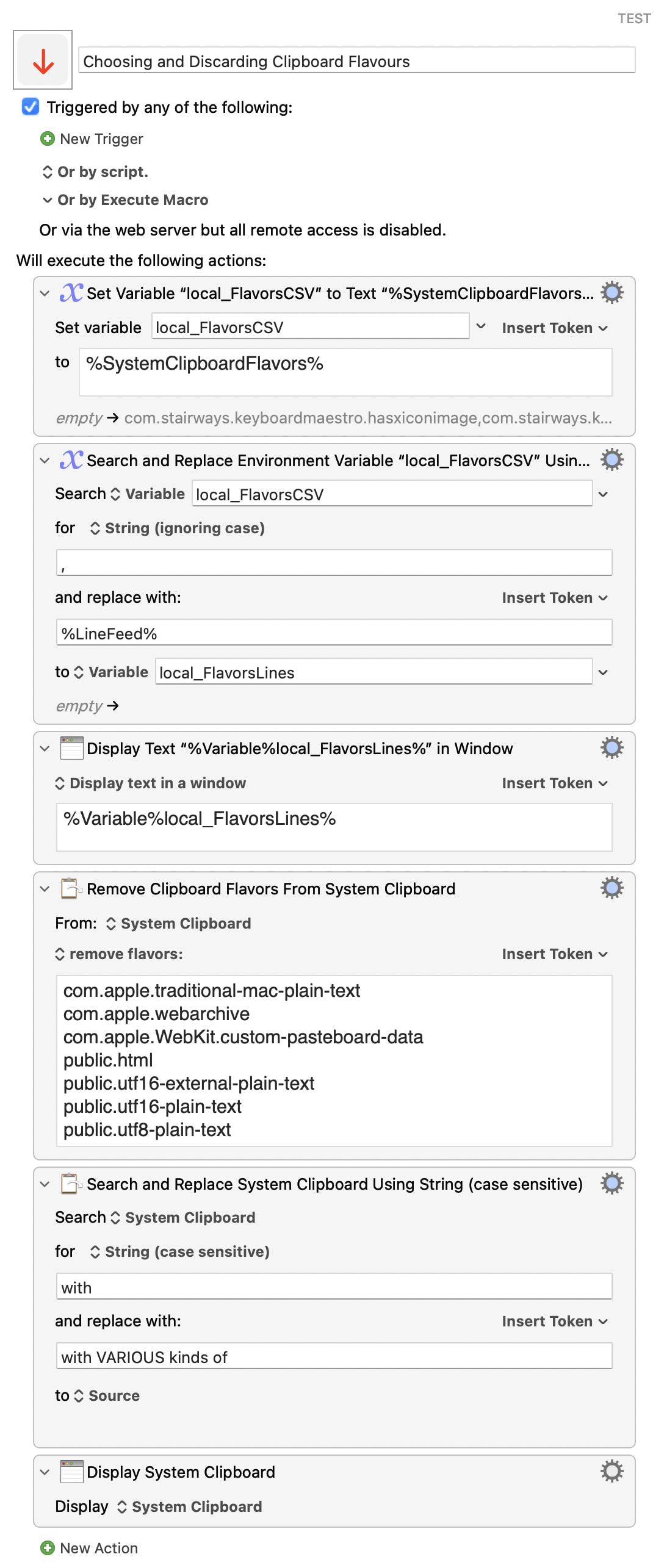
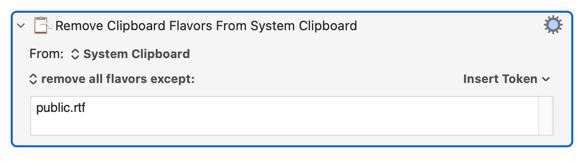
Keyboard Maestro allows you to force that choice in a particular direction, discarding all flavours but one.

Let's remove everything from the Workflowy-packed clipboard, except for the public.rtf flavour.


In this way we can start by copying:

and apply a search and replace:

and find that the system clipboard now contains:


You can try it yourself:

Choosing and Discarding Clipboard Flavours.kmmacros (4,1 Ko)

3 Likes

Then I'm glad nobody took me up on my bet that there's only HTML and plain text. Bullet dodged!

Nice analysis, @ComplexPoint. Do you get RTF if the Copied text isn't formatted?

And there's always the alternative logic:

3 Likes

Good catch – I had forgotten that :slight_smile:

Yes, always the same set of flavours.

( That's the default pattern with all apps, I think )


isn't formatted

That might actually be quite hard to define in a rich context editor – no font or font size ?

1 Like

I was thinking "no change in the formatting from the text area's defaults". But I guess that if you Copy the default-formatted text then that default formatting will be included in the Clipboard data.

2 Likes

Thanks to @Nige_S and @ComplexPoint for the very insightful answers! And thanks @ComplexPoint for providing the macro! I tried to work with it but the flavors present in my clipboard when copying from Workflowy are these:

  • com.apple.traditional-mac-plain-text
  • org.chromium.internal.source-rfh-token
  • org.chromium.source-url
  • public.html
  • public.utf16-plain-text
  • public.utf8-plain-text

I found no public.rtf oddly enough, so there is no way to keep just the rich text without other flavours it seems :confused:.

I am using Workflowy on Vivaldi, by the way, a Chromium based browser.

Edit: ok, tried this also on Safari and it works! So apparently the absence of public.rtf is due to Chromium.

1 Like

Again -- it's the "donor" app and its current context that decides what flavours to put on the Clipboard when you Copy. If @ComplexPoint is using Safari and gets RTF, that doesn't mean you will in Vivaldi.

For you and your RTF-less situation the best bet is to use the "Set System Clipboard to Styled Text" Action to convert to RTF and then proceed from there. See how it goes -- if the conversion doesn't work well we can look at using textutil or similar to go from HTML to RTF.

1 Like