Where can I find tips for making the image easier for Keyboard Maestro to find it in the “Move and Click from the Center of the Found image” action? (Its a hit and miss in my macro).
Any help will be greatly appreciated.
Well, there is of course: action:Find Image on Screen [Keyboard Maestro Wiki] … and related challenges have been the subject of various forum discussions. If you would like to post a macro that you have problems with I’m sure someone will be able to offer further ideas.
3 Likes
Generally just ensure the image is not small or gray, or especially small and gray.
Small gray images (aka letters) appear all over the screen and thus are hard to match.
The larger the image and the more unique colourful content it has the better the matching will work.
Also, try to limit the search area if possible. Smaller search areas can allow Keyboard Maestro to be more diligent in searching them.
2 Likes
Thank you Kevin and Peter.
I read the Wiki and tried to search for the answers here in the forum and in google, but explanations were either too complicated for me or didn’t work.
It’s such a basic/simple macro that I didn't think it’s worth/needed to post but if I can’t make it work I'll post it with as much info as I can.
Will try again and if still problematic will post the macro.
Thanks again.
OK, so I tried again. I tried also to define an area so it should be easier to find the image but… doesn’t work still.
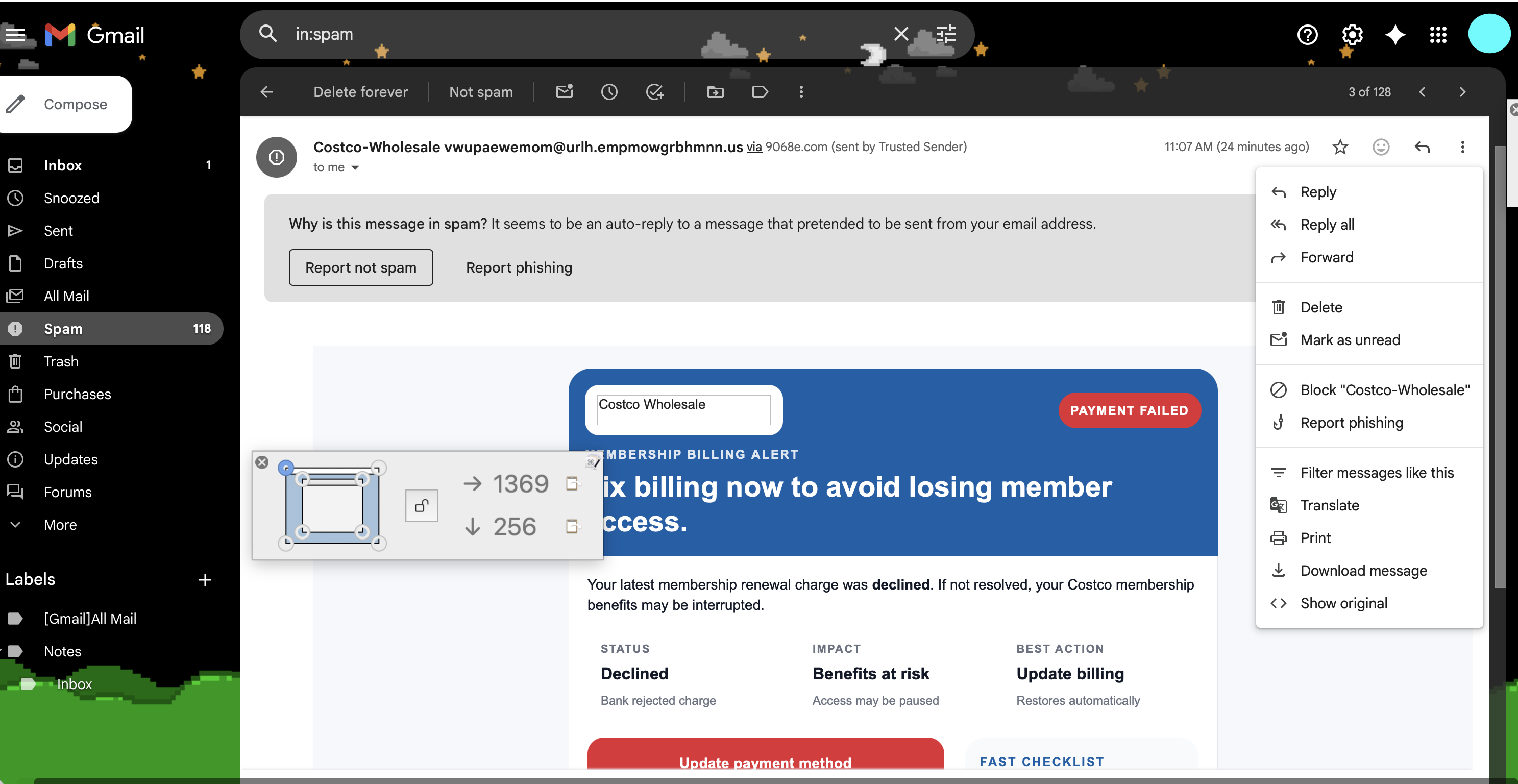
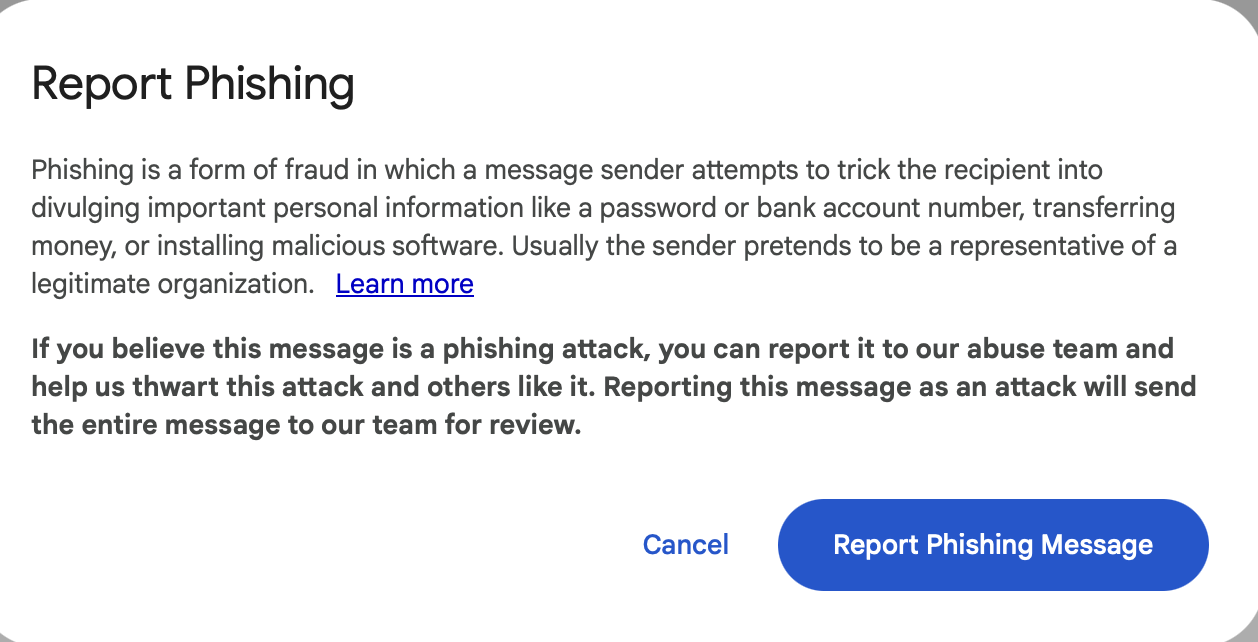
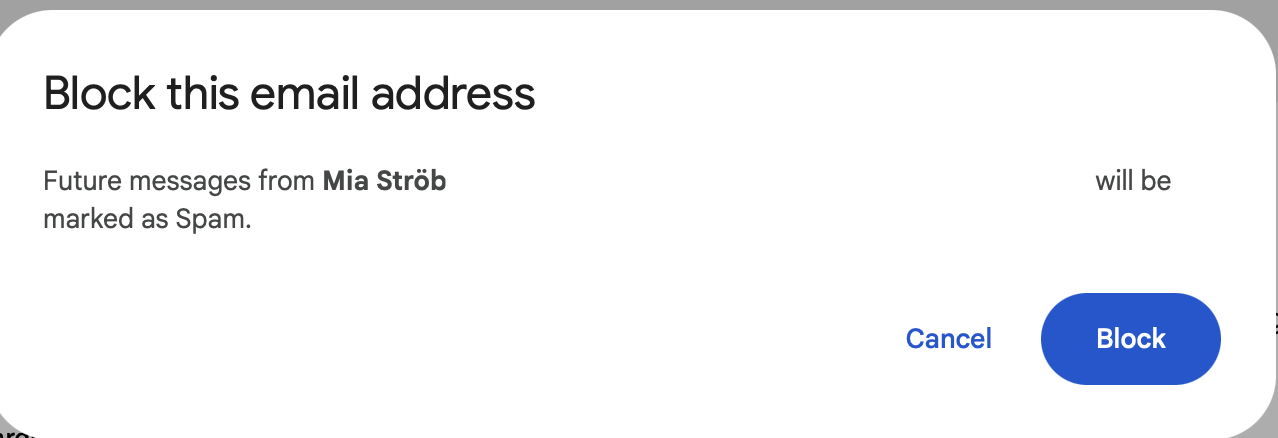
I’m trying to build a macro that, after I hover on an email in my gmail spam folder, I hit the trigger and the macro will open the email, open the 3 dots menu, choose “Block “whatever user””, confirm block, open the menu again, choose “Report phishing”, confirm and then deleted the email forever.
Following are screenshots to make it simpler to understand: (sorry for the huge size, I know that once I found how to “shrink” them to a smaller size but this time I couldn't) (will be happy to hear about the way to do it).

Email block and report phishing (v11.0.4)
Email block and report phishing.kmmacros (83 KB)
You don't show the images you are searching for, so it's impossible to suggest if they are reasonable or not.
You also have no pauses in there at all, which means if any of those actions takes any time to complete, then the click might fail - is Wait For Image enabled in the actions in the Gear menu? If not, the first one that takes any time to happen is likely to fail.
Also, you don't say which of the actions is failing - you can use the View ➤ Go to Last Aborted Action to see which one is failing.
Thank you Peter.
“You don't show the images you are searching…” Sorry, long time user, long time “forgetter”… 
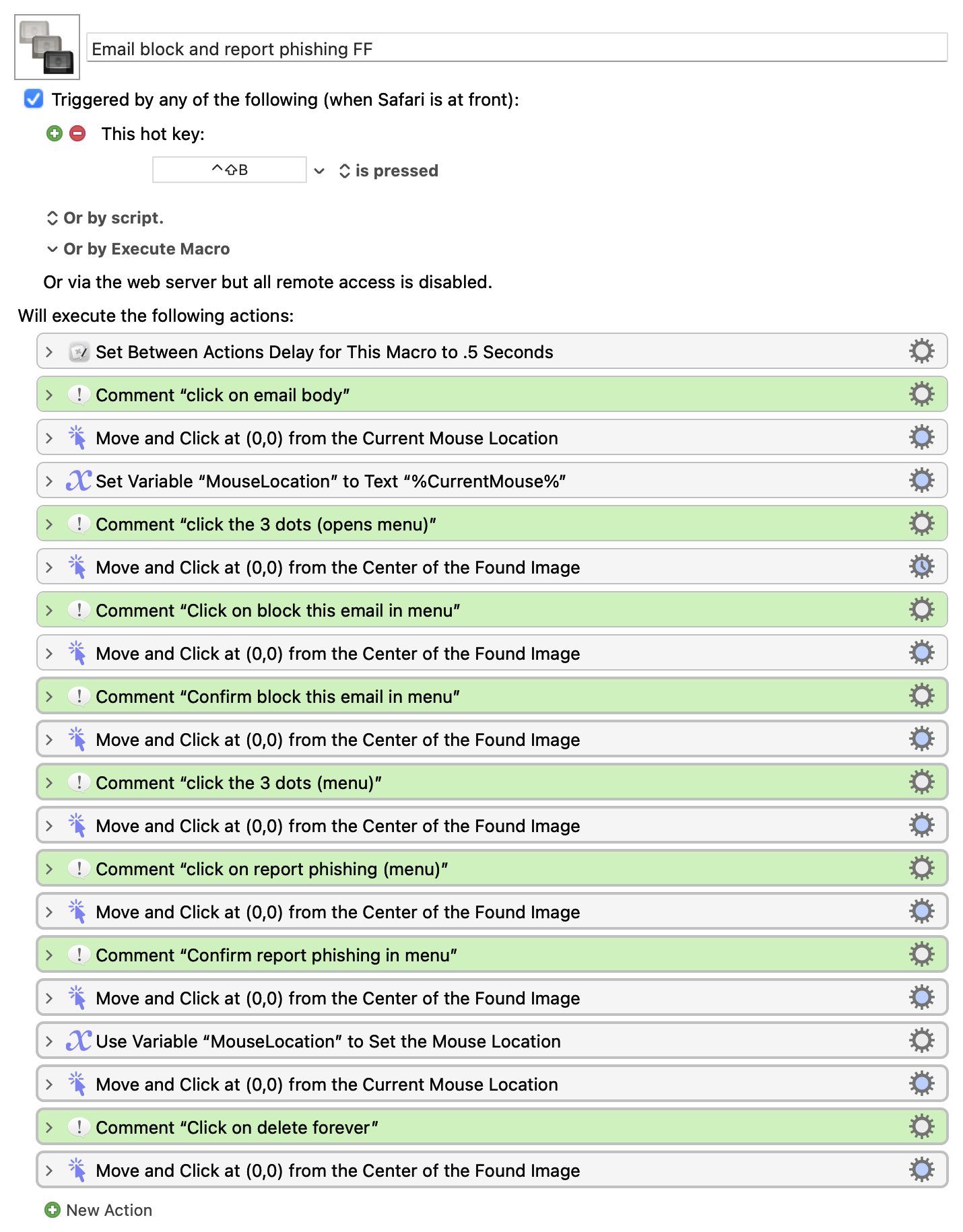
Following is the macro showing the images.
All Move and Click actions have now Wait for Image enabled.
Used View ➤ Go to Last Aborted Action. It’s failing in the 2nd M&C action (click on Block this email)
Also tried to define the area instead of “all screens”
Email block and report phishing FF Macro (v11.0.4)
Email block and report phishing FF.kmmacros (83 KB)
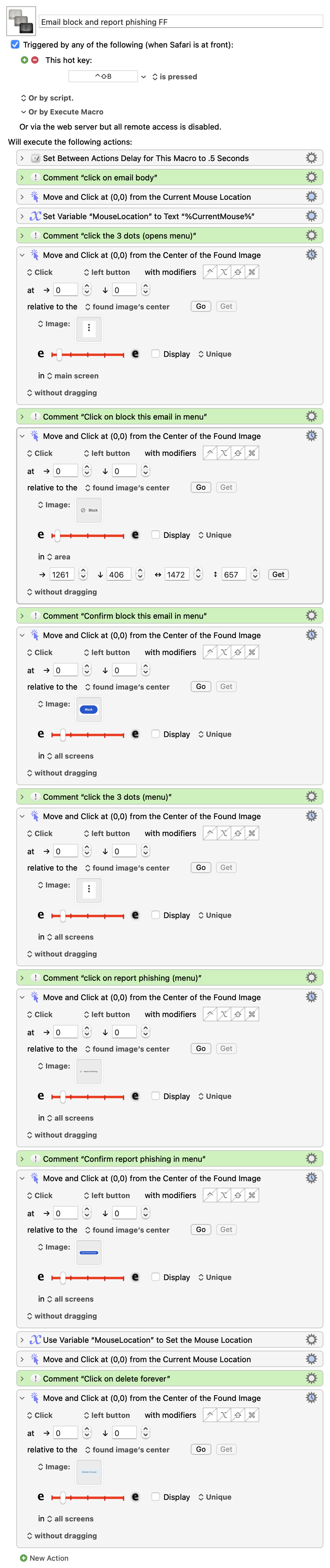
Email block and report phishing FF Macro (v11.0.4)
Email block and report phishing FF.kmmacros (83 KB)
Please upload the actual macros -- I'll bet you're trying to but are falling foul of the new Forum posting interface.
Switch out of the "new Rich Text Editor" by clicking the M↓ at the top-left of the editing area

...and you'll be able to drag in your macros and have them upload.
But you are scanning an huge area that contains a lot of text which, to an image engine, is very similar to the "Block" text. You could start by limiting the area to where the menu will be.
Better yet -- once that menu is on-screen, can you down-arrow to highlight items then Return to select?