I can record the process of recording what to do in KM, starting with Command A to select all the text in the current Journal entry, then a couple of specific finds to locate the location on the screen to get to the location where the dropdown Proofread menu is located. That works in automating Proofread in other applications, but when I trigger it in Journal, the app closes the entry and KM doesn’t complete any of the steps. Nor does KM error out. I do know that Proofread location is different in every app that it shows up in, so there is no standard way to trigger Proofread. I’m wondering if there is yet another clever method I’ve missed that in which KM experts are able to make it work in the yet-another Apple ‘standard’ interface of the Journal app?
You can use the Select or Show a Menu item to pick the proofread operation.
One strange thing I noticed is that the sometimes the proofread menu item is greyed out along with the other writing tools unless you select show writing tools first and wait for the writing tools popup to appear. Then you can have KM select the proofread option.
Put this macro into a KM group setup to execute only when the Journal app is running.
Journal Proofread Macro (v11.0.4)
Journal Proofread.kmmacros (2.8 KB)
Thanks for responding, cyoungers. It didn’t work for me. Not sure why.
I selected a Journal entry in a selected journal (not the main default Journal nor the All Entries), double-clicked the entry to open it. Clicked the Edit button. Now the text is live.
I then triggered my entry of your suggested flow. (My KM script is located in an enabled macro group called “Journal”.)
Upon the trigger, Journal (the app) immediately closed the entry and displayed the All Entries list, preventing Proofread from running. KM did not complain that the entry had disappeared. Other than KM somehow scaring Journal and triggering the entry closure, KM seemed to do nothing.
If I follow your steps manually, it works fine and immediately begins running Proofread on the entire entry. I don’t know why it works manually but not with KM
In doing it manually, I noticed that after 1 second, Apple’s AI symbol appeared immediately on the left adjacent to the entry’s first line of text and sticks around for about 10 seconds. If I click that icon, the Writing Tools layout appears and I can select Proofread from that manually. The icon doesn’t stick around long enough for me to record the KM location so I can click it with KM.
My KM is Version 11.0.4, which is the latest. And I’m running OSX 26.2, also the latest on my iMac 2025.
Thank you so much, Chris! That worked perfectly! Whew!
For those of us trying to follow along, can you explain what changed between "It didn’t work for me. Not sure why." and "That worked perfectly! Whew!" ?
Chris didn't update his post, so it didn't work then it did work? Did you change something? If so, for benefit of those reading in the future, can you explain what you did to make it work?
thanks:
-rob.
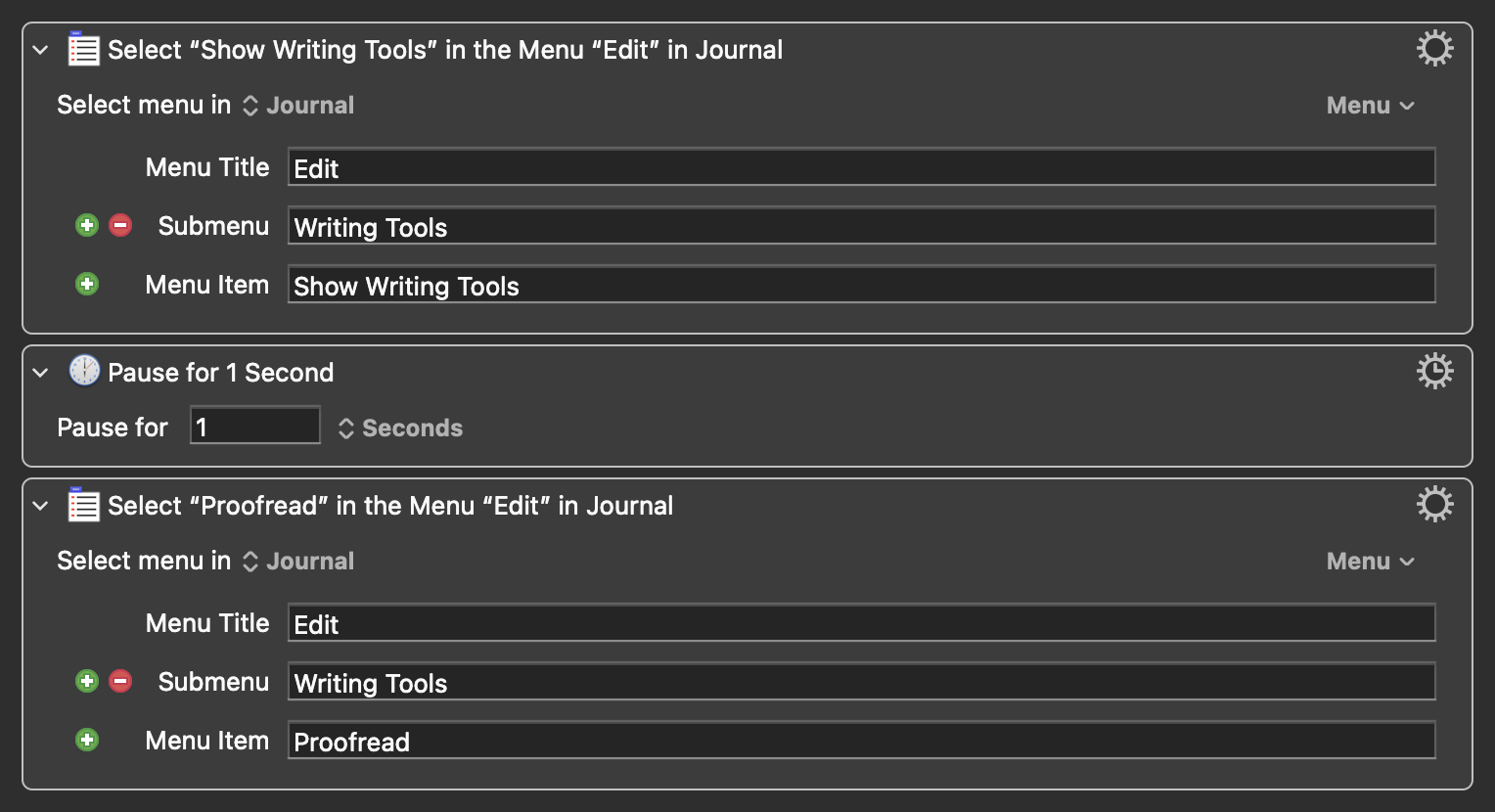
KM user cyoungers sent me a 3-step macro that worked, with two of the steps using Show Menu items. He said in the accompanying email, “One strange thing I noticed is that sometimes the proofread menu item is greyed out along with the other writing tools unless you select Show Writing Tools first and wait for the Writing Tools popup to appear. Then you can have KM select the proofread option.”
Step 1 was to select “Show Writing Tools” in the menu “Edit” in Journal.
Step 2 was to pause for 1 second.
Step 3 was to select “Show Proofread” in the menu “Edit” in Journal.
One of the problems I had was that when I triggered the macro, Journal would immediately collapse to its default state. I suspected it may have been a malformed Group folder holding the several KM macros I have for Journal. I created a new, empty Group folder and dragged my macros into it, then renamed the folder. After that, Chris’s macro worked perfectly.
A couple more comments. This KM shortcut above is currently designed to work once you have opened a Journal entry and clicked ‘Edit’. If you have already selected text to proofread, it will only process that selected text. If you have NOT selected specifc text, all of the copy in the selected entry will immediately be proofread.
If you want to use the shortcut by simply selecting one of the Journal entries from Journal’s default view, such as when you first open the app, add two Type a Keystroke set to type a Return to the beginning of the shortcut. The first Return will open the selected entry. The second Return will open the selected entry in Edit mode. The rest of the above shortcut will proceed to proofread all of the text in the selected item.