Issue: Whenever I take a screenshot, I like to scribble on it with xpen table connected to my mac. Nonetheless, the repeated action...hm, how to make a shortcut for it with KM?
Framework/Steps: Take screenshot (not the one with only copying ot clipboard,)
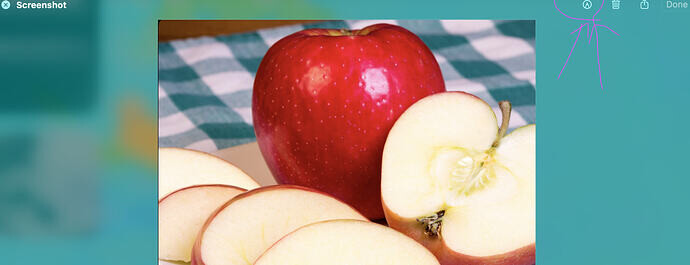
Mini image of said screenshot at the right bottom corner appears
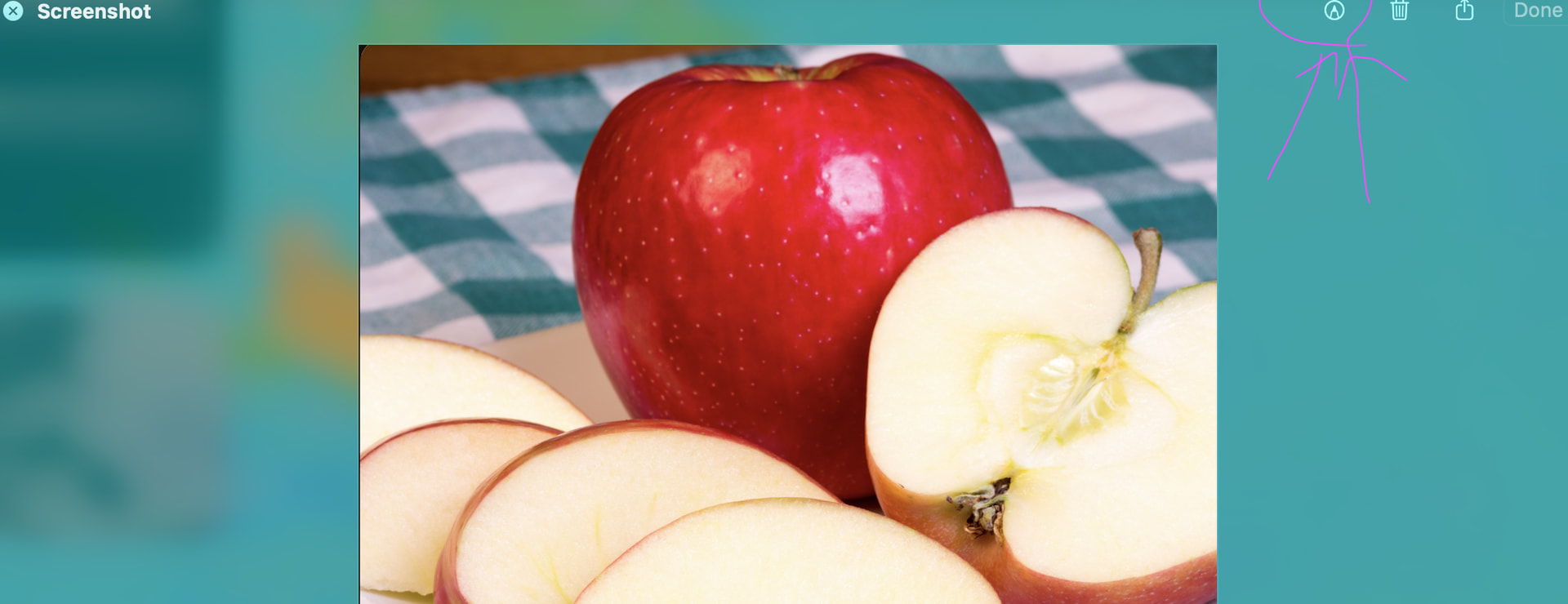
Click on it
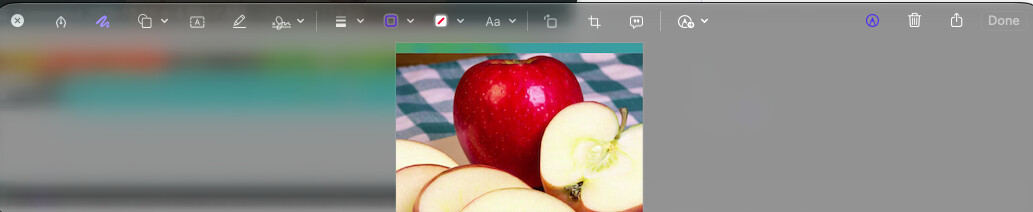
Icon to scribble, click on it
Icon to "draw", click, now finally where I want to be
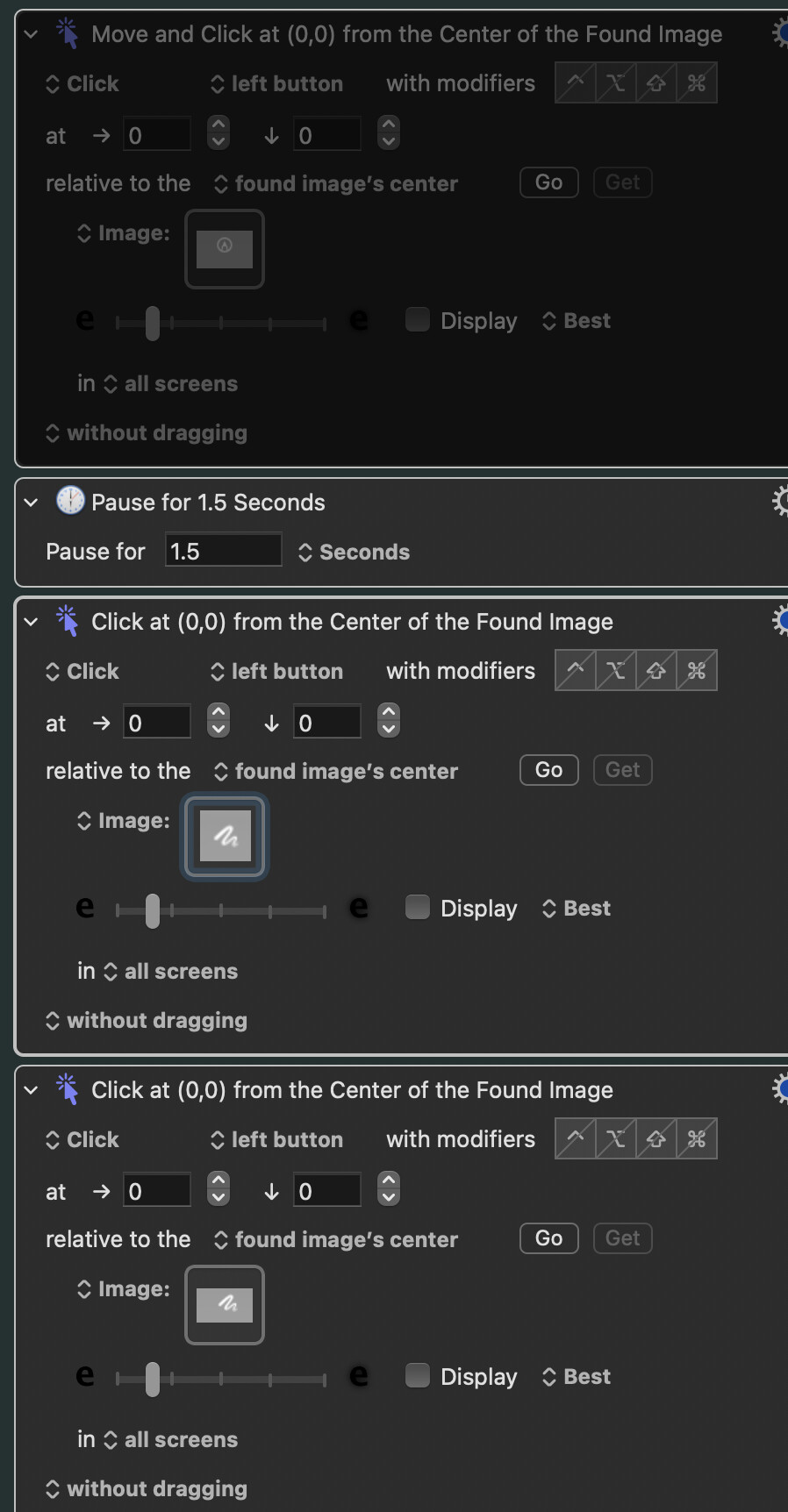
Attempt: Found at image does not work due to the glass setting on mac, so the background always changes - therefore the icons cannot be recognized as easily.
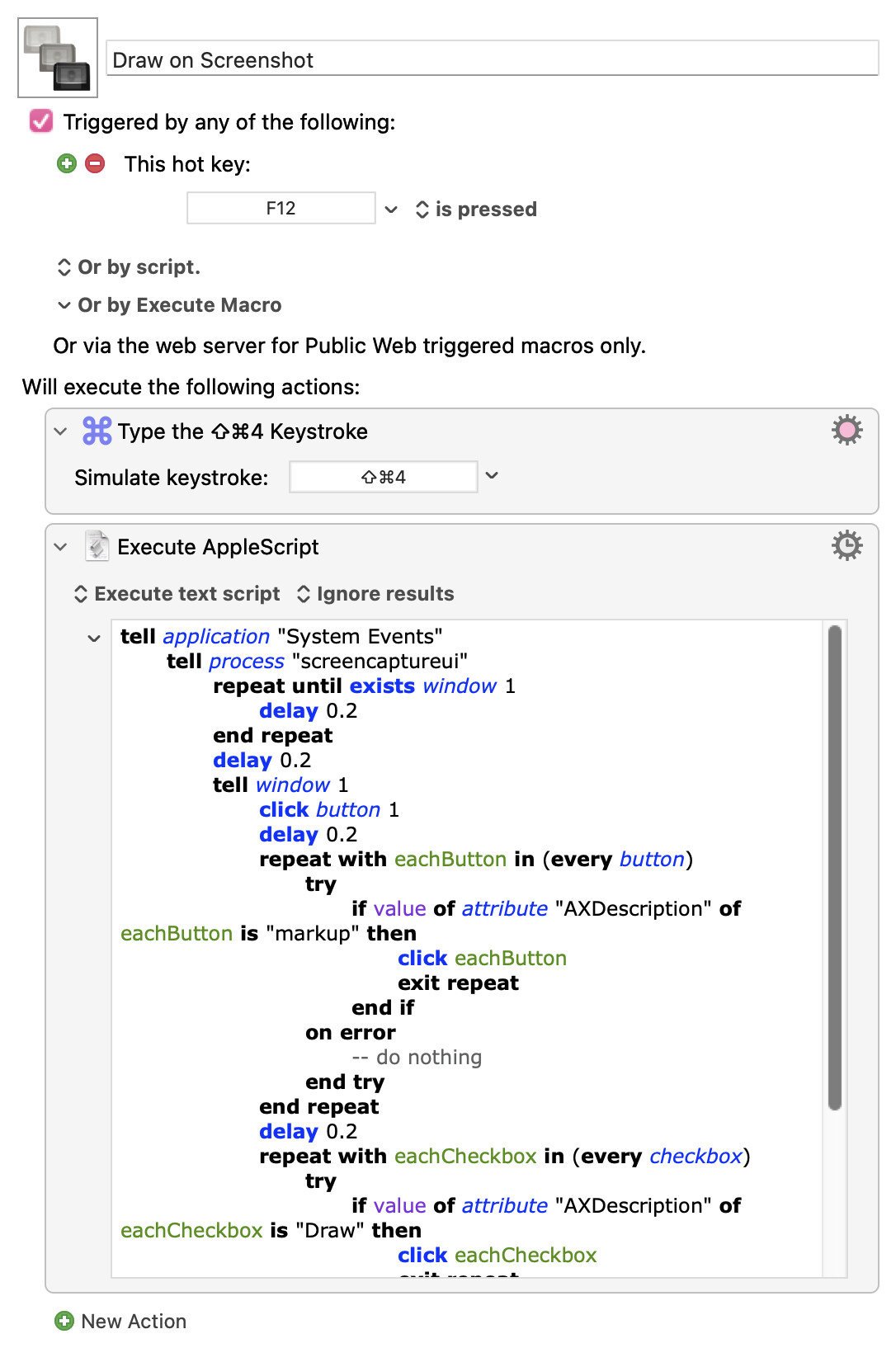
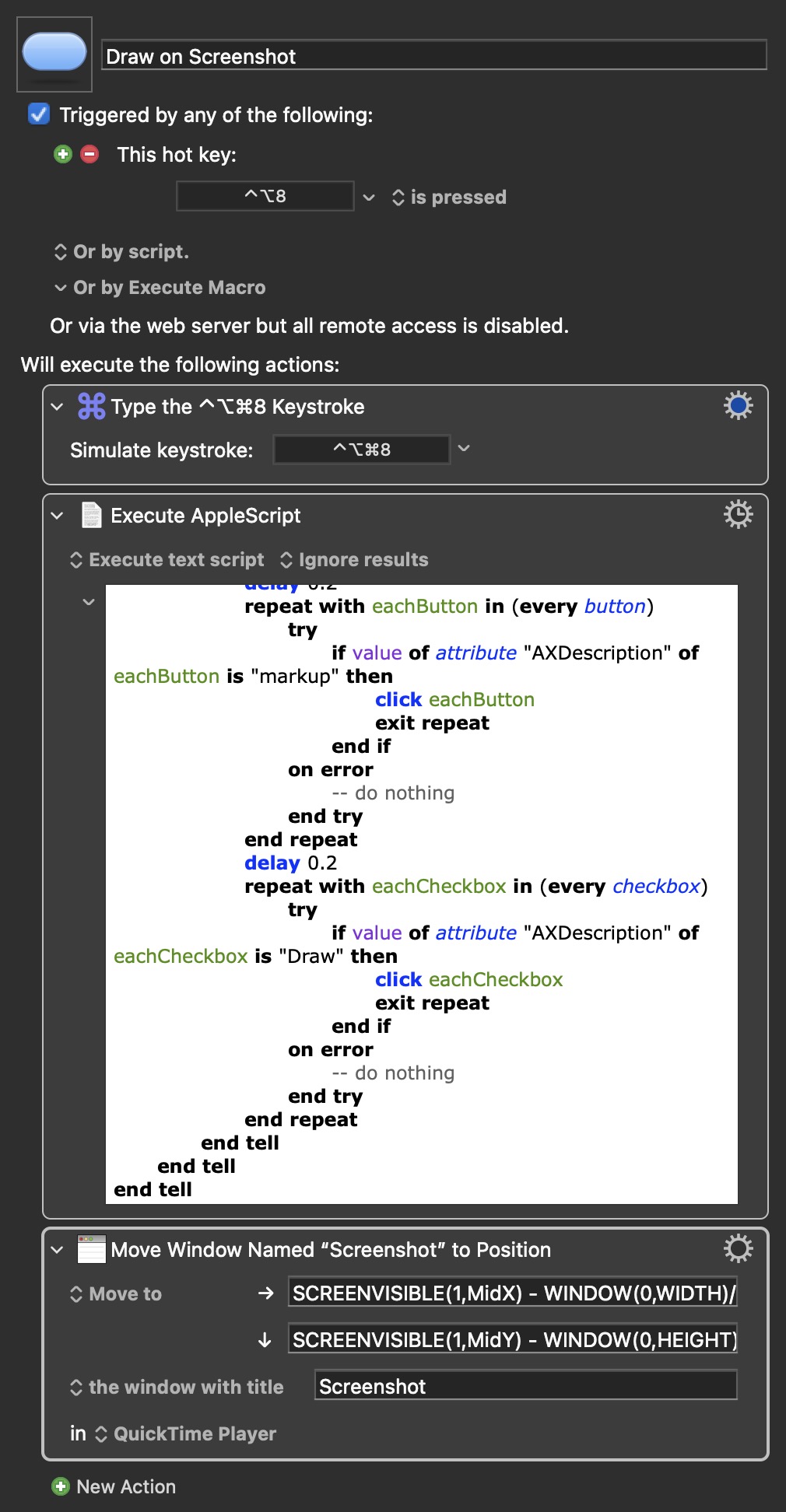
I do this with AppleScript -- this macro works for me (at least until Apple change the buttons' accessibility labels...). As written it uses the "drag to select an area" screenshot method -- change the first Action's keystroke if you want to capture the full screen or the active window:
tell application "System Events"
	tell process "screencaptureui"
		repeat until exists window 1
			delay 0.2
		end repeat
		delay 0.2
		tell window 1
			click button 1
			delay 0.2
			repeat with eachButton in (every button)
				try
					if value of attribute "AXDescription" of eachButton is "markup" then
						click eachButton
						exit repeat
					end if
				on error
					-- do nothing
				end try
			end repeat
			delay 0.2
			repeat with eachCheckbox in (every checkbox)
				try
					if value of attribute "AXDescription" of eachCheckbox is "Draw" then
						click eachCheckbox
						exit repeat
					end if
				on error
					-- do nothing
				end try
			end repeat
		end tell
	end tell
end tell
oh myyyyy, Tyyy! this is so cool! I thought it would have been lowkey impossible to click on the mini image without pulling out magic out of a hat. I gotta learn applescript to get this magic asap.Tysm again!
oh also. How would you edit the script so that the final window (the one where everything is selected with the draw option) can be transferred to another monitor?
I have been trying to figure out how apple script works + keyboard maestro but I'm completely lost and I understand that it might a little repetitive to explain newbies this . Just want to be considerate as I know the community appreciates time efficiency.
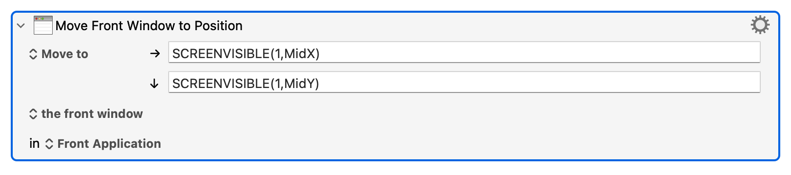
It will look something like the below where SCREENVISIBLE(), the reference to 1, MidX. MidY and a myriad of other options are explained on the URL referenced above.
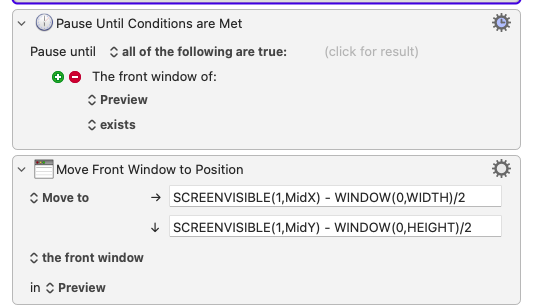
Screens are counted from left to right with the leftmost screen being Index 1 so the below would move it to the leftmost screen with the top left corner centred at the middle. Hint, the window reference point is always the top left corner.
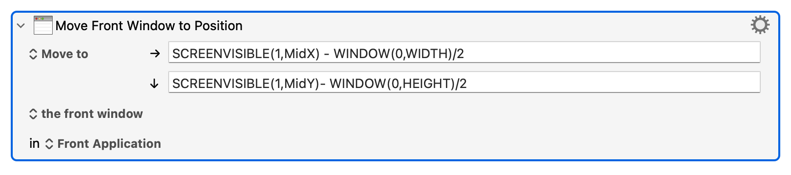
The added references in the below (i.e., WINDOW(0,WIDTH)/2 ) would centre it on the left screen by moving it half a width to the left and half a height up. The one thing to pay attention to is the window and application reference at the bottom, make sure they are correct.
Apologies, I am out for dinner, so cannot provide as detailed as a response as I would like, but will try to assist nonetheless.
As a start, you are naming the Safari application, which is why it’s moving the Safari window. I don’t think that that is right, because you’re using another application to mark up the screenshot that you took; I would use the application you’re using to edit the screenshot. This explains why the Safari window is moving and why you’re seeing an unexpected result.
As to the window title, press CNTRL UPARROW together and then move your cursor over the window, that is where you will get the title of the window.
If the window that you are editing is the frontmost window of the frontmost application, then I would start by trying those defaults or alternatively try the frontmost window but insert the specific application name which I cannot recall from the top of the thread.
Should you still be running to problems, post your macro, and I will try it when I next get a chance, I’ll be it on a different application as I do not have the app that you are using, but will be happy to assist.
Control up arrow -> (I'm using the "default" screenshot app from macOS so) when I did it, the "screenshot window specific name" did not appear. hmmm. I tried the "In {application}"
-1. 1 -> Preview (maybe it is connected to the default screenshot window?),
-1.2 -> Quick Time player (as I believe when you do the default take screenshot for a selected portion, there appears
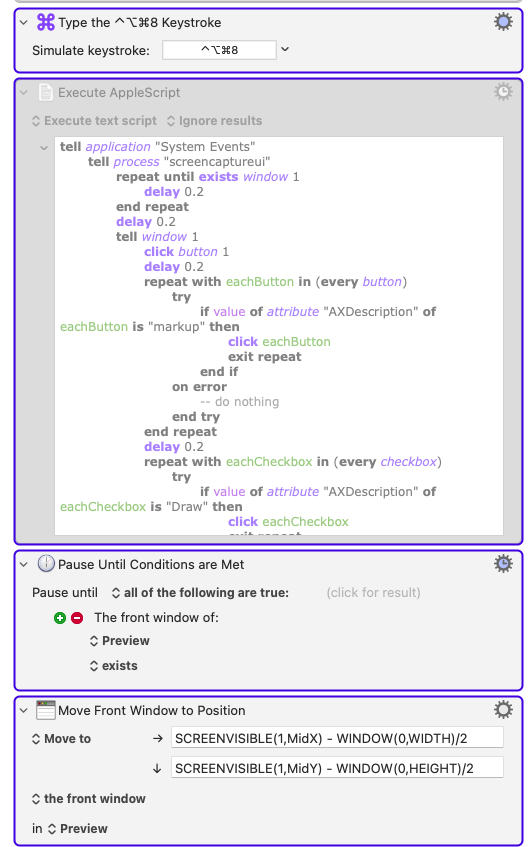
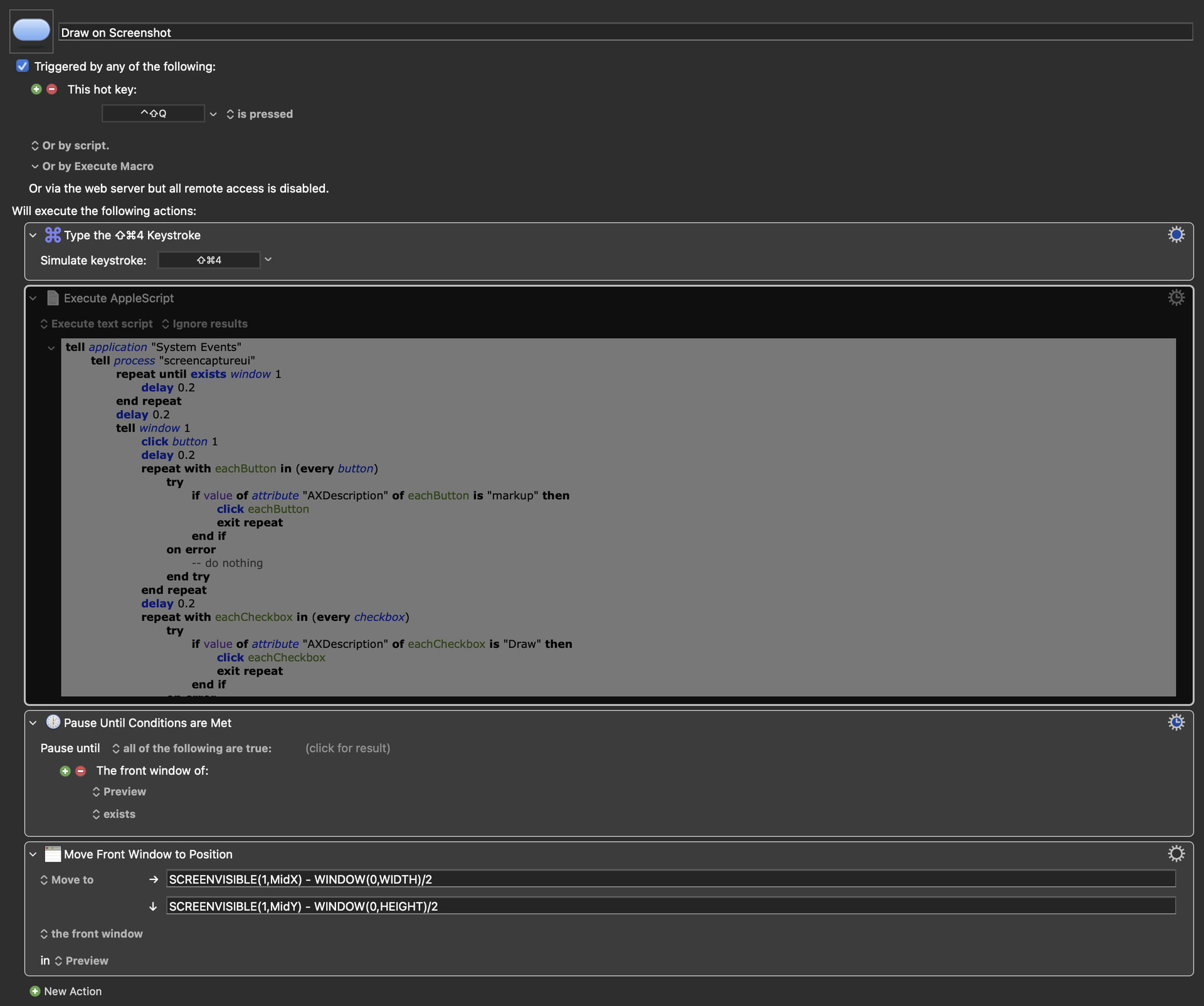
1 Here is an image of the revised macro that centres the window on my left screen.
2 NOTES
a. I have disabled the Execute AppleScript action as it is kicking up an error on my system but the screenshot → screenshot window → screenshot window move to and centre on the left monitor is working.
b. You likely won’t need the Pause Until action I added as your window will exist by the time you reach the Manipulate Window action.
c. Your window — assuming it is the only Preview window open and you have not saved it — is named Untitled.
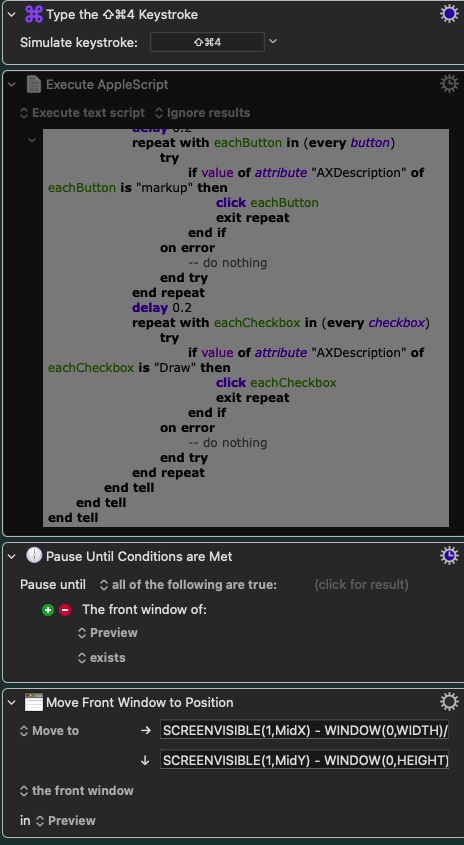
tried it, the apple script works fine on my end (as I activated it)
the pause and move front window are all activated but... hmmm, nothing.
I even tried the Match by Name -> Untitled
In: Preview
Nope. Maybe my screen arrangement? (something you mentioned about the index 0 stars at the leftmost window).
Leftmost - external monitor
Rightmost - macbook (primary screen where the screenshot mini window appears)
Goal, bring said window screenshot edit window to the external monitor.
Edit: Tried the screenvisible(External,...)
that one works fine! but even when I out the preview app, hmmmm. idk, it does not move.
Perhaps said screenshot window edit is something that is not assigned specifically to Preview or something.
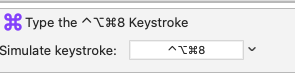
As a first step, can you get my macro to work without the Execute AppleScript action? You may need to change the trigger as I am using the macOS default triggers and you seem to have change yours with the ⇧⌃⌥⌘8.
As to the monitor setup if your external monitor is the leftmost monitor then it will move things to the leftmost monitor as this is similar to my setup.
When trouble shooting it is best to change things one at a time otherwise one looses track.
Please try the above and let me know.. we will go from there.
yep, wanted to read a little more about the "Move to size" window type action to figure it out for myself. I'm still lowkey lost but thank you for the encouragement for the help! Appreciate it.
Okay.
Problem: Screenshot window does NOT move to external monitor. Attempt (thanks to Joel for the move action):
Executed the macro from Joel: Note: yes, I changed the screenshot default keystroke for -> selected area screenshot and saved it to my Keyboard shortcuts -> screenshots.
Yes. We got the same set up. External monitor is the leftmost and internal monitor (my mac) is at the right.
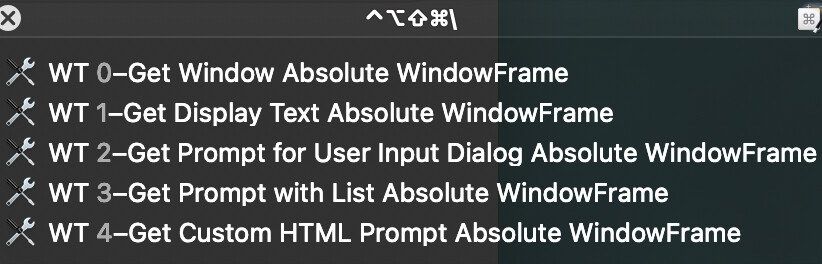
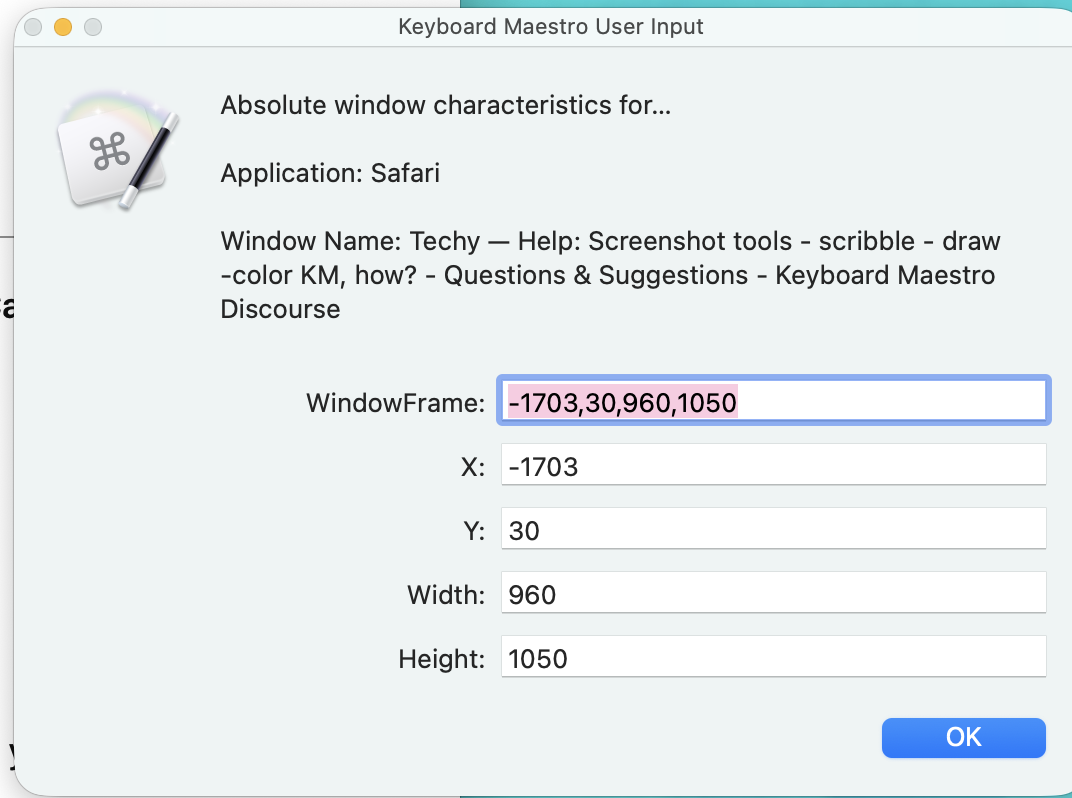
yep, I have been all over the place. Even got this -> macro to find out the specific coordinates of a window but still not being able to figure out how to set it up within the SCREENVISIBLE () - WINDOW. (Credits to author in this forum)
I am confused, where are you in getting it work; specifically:
Are you able to get my macro to work which simplifies things by taking out the AppleScript?
Where are you in getting your macro to work, which adds back the apple script. If you can get it to work, fantastic. If you cannot get it to work, then where is it failing, what does it look like, and anything else you can share.
If you are still stuck, I will work later tonight at debugging the Apple script for my system, and then make sure I have the whole thing working for you and send it back.
The apple script does work nice on my end after I enable it tho. The issue is when trying to move the "Screenshot window" to my external monitor, it does nothing.
Alright let's dig in and start by answering my questions, but please answer what ask as I cannot help you otherwise. Telling me it does not work does not point me to the cause.
If the AppleScript works let's ignore it for the moment and figure out the move problem.
If you try my macro, what exactly happens, please be specific; what happens, what does not happen, where does it stop, post a screenshot of the entire screen, etc.
Screenshot (aka screencaptureui) is a background-only app and so not easily addressable by KM -- that's why the AppleScript rather than "Click Button" Actions or similar.
And AppleScript is probably the way to move the window, too.
If you always want it in the same place on the second display -- and that second display is always the same and in the same arrangement -- you can use KM's Mouse Display window to find your desired top-left corner coordinates then set the window's position to those in the script:
set position of window 1 to {-2130, 400}
But that's boring.
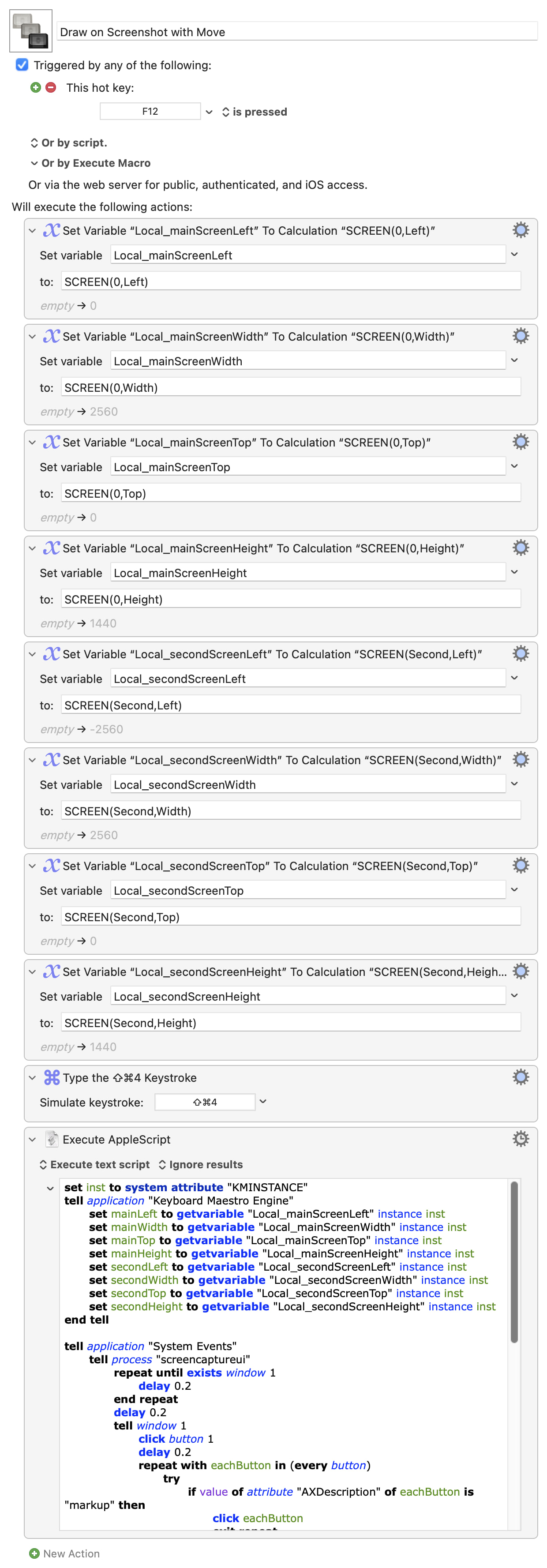
AppleScript doesn't know about screens, but KM does. So we can use KM variables in our script and, with a bit of maths, move the window to the same relative position on the second screen. Something like:
set inst to system attribute "KMINSTANCE"
tell application "Keyboard Maestro Engine"
	set mainLeft to getvariable "Local_mainScreenLeft" instance inst
	set mainWidth to getvariable "Local_mainScreenWidth" instance inst
	set mainTop to getvariable "Local_mainScreenTop" instance inst
	set mainHeight to getvariable "Local_mainScreenHeight" instance inst
	set secondLeft to getvariable "Local_secondScreenLeft" instance inst
	set secondWidth to getvariable "Local_secondScreenWidth" instance inst
	set secondTop to getvariable "Local_secondScreenTop" instance inst
	set secondHeight to getvariable "Local_secondScreenHeight" instance inst
end tell

tell application "System Events"
	tell process "screencaptureui"
		repeat until exists window 1
			delay 0.2
		end repeat
		delay 0.2
		tell window 1
			click button 1
			delay 0.2
			repeat with eachButton in (every button)
				try
					if value of attribute "AXDescription" of eachButton is "markup" then
						click eachButton
						exit repeat
					end if
				on error
					-- do nothing
				end try
			end repeat
			delay 0.2
			repeat with eachCheckbox in (every checkbox)
				try
					if value of attribute "AXDescription" of eachCheckbox is "Draw" then
						click eachCheckbox
						exit repeat
					end if
				on error
					-- do nothing
				end try
			end repeat
		end tell

		-- move the window
		set currentPos to position of window 1
		set percentLeft to ((item 1 of currentPos) - mainLeft) / mainWidth
		set percentTop to ((item 2 of currentPos) - mainTop) / mainHeight
		set newPos to {secondLeft + (percentLeft * secondWidth), secondTop + (percentTop * secondHeight)}
		set position of window 1 to newPos

	end tell
end tell
Left verbose so you can see what's happening, but could be made a lot shorter and a bit quicker by using the %Screen% Text Token and splitting that in the AppleScript.
@Nigel, interesting and I will of course defer to you noting:
I was able to use the standard ⇧⌘4 to capture a window and move it though admittedly I did land in Preview but, that is easier is it not?
That leads me to this, is there not a simpler way to do this; that is, use ⇧⌘5 and configure it to open in Preview with the markup tool bar showing, then run your AppleScript (all it would have to do would be to select the drawing tool) but now you are in Preview which can be easily manipulated, as I have shown?
That's a different workflow. @katzen is saving images to the Desktop, with markup applied. You're opening them unsaved in Preview, to them mark them up if necessary, and will then have to save them.
I'm not saying either is better, just different.
And it's also a chance to show how you can use AS to do similar for any background app's window, not usually targetable with KM Actions -- you could even go further and use bounds to resize, if wanted...



 . Just want to be considerate as I know the community appreciates time efficiency.
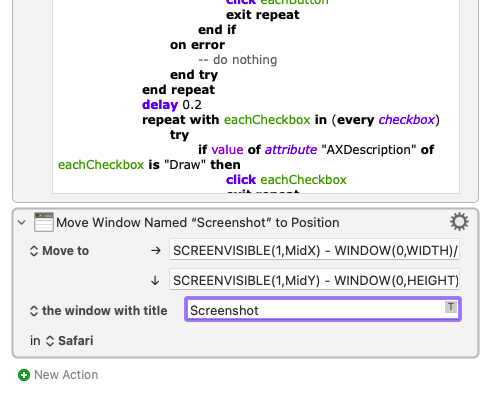
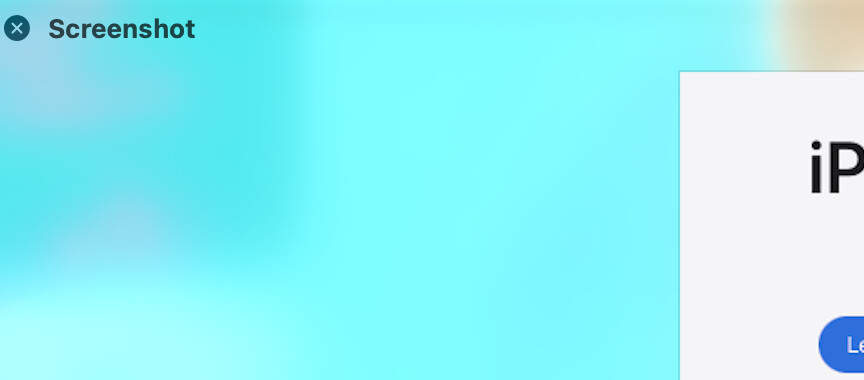


 it is not working on my end.


 .