I have read the documentation and several threads in the forum, but I can't undestand how the semaphore actions work.
Could somebody please explain it to me like to a child of 6 yo?
Thanks!
I have read the documentation and several threads in the forum, but I can't undestand how the semaphore actions work.
Could somebody please explain it to me like to a child of 6 yo?
Thanks!
There are probably several reasons for using semaphores. One of the main reasons is to prevent the same macro from running twice at the same time. That's the reason that I will explain here.
Let's say you had a macro that was triggered by a hotkey that performs several steps (including opening a dialog box and clicking on an OK button.) That's great, but if you accidentally trigger the macro a second time before the first one has finished executing, that would/could be a big problem, because the first copy of the macro hasn't finished (eg, closed the open dialog box.) To prevent this kind of error, one method is to add a Semaphore Lock action at the top of the macro and give that action a unique name. This way, a second copy of the macro will not run at the same time as the first because the Semaphore Lock action will HOLD the macro until the first copy of the macro is finished. (That's because when a macro finishes, it automatically unlocks any semaphore that was locked while it was running.)
By default, the Semaphore Lock action will HOLD further execution until any other Semaphore Lock action (with the same name) has been unlocked. But you can also fiddle with the settings of the Semaphore Lock action to limit the amount of time it HOLDs, which adds some interesting potential.
Surely you can agree that it would generally be a bad thing if a macro started a second time before the first occurrence had completed. Are you aware that it is possible (and sometimes useful) to be able to trigger the same macro a second time before the first copy has finished?
Perhaps your macros are finished so quickly that there's never a danger that a second copy of the same macro gets triggered before the first one has completed. Perhaps in that case you don't need to use semaphores. For example, if your macro simply converts one key into a different key, I don't think adding a semaphore lock would make any difference. but in general, if a macro takes TIME, it's probably wise to add a Semaphore Lock action.
One more example. Let's say you have a macro that runs a full backup of your Mac every hour. This is great. But let's say that for some reason your system started getting sluggish (eg, you are running low on space) which makes your backup take MUCH longer than normal. In that case, you might have a backup that is taking over an hour to complete. But since your macro runs every hour, do you really want a second backup to start before the first backup has finished? I don't think so. A semaphore can solve this easily, by adding a Semaphore Lock action to the top of your backup macro (and by modifying the settings so that the second backup macro aborts if a previous copy is still running.)
Do you see how this can be useful?
Any time any macro (including a second copy of the same macro) accesses the same resource, you may need a Semaphore Lock/Unlock to prevent problems. In this example, the "resource" is the backup hardware/software. But there are many other kinds of "shared resources". For example, there's only one mouse on a Mac, so if you have two separate macros that both potentially move the mouse, you may want to have a semaphore lock/unlock action pair around the mouse movement actions to prevent both macros from running at the same time. That's especially true if the mouse movements are a sequence of mouse movements that would fail if not executed in that specific order.
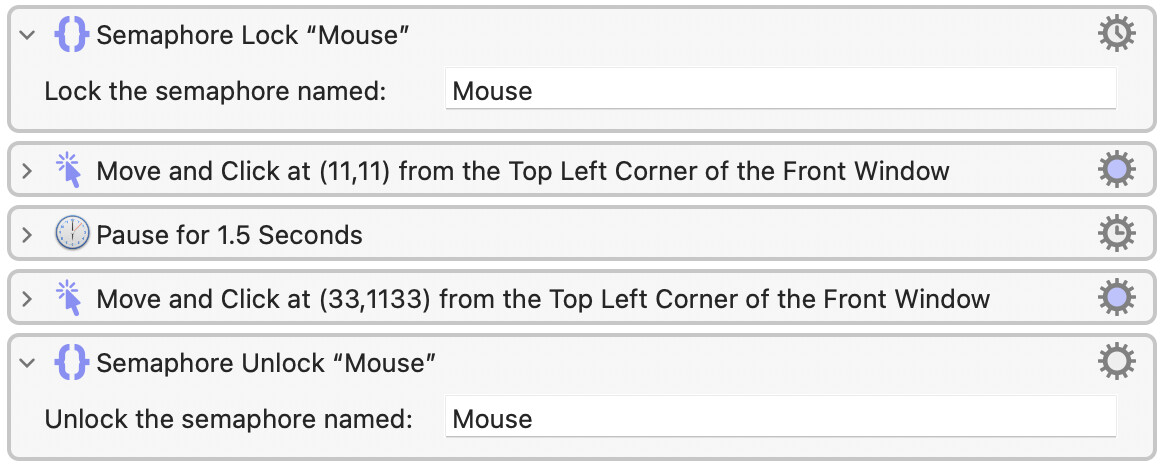
Here's an example of placing a pair of Semaphore actions around a couple of Mouse actions. By using a Semaphore Lock/Unlock action around something that is a "shared resource" (like a mouse) you prevent other macros from interfering with this macro, as long as your other macros also use semaphores like this.
I just did a search of my macros. It looks like I have 300 macros that use at least one semaphore. Most - but not all - of these semaphores occur at the top of my macro and the names of the semaphores tend to be the same as the name of the macro. This prevents two copies from being run at the same time.
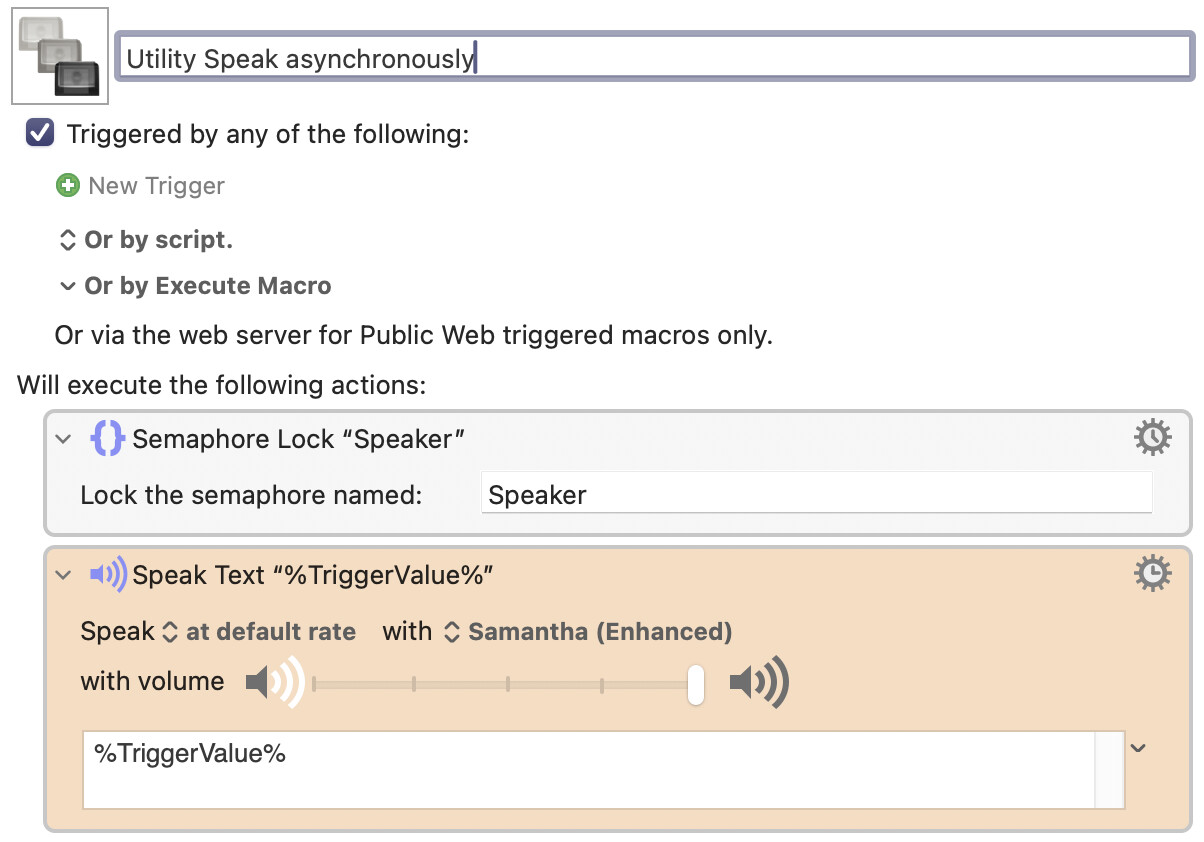
I just glanced over those 300 macros, and I found one outstanding example of usefulness. Consider this macro:
The problem that this macro is solving is the case where two of my macros (even macros that are unrelated to each other) try to generate a spoken audio message, typically an error message. If two macros read their messages aloud at the exact same time, my human ears aren't able to understand EITHER of the messages. So by adding a semaphore to this little macro, error messages are NEVER spoken at the same time. They are forced to come out one at a time. Amazing!
If you think about this in terms of the "shared resource" explanation I gave above, the human ear is a "shared resource" and you should never try to have two macros generating spoken audio at the same time, and this is exactly what semaphores are good at solving.
While the above example is very useful, I even have a more sophisticated example. Do you notice how the Speak action has a "speed" option (it says "at default rate") in the image above? I also have a more complex macro that works like this one but actually SPEEDS UP the spoken voice if there's a lot of words trying to come out. So if I have several macros trying to generate spoken error messages, my fancy macro speeds up the rate which they speak. I don't think anybody needs that, so I won't be uploading it.
The "Semaphore Lock" is really useful when you need to prevent conflict between process and / or use of limited resources between simultaneously running macros.
At its core, a "Semaphore Lock" acts as a GATEKEEPER for your macros. When a macro encounters a "Semaphore Lock" action with a specific name, it checks if a lock with that same name is already active. If it is, the macro will pause its execution and wait until the lock is released by the other macro. This is invaluable for preventing errors or unexpected behavior that can occur when multiple macros or even multiple instances of the same macro, attempt to modify the same file, access the same application or perform other conflicting actions at the same time.
This action does not necessarily cancel other "WAITING" macros, rather, it QUEUES them for sequential, First-In, First-Out (FIFO) processing.
Think of it like a single-occupancy restroom at a busy event. Once someone is inside (the semaphore is locked), others have to wait their turn. The "Semaphore Name" is the lock/key to that specific restroom.
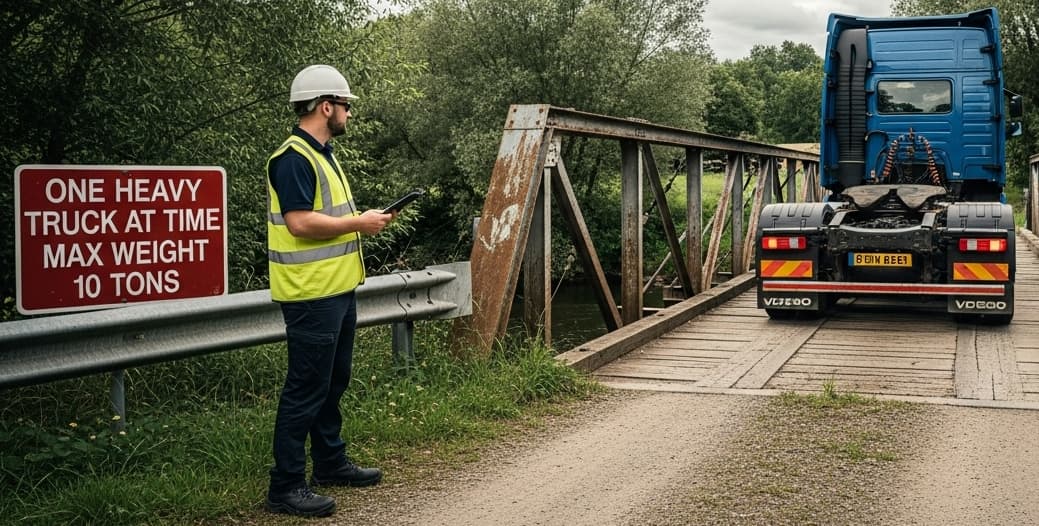
Without a gatekeeper, multiple "trucks" (macro instances) could try to cross the "bridge" (execute the critical action) SIMULTANEOUSLY, leading to a "collapse" (data corruption or a system crash).
Here’s how the "Semaphore Lock" acts as the gatekeeper in this scenario:
"Bridge_Crossing".This ensures an orderly, one-at-a-time process, preventing disastrous collisions and ensuring the integrity of the critical task.
You can even set a TIMEOUT on the lock, so if a "truck" has to wait too long, it can give up (cancel the macro execution) and take a different route (with Try/Cath ). This effectively turns away any other "trucks" that arrive while the bridge is in use (instead of letting them wait).
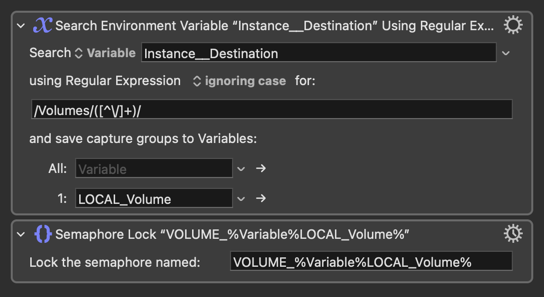
One of the things I love about the "Semaphore Lock" action is that it can be very FLEXIBLE, as highlighted in the macro below, it has the ability to use variables and tokens in its name.
In the example, I have a series of processes with a lot of files but some of the steps may need to write a lot of information to an external Hard Disk Drive and I prefer if files are processed in sequence and NOT simultaneously in the same HDD, so I use a semaphore in that SECTION of the macro with the name VOLUME_%Variable%LOCAL_Volume%.
This means the actual name of the semaphore lock is not fixed. Instead, it changes based on the current value of the LOCAL_Volume variable. For instance, if the LOCAL_Volume variable holds the value "HDD8TB", the semaphore lock will be named "VOLUME_HDD8TB". If the variable changes to "BACKUPS", the lock name becomes "VOLUME_BACKUPS".
This dynamic approach offers several key benefits:
Targeted Control: Instead of a single, global lock that halts all related macros at that "SECTION OF THE ROAD", you can create specific locks for different resources or if certain conditions are met. In the example, this allows the macro to prevent simultaneous operations on the SAME volume while still permitting parallel operations on DIFFERENT volumes. In the "bridge analogy," you can allow "bikes" and "small cars" to cross even when a semaphore lock is in place for "trucks".
Scalability and Reusability: Imagine a workflow that processes files. By using a variable that holds the filename in the semaphore name, you can ensure that two instances of the macro don't try to process the exact same file simultaneously, while allowing them to work on different files in parallel.
Context-Aware Execution: The semaphore's name can be flexibly generated from a variety of dynamic sources, including the current application, the active window title, or a previously defined variable.
Thanks a lot for this valuable information @JuanWayri !!
Offtopic
I just did a search of my macros. It looks like I have 300 macros that use at least one semaphore.
Wow , 300 macros with semaphore, so how many you have at all?
I'm always wondering reading this forum:
I'm asking just for my own inspiration.
Here are some of my suggestions to manage and use thousands of macros:
Trigger by Name is your friend! Either to search all your macros or to search within a specific predefined collection (groups or with a "prefix" or using search keywords).
Make your shortcuts and macros context dependent so they are only available or enabled in the right situations.
Use conflict palettes to handle overlaps.
You can also use tools like Karabiner Elements to create new “modifiers” (similar to a Hyper-key, but with other keys, like “Tab-mode,” “Esc-mode,” "z-mode", etc.).
And one of my favorites...
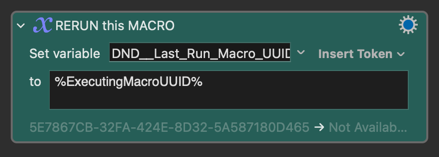
Often, you only need a macro for a specific temporary task. In these cases, you can use a variable like PREFIX__Last_Run_Macro_UUID along with a separate “Rerun” macro that executes the last macro stored in that variable. Here’s the workflow:
Create your macro (or record it, if it’s simple). Add a step that sets PREFIX__Last_Run_Macro_UUID to %ExecutingMacroUUID%.
Trigger your macro using “Trigger by Name” (or any trigger you prefer). This stores the macro’s UUID in PREFIX__Last_Run_Macro_UUID.
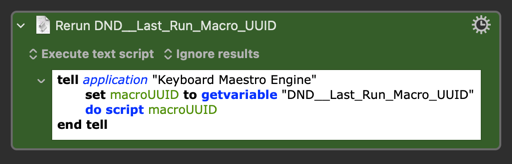
Use your “Rerun PREFIX__Last_Run_Macro_UUID” macro or AppleScript (bound to an easy shortcut) to trigger the macro you stored in Step 1.
Repeat Step 3 as needed. You get the convenience of a shortcut without having to assign one permanently, just for the time you need it.
Also, because to rerun it you only need to execute just a little bit of AppleScript, you can use other tools like Karabiner, BetterTouchTool, Alfred, etc. easily.
When I last checked I had 1300 macros, which I created since buying this Mac about 18 months ago, I think. That's about 2.5 macros per day. That doesn't sound like much.
There are other threads which have addressed this question.