Beginner here. I’ve not made any macros that work with selected text. I want a macro that replaces single quotes in the selected string with double quotes. My attempts so far using a copy, search and replace system keyboard, and paste don’t do the trick.
This approach works for plain ‘ol letters, but not for quotes. Any help?
PS: It would also be great to know how to encompass a selected text string with quotation marks.
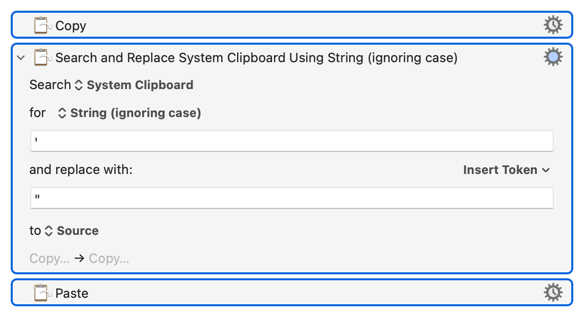
It should also work for quotes:
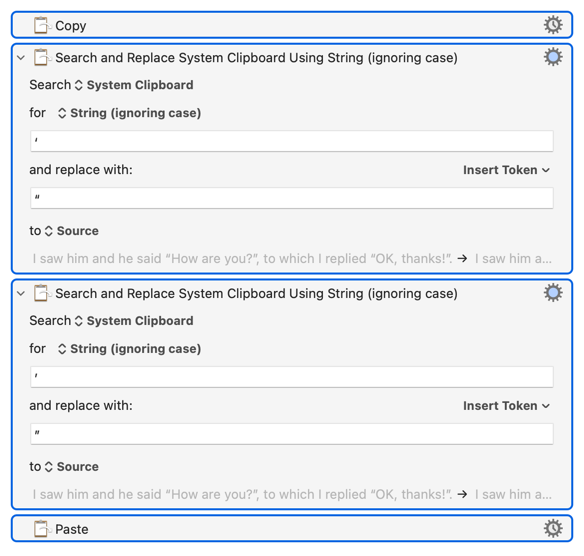
Unless, of course, you're trying to swap out typographer's (smart or curly) quotes -- then you'll have to two-step to do the open and closing versions:
(Open single smart is usually ⌥] on your keyboard, closing single is ⌥⇧], doubles are the same but using the [ key.)
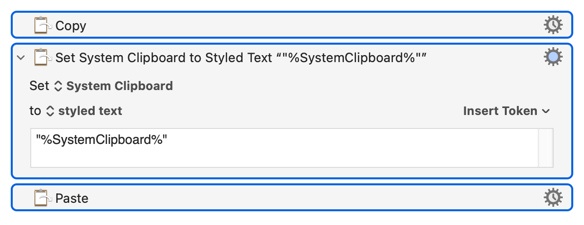
Try:
...replacing the dumb quotes with smart if that's what you want.
See how you get on with the above -- they work here, but one of the first things I do on a machine is turn "Smart Quotes" off in System Settings! That, and some applications' quote transformation when pasting, may change the results...
1 Like
Thanks, appreciated. In Word, using the styled text option for the second macro returns incorrectly formatted text, but it works in plain text mode.
For the first macro, the problem was as you suggested the smart quotes issue.
My work requires the use of smart quotes, although I suppose I could put in a step before and after editing a file that first made all quotes dumb and then reverted them back to smart.
Gotta love Word and its "special" clipboard flavours... You may just find that the selection's font is being changed and, if you always use the same font, you can re-apply that.
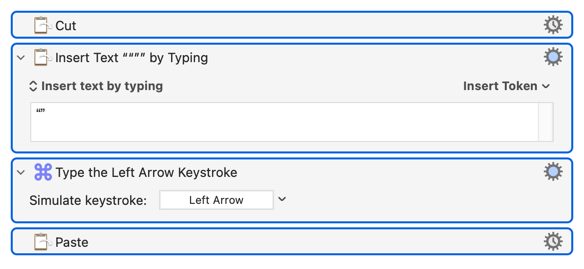
The other problem you'll have is with Word's "Smart Paste" adding (or not, at its whim) spaces when you paste. But you could try something like
You might be better off using a Word macro:
Sub enquoteSelection()
    With Selection
        .InsertBefore ChrW(&H201C) ' opening double quote
        .InsertAfter ChrW(&H201D)   ' closing double quote
    End With
End Sub
...but even that has its problems -- if the closing quote follows some bold text then it will also be bold, for example.
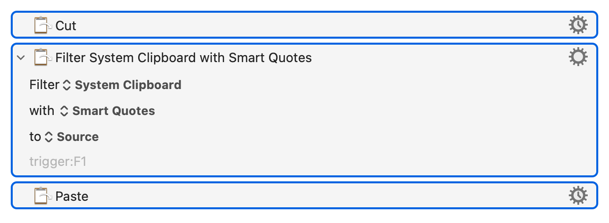
If you are wanting to convert existing quotes in the selection, you could do this:
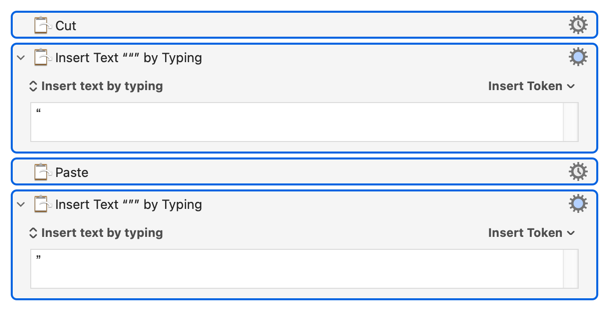
If you want to add quotes around them, then you could do:
2 Likes
D'oh! I really must check the "Filter" options more often...
1 Like