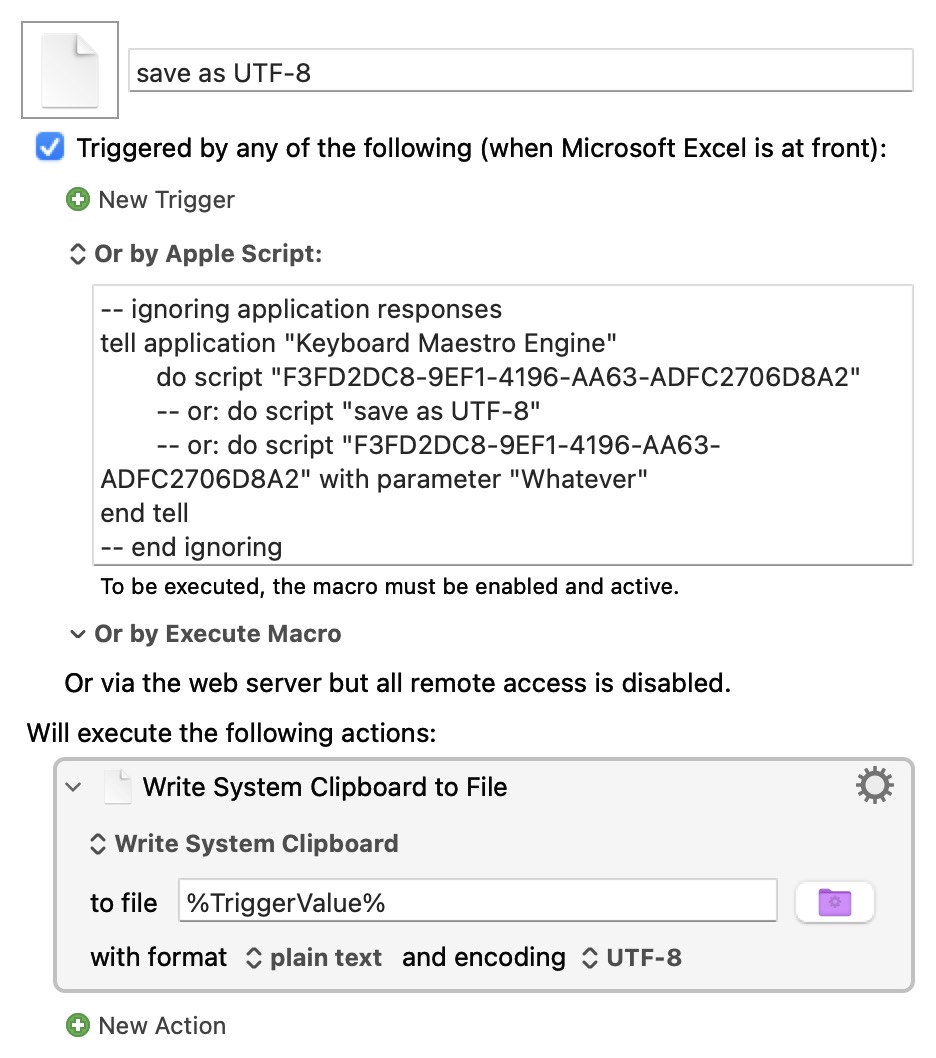
I want to save a column of an Excel spreadsheet as a UTF-8 text file using VBA, but have found no way to do it. By contrast, saving as UTF-8 is easy with Keyboard Maestro’s Write System Clipboard to File action.
But now I can’t figure out how to trigger that Keyboard Maestro macro from Excel VBA. I tried getting Excel VBA to send a keyboard trigger using some code involving MacScript, but it didn’t work and then I found out that was deprecated. I also found something called kmtrigger but it looked complicated.
There must be an easier way. Can someone point me in the right direction?
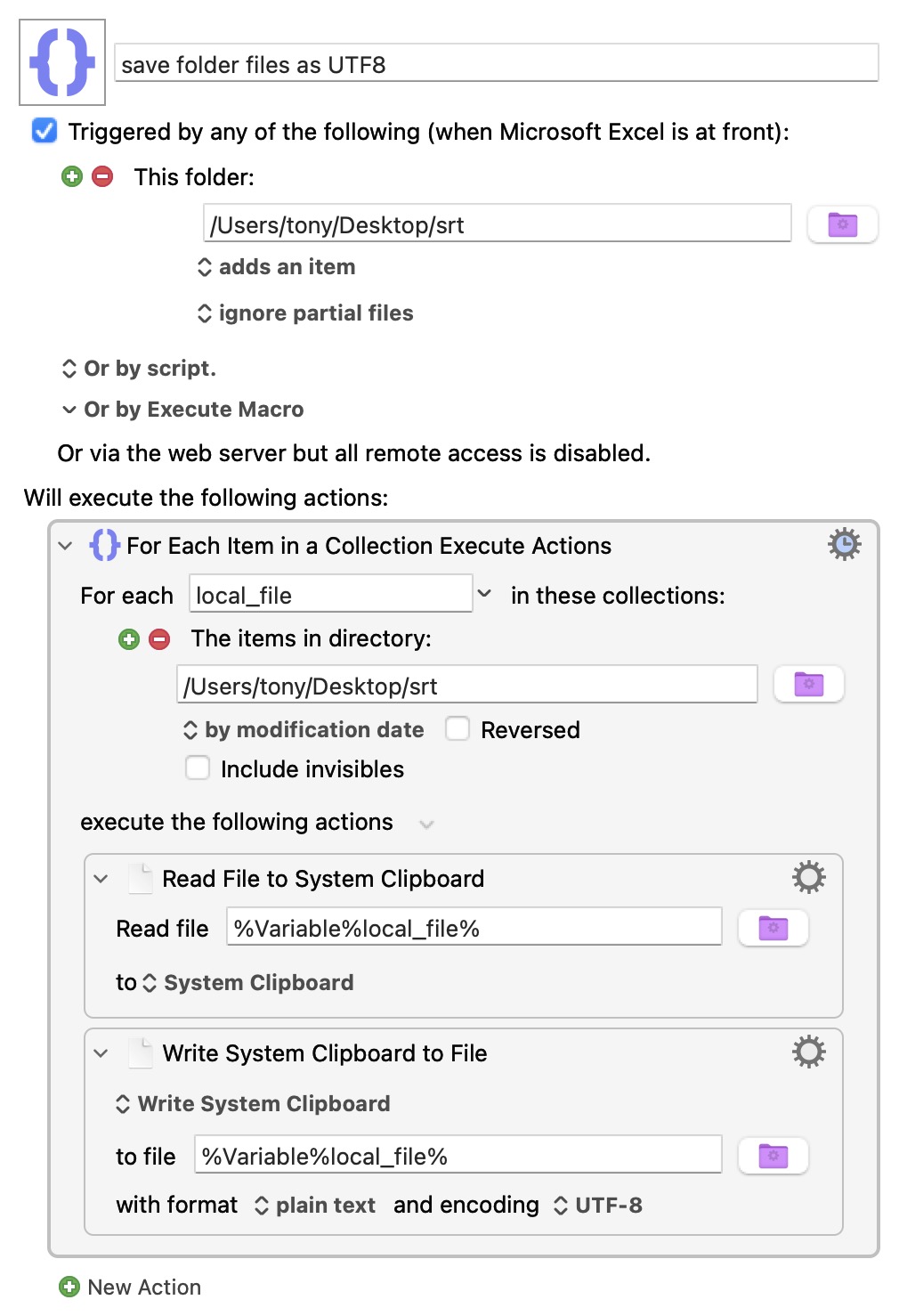
The following is an indirect way to solve my problem, but I’d rather have it all done in VBA code. This macro requires me to export text files from Excel into a folder that KM monitors and runs when files are added to it:
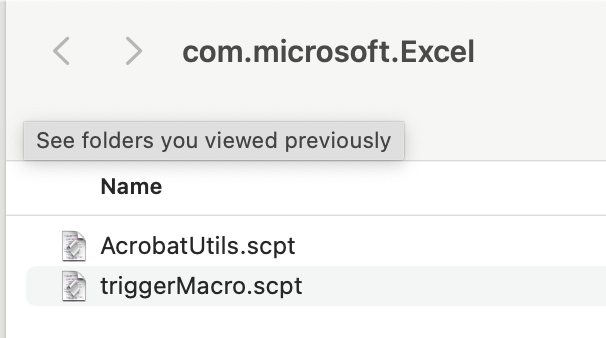
In folder /Users//Library/Application Scripts/com.microsoft.Excel create simple Script
use AppleScript version "2.4" -- Yosemite (10.10) or later
use scripting additions

on AppleScriptSaveHandler(paramString)
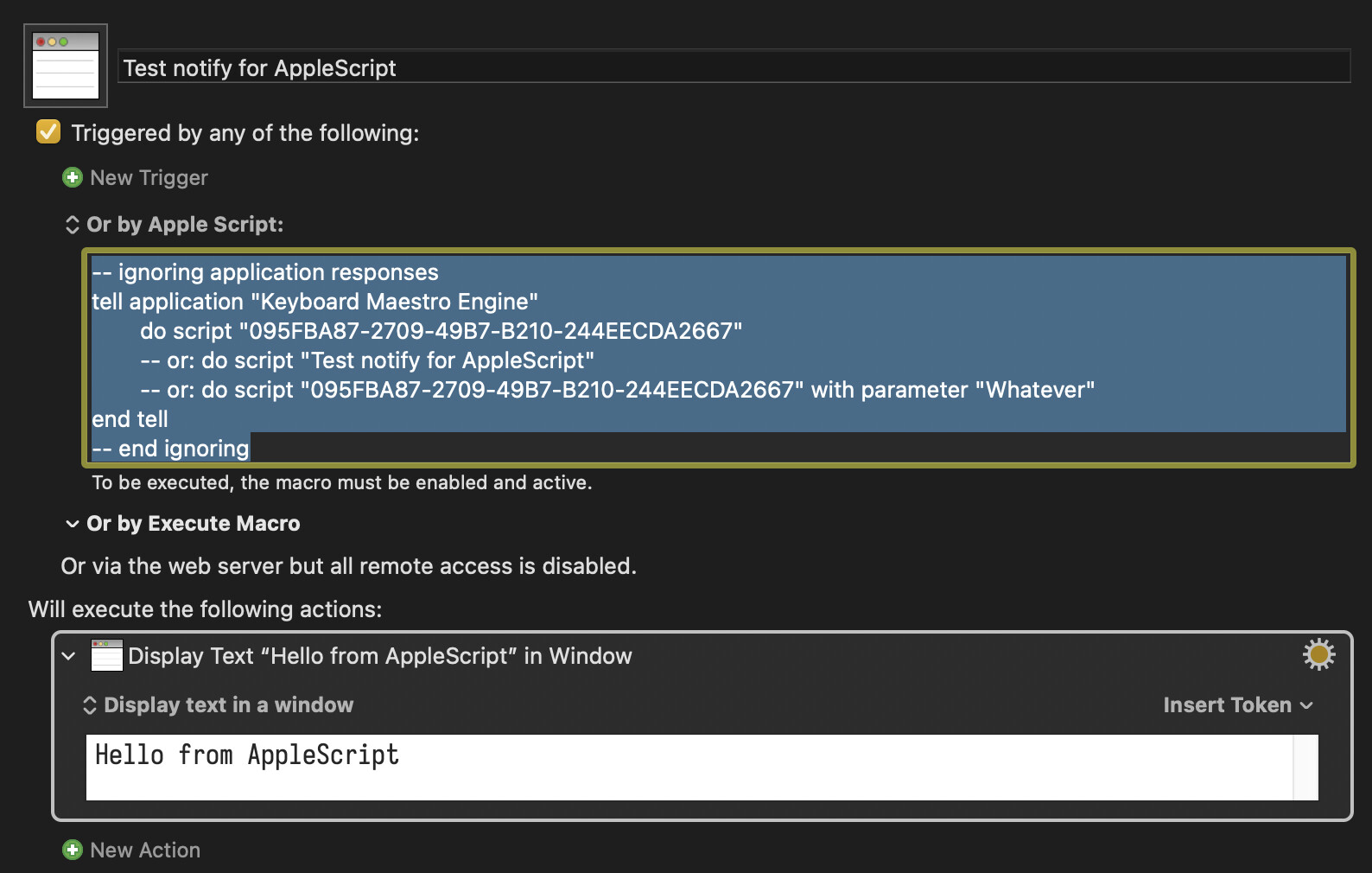
  -- ignoring application responses
  tell application "Keyboard Maestro Engine"
        -- do script "095FBA87-2709-49B7-B210-244EECDA2667"
        -- or: do script "Test notify for AppleScript"
        do script "095FBA87-2709-49B7-B210-244EECDA2667" with parameter paramString
  end tell
 -- end ignoring
end AppleScriptSaveHandler
In VBA editor in excel define:
Sub TestCallAS()

Dim myScriptResult As String
    myScriptResult = AppleScriptTask("TestExcelAppleScript.applescript", "AppleScriptSaveHandler", "Test message")

End Sub
I've never got kmtrigger to work from Excel -- I'm guessing the "unknown" protocol freaks it out.
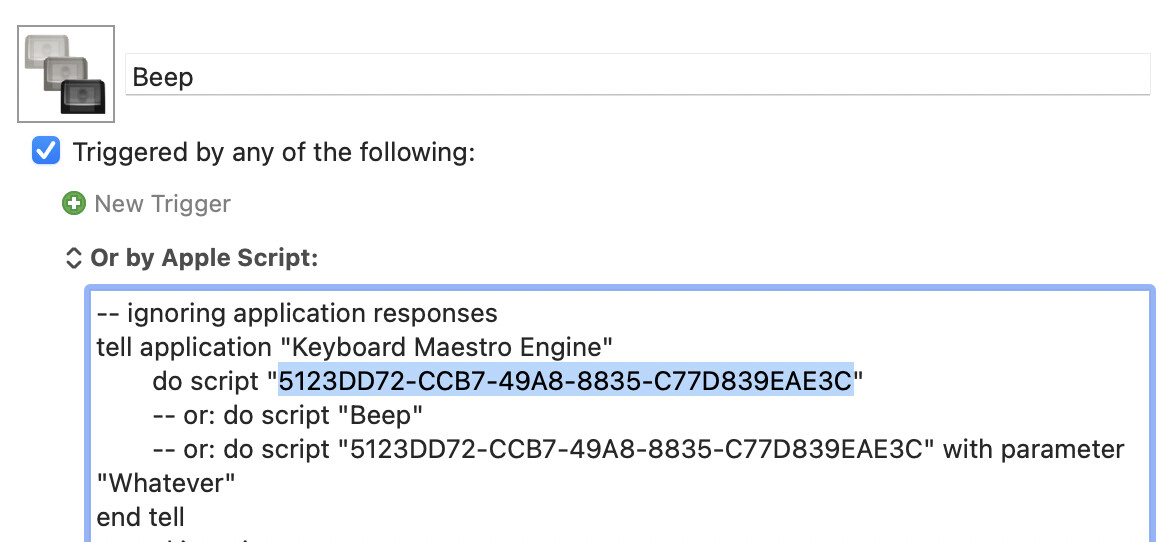
The easiest way to do what you want is with AppleScript, but it takes bit of setup because Excel can no longer run "inline" scripts -- they have to be saved files and in a particular directory.
Sub Test()
     Dim myScriptResult As String
    myScriptResult = AppleScriptTask("triggerMacro.scpt", "myHandler", "")
End Sub
The first parameter of AppleScriptTask is the name of the saved script, the second argument is the handler in the script you want to call, the third is the parameters to pass to the handler which, in this case, we can leave empty.
Note that, because we reference both file name and an individual handler, you can have a single script file with many handlers or many files with one or two handlers.
Edit to add: @nutilius types faster than me! The good news is... we're basically saying the same. Go us!
Both you and @Nige_S have provided the answer, so now I’m conflicted by how to choose the “accepted answer” – I actually tried his first because it is simpler, and it worked right away.
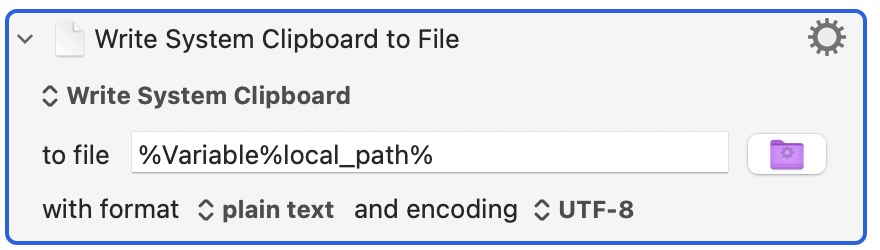
But after that success I became interested in passing a parameter – the path to the file to be saved – and I see that your solution has a parameter being passed. I tried a couple things but it didn’t work. Can you help?
Here’s what I tried for the AppleScript:
on myHandler(local_path)

tell application "Keyboard Maestro Engine"

do script "F3FD2DC8-9EF1-4196-AA63-ADFC2706D8A2" with parameter local_path

end tell

end myHandler
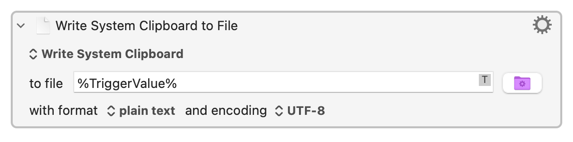
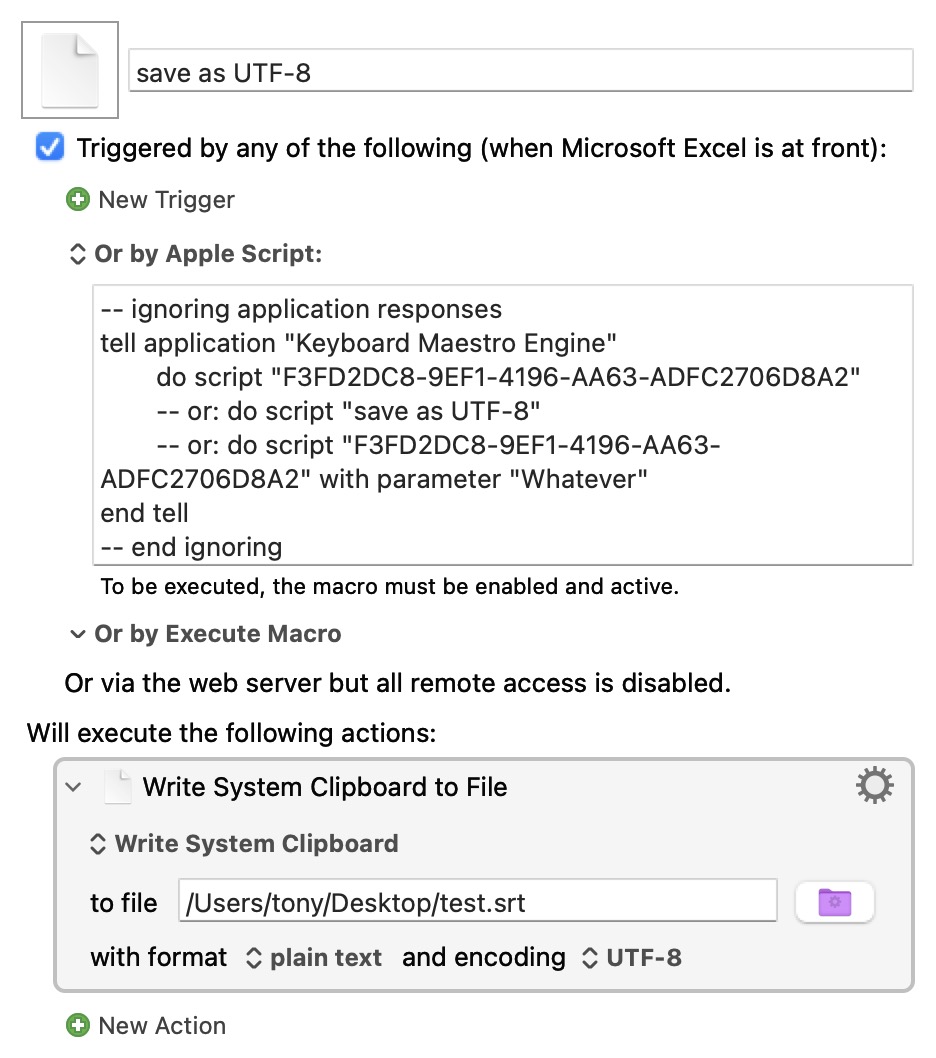
Both your solution and that of @nutilius work, and the thing I like about yours is that it’s minimal. So for future readers, I want to provide my full application of your solution here:
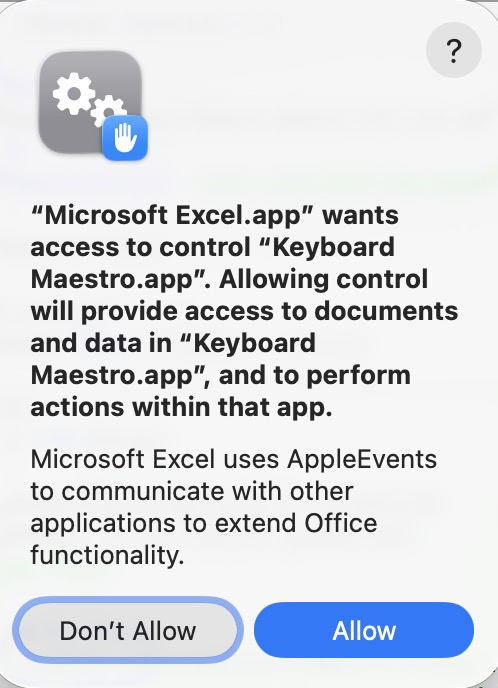
The first time I tried to run the Excel VBA I got this message, but after giving permission immediately executed to produce a UTF-8 encoded file from the selection of cells in Excel.
Sub saveSelectionAsUTF8() Dim r As Range, myScriptResult As String Set r = Selection r.Copy myScriptResult = AppleScriptTask("triggerMacro.scpt", "myHandler", "") End Sub
Sub saveSelectionAsUTF8AtPath() Dim r As Range, myScriptResult As String Set r = Selection r.Copy myScriptResult = AppleScriptTask("triggerMacro.scpt", "myHandler", "/Users/tony/Desktop/test.srt") End Sub