A user here on the Forum has peaked an old man’s interest !!!
My goal is to create an apple script that will randomize the files in no particular order in a folder. I realize that I can sort by name, size, etc but I am looking for randomness. All I would like to do is tt select a directory and mix it all up keeping the original names. This is the code that AI created for me !!! It does work but not what I want. Instead of just re-ordering the files, it just adds a prefix……….
And then I read this
“You can randomize the order of files in a selected folder on macOS only by giving Finder a new randomized sequence to sort by. Since Finder cannot store a custom order unless filenames change, the only reliable way to “randomly order” files is to temporarily rename them with randomized numeric prefixes. This preserves the original names after the prefix and produces a fully shuffled order in Finder.”
Please advise
Ron from Canada
This is the code that AI created for me !!!
-- Randomly reorder files in a selected folder by adding a random prefix
set chosenFolder to choose folder with prompt "Select the folder whose files you want to randomize:"
tell application "Finder"
set fileList to every file of chosenFolder
end tell
-- Create a list of random numbers (one per file)
set randomList to {}
repeat (count of fileList) times
set end of randomList to (random number from 100000 to 999999)
end repeat
-- Shuffle the random numbers (Fisher–Yates)
set shuffledList to randomList
set n to count of shuffledList
repeat with i from n to 2 by -1
set j to (random number from 1 to i)
set temp to item i of shuffledList
set item i of shuffledList to item j of shuffledList
set item j of shuffledList to temp
end repeat
-- Rename files with randomized prefixes
repeat with i from 1 to count of fileList
set f to item i of fileList
tell application "Finder"
set oldName to name of f
set name of f to (item i of shuffledList as string) & " - " & oldName
end tell
end repeat
display dialog "Done! The files have been randomly ordered."
I am not an Apple Script expert so cannot comment on the code but why not create a new folder full of set files, put the proposed Apple Script in a Keyboard Maestro macro and let it run.
If it works great! If not ask AI to fix / tweak those parts that do not work.
Sorry I was not clear …. I have a folder with 100 files. They can be sorted by name, size , etc… What I am after is, you take the folder and shake it up so that there is absoulutely no order
No…. I have a site that I upload to and I choose files from a Bank and it would be better for me if I could always pick the first one (top) hence the reason for randomized files.
So there is no way to randomize a list of files without renaming them, period. Your AI has it right—you'd have to add a random prefix to every filename, then sort by name, and you'd have (mostly) original names in random order.
But why don't you explain what you're trying to do, because I'm betting there's a better way to accomplish what you're trying to do.
My Computer skill level is 3 out of 10 so I can get by !!!! But I have a hard time accepting the fact that if able, you have to move mountains, to mix up the file names !
I upload files to my site. My idea was to mix up the files and just pick the top one to upload, this way I can keep a very small window open because I would only need to see the top file .
Unless the OS offers a "randomize" function for showing the files in Finder, how would you randomize them without renaming them?
In Terminal, which access the Unix core of macOS, it's pretty trivial to sort the files in a given folder in a random order:
ls | shuf
That will display the filenames in the current folder in random order. But that won't help you, as you want to (apparently) drag and drop the files. You need Finder to have a GUI equivalent of the shut command, but it doesn't.
If you want to solve this, it's solvable, but we'll need a more detailed description of what you're doing. "I upload files to my site" isn't enough for us to give much assistance. But if you can explain the process of uploading files to your site, then we can probably come up with something that works for you.
But the description needs to be as detailed as you can make it—what apps do you use, how are you uploading, what are you dragging into, etc. Basically, describe precisely what you're doing now that you'd like to auomate.
Without knowing anything about the project, my first inclination would lean towards a solution that removes the drag and drop. Without that, you can do all sorts of stuff to automate the uploads, such as using a list of files in a folder and uploading them all, no click and drag required. But in order to make recommendations, we need to know exactly what you're doing that you'd like Keyboard Maestro to do for you.
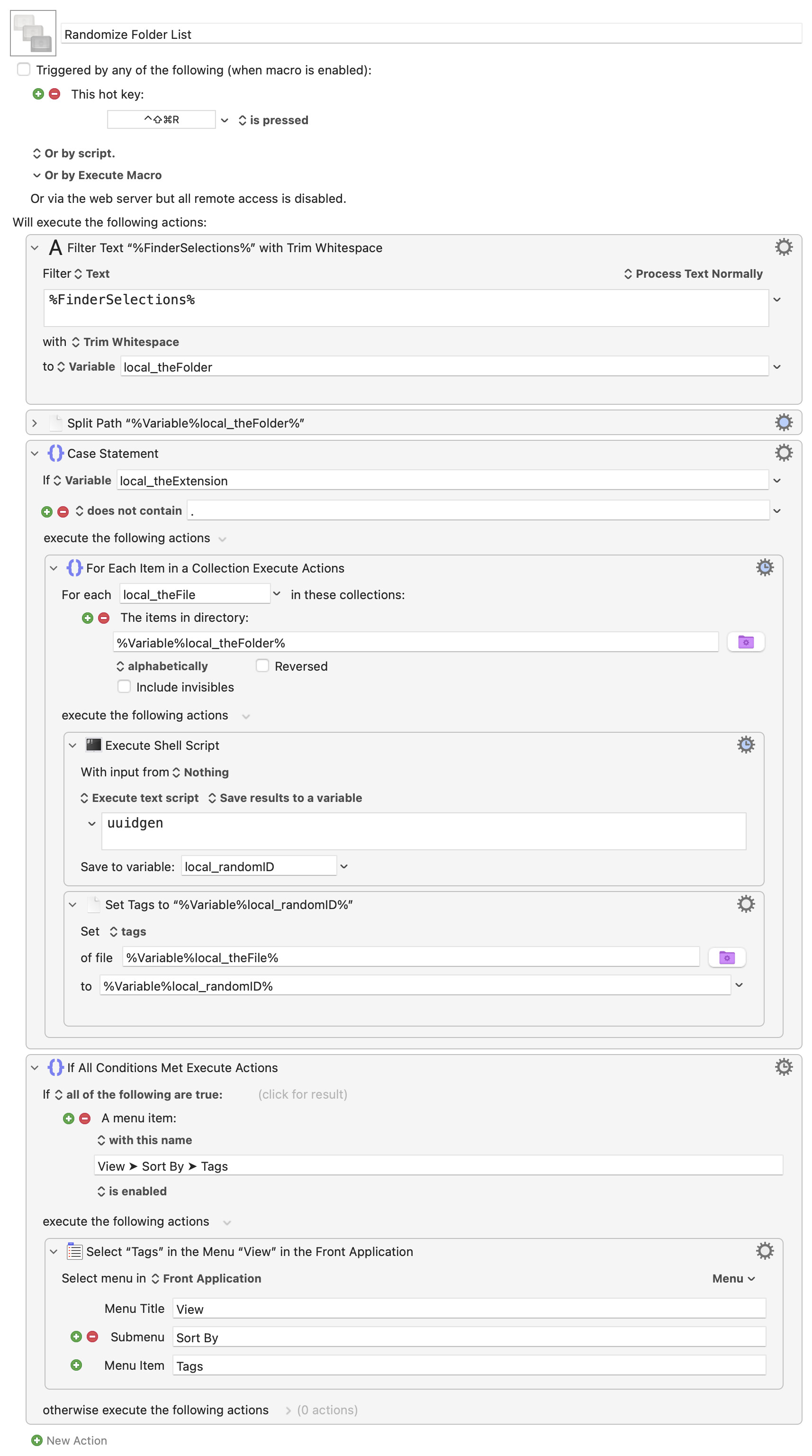
I had a bit of inspiration, and came up with a macro that works, with a (possibly BIG) caveat: It relies on changing the Tags for each file. If you use Tags, this macro will screw them up. If you don't, I think it'll do what you want.
Macros are always disabled when imported into the Keyboard Maestro Editor.
The user must ensure the macro is enabled.
The user must also ensure the macro's parent macro-group is enabled.
System information
macOS 15.7.3
Keyboard Maestro v11.0.4
To use, select a folder in Finder, then press Shift-Control-Command-R. After a brief delay, the files will be randomly sorted. Run it again, and they'll randomly re-sort.
How it works: It steps through each file in the selected folder, and uses the Unix uuidgen command to generate a random unique identifier. That identifier is then assigned as the Tag for the current file, replacing any existing Tag.
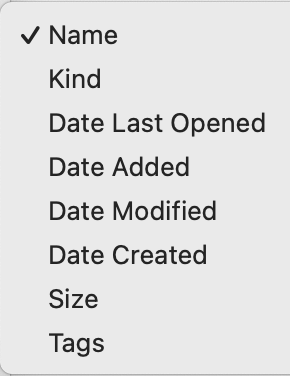
After all the files are processed, the Finder's sort mode is set to view by Tags. Note that this will affect every Finder window, because it's just setting a sort order. When done doing whatever you're doing, select View > Sort By > Name to return things to normal.
If you always use the same uploads folder, you could just set it (and only it) to sort by tags by pressing Command-J with the folder selected and changing its sort mode. You could then remove the last "If" block from the macro.
I think we have stepped into an XY Problem. You are asking how to do something, but you really want to do something else and this how is just a way of accomplishing it.
If your goal is to select a random file in the folder, there are ways to do that without sorting anything.
Perhaps explain what you are actually trying to do that you want to randomize the folder for.
I have a site that I upload to and I choose files from a Bank and it would be better for me if I could always pick the first one (top) hence the reason for randomized files.
The files would not be in any kind of order, I do not want to upload in alphabetical order but I do want the smallest window open to save space, all I need to access is the top file….. For what I need, I need to have 4 windows open at all time
Why do you need access to the file? Can you not upload a random one without dragging and dropping it? It would help if we knew what you are uploading to -- there already be an API or similar method that avoids your involvement at all.
Alternatively -- the item list of a Finder window will jump to the selected item. It won't always be at the top of the window, but it will be the only selected thing in a (in this case) small window only showing a few lines. So select a random item from the folder!
tell application "Finder"
	set theList to (get every item of target of window 1)
	select item (random number from 1 to count of theList) of theList
end tell
From what I can tell, you want a small Finder window where you can see a random file that you can drag and drop somewhere. If I misunderstand you can probably ignore this post but if I am right it seems like there are multiple options that have nothing to do with sorting or renaming.
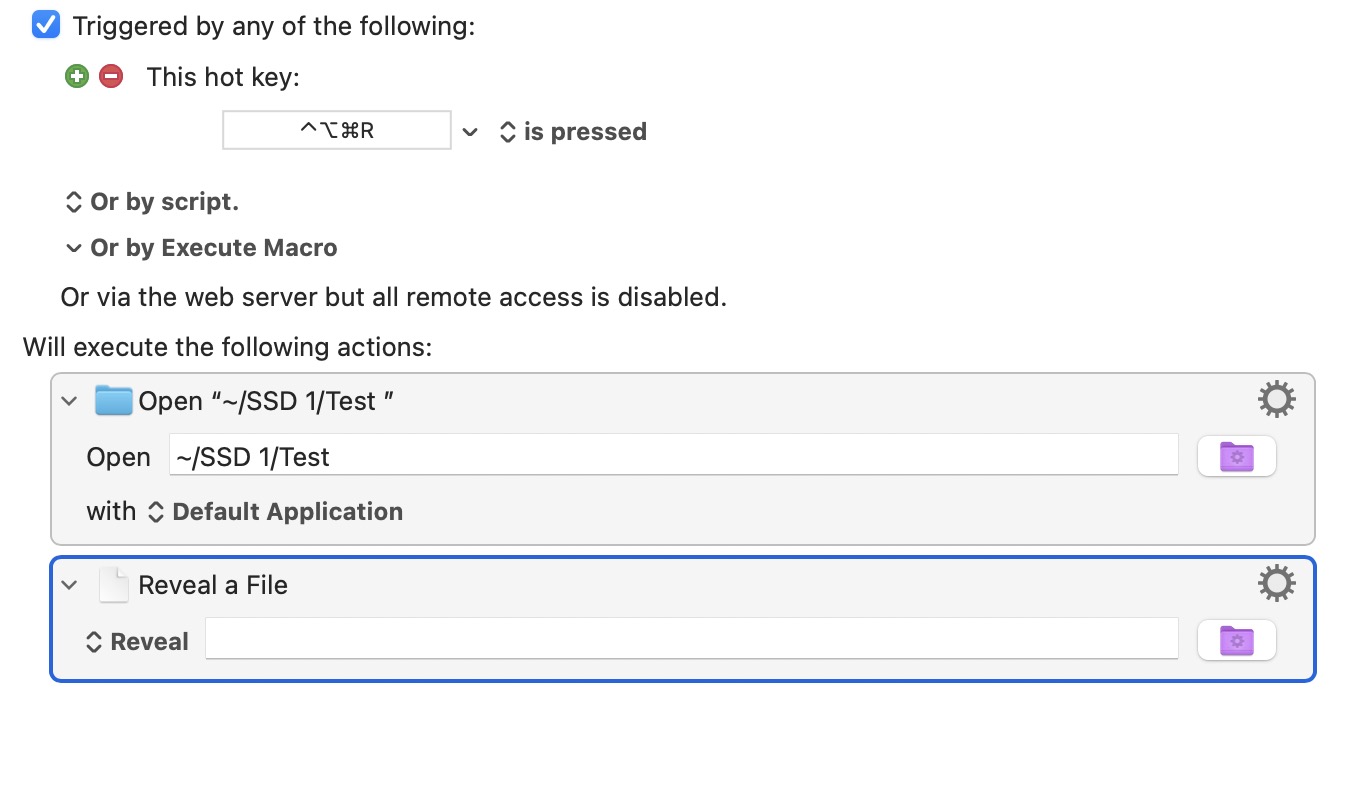
One option would be to have KM select a random file from your list and just “Reveal” it. That will make sure it is visible in your Finder window no matter how small the window is and it will highlight the file so you can just drag and drop it from there. The basic use of this would truly take a random file from all of the files which means it is likely that some files will be chosen multiple times and very likely that some will never be chosen.
If you want to use all the files in the folder and not repeat any you could add a few actions that would tag the file with “Used” (or whatever makes sense to you) then filter out those tagged files and choose a random file from only the unused ones. Once you get to the end of available files and you want to cycle through them again you could just delete the tags either manually in Finder or use another macro to do that.
If it is absolutely necessary that the file is at the top of the list (not just visible) then you could copy the random file to another folder that has only that file and view that folder in Finder. You could either delete that file the next time the macro is run so there is always only one file in that folder or you could sort the files by Date Added and have the last file added at the top of the list. You could still use the tagging system if you want to make sure all the files get used and none are used multiple times.
These are just suggested workflows. I don’t have time to set up a macro like this but if you choose a workflow that you like, maybe someone with more experience than me could chime in and help you out.