In macOS 26 Keyboard Maestro, when I create a Move and Click action I have the option to Get coordinates and afterwards Go to the coordinate position in the window of another application. However, when I press Go, the pointer moves to a location within the Keyboard Maestro window, not the other application where I want y macro to function. How can I get the pointer to move to the coordinate position within the other application window where it belongs when I press Go?
Since you aren't showing your action, I'm going to assume that your setting is "relative to the front window's upper left corner." If that assumption is wrong, let me know.
There is no one-step solution to this, as far as I know. You are going to have to follow my multi-step solution below.
If my assumption is correct, then when you click on GO, your mouse will move to a location that is relative to the KM Editor's front left corner, which you have correctly observed. Notice that the Move action doesn't have any option to specify a different application. Therefore if you are inside the KM Editor, the simplest way to fix this is to place your Move and Click option into a group, and insert an Activate Application action just before it, and then run the group instead of the Move action. It should look like this: (you will replace "Safari" with the name of your application)
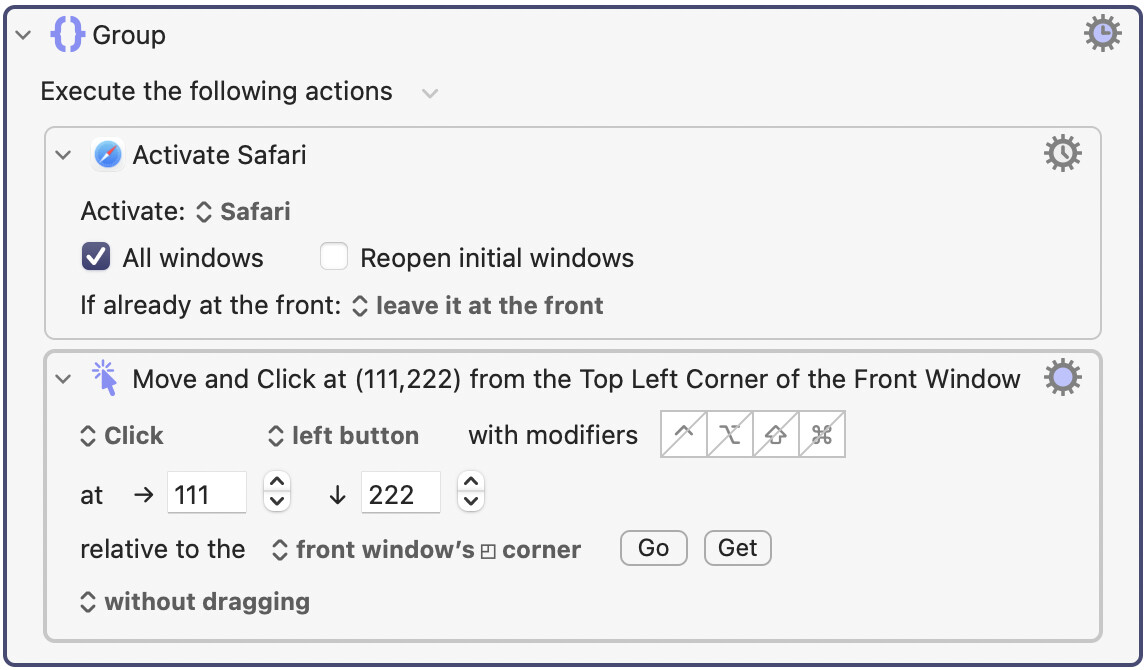
In addition, you may want to temporarily change the action to "Move" instead of "Click" while you conduct this test. This is what I would do, and have done, to solve your problem. You don't have to make this change. And I would like to point out that this change is perfectly harmless. You can leave your code like this until you are sure it is all working, then you can remove the Activate action and the Group action.
If your x,y coordinates include Local variables, then this is not sufficient. But again, you didn't show a screenshot of your action, so I'm making assumptions here.
Your assumption “relative to the front window’s upper left corner is correct. But I don’t quite understand how I can place two actions in a group. Isn’t a group a collection of macros, not actions? And, I'm not clear how I can insert the group in your example into a macro as an action.
It might help us both if I send you a macro of mine. Hope this works.
You seem to be thinking of a "Macro Group" when you asked that question. There's also an action called "Group" which lets you place multiple actions in an enclosing action which is called "Group." In my image above I placed two actions inside of a "Group" action. Look at my screenshot above and see that I placed two actions into a "Group" action.
As above, you seem to be thinking I'm talking about "Macro Groups" but instead I'm talking about at the action called "Group."
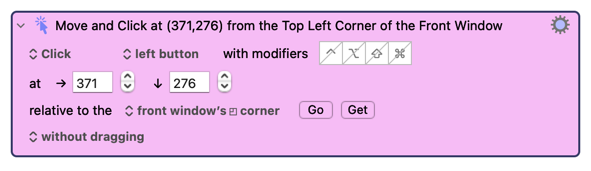
I see you just uploaded a macro. Let me edit the last action of your macro to illustrate what I'm talking about. Here's your last action:
Replace that action with this:
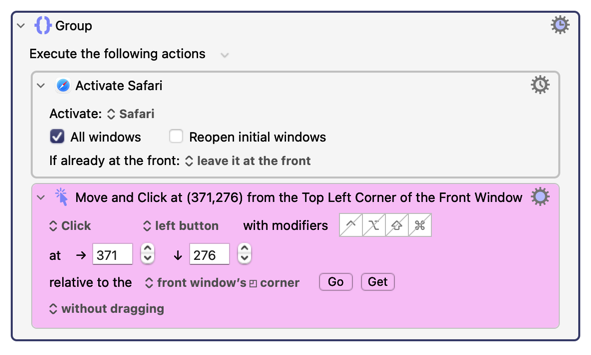
Once you've done that, try running the "group" action. The way I do that is to click on the word "Group" so that there's a thick blue line around the group, then click on the "Try" button at the bottom of the editor. I just did that and it worked perfectly for me.
1 Like
Thanks for replying so quickly. Your answers are very clear. Just one last point. Once I have the coordinates and tested them with Go, I suppose I should remove the group action and replace it with the tested Click and Remove action?
You can remove the group action if you want. It doesn't hurt if you leave it in, at least not in this macro that you've written, other than it will take about 0.001 extra seconds to run. Does 0.001 seconds bother you? But yes, it might be clearer to the reader if you delete it.
I see a couple of minor things that can be improved in your macro. For one, since you have "Pause 0.5" between nearly each of your actions, you technically could remove all those pause actions and insert this at the top of your macro:
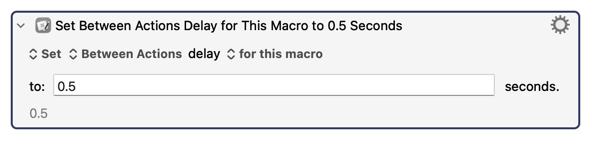
However keep in mind that your Comment actions will also take 0.5 seconds to run. So I would remove the comment actions, personally. (You can add comments into the title of any action that you want, which will allow you to insert comments without slowing the macro down.)
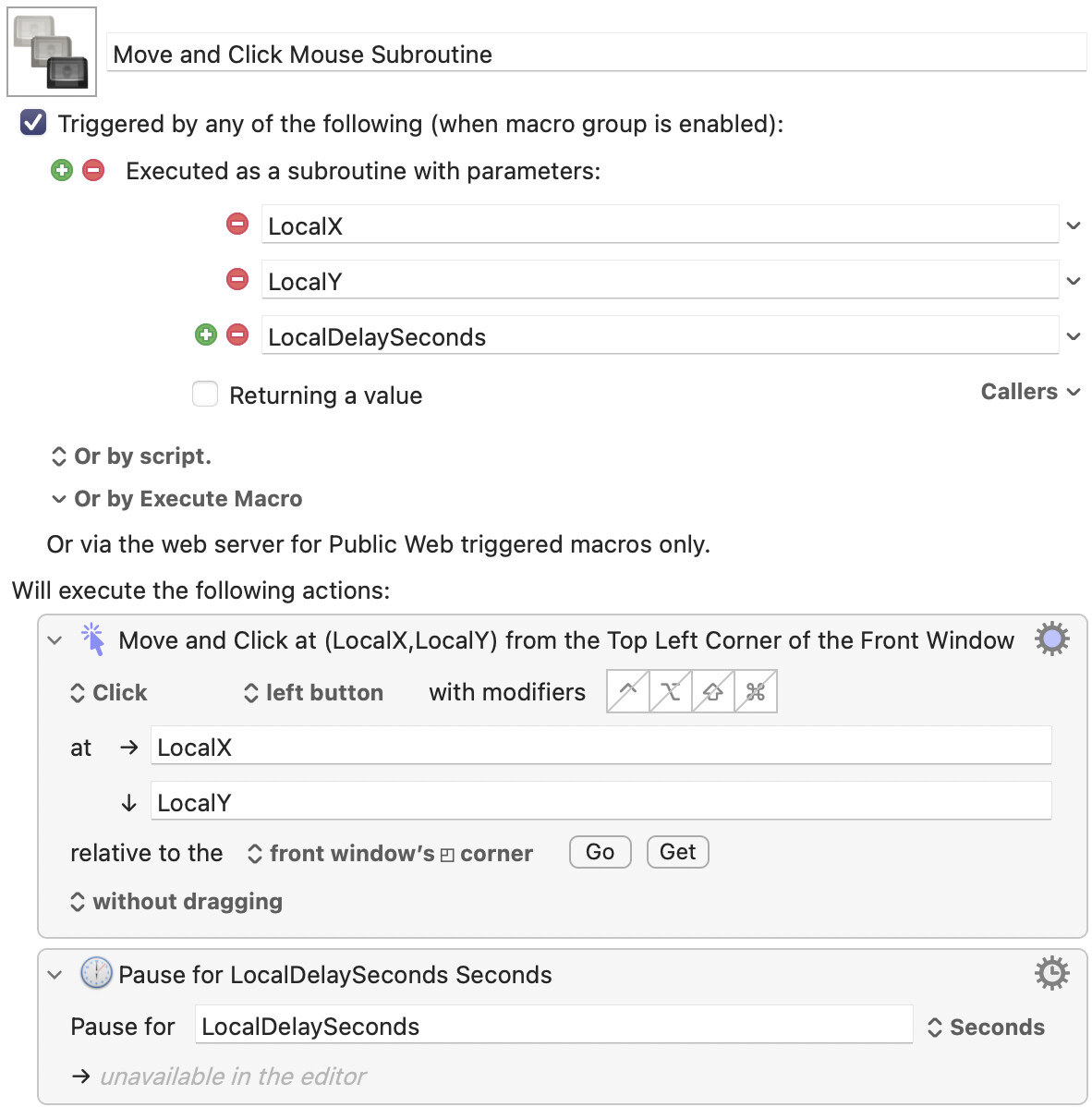
There are other ways to solve your problems. For example, I notice that you nearly always have a Move and Click action followed by a Pause action. Anytime you do something repetitiously, you can consider making a macro that acts like a subroutine. Here's a simple subroutine macro that will always move and click the mouse, then follow by a pause that you specify...
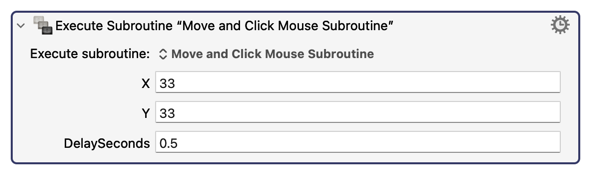
You will call it like this:
But here's something I think you will really love. You can modify this subroutine, as follows, so that it always draws a "target circle" around the location that the mouse is going to click on:
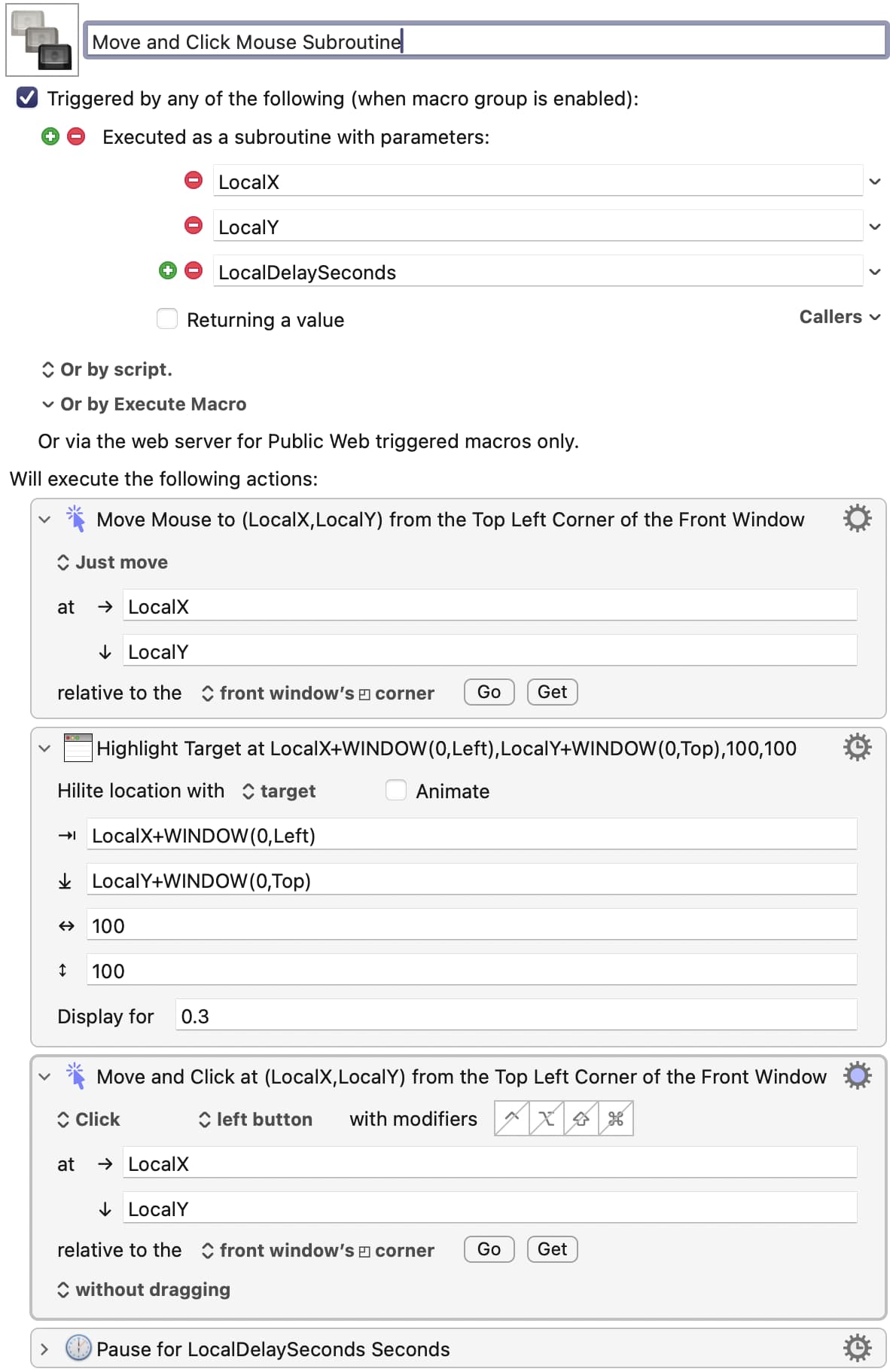
If you try the above macro, I think you will absolutely love it. But if you don't love it, don't worry you won't offend me if you say so.
Great tips. Not sure where to add comments in actions. Do I use Set Note?
Ok, I just assumed you knew how to do that - sorry!
Any action can have a comment added to it in the title of the comment. Let's take the following example from a wonderful little macro I wrote yesterday:
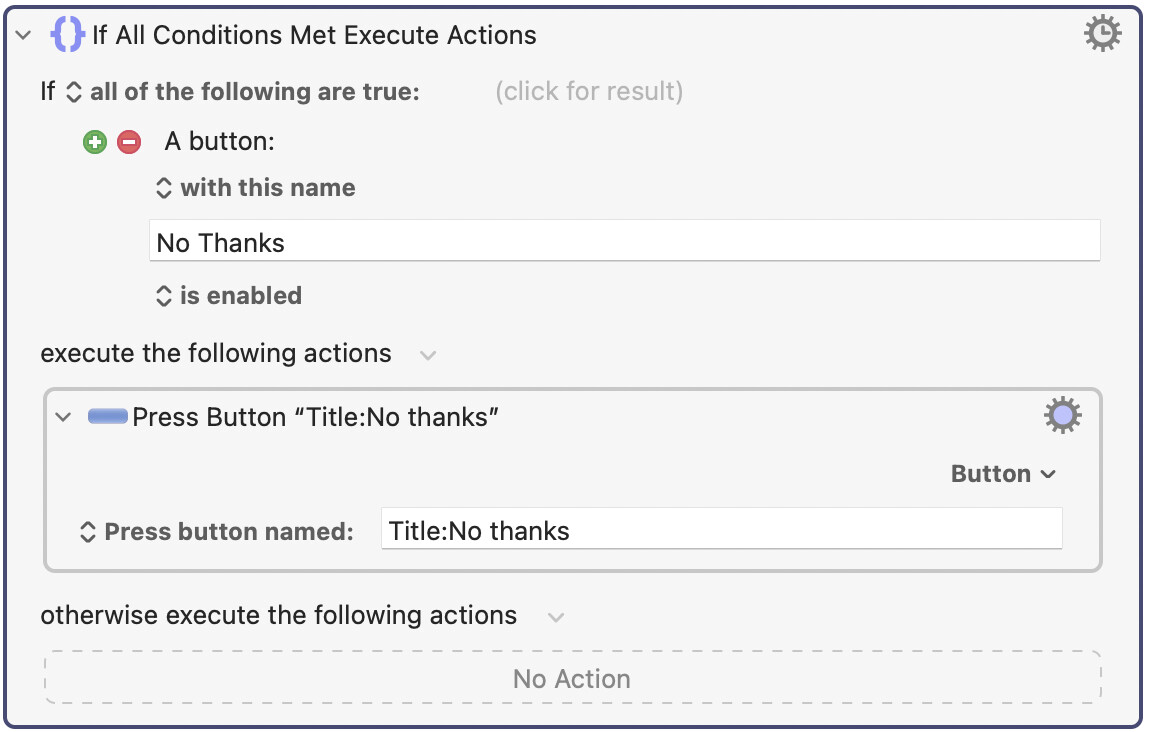
In the above example, notice that the "IF" action says "If All Conditions Met Execute Actions" at the top. That's not very informative, especially if I shrink the action to look like this:

So what we need to do is "rename" the "IF" action by right clicking on the action (in your case, try right clicking on the word "If" itself, as that may be clearer to you) and then click on the pop-up menu item called Rename, which will look like this:
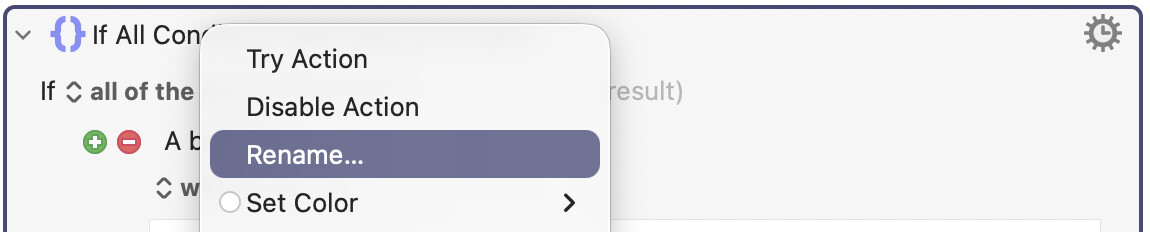
Then you will be given the full freedom to rename the IF action, and it will look like this:

And if you replace that text with your own characters, and press RETURN, it will then look something like this: (notice the title of the actions has changed...)
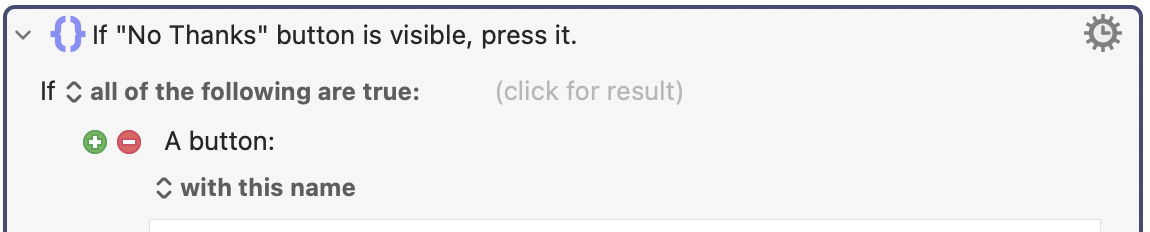
So it will be much more helpful even if you shrink the action, like this:
