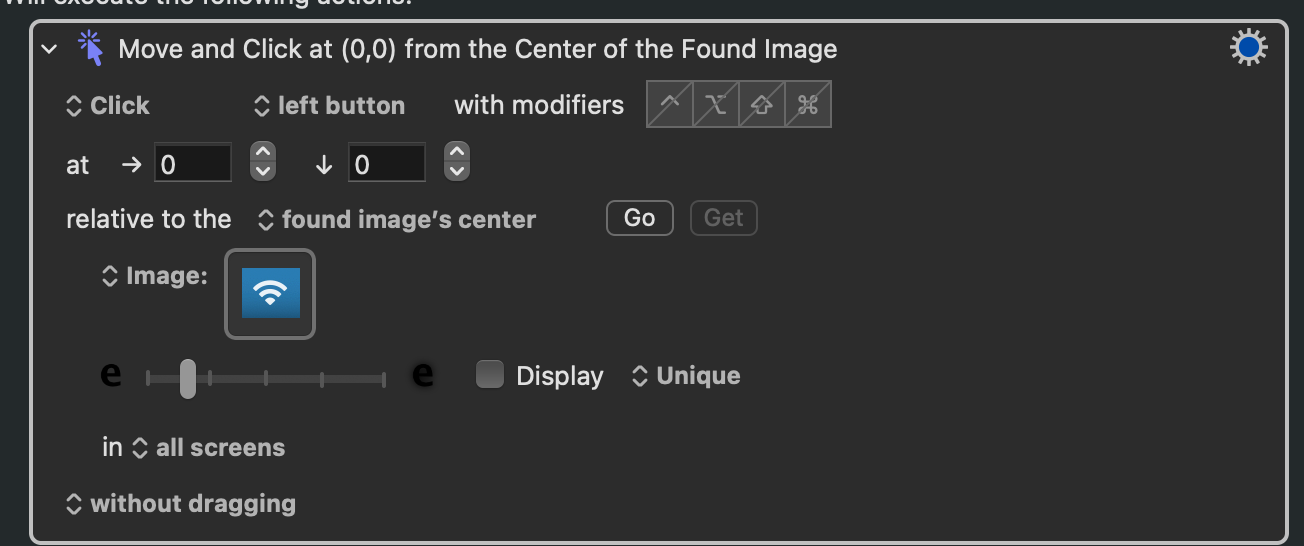
Click on found image did not work
thank you very much for your help
Click on found image did not work
thank you very much for your help
What is the problem that you are trying to solve ?
switch WiFis. Thank you for your reply
Not sure why not. This action works for me:
Sometimes it helps to put a little bit of the surrounding of the icon in the pattern.
Also you can play with the slider to see if that helps. Also please note that the image is screen resolution dependent. If you make the icon on the left screen it may have a different resolution on your right screen.
You may be able to do that more solidly, and perhaps a little faster, using the networksetup command line.
For a Keyboard Maestro shell script action, you will need the full path to the command.
Terminal.app will show that in exchange for an incantation like
which networksetup
and the result, depending on your system, might be something like:
/usr/sbin/networksetup
The first step would be to get the Wifi interface device name, which could be something like en0
To find out, look for the line below Hardware Port: Wi-Fi in the results of the command line:
networksetup -listallhardwareports
If the name of the Wi-Fi hardware port were en0,
and your full path to networksetup were /usr/sbin/networksetup
Then in Terminal.app, or a Keyboard Maestro Execute Shell Script action, you should be able to select a particular Wifi network using a command line pattern like:
/usr/sbin/networksetup -setairportnetwork en0 "Network_Name" "Password"
See also setting up alternative network locations, and using the dedicated KM action to switch between them:
how works thanks to your explanations. How do you manage to see the apple menu bar or its icons in color (here blue) ? thank you very much
I will give it a try. Thank you very much for the detailed step by stap explanations
Also: This is a menu bar icon. You know the area it will be in, even if that's just "the top 25 pixels of the main display", so limit your search area to both speed things up and reduce the chance of false positives.
But...
That image will vary, depending on your WiFi signal strength -- go somewhere with a reduced signal and you'll not have all the arcs filled and your image detection will fail. So it's much better to go with @ComplexPoint's suggestion of using networksetup via a shell script Action.
If you just want to pop the Wi-Fi menu, you could try something like:
tell application "System Events"
	tell process "Control Centre"
		tell menu bar 1
			click item 1 of (get every menu bar item whose description starts with "Wi")
		end tell
	end tell
end tell
(Change line 2's Centre to Center if localisation requires it.)
Bartender is responsible for the coloring of the menu bar.
After changing to center, script works perfectly. Thanks very much!
If this were me and I knew the WiFi menubar item would be visible—as in, no utility like Bartender is being used to hide the WiFi icon—I would just use the KM action for moving and clicking the mouse since the WiFi menubar item presumably remains in the same, visible location.
None of that is to suggest @ComplexPoint's suggestion for using network locations isn't a great idea.