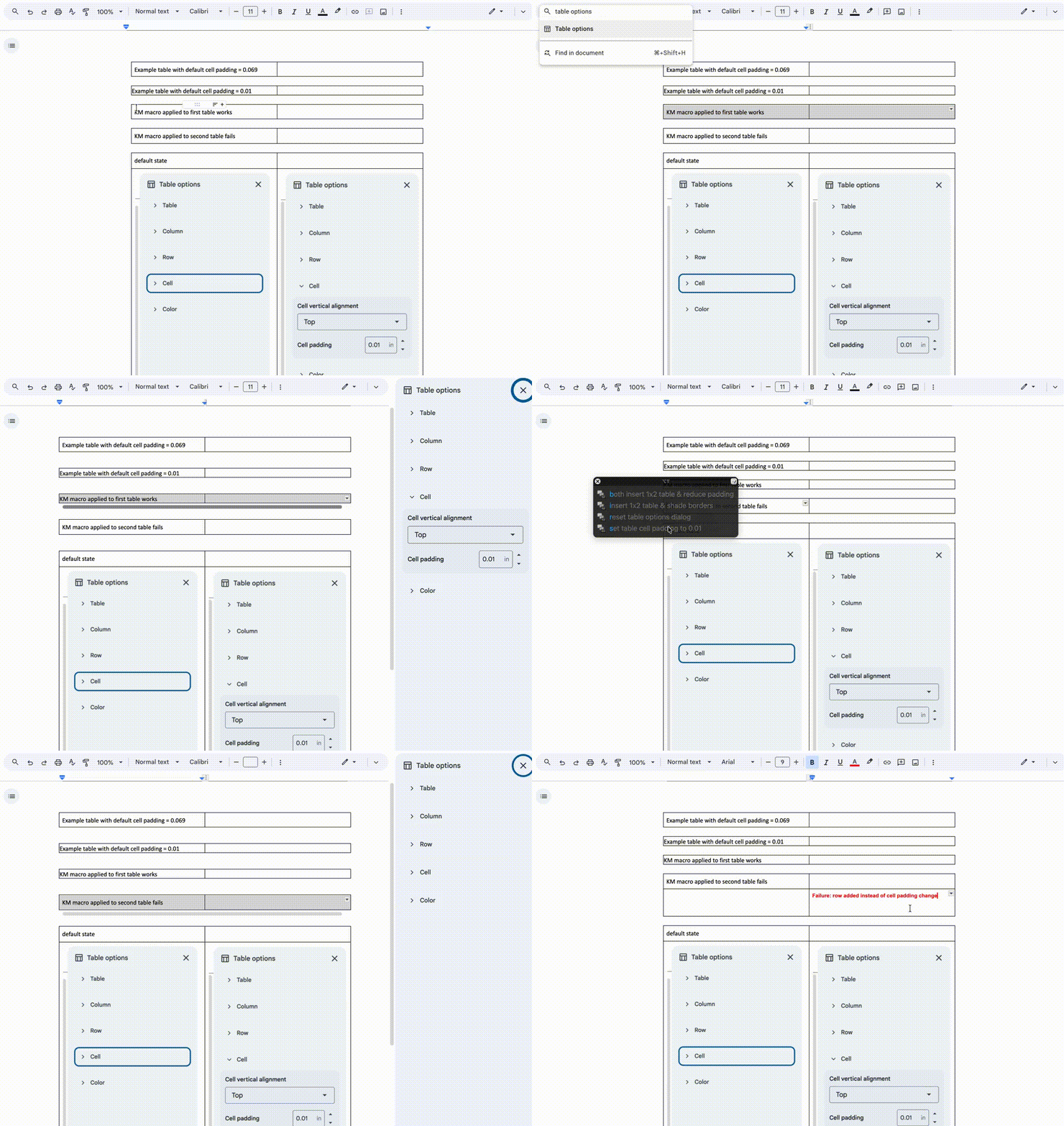
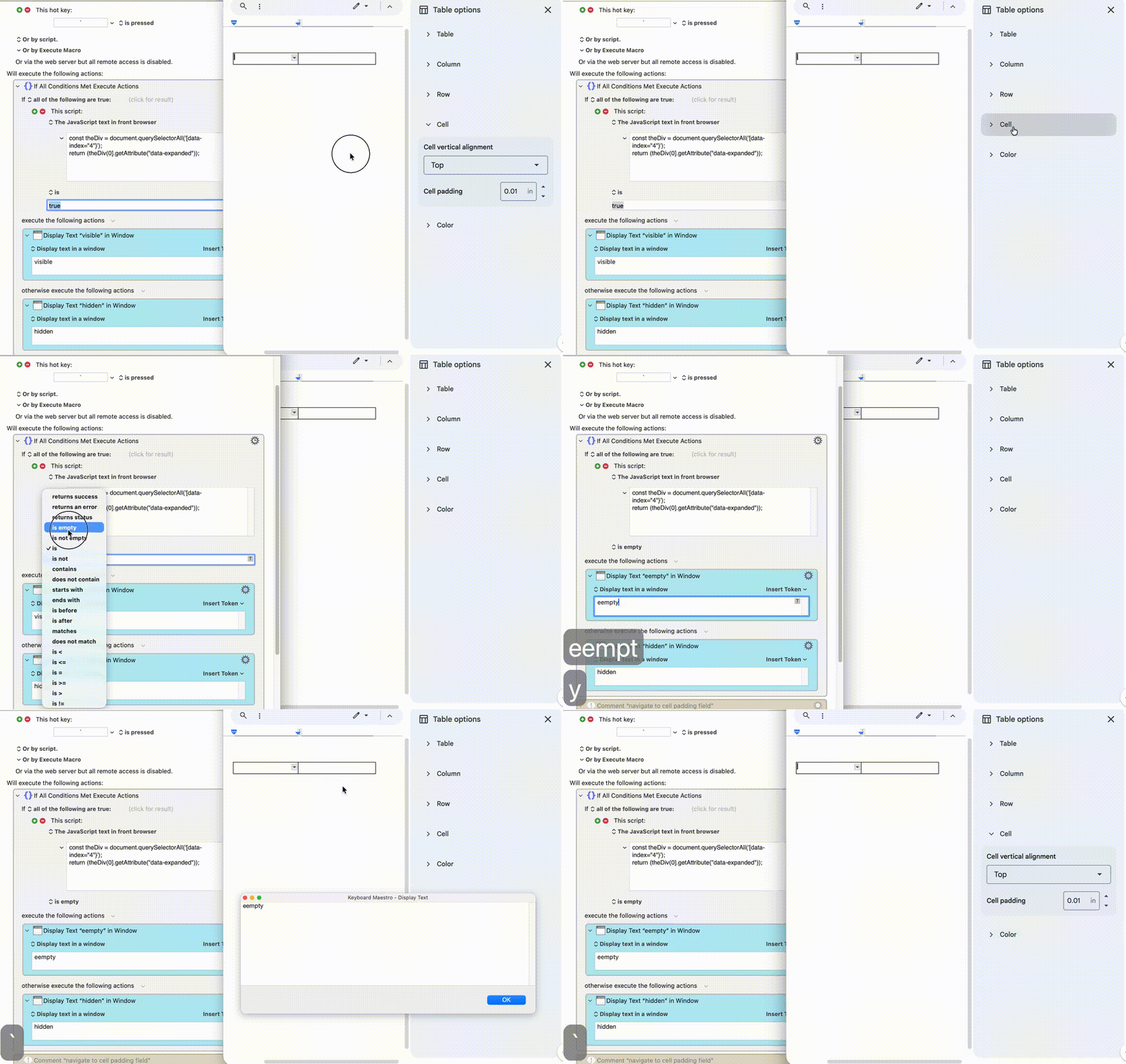
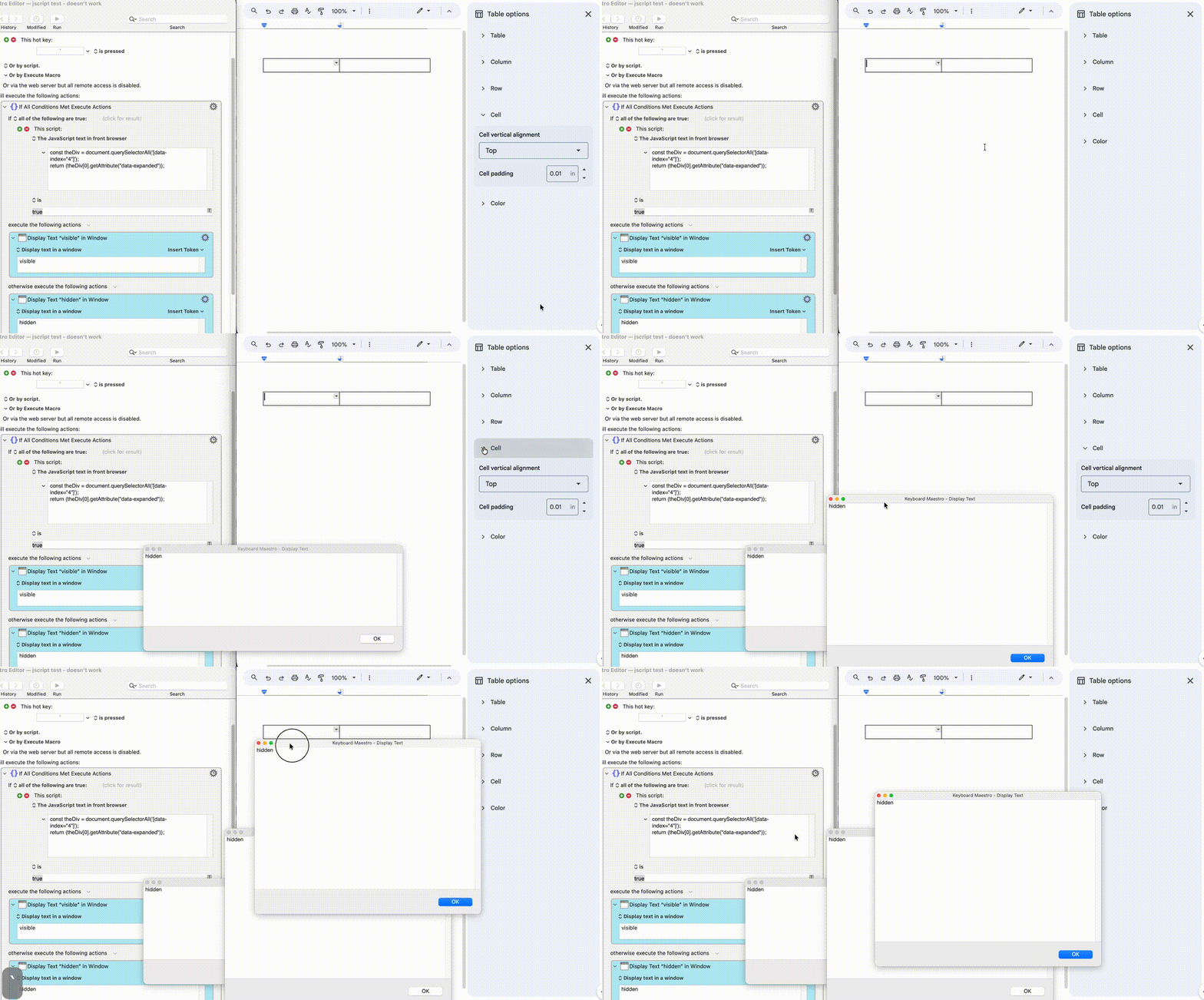
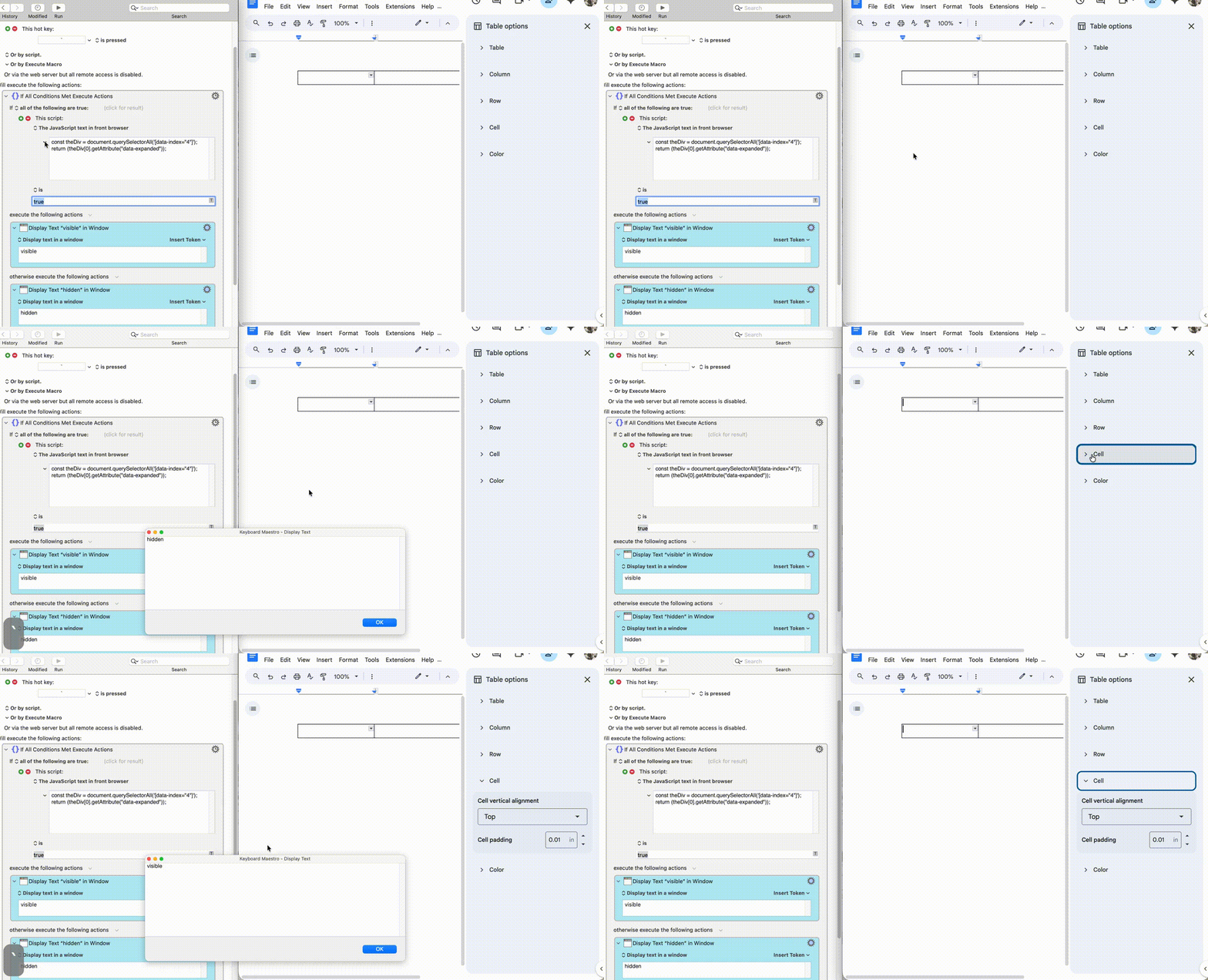
This screen recording below shows a KM macro changing the cell padding in a google doc. The problem is that it only works the first time. It fails the 2nd time because the Table options dialog does not reset after each use. I have searched but can find no way to reset the state of Table options. I’ve found this situation for other KM macros too: I struggle to get it working only to find it fails after one use because I can’t reset a dialog state.
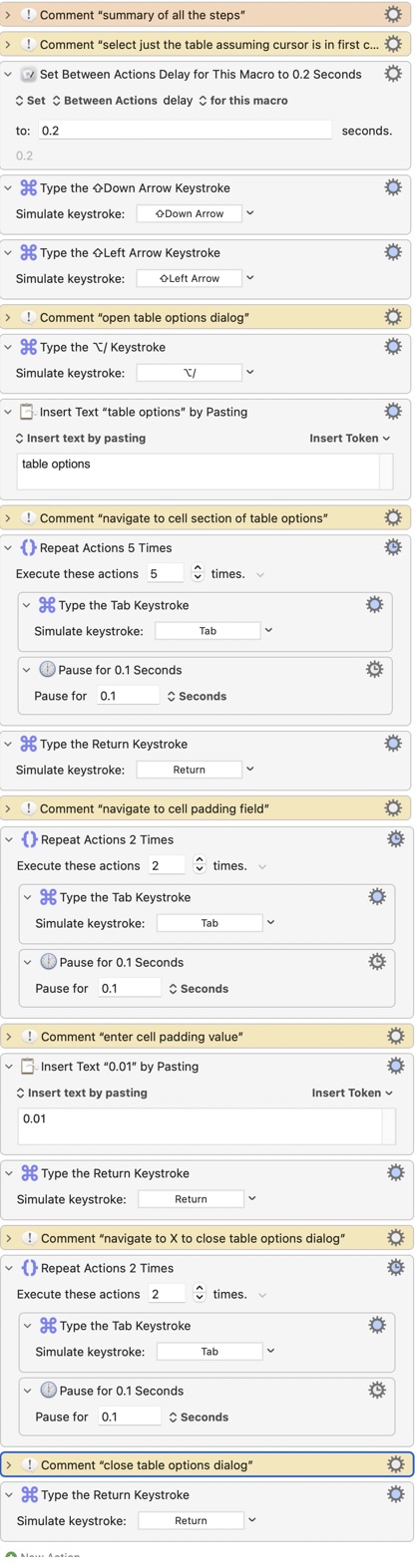
I’m attaching the KM macro used but here is an image of it.
In attached example I had to change “table options” to “Opcje tabeli” - sorry, I have Polish as default language in google docs, so you must revert it.
Of course if the state was different than macro assumes, it still generate error, but that assumption about state exists in first run of the macro too.
The suggestion by @Nige_S pointed me in the right direction and I got it working. Thanks again.
Here’s a couple of things I learned:
Image search didn’t work at first; It found all sorts of other things that looked like the dropdown symbol ( v ). But by changing the fuzziness slider all the way to the left, it started working. The Display checkbox really helped to see what was going on
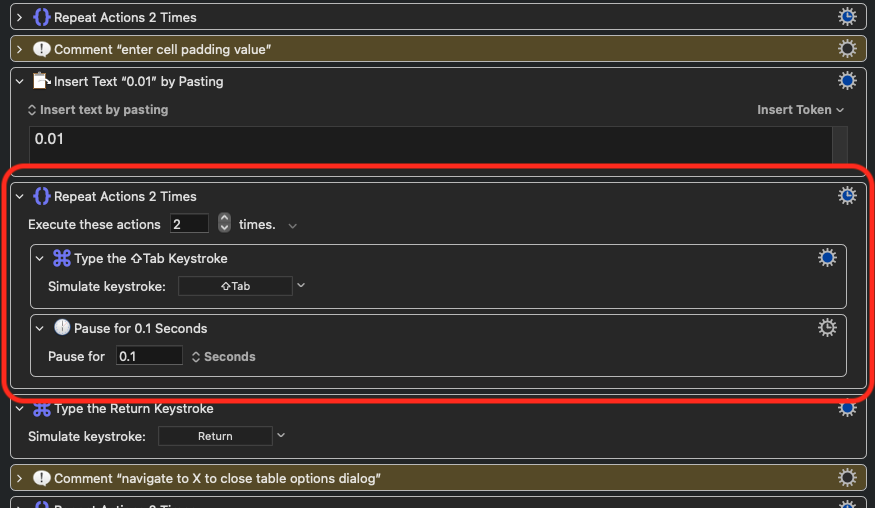
the actions to reset the dialog was about as complicated as the original macro. So I made it as a separate macro and called it as a submacro – first time I’ve done that
I dealt with the fact that there are 5 different dropdown symbols ( v ) by setting up an engroup repeat with settings modified so it would time out and yet not abort after trying to find all of them – first time I’ve done that too
Attached are the reset macro and my improved original macro.
I sure wish KM had a way to access button elements within a web program like Google Docs. I don’t like relying on found images.
Thanks @nutilius – yes, eventually I figured that out too after working through what @Nige_S taught me. I’m starting to realize that the computer is only smart enough to follow my instructions, not read my mind.
It can access button elements when they're defined in the source code. But if Google doesn't do that, Keyboard Maestro doesn't have much recourse; there's no way to see what's on the screen (other than screen capture) if those things aren't defined in a way that other apps can see them.
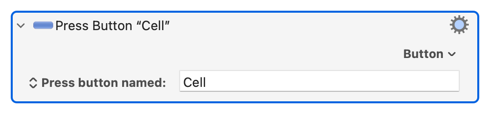
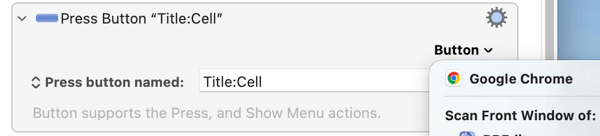
@Nige_S Yes, this is what I was looking for. I made sure the Table Options dialog was visible and used the scan feature of the Press Button action on Google Chrome and picked ‘Cell’ out from the huge list of buttons. Here was the result:
which worked to toggle the button I wanted – which is great. But, as you know, the key here is knowing whether the data for that button is expanded or not.
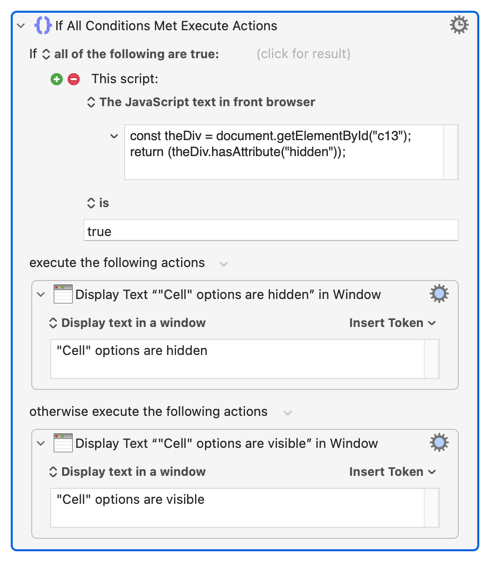
I tried your javascript action but it always returned ‘"Cell" options are visible’ regardless of whether it was collapsed or not. I’m guessing this means the ‘document.getElementByld("c13")’ part isn’t working, and when I tried searching the page for ‘c13’ I couldn’t find it.
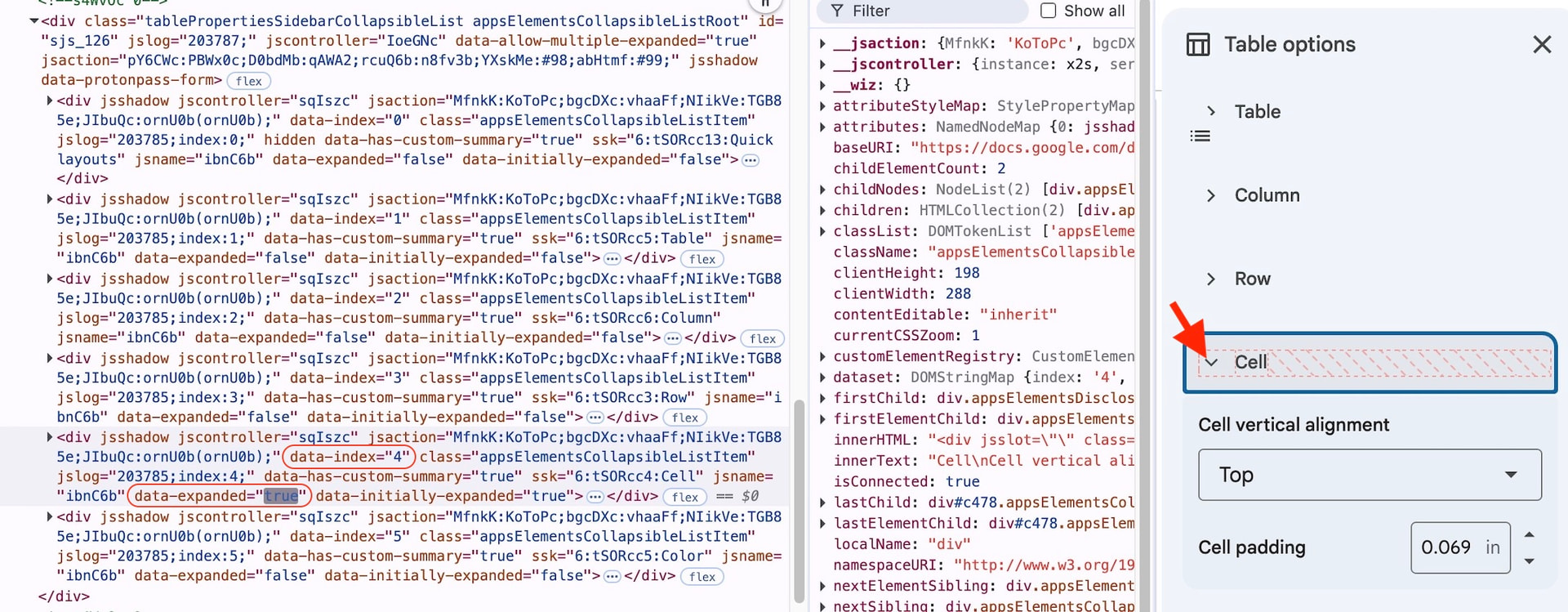
Then I tried inspecting the page while clicking to expand the “Cell” button and saw that it’s associated with “data-index 4” (ie, the 4th button) and has a “data-expanded” property that changes from false to true. But I don’t know enough javascript to know how to grab that info.
@Nige_S I tried what your wrote but it didn’t work. Then I copied the div into chatGPT to have it write javascript to solve this. It gave all sorts of code and when it didn’t work mentioned shadow this and dynamic that, and always promised this next bit of code would work for sure. As usual, nothing worked in my hands. Starting to think AI is a practical joke.
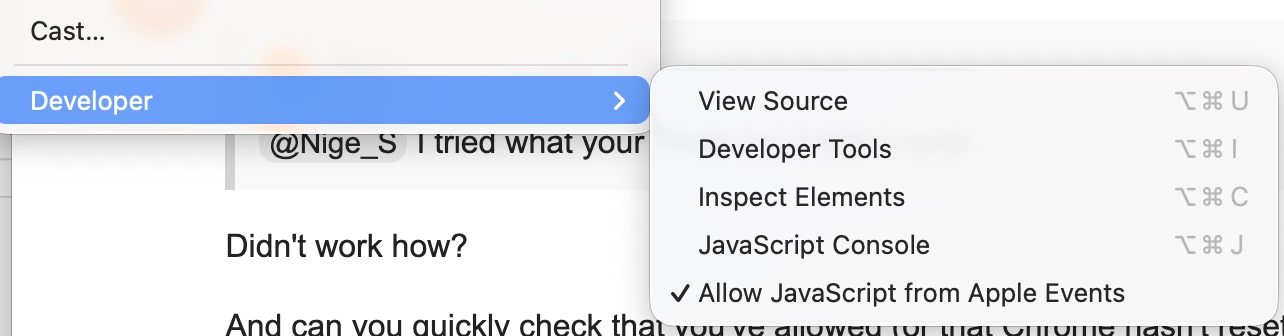
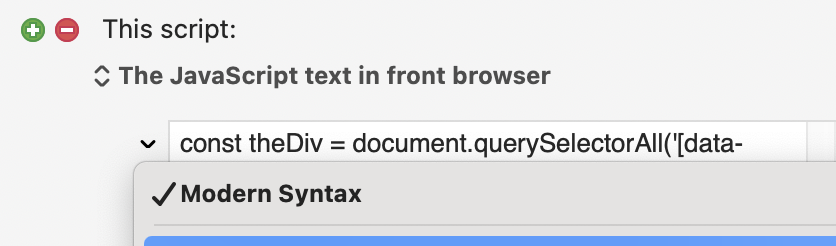
Can you check the options on the script (the little down-arrow at the top-left of the box) and make it's set to "Modern syntax"? I can't remember what it defaults to...
@Nige_S you are incredibly persistent. But it paid off. Modern Syntax had an X by it and when I pasted your text in the box, it changed. After those 2 edits, it worked.
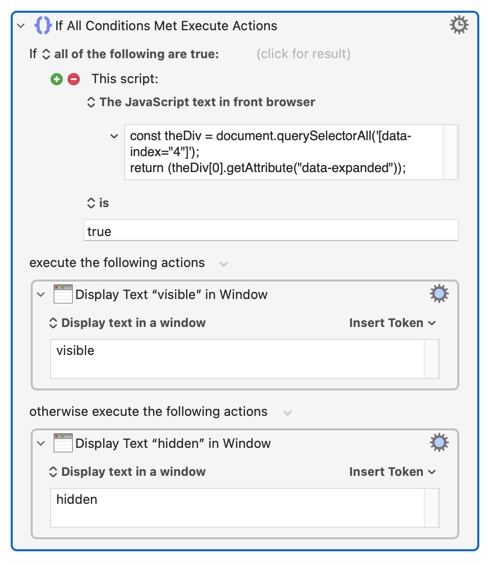
So, to summarize you are assigning theDiv to the particular one associated with the Cell button using the data-index tag (or whatever that’s called) and then returning the true/false from the data-expanded tag.
So in the future, I can perhaps do the same in Chrome if I use “inspect” as I did to find those tags, but there’s always the danger shadow or dynamic things people do with web pages might cause it to break. Right?
Nope -- dumb but stubborn. If I actually knew what I was doing I would have been able to give the correct instructions the first time
Almost.
In the first line we set theDiv to an array of all the elements whose attribute data-index equals "4" (querySelectorAll always returns an array, which is why getElementById is better if you can use it as ids are guaranteed to be unique on a page).
In the second line we target the first element ([0]) of the array we stored in theDiv, using its getAttribute method to get the value of the attribute data-expanded.
Yep. I'll confess, I just dig through the elements then google how to get at anything that looks promising...
@nutilius there are often many ways to do things in keyboard maestro, but my understanding is that they have a kind of hierarchy of reliability. For this reason, the image search feature, as great as it is as a last resort, should be used sparingly.
For some reason, I often run into situations where I hit the limit of what keyboard maestro can do with its most reliable actions. And when that happens many on this form have solved the problems I had using Apple script or in this case JavaScript.
So following their example, I've been trying to learn these more and more, so that I can understand their limitations and their usefulness compared to image searches.
OK, now I understand, but from my experience managing elements of web page by using injected java script code is often very fragile. But I fully agree that occasion to learn something new is priceless.