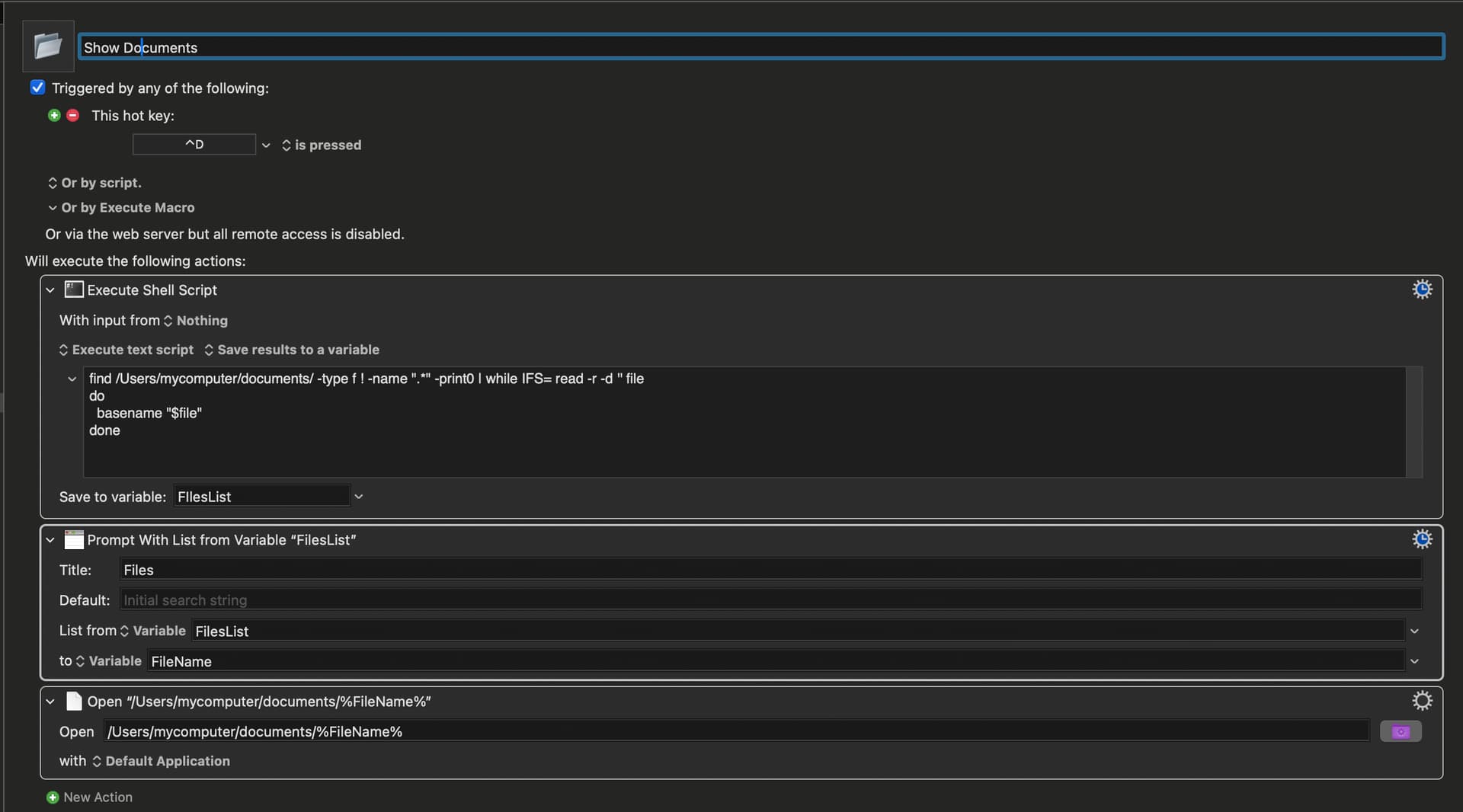
What I want to achieve is displaying a list of all files in a folder and its subfolders in a "Prompt with List from Variable."
Then I want to select the file from this list and open it. The first part, including displaying it in the "Prompt with List from Variable," works. All files (including subfolders) are displayed. But opening a file from a subfolder doesn't work. I need to do something with the "/Users/mycomputer/documents/" section. Should I put it in a variable? Can you help me with this, or do you have another solution?
Since it includes subfolders, you shouldn't be printing just the "basename" of the file, rather, you should be printing the whole path. Then you won't need to specify a path in the Open action. I think you need to modify the part of the script that displays only the base name, and display the full path instead.
Before reaching for the shell -- have you tried doing this with the KM actions you know and love? "For Each", "If", "Append to Variable" and "Split Path" would all be useful here.
There are reasons to use the shell in this case, speed for a large collection of files for one, but it's certainly worth trying in KM first -- if nothing else it'll allow easy debugging to show you which path parts you need where.
If you do want to continue with the shell -- @Airy's explained basename and while you'll be missing parts of the path once you are into sub-folders. Using the complete path, or even the path from your base directory, in the prompt will probably look pretty awful -- take a look at the "friendly values" section of the "Prompt with List" page.
There is another problem -- if you only display file names, how will you-the-user differentiate between two files with the same name but in different folders?
What I've done now is replace 'basename "$file"' with 'echo "$file"'. This works fine, but it now shows the full path and filename, which isn't what I want.
It's not a lot of files, about 100.
I'm still a complete beginner in KM, so I have no idea how to handle "For Each," "If," "Append to Variable," and "Split Path."
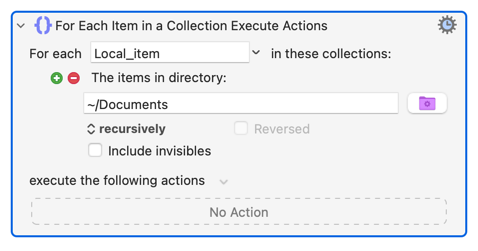
"For Each" creates a Collection of "things" and loops through them one at a time. One of the "things" options is "The items in a directory", which you can set to "recursively":
What you want to do to/with each item in the Collection goes in the "execute..." box.
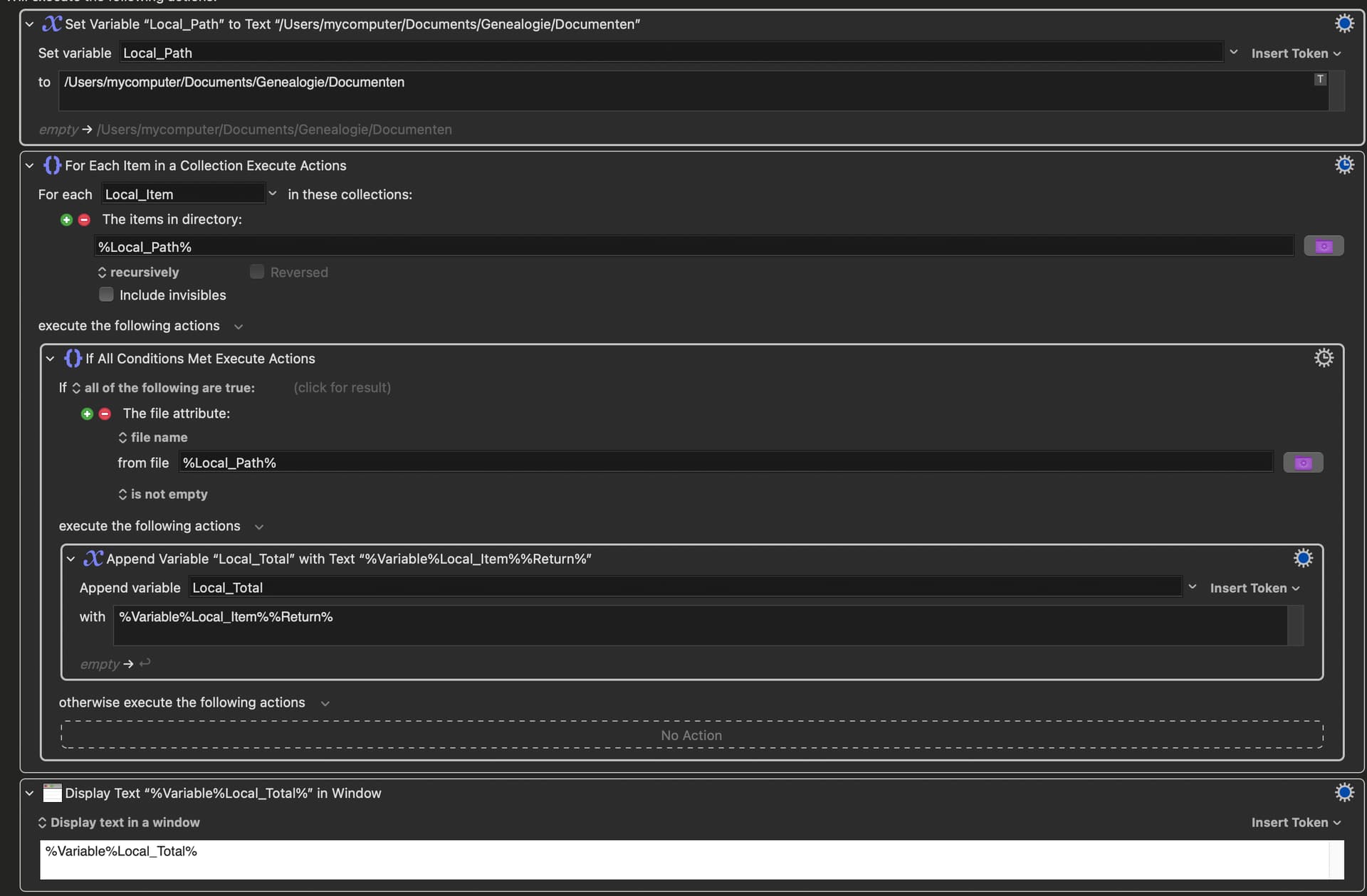
Since the Collection will include folders as well as files, the first thing to do is only process the item if it is a file. Use the "If Then Else" action to make the choice -- you'll see that one of its Conditions is "File Attribute".
The "Prompt with List" action's "friendly values" feature let's you display one thing but return another, so you could show just file names but return the full path to the chosen file. That means you need to collect both the path and file name for each item and join them together with a double-underscore: /full/path/of/file__nameOfFile. There are many ways to get the file name from the full path, but the easiest is the "Split Path" action. "Prompt with List" requires one item per line, so you build your list by "Append"ing the current item's path and name to your list, not forgetting the linefeed/Return.
Once you've got your full list you can use it in the "Prompt with List" action, showing just names but getting back the full path to the user's chosen item -- a path you can use in the "Open a File..." action.
It'll take a while to write this macro, but after you've created a few and got some KM knowledge you'll be able to make them quicker than you can read this post.
One last tip -- make a plan! Write out what you want to do, step by step, then break each step down. Once you have some KM vocabulary you'll find that your "pseudocode" plan translates almost directly into KM actions/tokens/etc.
for each item in ~/Documents
   if item is a file
      append (path of item & "__" name of item & linefeed) to theList
   end if
end for each
set theChoice to the path from (prompt using list theList)
open theChoice
(As Nige said:) If you don't want that, then you have to decide and explain how to handle the case when two files have the same base name in different sub folders. Perhaps you want the macro to detect this condition and show the user an error message? That's doable, but you have to specify what you want before anyone can write correct code for you.
Personally, I don't write macros with bugs in them. If I were to write a macro for you, I would need you to tell me what you want the macro to do when a duplicate exists.
Secondly, you still have to store the path for every file, since you want to "open" it later, and in your example code you are NOT storing the path, which means your macro cannot work. One way to fix that is to use my approach, and then we can remove the path from your Prompt action, without removing it from your Open action. Do you see the problem, and do you see the requirement to save the path now?
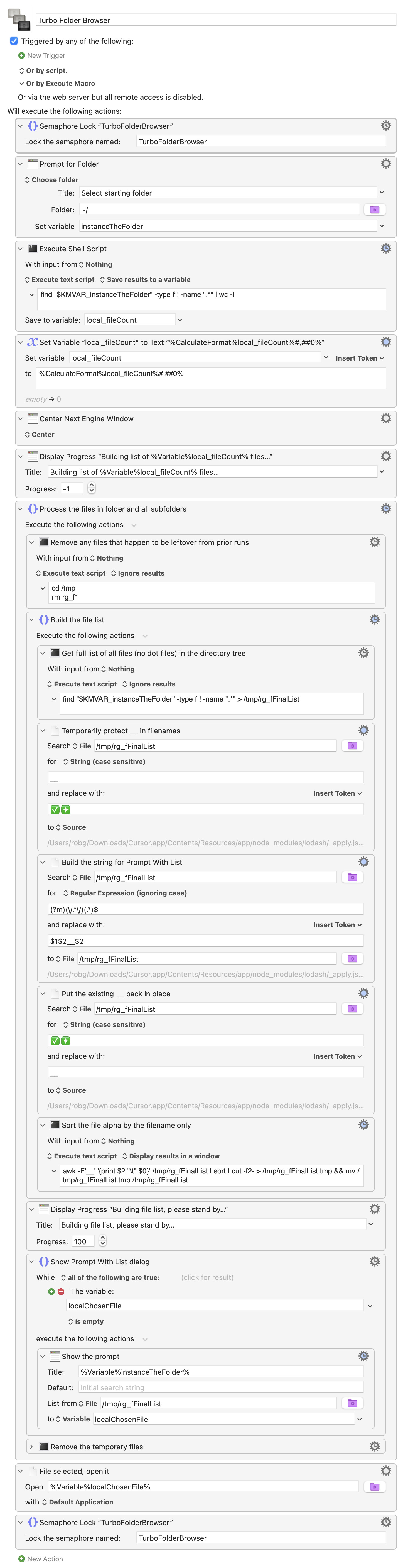
I repurposed another macro I had to display all files within a chosen folder and all of its subfolders. When you select a file in the list and double-click, it will open.
This macro doesn't care if there are duplicate filenames—but you won't be able to tell which is in which folder, because it hides everything except the filename. The path is still there, it's just hiding to the left of a "__", which hides it in the Prompt With List dialog.
It's ridiculously fast, taking about six seconds to build a list of nearly 30,000 files and show the Prompt With List dialog. Normal size lists are basically instantaneous.
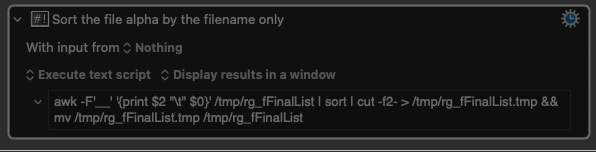
The work is all done in the shell, with a find command outputting to a file, then that file being massaged a bit to make it work with the Prompt With List dialog and to sort it by just the filename of each full path.
Not sure this is exactly what you wanted, but maybe it'll get you started.
Search through folders in Finder (selected, hardcoded or ones passed via subroutine).
Collect all non-folder files within those folders.
Prompt With a List of those files that lets you filter and choose one or multiple files.
Based on modifier keys (⇧, ⌘, ⌥, ⌃), either:
a) ↵OPEN the selected files,
b) ⌘↵REVEAL them in Finder,
c) ⇧ and COPY paths,
d) ⌃↵ Only Copy paths (silently).
Default: If you run the macro with folders selected in Finder, it will search inside those folders.
Hardcoded Path: You can edit the first action in the macro to permanently set one or more folders to search in, regardless of your Finder selection.
Subroutine: If another macro calls this one as a "subroutine," it can pass a list of folders to search, overriding the other two methods.
GATHER FILES:
The macro iterates through each specified folder path.
For each folder, it performs a recursive search to find every single item inside it and all of its subfolders.
It filters this list to exclude directories , ensuring only files are processed.
For each file it finds, it creates a special entry for the list prompt. The entry is formatted as: [Full File Path]__[File Name] (e.g., /Users/user/Documents/report.pdf__report.pdf).
Technical Note: It replaces the double underscore (__) with a version that includes an invisible character () to prevent KM from breaking the filepaths when trying to make them "friendlly" for the PWL.
PROMPT WITH LIST of Files found:
Displays the "Prompt With List" window, showing all the found files. You can type in this window to filter the list instantly.
You can select one or multiple files and press Enter with or without additional modifier keys (like ⌘ Command, ⌃Control, ⌥ Option, ⇧ Shift). It records which modifier keys were held down.
Execute the Chosen Action:
After the selection is submitted, the macro first cleans up the file paths by removing the invisible character it added earlier.
It then checks which modifier key was used and performs the corresponding action (THAT YOU CAN EDIT IF YOU WANT):
No Modifier Key: Opens each selected file with its default application.
⌘ (Command): Reveals each selected file in a Finder window.
⇧ (Shift) or ⌃ (Control): Copies the full file paths of all selected files to the clipboard.
⌥ (Option): Does nothing currently, but you can add actions here if you want.
Thanks @griffman ! It is blazingly fast!
I had originally created my macro to explore how to do this using Keyboard Maestro's built-in actions, but your approach using shell scripts is definitely quicker.
For anyone interested, here’s a version of my macro that incorporates @griffman's shell script, with a few modifications to support multiple folders and exclude ~$* temporary files:
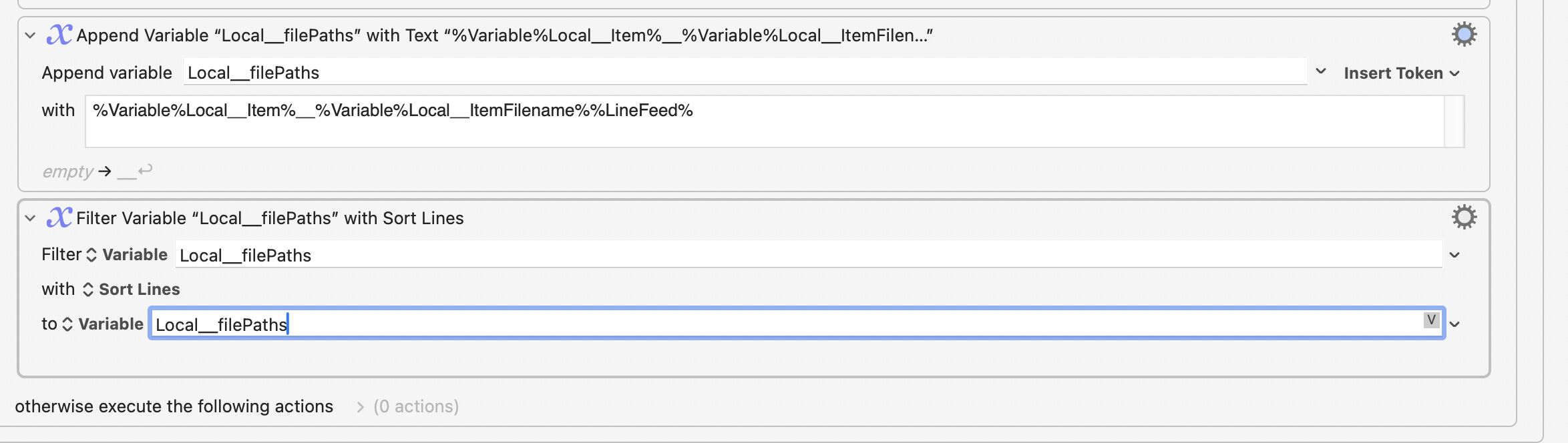
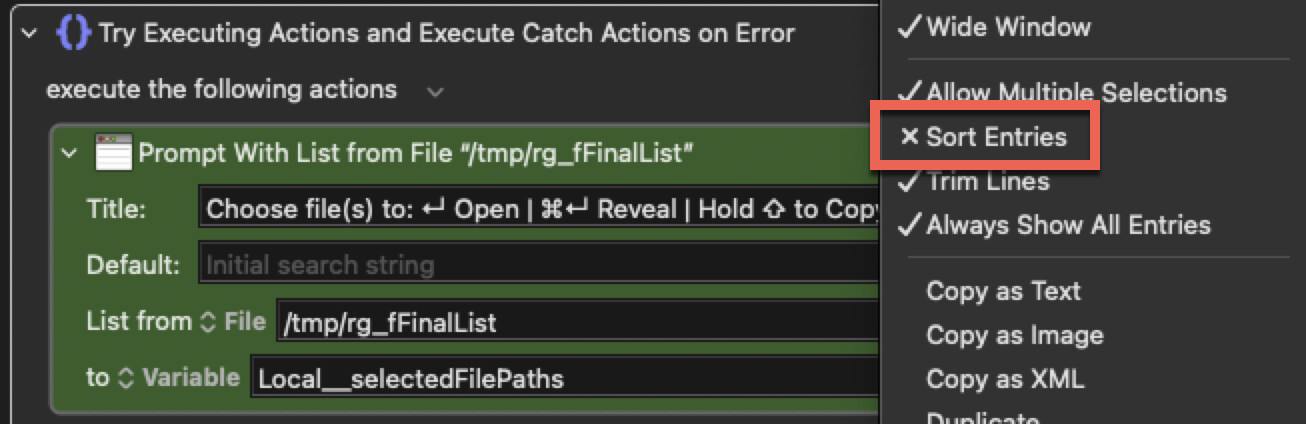
@JuanWayri and @griffman. Holy crap. This is exactly what I was looking for. I understand what this macro does, but I couldn't have created it myself. I made a small change so the files are sorted alphabetically.
You're testing the wrong attribute in your "If" action -- folders have file names too! Use "file type" instead. And while most KM actions are line-ending agnostic I suggest you use %LineFeed% (\n) rather than %Return% (\r) unless circumstances dictate otherwise -- it'll keep your text compatible with shell script actions etc.
For the "Split Path" action -- what do you need to split the path into? What does your plan tell you you'll need later in the macro?
Yes, I'm taking the "teach a man to fish" approach while others have kindly slapped you round the head with a couple of halibut:
...but I still suggest you try and write your own version in KM, avoiding the shell. You only need 6 actions for the whole thing (7 if you use "Split Path" to get the file name), it's a good intro to some KM basics, and while it won't execute as quickly as @griffman's and and @JuanWayri's speed-kings it will list 500 files in ~2 seconds on even my crusty old iMac.
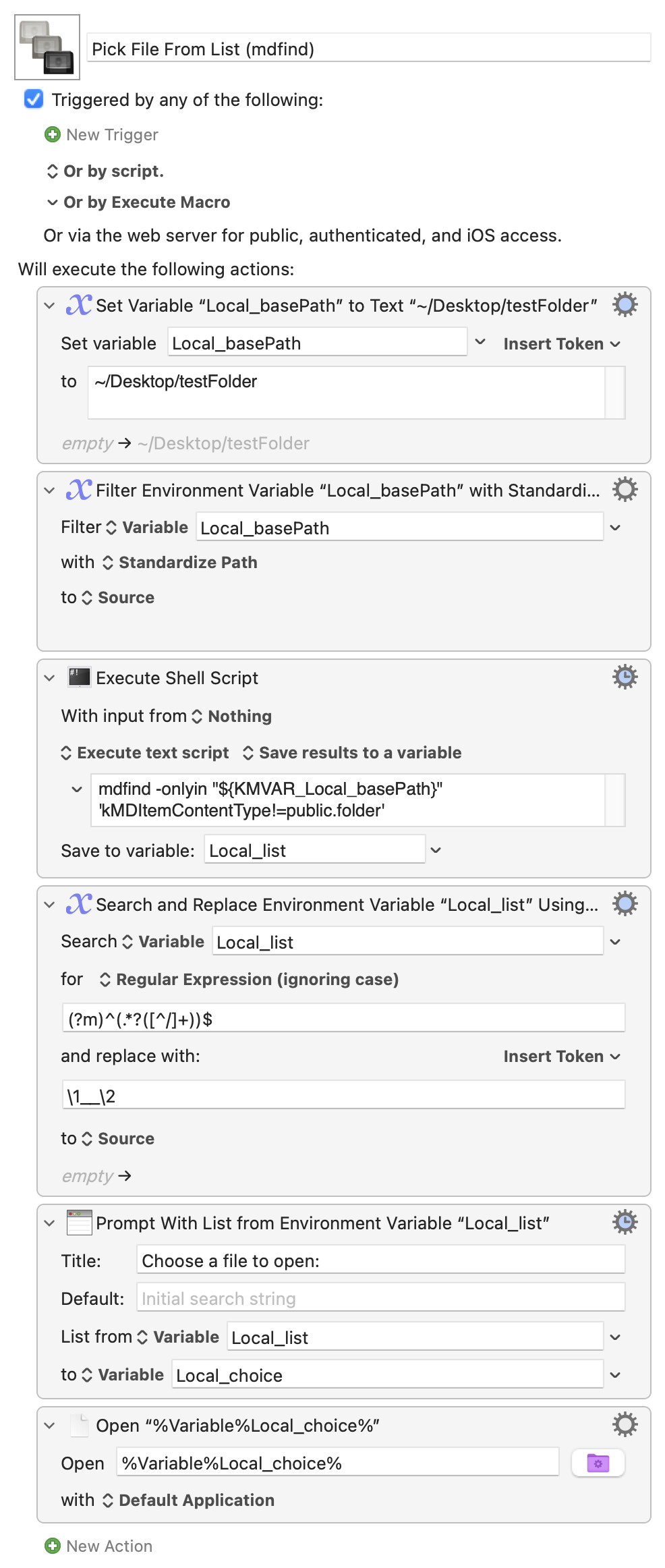
Of course, for blazing fast (and assuming the folders are indexed) -- mdfind is your friend:
But you aren't -- you're learning techniques for building all kinds of wheels by constructing this one under the guidance of Master Wheelwrights @griffman and @JuanWayri (with me shouting comments from the other side of the workshop -- they don't let me near sharp tools since my last little accident...).
This is a nicely-defined and self-contained problem that can be solved in 6-8 KM "native" actions, no shell scripts required, and involves "For Each" (which often confuses people), conditional branching, text token use, variable concatenation, either "Split Path" or pseudo array access, "friendly" list labels...
And you get something useful at the end of it. If we had work experience kids coming in this summer I'd be installing the KM trial on their machines and setting exactly this problem!