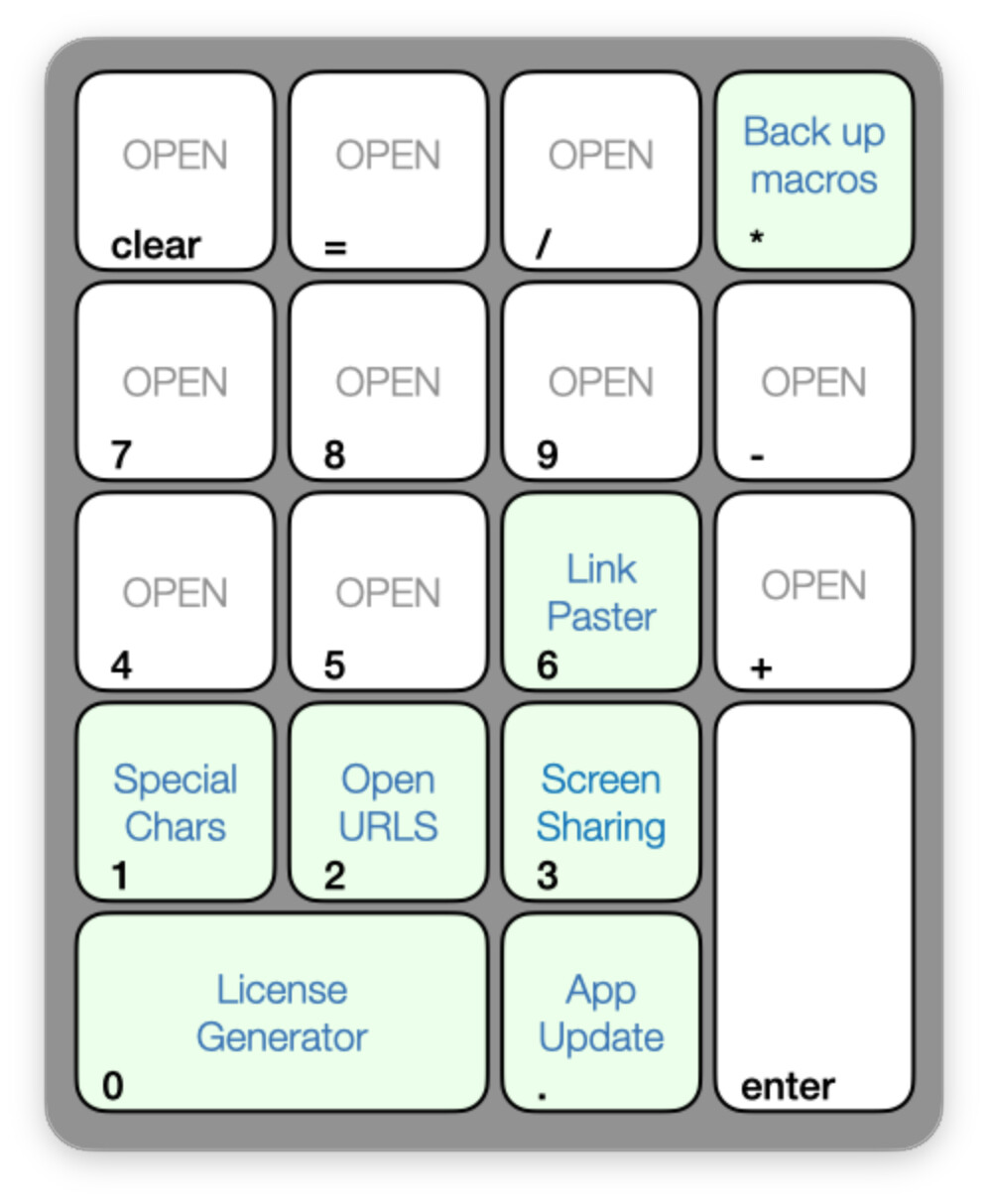
In my pre-Tahoe system, I had a macro that used Quick Look and qlmanage to pop-up various images onscreen, without activating another app. As one example, I keep cheat sheets in PNGs to help me remember various things, such as which keys I've assigned to various Keyboard Maestro macros:
With a recent forced upgrade to Tahoe (a longer story), I can no longer use qlmanage outside of a true Terminal session (hooray, security?). So I wrote this simple replacement which uses a custom HTML prompt to display the chosen image, and a bit of Javascript to handle dismissing the window.
To use it, just enter the path to an image file in the green box in the Show image in pop-up macro. Run the macro, and that image should pop up onscreen.
I created it as a calling macro with subroutine, because I use it for a number of images.
This is quite basic, but I find it very useful, and it's much cleaner than the old qlmanage version was. Disclaimer: Claude wrote the JavaScript that manages the HTML window.
What's the advantage to this (and your fixed version) compared to, say, loading the image to a Named Clipboard and using the "Display Clipboard" Action?
I make templates in Keynote, then export the slide as a PNG.
I use a desktop Mac with an external keyboard, and use keyboards with numeric keypads built in. My favorite the last few years has been Logitech's MX Keys S.
One concern was memory usage: I believe named clipboards will always reside in Keyboard Maestro's RAM, correct? I have more than a handful of images I use like this, and I'd rather not have them all loaded into RAM all the time.
But the bigger issue is control over the display of the image. I just want to see the image itself with as little around it as possible. Even qlmanage had more window chrome than I wanted, but it worked so I never thought about the alternatives.
When it broke, I did look at using named clipboards, but even if I set the next engine window size to the exact image dimensions, there's still a surround, and a title bar showing Clipboard Entry that can't be removed.
I don’t know, but I would expect named clipboards not to be hanging around in RAM until they were needed, based on the description in the Wiki:
A Named Clipboard is not a true clipboard like the Mac’s System Clipboard. Rather it is simply a means to permanently store (like a file does) clipboard contents (like images or styled text) that can later be used to place on the System Clipboard.
Perhaps they would remain in RAM after use… but how hi-res are they? Well, anyway, it doesn’t matter, given your other considerations.
I was assuming you'd load the appropriate image to the Named Clipboard at execution, then display the Clipboard -- i.e. you'd only ever have one image loaded.
Minimising the window chrome and cruft -- that, I like!
Thanks for sharing @griffman - this is great and is perfect for a simple flashcard macro I am making. I like the simplicity and the clean look that shows only the image with no interface or border.
A bit off topic but I’m preparing data for article, where I use mmap Unix API to process very large bitmaps (larger than available RAM memory) and use Preview to check (partial) results (part of bitmap cutoff from processed data and written as TIFF file) . I have plenty of observations, one is that closing the Preview window don’t free memory, so after browsing a few large TIFFS (not such big as original bitmap and less than RAM) MacOS starts swapping (and swap is extending dynamically) and in the end display „out of memory”message. Only closing Preview app after showing image (not their window) don’t give this effect (after opening and closing many files).