
BACKGROUND
One brilliant aspect of Keyboard Maestro is how users can create and use palettes. With palettes, one can gain almost instant access to hundreds and hundreds of macros.
Before I fully embraced palettes, I often found myself recreating macros that I had created months earlier. In those bad old days, it wasn't uncommon for me to create a macro, use it for a few days, then lose track of it once it was no longer top of mind.
With palettes, one can get visual reminders, in context, even for macros that aren't used frequently. And when they are needed, that reminder and quick access can save enormous time, let along pointer clicks and scrolls.
I have two categories of palettes: global and application-specific. More on that below.
One of the coolest features of Keyboard Maestro palettes is that one can trigger macros without moving from the keyboard. A hot key trigger can display a palette,* followed by as few as one keystroke to trigger one of the palette macros. This palette behavior can be achieved either by duplicating hot key triggers to generate a Conflict Palette, or by configuring the incredibly versatile Show Palette of Macros action. The latter is, by far, my preference.
*I actually display most of my palettes with a single modifier press. For example, for all of my application-specific palettes, I tap left-shift. For many apps, I have two palettes: the macros used most often are on the primary palette (opened with the left-shift tap), and those used less frequently are on a secondary palette. The secondary palette opens with a double tap of left-shift, or, if the primary palette is already visible, by pressing
/.
For my palettes, most of the configured macros are very trivial: they consist of an Execute a Macro action or an Execute a Subroutine action. The macros doing the work are triggered by these calling macros.
This setup lets me give palette entries unique, short names, while keeping the called macros organized with descriptive names normally enclosed in other macro groups.
PURPOSE
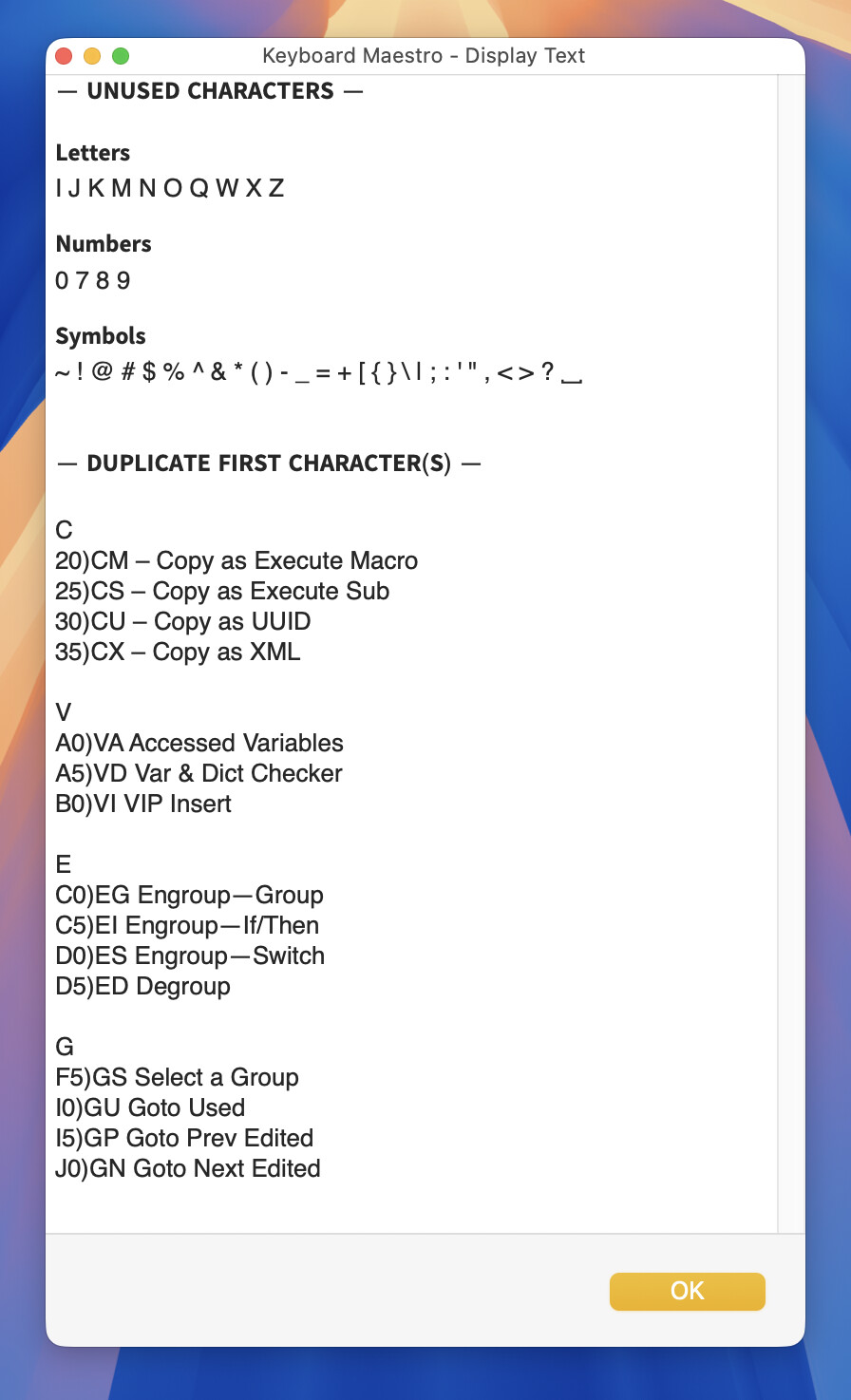
This macro provides a quick report identifying which letters, numbers, and symbols are still available to use as the first character of a new palette entry, while preserving the single-keystroke behavior described above.*
*Manually identifying these characters can be tedious particularly with a large palette.
For example, here's my primary Keyboard Maestro application-specific palette.
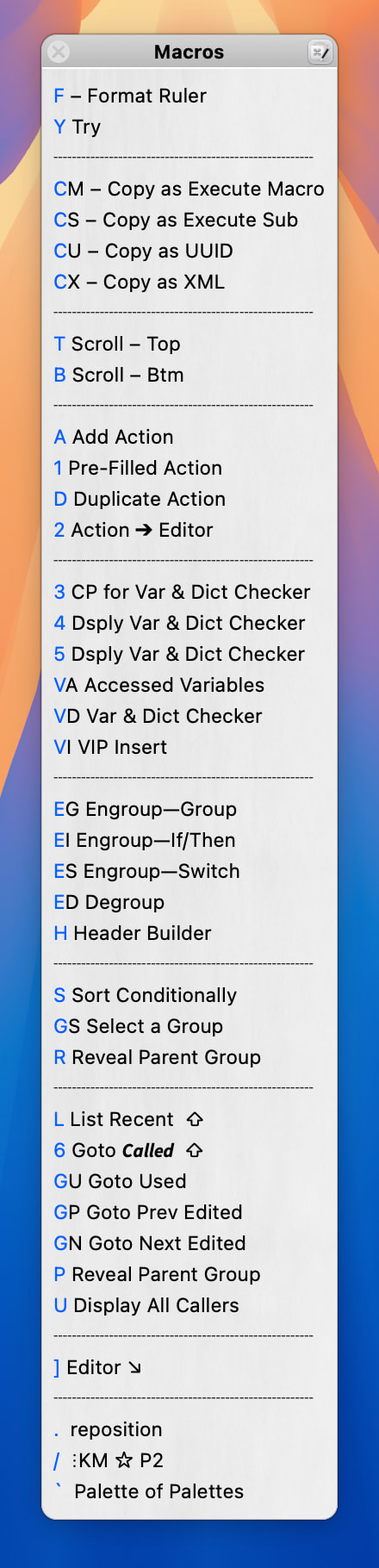
For palette configuration details, expand this section.
( expand / collapse )
Here's the macro group, named ⁝KM ☆ P1, where the palette macros reside.
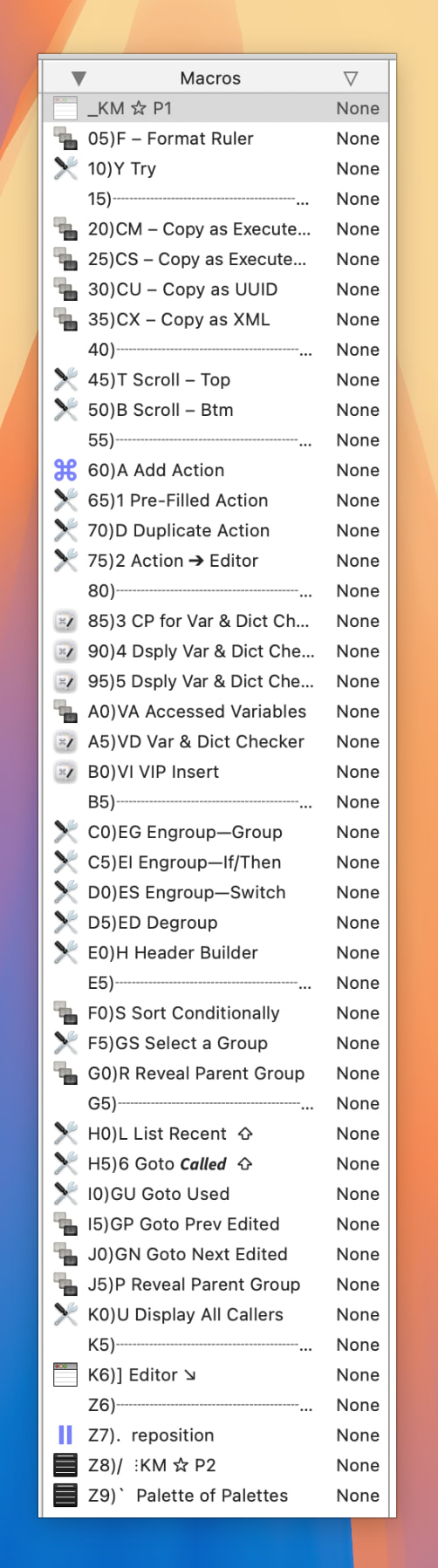
Note, when a configuring the Show Palette of Macros action, there is no requirement that all macros reside in the same macro group. However, configuration becomes trivial if the palette macros are grouped.
For example, in the case of the above palette, the group includes all of the palette macros plus one other macro: _KM ☆ P1. That unique macro, the only one not enabled, displays the palette using a single Show Palette of Macros action:
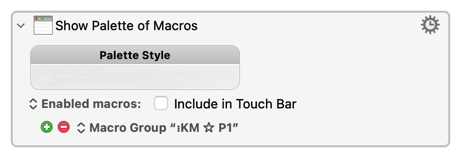
Although not enabled, this macro is run by another macro that uses an Execute a Macro action. _KM ☆ P1, itself, does not appear in the palette because Enabled macros is configured in the Show Palette of Macros action.
For the palette above, this macro would generate the following report.
MACRO USE
A summary report like above can be generated two ways:
-
Select the macros in the Keyboard Maestro editor. This can be within a regular Macro Group or within a Smart Group. Then trigger this macro.
-
Select a Show Palette of Macros action.* Then trigger this macro.
*Rarely would it make sense to include multiple Show Palette of Macros actions in a single macro; however, if more than one action is selected, the superset group will be analyzed and reported. Also, any action that is not a Show Palette of Macros will be ignored.
The report will be displayed adjacent to the Keyboard Maestro window. It will only overlap with the editor if the display does not include sufficient available width.
MACRO DETAILS FOR THOSE CURIOUS
( expand / collapse )
This section is provided for those that might want to peek under the covers. None of it is required for macro use!
'Show Palette of Macros' action, "Allowed" setting
A Show Palette of Macros Allowed pop-up (Active macros / Enabled macros / All macros) controls the Allowed key in the action's plist XML, which in turn drives filtering here:
Allowed key value |
Corresponds to (action UI) | Filtering behavior |
|---|---|---|
missing, or IncludeInactive |
Active macros or Enabled macros | The macro must be Enabled in the editor to be included in the list. |
IncludeDisabled |
All macros | No enabled filtering is applied; both enabled and disabled macros are included. |
Note: Only a macro's Enabled/Disabled state is checked. The Enabled/Disabled state of the macro's enclosing Macro Group is not checked or considered.
Other Details including Multiple 'Show Palette of Macros' Actions
The XML for the selected actions can contain more than one ShowPaletteOfMacros (alongside other, unrelated action types, which are ignored). Each such action is identified and processed independently based on ts own Allowed setting.
Internal Variables
Note that the macro includes the following internal variables. I used them during debugging, but they should not be changed during normal operation of the macro.
The following variable is used within the Execute a JavaScript For Automation action code that returns Keyboard Maestro editor selection information.
local_PrettyJson
| Value | Output |
|---|---|
missing or 0 |
compact JSON |
1 |
Same JSON, pretty-printed for humans |
The following variables are used within the Execute a JavaScript For Automation action code that compiles all of the macros referenced directly or indirectly within the selected Show Palette of Macros action(s).
local_UniqueUuid
| Value | Output |
|---|---|
missing or 0 |
No filtering by UUID |
1 or greater |
Each macro (matched by UUID) reported only once |
local_UniqueName
| Value | Output |
|---|---|
missing or 0 |
No filtering by name |
1 or greater |
Each macro (matched by name) reported only once |
Note:
local_UniqueUuidandlocal_UniqueNameare independent and can both be set. When both are1or greater, UUID-based uniqueness is applied first, then name-based uniqueness is applied to what remains. Uniqueness is applied globally, in a single pass across everyShowPaletteOfMacrosaction's combined macro list. If the same macro (by UUID or name, per whichever flag is set) appears under more than one action, only its first occurrence is kept; for JSON output, that means it will appear once, under whicheverActionUIDit was first encountered in, and will not appear under any other action's key.
local_Json
| Value | Output |
|---|---|
missing or 0 |
Macro names only, one per line, merged across all ShowPaletteOfMacros actions found |
1 |
JSON object keyed by each action's ActionUID, each value a [{id, name}] array |
2 or greater |
Same JSON, pretty-printed for humans |
Default: 0 (For debugging only. If changed, the macro will generate a bogus report.)
TESTED WITH
• Keyboard Maestro 11.0.4
• Tahoe 26.5.2 (25F84)/MacBookPro18,2
VERSION HISTORY
1.0 - Initial version
Download: Report Palette Unused chars.kmmacros (71 KB)

Macro-Notes
- Macros are always disabled when imported into the Keyboard Maestro Editor.
- The user must ensure the macro is enabled.
- The user must also ensure the macro's parent macro-group is enabled.
System Information
- macOS 26.5.2 (25F84)
- Keyboard Maestro v11.0.4