In my day job, I often get support emails from customers in languages other than English. I have been using the macOS built-in translation tool to interact with these customers, but I was recently talking with my business partner, Many Tricks' founder and coder Peter (no, not the Keyboard Maestro Peter!), who is German.
Peter's English is excellent, and after getting a support email in German, I sent Peter two proposed computer-translated replies: One done by macOS, and one done by Claude. Peter said the Claude translation was notably better. I checked with a French speaking friend, and got the same answer.
Hence, my new macro, which translates the selected text either to English or from any of a a defined list of languages.
NOTE: This macro requires either a paid API key from Anthropic, or a paid subscription to Claude. It also requires a working Claude code installation. The macro makes use of the claude command line tool to do the translations, and that tool requires either a paid API key or a subscription account.
Version 2
Download Macro(s): Translate with Claude.kmmacros (16 KB)
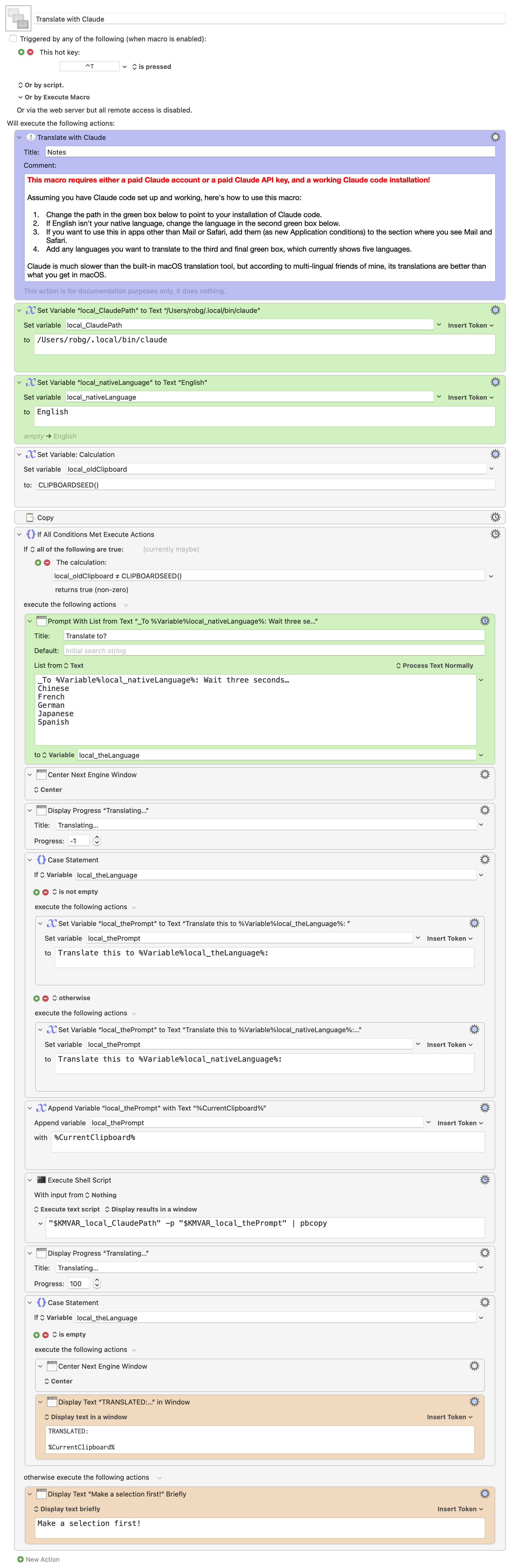
Macro notes
- Macros are always disabled when imported into the Keyboard Maestro Editor.
- The user must ensure the macro is enabled.
- The user must also ensure the macro's parent macro-group is enabled.
System information
- macOS 15.6.1
- Keyboard Maestro v11.0.4
Old version instructions for posterity's sake
After selecting some text (in any app allowed in the macro's group setup), Control-T launches the macro, which triggers an initial dialog box asking if I'm translating from a language or to my native language:
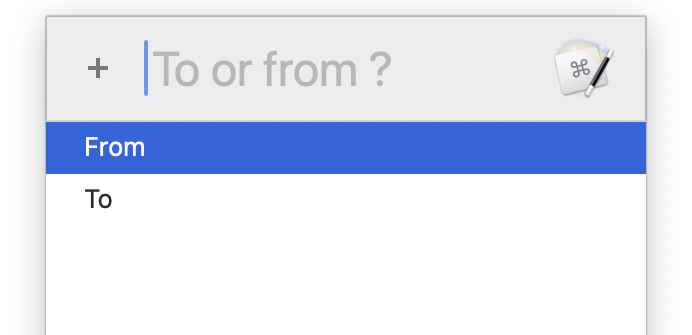
If I press F [Return], the macro goes to work, and translates the selected text into English—I let Claude figure out what the source language is. When it's done, the translated text appears onscreen, and is copied to the clipboard.
If I press T [Return], then a second prompt appears:
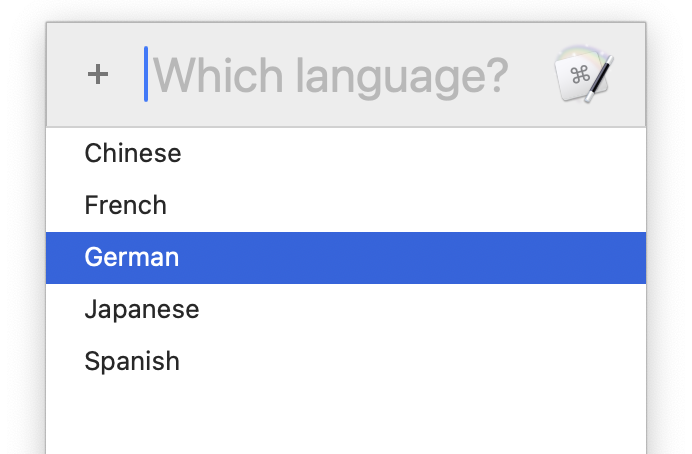
(It's not displayed onscreen, because it wouldn't mean anything to me anyway!).
Usage:
After selecting some text (in any app allowed in the macro's group setup), Control-T launches the macro, which triggers the translation languages list:
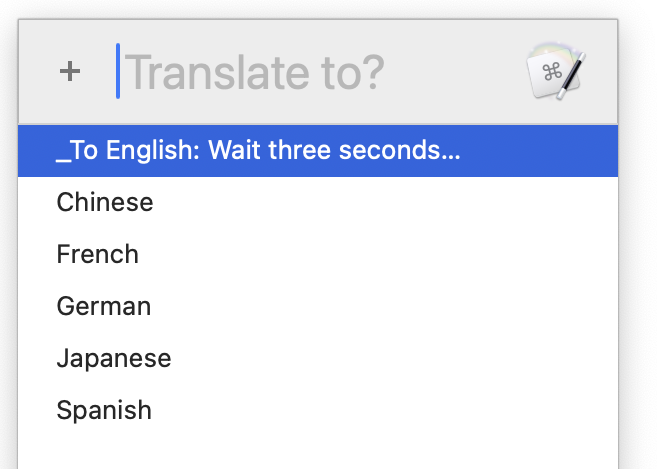
If you do nothing for three seconds, the macro will translate the selection to English (or whatever is marked as the native language in the macro). If you want to translate what you've written back for a reply to someone, just select a language from the list.
Translations to the native language are displayed onscreen (because it's useful to know what the other person wrote); translations to the foreign language are not (because they'd be meaningless unless you knew the language). Both, though, are copied to the clipboard.
The macro requires you set the path to the claude command, and you can optionally change the native language from English, as well as add additional languages to the translation list. The macro is in a group that only runs in Mail, Messages, Signal, and Safari, which is where I use it; just add more apps to the group's allowed list if desired.
Note that Claude is much slower than the macOS translation tool, but if it means I send our customers easier-to-read messages in their native language, it's worth the added time.
-rob.