I’m new to MacOS and new to Keyboard Maestro. I just downloaded the trial to check if I can create scripts that make my daily office tasks easier.
I would like to create a macro that automatically opens all selected Word documents and prints each one while changing the printing settings so that always 4 pages would be printed on one - I hope you get what I mean.
Can anyone of you help and tell me if that’s possible?
A good way to start on a macro like this is to do the job manually, writing down each step as you go. You can then look at each step and break it down further until you start to match up with the various Keyboard Maestro Actions, Tokens, and so on.
But before you start on that -- do you know that you can create printing presets? Set everything you need -- printer, number of copies, pages per sheet, layout direction and any other options you need and save that as a named preset. That will make it much easier to select in your macro when you come to write it!
Set up your preset, come up with a plan on how to use it for the currently-open document. You can then expand on that so it takes the currently selected documents in Finder (the %FinderSelections% token and, one by one, opens a document, prints it with your preset, closes it.
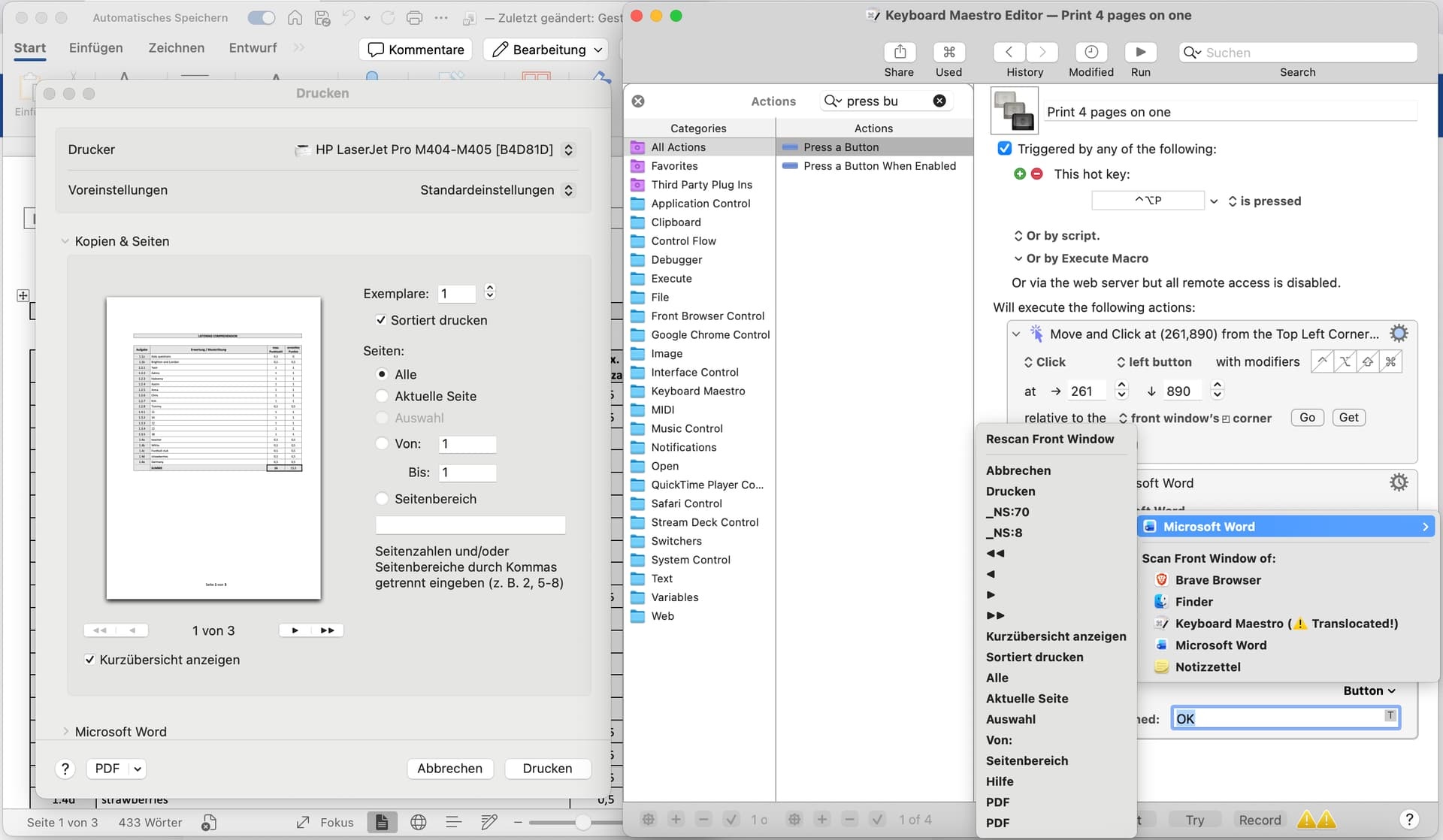
thanks for your thought-provoking comment! Setting the default print settings was easy, and opening MS Word and selecting the print command is also quick and easy. Unfortunately, however, I can't access the preferences menu using a keyboard shortcut, but have to use the mouse instead, which is inconvenient for an action command. Any ideas how to trigger it?
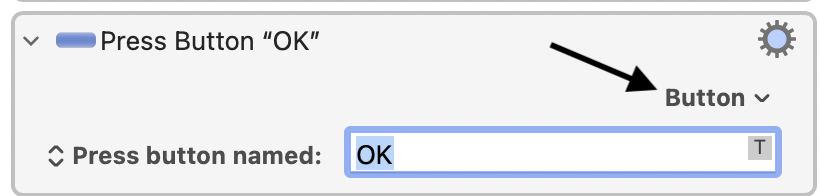
Get your document ready to print, with the print dialog showing. Go back to KM and, in a test macro, add a "Press a Button" Action. Click the Action's "Button" pop-up:
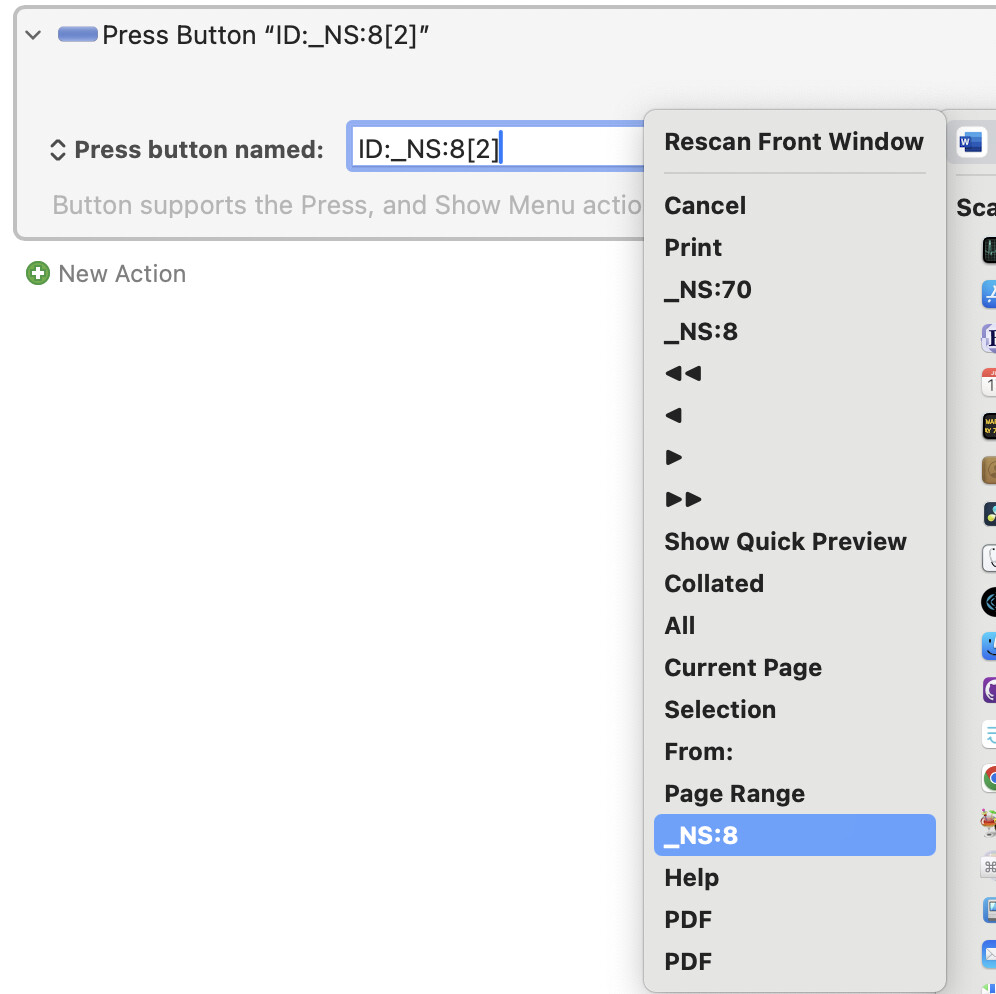
...and select "Microsoft Word" to scan Word's front window -- the Print dialog -- for buttons. Click the pop-up again and, at the top, you'll now have a sub-menu with all the found buttons -- you can now pick one to click on.
The next cunning trick is that (usually) when a menu is open you can type the first few characters of a menu item to highlight it and hit Return to select it and close the menu. The "Insert text by Typing" and "Type a Keystroke" Actions will be useful for that...
Try your only "_NS:8" (for me, that functions as a "Cancel").
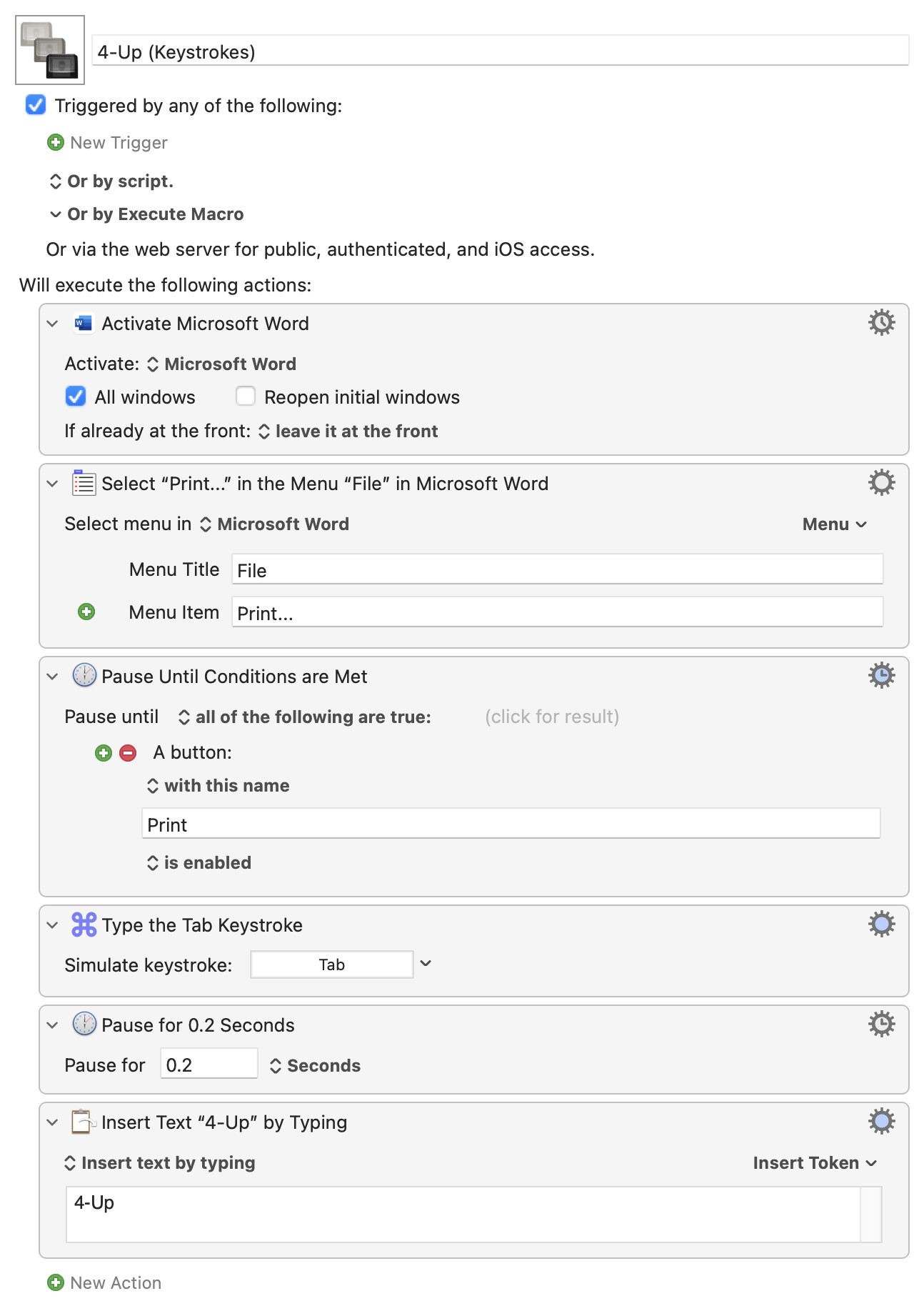
Otherwise, try doing it with keystrokes. For me, I can open the "Print" dialog, hit the Tab key once to activate the Presets menu, type to highlight, Return to select. So to select my "4-Up" preset:
When driving the UI like this you often have to add pauses, else the macro runs ahead of the interface. There's a couple of examples here, one that waits for a button to be enabled (that means the dialog is there) and another hard-coded pause )gives time for the preset menu selection to happen).
Sorry for getting back to you so late. I tried writing the script with your help, but I just couldn't get it to work, so I gave up out of frustration. Today, however, I felt the urge to figure out the solution on my own, and here it is:
4 Pages on 1 in MS Word
Triggered by any of the following:
		The Hot Key ⇧⌘P is pressed
Will execute the following actions:
		Prompt for User Input “SelectedPrinter”
		"Which printer do you want to use?" Input the following variables:
		Homeoffice (default to ‘HP LaserJet’)
		Work (default to ‘Kyocera’)
		Library (default to ‘Brother’)
		Finish with the following buttons:
		OK
		Cancel (cancel macro)

		For Each Item in the Collection Execute Actions
		The items in the Finder selection
		Execute the Following Actions:
		Execute AppleScript
		tell application "Keyboard Maestro Engine"
		    set local_Path to getvariable "FilePath"
		    set targetPrinter to getvariable "SelectedPrinter"
		end tell

		tell application "Microsoft Word"
		    activate
		    open local_Path
		    delay 1 -- Zeit zum Laden

		    -- Trying to set printer without stopping the script
		    try
		        set active printer to targetPrinter
		    on error
		        -- if name does not match we ignore it and use default
		    end try

		    delay 0.5 -- short break after printer was set
		end tell

		tell application "System Events"
		    tell process "Microsoft Word"
		        -- Now opening printing dialogue
		        keystroke "p" using {command down}
		    end tell
		end tell Stop macro and notify on failure.

		Pause for 1.5 Seconds
		Notify on failure.

		Move and Click
		At (176,-245) from the center of the front window.
		Stop macro and notify on failure.

		Pause for 0.5 Seconds
		Notify on failure.

		Type the Down Arrow Keystroke

		Type the Down Arrow Keystroke

		Type the Right Arrow Keystroke

		Insert Text by Typing
		4on1
		Type the Return Keystroke

		Pause for 0.5 Seconds
		Notify on failure.

		Type the Return Keystroke

		Pause for 2 Seconds
		Notify on failure.

		Execute AppleScript
		tell application "Microsoft Word" to close active document saving no Stop macro and notify on failure.