It doesn't matter, and the macro doesn't care. The triggers are "TextEdit is launched" and "TextEdit is quit" -- it doesn't matter how it is launched or quit.
Try it -- open TextEdit from your Apps folder or from a Spotlight search, Quit it from TextEdit's "File" menu or a KM "Quit application" Action. They all result in the same OS launch or quit events, and it's those events that KM "sees" as triggers.
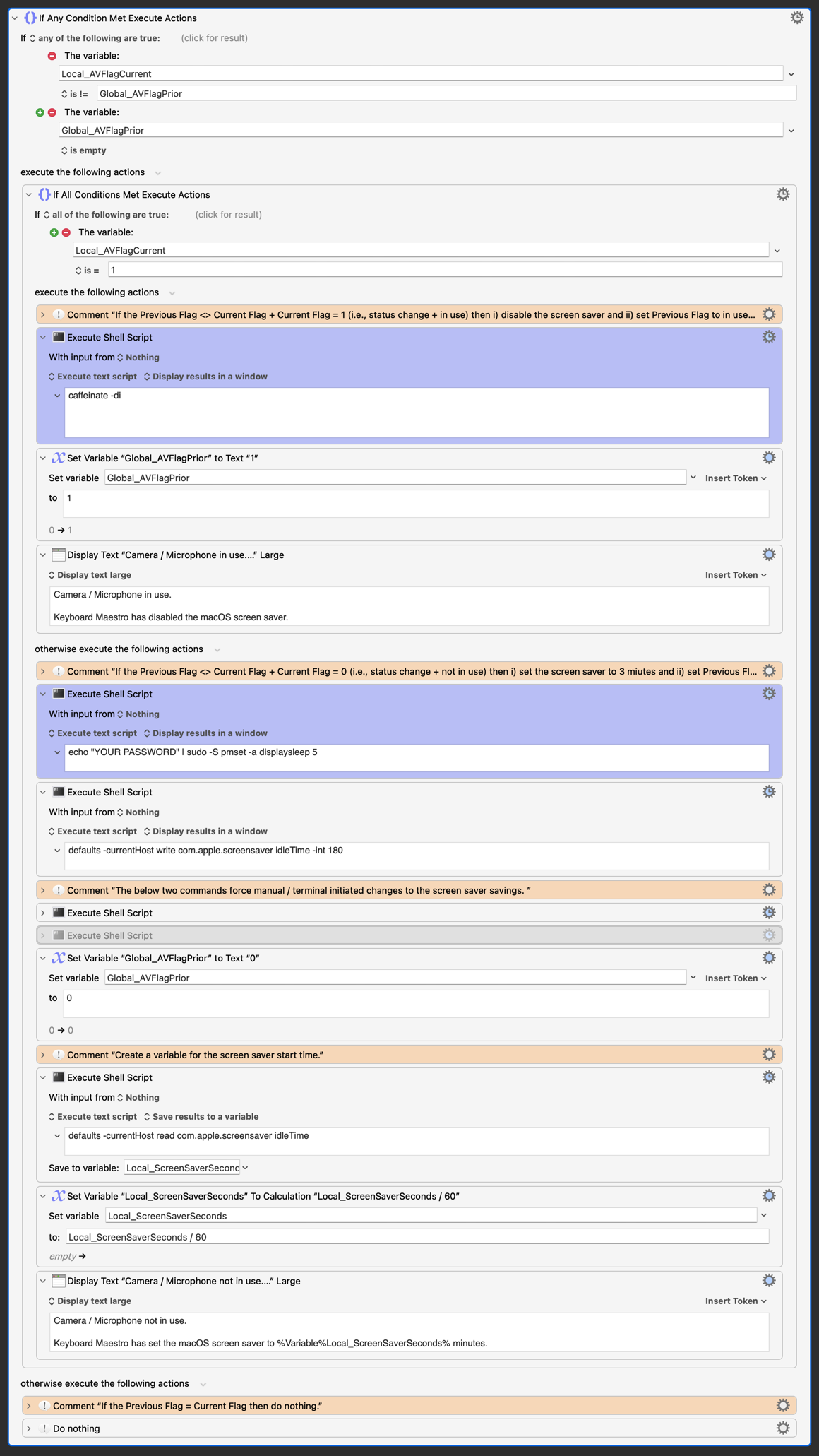
I have been using the macro you provided to disable / enable the screen saver and noticed that the screen saver is being properly enabled / disabled but the display's sleep timer was not being disabled / enabled.
shell script causes the macro "to hang" as the shell script action never "completes". The repeated polling spawns multiple instances on the macro, not good!
I would greatly appreciate your help with the following:
Correcting the macro / shell script so that the macro runs. I do not know whether this means running the shell script asynchronously, changing the shell script command, or other.
Confirming that the shell scrip command
echo "YOUR PASSWORD" | sudo -S pmset -a displaysleep 5
is correct for resting the displays sleep timer to 5 minutes.
Added bonus / idea / solution is how to get i) the sleep timer to reset to 5 minutes and ii) the screen saver to reset to 3 minutes after the Teams call has been completed without leaving Teams as the front application for +/- 2 minutes (i.e., until the next polling cycle completes). This is a real PITA!
[UPDATE One idea I had was to create a second macro which is hot key enabled macro (i.e., instead of the manual mouse click I now do) that i) terminates the call (i.e., GUI modelling to the hang up button) and ii) resets the Global_AVFlagPrior to 0.
The problem is that the logic of the main macro may / would need to change as there may / would be no need to broadcast the message that the screen saver delay had been reset as this would already have been done.
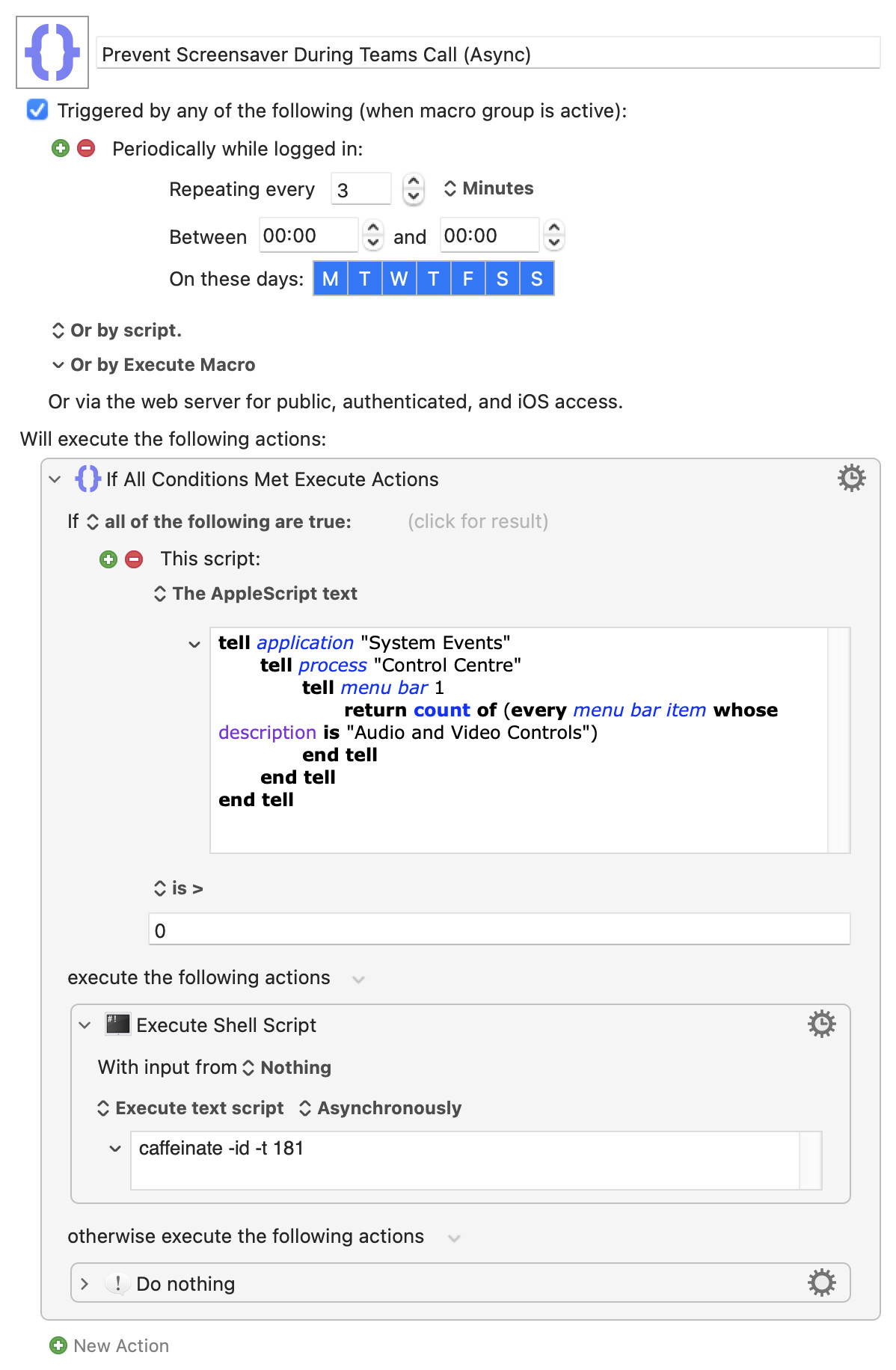
I still think you'll solve all your problems by having
A "When Teams is running" Macro Group that contains
A macro with an "every 4 minutes" Periodic trigger that
If the camera is active, executes the caffeinate command
That's really light on system resources, and because you aren't turning anything off you never need to turn anything on again.
Yes -- caffeinate runs for as long as you tell it, which what keeps your machine "awake" (I hadn't realised, I thought it set an "assertion" then exited. Every day's a learning day!). You haven't set a time so it will, presumably, run indefinitely. Firing off a -t 300 every 4 minutes will mean your macro pauses at that point for 5 minutes, so you could get a slow buildup of running macros and caffeinate processes. My Teams calls never last long enough for that to be a problem...
Here's a rewrite that's working for me with your settings (3m lock, 5m screen) and with minimal resource use. I've set "Execute Shell Script" Action to "Asynchronously", which makes little difference to resource use but does stop the KM menu bar icon from spinning continuously -- you may prefer to set that back to "Ignore results" so you have an indication it is running.
Storing your account password in plain text isn't best practice -- using sudo pmset without a password has been covered here before, see this post, for example.
Good to know that my conclusions / undersatndings were correct!
A few follow ups on your very elegant solution:
Logic / Operation
a. Check whether Teams is using the camera 3 minutes
b. If Teams is not using the camera then no action
c. If Teams is using the camera → "caffeinate for 3 min. and 1 sec."
i) If in further polling Teams is using the camera → "caffeinate for 3 min. and 1 sec."
ii) if in further polling Teams is not using the camera → previous caffeinate ends 1 sec later
d. Teams need not be kept as the frontmost application because caffeinate command will expire regardless of whether Teams is / is not the frontmost application
e. The screen saver need not be disabled / enabled because the caffeinate command stops both i) the screen saver from engaging and ii) display from sleeping.
Please confirm / correct my understanding of the above.
Asynchronously
It is my understanding that running the caffeinate command Asynchronously means / results in the caffeinate command not having to fully complete before the next cycle occurs. That is, the caffeinate command will share processes / resources with the other actions (i.e., polling trigger, AppleScript, etc.).
Please confirm / correct my understanding of the above.
Asynchronously and the Keyboard Maestro Menu Bar Icon
Please explain why the caffeinate command running Asynchronously stops the Keyboard Maestro menu bar from spinning.
And Finally
Why do macros that have periodic triggers not appear in Keyboard Maestro Menu Bar Icon > Cancel > List of Macros?
Appreciated and understood.
I will maintain this reference in case it is needed in the future (as it is not needed now as sudo is not needed in your macro)!
Not quite. Remember that each firing of the Periodic trigger creates and executes a new instance of the macro. So it is:
Every 3 minutes create a new instance of the macro that:
Checks if the camera is in use (by anything, not just Teams)
If not the instance completes execution without doing anything end is disposed of, or
If so
The caffeinate command is issued
The instance completes execution and is disposed of
The difference between the "Execute a Shell Script" Action being set to "Ignore results" or "Asynchronously" is that
Ignore results: Step 1.2.1 must complete before step 1.2.2 can happen -- that is, a shell subprocess is created, that subprocess executes caffeinate, which runs for 181 seconds (in this example) then returns control to the shell subprocess, which has now finished and returns control to the instance, which now completes
Async: Step 1.2.1 does not have to complete before step 1.2.2 can happen -- a shell subprocess is created that executes caffeinate and control is immediately returned to the instance which completes, leaving the subprocess and its caffeinate command running in the "background" for 181 seconds
While KM is still executing the shell subprocess in the async method, the executing instance itself has finished -- no executing instances, no spinning menu bar icon.
They do while they are executing. Hopefully you can see from the above that a Periodic trigger fires off a new executing instance every n seconds/minutes/hours, which does whatever then exits. That is different to a "stay open" macro that starts, enters a loop that does something every n s/m/h for however_long, and then eventually exits.
I, for one, am rather loose with my terminology and that may be confusing you. Think of it this way:
A Macro, the thing you see in the Editor, is a template from which Executing Instances are created
A Macro's Triggers are the macOS Events that create those individual Executing Instances
It's the Executing Instances that run, from beginning to completion, not the Macro
(You can prove this for yourself with a Macro that "Pause"es for 10 seconds then does a "Display Text" Action -- trigger the Macro with the Editor's Run button then quickly edit the text in the "Display Text" Action and, 20 seconds later, it's the old text that is displayed rather than the new version.)
So you can see that a Periodic trigger results in many separate Executing Instances of a Macro, not one single Executing Instance that then does something every time period.
Am I correct that I therefore need to change the macro from "Available in the applications" (i.e., Teams for the previous macro) to "Available in all applications"?
Appreciated! I think this is clear now, spinning menu bar icon if a function of the instance, not the subprocess!!
Appreciated! I think this is crystal clear now (and expanding my above comments), the spinning menu bar icon is a function of the instance running, not the macro (because macros don't run, only their instances run) and not the subprocess!!
No. If you import the macro above you'll see availability is already set to "when Teams is running".
You don't care what is using the camera. There's so little overhead to the caffeinate command that it does matter if you send it unnecessarily when it's a Mac app that's already stopping your display from locking/sleeping.
What we do know is that we'll only need to do this if Teams is running (Teams
can't use the camera if you haven't launched it!), which is why we put the macro in a Teams macro group. It doesn't save much in the way of resources, since Teams is likely running for most of your day, but it "costs" nothing to make that saving.
I said previously that you can't tell what's using the camera, but that's not true. If you click the menu bar icon it shows the process using the camera, so you could test to see if that's Teams. But you'd need to use AppleScript, and you'd need to click the menu bar icon to populate the window before you could test it, and that would steal focus from whatever it is you're doing. So this is a case where the overall "cost" of seeing if Teams is using the camera is more than the "cost" of caffeinate-ing regardless.
I think we're on the same page now. That doesn't mean we're 100% factually accurate -- I have no "insider knowledge" of how KM works under the hood -- but we only need to be correct enough to make things work the way we want
[NOTE: Post deleted as the problem running the Apple Script within the macro was as result of "geographical differences"; specifically "Centre" had to be changed to "Center" in "Control Center" in the Apple Script.]
[NOTE: Post deleted as the problem running the Apple Script within the macro was as result of "geographical differences"; specifically "Centre" had to be changed to "Center" in "Control Center" in the Apple Script.]
I did some testing by adding a number of Display Text actions and have a few follow up questions:
As to the Macro Group: If set to "Available in these applications" then the macro will not provide the desired be results.
Consider for example when Excel is teh front application through screen sharing: polling will not occur (i.e., Teams is not the front application) → caffeination will not occur → screen saver and sleep mode will engage → not the desired result.
Consider the same example when the macro group is set to "When these applications are running: polling will occur (i.e., Teams is running) → caffeination will not occur (i.e., camera is in use) → screen saver and sleep mode will not engage → the desired result.
I therefore believe that the macro group should be set to "When these applications are running".
Comments / thoughts?
As to the instances: If an instance (i.e., "caffeination cycle") is running when Teams is closed then that instance will complete (i.e., once an instance is started it will run unless user cancelled)? Is this correct and, if not, then why not?
As to the caffeinate command:
a) I noticed that the when the Apple Script was run with "Ignore result" that the caffeination ended 190 seconds after the caffeination started, not 181 seconds after start per the Apple Script command.
Why / what is the reason for the additional 9 seconds (as this seems high)?
b) Does the caffeination command suspends the screen saver command and the sleep command or does it reset their values to (i.e., put another way, when the caffeinationation ends, does the screen saver start 3 minutes later or does it start in whatever time was left / remaining from its countdown to 3 minutes?
I think you understand the logic, though you've reversed behaviour in the second case. It should be "caffeination will occur".
Try it and find out. If you caffeinate for 180 seconds and then not do anything at all with your computer, will the display sleep after 3-and-a-bit minutes or 6-and-a-bit?
Yes, that's correct. And is completely unimportant -- can you see why? You should also do your own comparison between synchronous and asynchronous "Shell Script" Actions and their cancellation behaviour.
Not a clue. But the most likely explanation is that you did something, for example you nudged your mouse or brushed your trackpad, 9 seconds after running the command
In my testing, the caffeinate command suspends the sleep command; that is
If the screen saver were to engage 30 seconds before the caffeinate command is issued by the macro (so there is no keyboard / mouse movement) then the screen saver kicks in 3 minutes and 30 seconds after issuing the caffeine command, not 6 minutes later!
If the screen saver were to engage 30 seconds before the caffeinate command is issued manually (so there is keyboard / mouse movement) then the screen saver kicks in 6 minutes after issuing the caffeine command (because the count down started from when the command was issued manually)!
I believe so. The instance expires → the screen saver / sleep mode resumes, there is is no downside or harm (other than using system resources) to this.
In terms of the difference of running the caffeinate command synchronously and asynchronously the differences I see are i) instance completes quick when run asynchronously (because it does not need to wait for the caffeinate command to complete) and ii) caffeination takes longer to complete because presumably because it is sharing resources. Did I miss somethig, is this correct?
Hmmm, I am think it is the overhead of the Apple Script, Shell Script, etc. because I am not touching my keyboard or mouse. Make sense?
That should be milliseconds, not seconds -- even on a slow machine.
I think this is fundamental to the caffeinate command rather than the way we are running it -- and it varies by platform. On my Intel/Sequoia machine, caffeinate runs for the time stated, on my M1/Tahoe it takes 190 seconds for a -t 181 command (matching your result) and 316s for a -t 301.
Which is why you need to do your own tests for the other caffeinate behaviours.
There's also the fact that you cannot cancel the async shell script from KM once started. Even killing the Keyboard Maestro Engine won't stop it! You have to go via Activity Monitor or the shell and kill the caffeinate process. Not really a problem here, but could be with other shell scripts.
Ahhh, appreciate the added learning. So, only instances that are run synchronously can be stopped by Keyboard Maestro, I learn yet another thing from you. Thank you!