I have the following need / use case to disable the screen saver:
I use Parallels for work (let's not have a conversation on why) and need to disable the screen saver when I am on a Teams call. The problem is that I use Teams within Parallels and there is no (working) setting to disable the screen saver when on a Teams call. Workarounds are welcome.
I initially thought that I could monitor i) camera use per the green LED on the Studio Display or ii) camera use per the free video icon in the menu bar but thought those may be difficult.
I dug a little further and determined that all Teams video calls windows have i) meeting name / title and ii) "| Microsoft Teams" as part of the window name. I thought that it may be possible to pause the screen saver based on the "| Microsoft Teams" being the active window but note that this may not always be true as Adobe, Excel or Word could be the active window were I screen sharing.
Is there an easy way to detect that teh camera is in use as this would be best / ideal (NOTE: Home office uses Studio Display camera, Office office uses an extern Logitech camera and traveling uses MBP but in camera)?
Is there, as a fallback, an easy way to build a conditions that loops every 5 minutes that tests whether one of Adobe, Excel, Teams, or Word is the active window on the main scree and:
i) if yes then disable the screensaver : and
ii) if not then enable the screensaver.
The problem with this approach is that it may prove to be resource intensive as the 5 minute counter will always be running say from 8:00 AM to 8:00 PM (i.e., work hours).
Would appreciate comments / thoughts on the before starting to build the macro.
Create Macro A:
a. Starts on Keyboard Maestro launch and sets FLAG = TRUE where FLAG test whether any of the Parallels applications are active.
Create in Macro A a never-ending loop that to check every 5 minutes (i.e., the time my screensaver kicks in) any of the Parallels applications are active.
a. If yes then FLAG = TRUE
b. If FLAG charges from TRUE to FALSE then disable screen saver (there is a built in action)
c. If FLAG changes from FALSE to TRUE then enable screen saver (there is a built in action)
d. Limit Macro A (I do not know whether this can be done) or limit the cycling from 8:00 AM to 8:00 PM each day and, at that point, a) enable screensaver and b) set FLAG = TRUE for roper setup the next morning.
The potential issues with this approach:
a. Constantly using system resources fro cycling every 5 minutes
b. May not be the most best / most elegant solution out it should work!
Comments / thoughts:
Is there a good approach?
If not, what approach would be better
Should I revert to considering monitoring the camera (which would be the best / most elegant), using the window names and the commonality of "| Microsoft" or other?
I am working on it now but was trying to develop and Keyboard Maestro only solution (as I did with the display presets) to avoid using AppleScript because my AS skills are weak.
I will that said give it a go today as your suggestion makes a lot of sense.
Attached is my current attempt which has two issues:
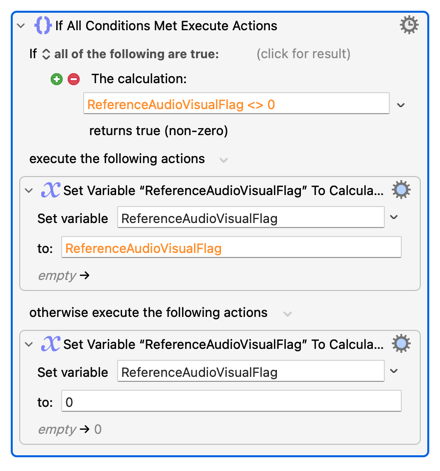
I would like to implement a counter that only provide the message the message that the screen saver has been enabled the "first time through" and "after it has been enabled (i.e., call has ended).
The macro is running whenever Teams is active (i.e., irrespective of whether a Teams call is taking place). This is resulting in a lot of CPU usage for no reason.
Would appreciate your assistance / input with both as well as any other suggestions you may have.
Then use Image Detection in you "If" Action, looking for the menu bar icon (Teams itself gives little reliably obtained feedback that you are in a call, as you've found).
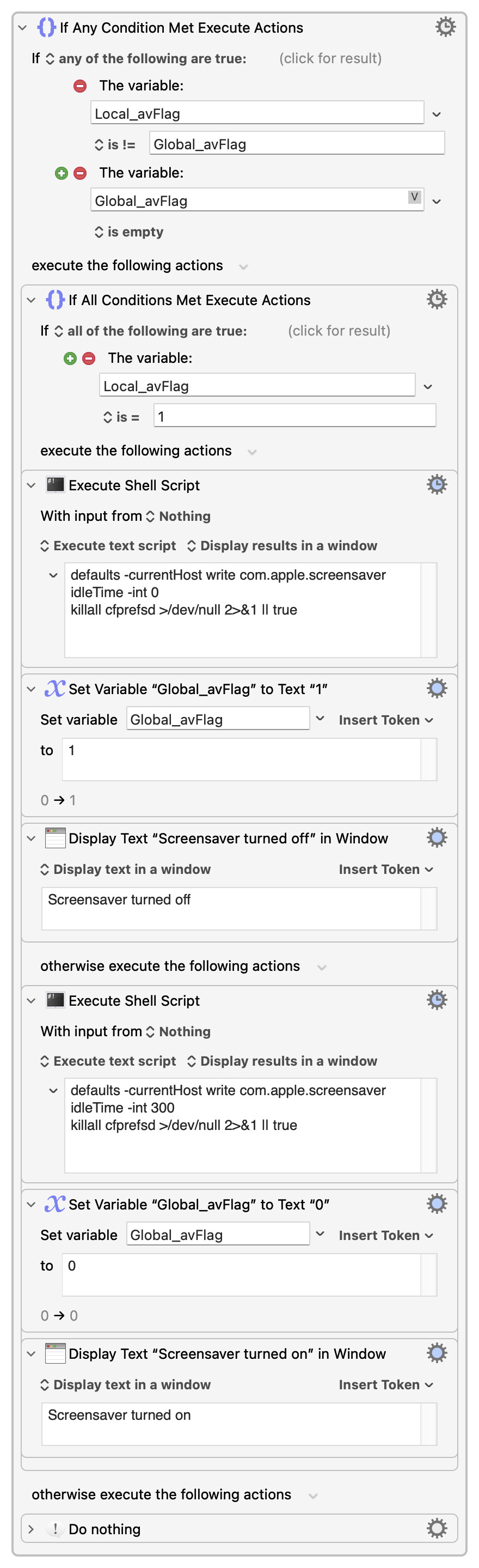
A common pattern is to
Test and save the result to a Local variable
Compare that Local to the Global
If the same then exit, since you're already in the required state
If different then
Change state
Set the Global to the value in the Local
In this case you'd also include the Notification in the "Change state" step.
It should only use ~5% of a single CPU core for a fraction of a second, once every 5 minutes. But you are doing "unneeded" work because you are setting defaults even when they are already appropriately set -- see above for the fix for that.
If there's still a problem, test with Activity Monitor running to see which process(es) are sucking CPU time.
And try using caffeinate rather than defaults -- adding a simple "assertion" to the power management system should cost less resources, plus you don't need to "unset" it since it will naturally expire (and it's basically what apps that do prevent the screensaver kicking in while they are active do).
Attached I sum current effort which works somewhat save for the following:
As much as I tried and tested I have not implemented the looping properly to minimize the number of write (and, by extension, notifications).
The AppleScript crashes on the first check / cycle after I change from no video call to video call (but not the other way) and then with error message
IN point of fact the transition from a video call to no vide worked flawlessly!
The other problem, the monitoring starts when Teams starts as opposed to when Teams video call starts which means it will be monitoring my laptop essentially the entire day, which is not good.
Would appreciate any assistance / thoughts you can offer.
And have a look at the "Variables" Wiki page to get a handle on "variable scope" -- it's good practice to use Local variables unless you need something with wider scope, if only to stop concurrently executing instances of your macro from messing with each other.
Error message?
Why is it not good? One execution every 5 minutes where, most of the time, the macro will exit as soon as it sees state hasn't changed since the last check, will have no impact on your device use.
You could try changing the trigger to an "Idle Trigger", since the idle timer is reset by the same activities that reset the screensaver timer. Again, make sure your "Idle" trigger is less than your screensaver timer.
Whether that will better or worse than a "Periodic" really depends on how much time your device spends idle.
But when there is no OS-propagated event you can use as a trigger you are going to have to poll for current state yourself -- you can minimise the cost by doing as little as possible and only as often as is necessary, but you can't make it zero.
If 5% of one of your CPU cores for 1 second every 5 minutes is that important then a better solution is to overcome your dislike of the native Teams app, which has this functionality built in.
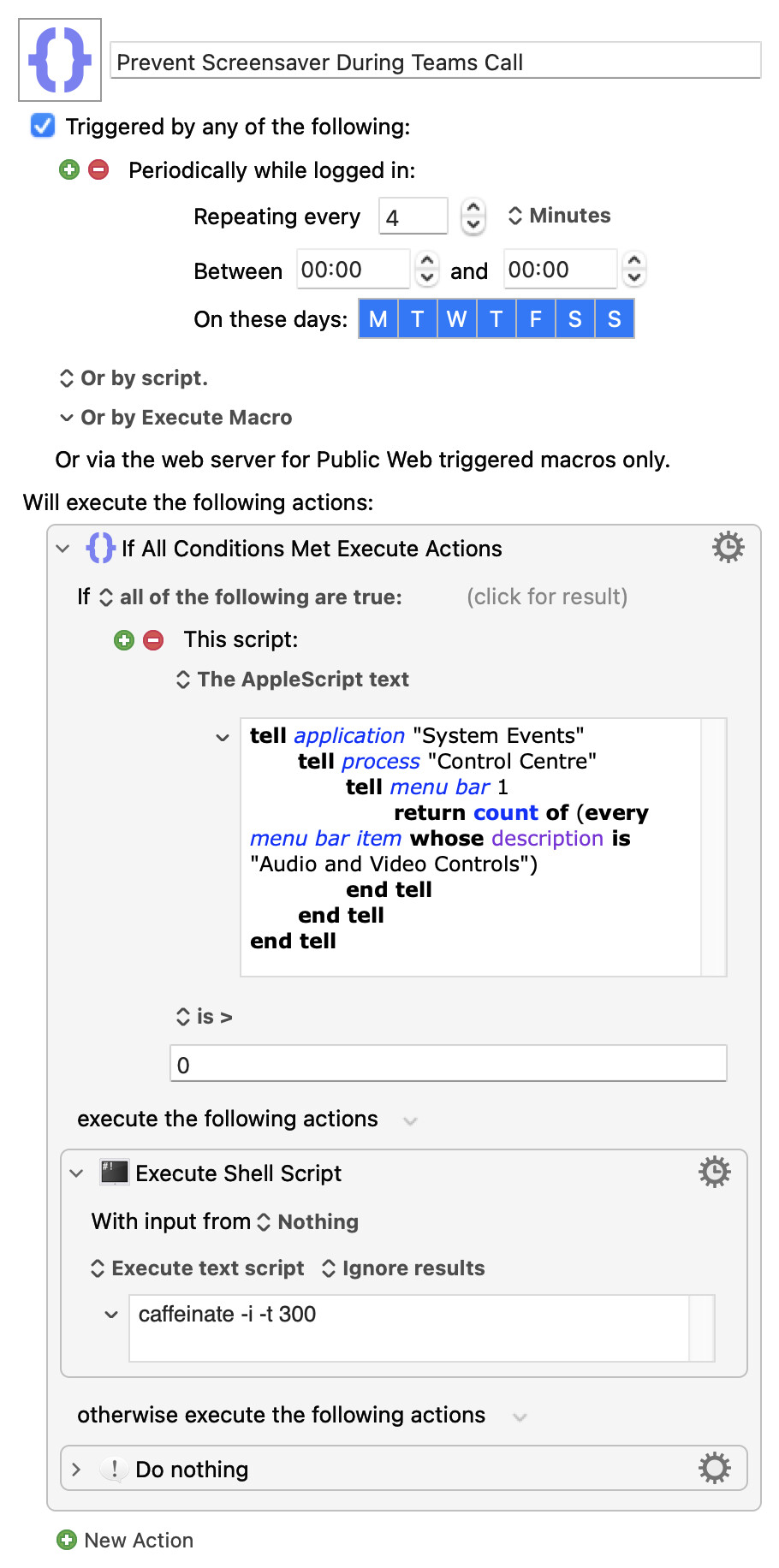
I greatly simplified the logic / thinking of the structure and now have two simple macros as follows (and as attached below):
1. Disable / Enable Screensaver Call:
a. Triggers when Teams starts (which works)
b. Sets the initial values of AudioVisiualFlagPrev and AudioVisiualFlagCurr, both to 0 / off (which is correct when Teams first starts).
c. Calls Macro 2, as described below
I created this macro / structure because I could figure out how to set AudioVisiualFlagPrev and AudioVisiualFlagCurr in the next / second macro without resetting them on each instance (perhaps there is way, which if true, would solve my below problem).
2. Disable / Enable Screensaver:
a. Periodic trigger checks / monitors the camera and microphone status every 4 minutes
b. Modifies the screensaver setting when the AudioVisualFlag status indicates
b. Let's the user know of a status change.
The Problem:
Macro 1 and Macro 2 run simultaneously; that is, Macro 1 calls Macro 2 with Macro 2 returning control to Macro 1 after Macro 2 completes 1 instance rather completing all instances within the Periodic triggers start / stop time, which is what is desired / needed.
The Solutions
Use a Semaphore Lock so that Macro 2 completes all iterations during the Periodic trigger's start / stop time before returning control to Macro 1. NOTE: I tried this, perhaps incorrectly, so it failed.
Combine Macro 1 and Macro 2 into 1 macro provided someone helps me set AudioVisiualFlagPrev and AudioVisiualFlagCurr in the same macro without resetting them on each instance.
Create a For / While Loop within Macro 1 that runs from a specified start time to a specific stop time and calls Macro 2 every 4 minutes while, at the same time, Macro 2 having no triggers.
I am hoping for solutions for 1 and 2 as they seem more elegant than 3 which is brute force?
Look forward to your responses.
Thank you.
PS. I know I could insert a Pause in Macro 1 equal to the [8:30 PM - Macro 1 start time] but I am looking for something more elegant.
Attached is a new version based on solution 3 which was necessary because every time Teams opened a new window (i.e., calendar window, video call window, etc.) it was treated as though Teams had restarted and started a new instance of Macro 1! Is there a fix to this because in the event that there is not then the Trigger cannot be Application based!!!!
Another issue is that the Apple Script can not / does not differentiate between what application is using the camera. If the Macro is running but FaceTime is using the camera then the screen saver is disabled / enables as though Teams were using the camera which is not necessary (i.e., this is built into macOS). This means that screensaver adjustments are occurring unnecessarily. Would it be possible to change the Apple Script to limit it to Parallels / Teams use of the camera or microphone?
Another issue is that there appears to be no good way to trigger this macro other than by a hot key at the start of each Teams meeting. For example, a period trigger would be a problem because it would reset the variables on each instance (as noted above, and the very reason for two macros).
With that said, the attached version is limited in that i) it must be manually / user started at the start of each Teams call (not ideal) and ii) it cannot differentiate which application is using the camera (were this possible then I could consider different triggers (i.e., time period) (though I would to add logic to address situation in which Teams starts / stops during the day).
With that, I hope someone can help on these issues.
Why complicate it any further? If you want to limit it to "only when Teams is open", put it in a Macro Group that's only available when Teams is running.
Starting from scratch, I'd do something like this (I'm assuming your shell scripts are correct!). See if you can follow the logic, which works in my -- admittedly limited -- testing:
Hopefully you'll see it compares the current Local_ stored, value to the Global_ so as only to continue (and so only to notify) if there's a been a change.
I suppose in the latest version I created I could 1) create a macro that’s starts Teams and opens the Macro 1 I created and 2) deal with the FaceTime issue by conditioning the for While Loop to include a condition that FaceTime is not running. That might not be awful.
I will try your from scratch solution when I get home this afternoon, stay tuned.
While I understand the simplicity of your script, I am trying to use KM as much as possible as my programming skills are weak! If I could rely on those skills rather than ChatGPT I would script everything.
Will the asynchronous approach work as I would like Macro 1 to not finish until Macro 2 finishes. Would the sharing of resources not still have Macro 1 completing before Macro 2 given Macro 2 has 12 hours of polling?
The most important programming skills are a) defining the problem concisely and accurately, and b) coming up with a solution that's as simple as possible while still being complete. Hopefully our back-and-forth will have helped with the first, and I hope that my "simple" macro shows reframing the problem can help with the second.
Reframing the problem as "how do I stop the system idle timer for the next n seconds" automatically blocks the screensaver as desired -- and without you having to record state, decide what to do, keep restarting prefsd, and so on. And notice that it requires less "external programming" because of that!
The "from scratch" uses more KM Actions but is still quite simple because of the logic behind the solution.
Sorry, I mis-read what you wrote.
As written, the "call" macro will finish until the macro it calls completes. But the called "Disable/Enable" macro will only run once because you triggered it with an "Execute Macro" Action.
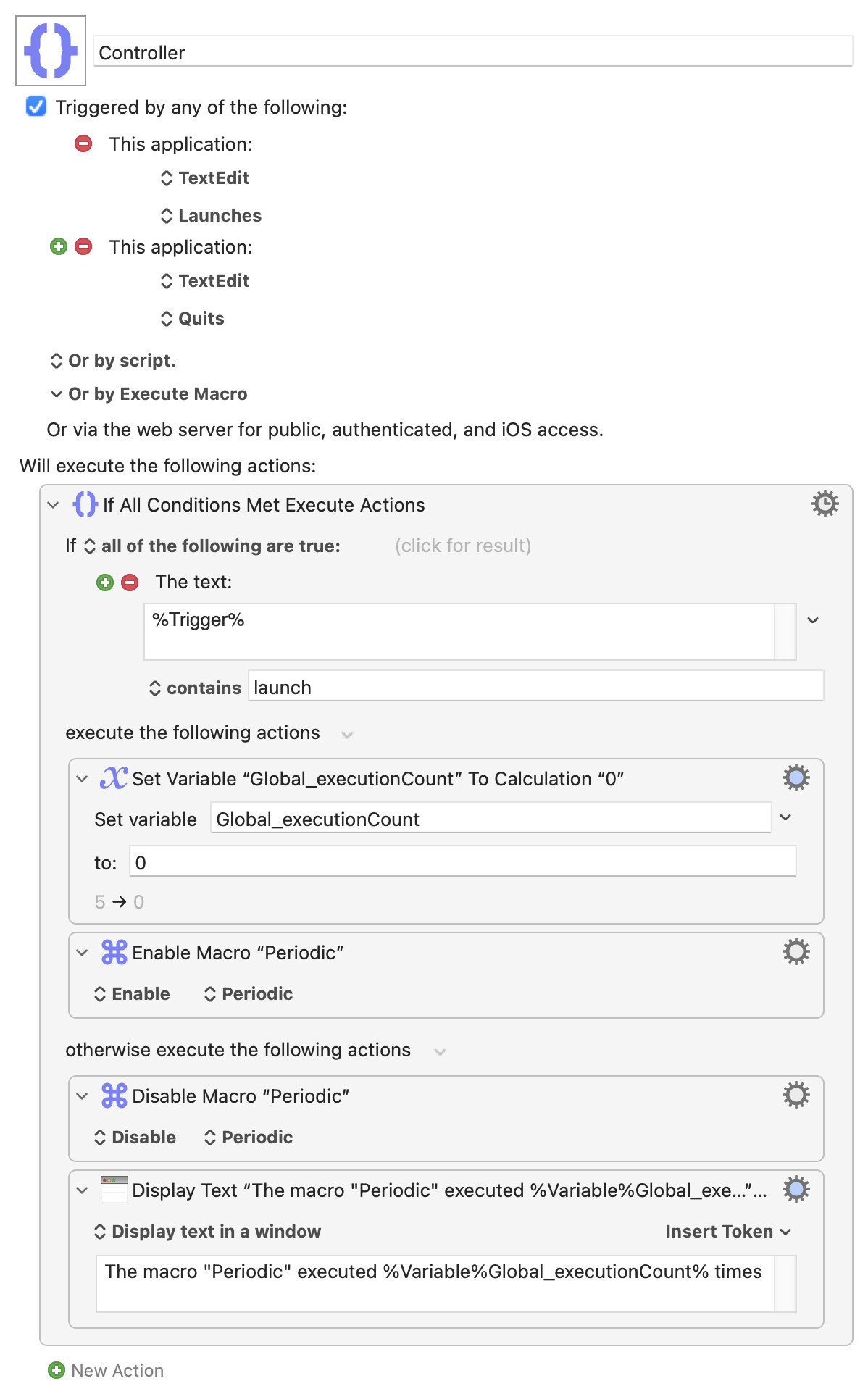
I think you are confusing this with another, similar, method that uses the "Set Macro or Group Enable" Action where:
Macro 2, with a periodic trigger, is disabled
Macro 1, triggered manually or with a "When application 'Teams' launches" trigger, sets your Globals, enables Macro 2, then exits
Macro 2 now executes every n minutes, as per its periodic trigger
Eventually Macro 3 (or you could include this functionality in Macro 1), triggered manually or with a "When application 'Teams' quits" trigger, disables Macro 2
I have reviewed your macro and (assuming I understand it) love its simplicity noting:
I do understand the process / thinking.
If you place the macro in a macro group that is only available for Teams then it only monitors and, if indicated, changes the screensaver settings only when Teams is running.
The one exceptions is that should Teams be running and FaceTime is using the camera then FaceTime's camera use will be treated as Teams' camera use (i.e., it will display messages and change the screensaver saver settings). This occurs when the FaceTime window is slightly under the Teams window so admittedly it is minor.
Is there a way to make sure that only Teams' camera usage impacts the screensaver settings?
It is my thinking that the macro should be placed in a macro group that is only available to Teams applications (else the FaceTime issue noted above would be far worse). Would you agree?
Testing further revealed that a consequence / result of i) placing in a macro group that is available only for Teams and ii) a periodic trigger is that it depending on Teams being the front application, which is good! This is what "limits" my observation in 2 to when FT / teams share the screen.
Why even when i) Teams is running and ii) Team is the front application does the macro not appear in KM Menu Bar > Cancel > List of Macros?
Really love it! Thank you!!
[UPDATE] The one thing to be aware of is that once the video teams video is competed, the user needs to wait for the screen saver rest message before closing Teams (i.e., closing Teams before too quickly may result on the screensaver not being rest.]
You are preaching to the choir. No excuses but part of the challenge is that my path to solution is limited day my limited skills, As I get more skilled the solutions should converge more and more with yours.
Your time and effort have been invaluable to me. Thank you sir!
Appreciated, I will need to read the link more closely to understand it.
Is my understanding correct that were I to i) Trigger Macro 1 manually (or When Teams launches with a Semaphore Lock to avoid repeated instances) and ii) Trigger Macro 2 which is disabled via the Set Macro or Group Enable" to initiate Macro 2 then Macro 2's periodic trigger would run n times and then return to Macro 1 for Macro 1 which would now include as its ending actions and IF STATEMENT that when Teams quits then execute Set Macro or Group Disable to stop Macro 2.
Is this correct? It is the your point # 4 that I am confused about.
I was awake very early this morning and took a deep dive into the intricacies of the macro noting:
i. The Macro Group and how it impacts on Teams' camera use, the periodic timer functionality, etc. Available in the applications vs Available while these applications are running vs others makes a huge difference and can save a lot of effort!
ii. The comment about finding a complete, concise, and simple solution (I.e., I redid 5 macros I wrote earlier this week in a far more efficient way).
iii. The separation of local / global variables and the naming convention. All variables in all macros revisited this morning, all variables follow teh same naming convention, all variables local save 4 across 59 macros.
iv. And more.
It has been a lot of time and effort on my part (and yours as well) but I have learnt a great deal and want to say THANK YOU!
Hoping to learn more from you and wishing you the very best in 2026, a year in which I hope all your wishes come true!
Don't fall into the pattern of having a "controller" macro that launches others then sits, paused, for many minutes (or even hours) before doing some important clean-up. Many things can kill the "controller" -- OS crash, KM Engine crash (rare, but can happen) and so on but, most commonly, you issuing a "Cancel All Macros" because a macro you're developing has run amok!
There's also the problem that the Engine has a maximum number of concurrently-executing instances (50 by default, and "nesting" Actions like "If" and "Group" count as extra instances here) and when that limited is reached the Engine exits and relaunches so all running macros are purged. This is a safety feature to stop runaway triggers, recursions, and similar from chewing through your system resources -- but if you've 20 paused controllers you've seriously reduced your available headroom.
Instead use the available triggers to get in, get done, get out. And if you can't find a suitable event-based trigger use a "periodic" that runs, checks state, acts accordingly, and exits.