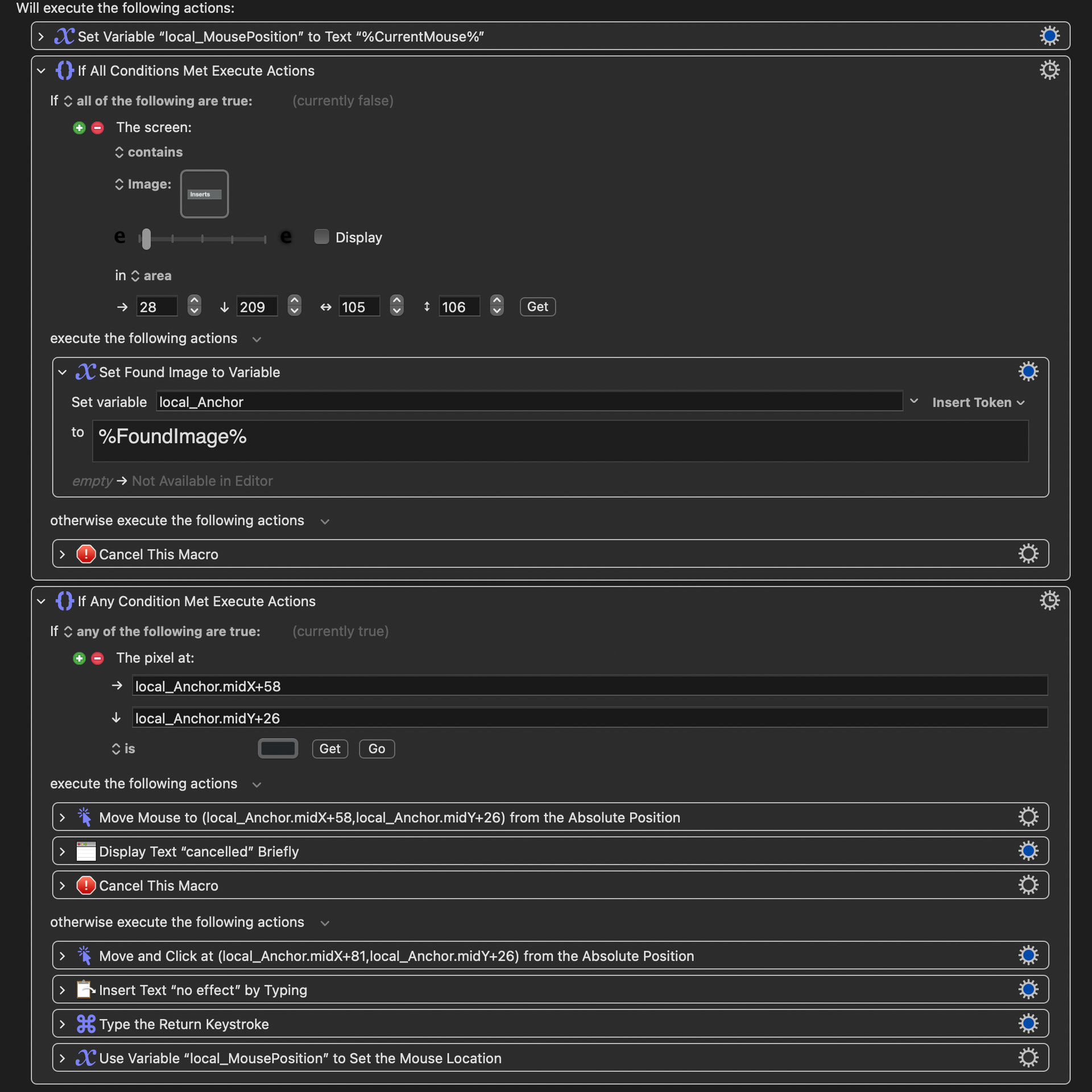
This runs inside Cubase (a DAW), on a panel that shows a list of effect "slots." Each slot can be empty (dark grey), engaged (light grey), or disengaged (blue) and show up at a specific spot in the row. The goal is: check that one pixel's color, and only click to remove the effect if something's actually in the slot (active or disengaged) — skip it if the slot is empty.
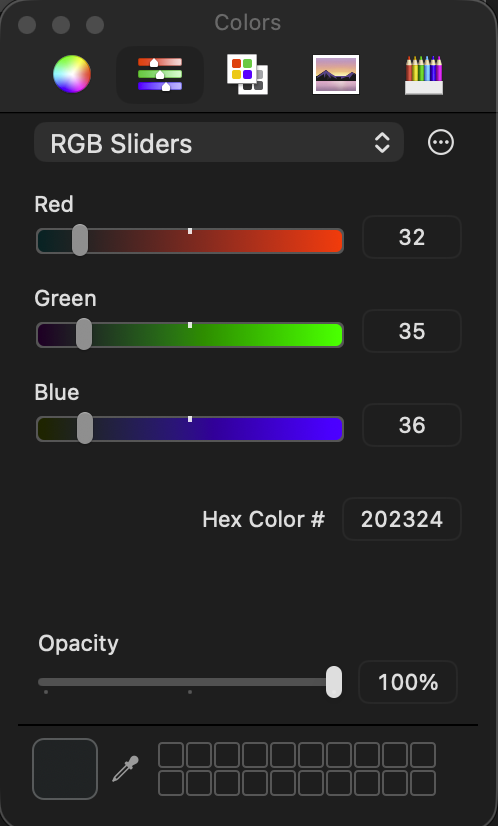
To tell "empty" apart from "something's there," the macro tests that pixel against the empty-slot color, dark gray, RGB 32, 35, 36. If the pixel matches that, it's empty and the macro cancels. If it doesn't match, it clicks to remove whatever's there.
The problem
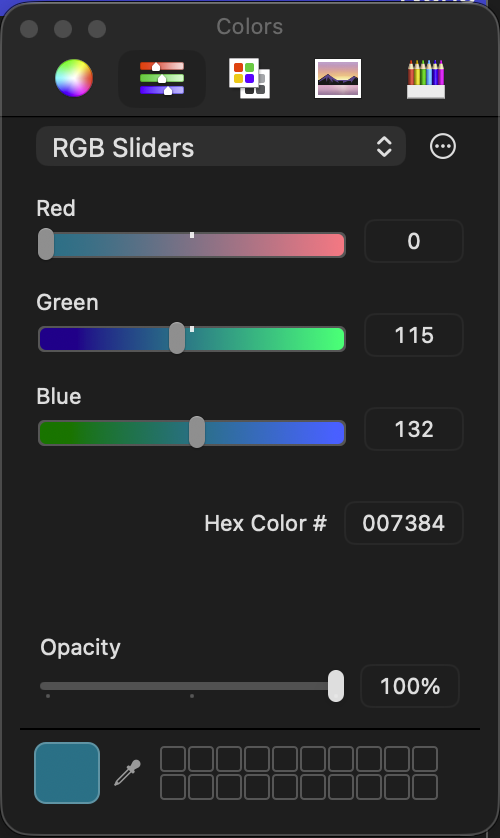
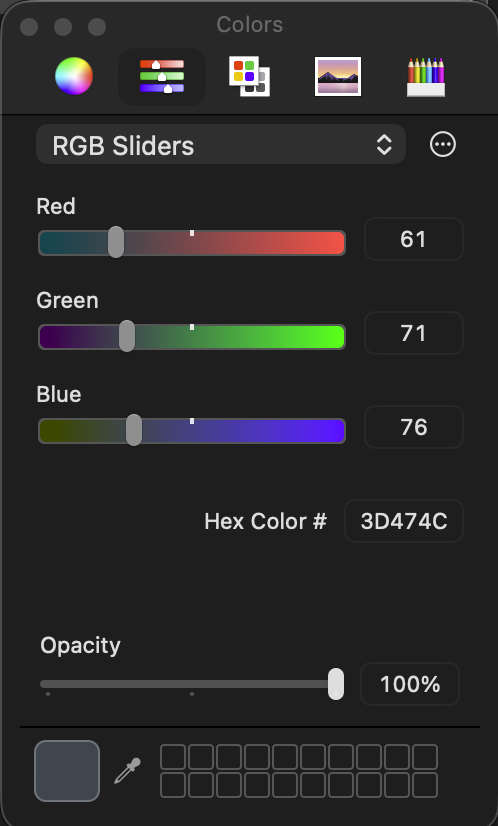
This works correctly when the slot is active (RGB 0, 115, 132) — the macro correctly sees it's not a match for the dark gray and clicks to remove it. But when the slot is disengaged/bypassed (RGB 61, 71, 76), the macro does not click — it behaves as though that pixel matched the dark gray empty-slot color, even though 61,71,76 vs 32,35,36 differ by 29/36/40 on each channel, well past the ~10% tolerance documented for the Is/Is not Pixel condition comparison. So one of the two "something's there" states works and the other doesn't, despite neither being anywhere close to the empty-state reference color.
I am unable to see the problem here, but I avoid this problem by using Find Image instead of checking pixels. Pixels can have unexpected values due to anti-aliasing and dithering, both of which are used in macOS. It may be relevant to know what kind of display you are using… a laptop screen or an external display, connected to what port? And lately I’ve been avoiding Find Image and using OCR instead, but in your case that approach may not work, since the word itself looks the same.
Erm... You can't screenshot more than your screen shows...
If you want your entire macro as an image, select the macro (to deselect any Actions in the macro) then Edit -> Copy As -> Copy As Image. You can then paste directly into the Forum's edit box or switch to Preview, ⌘N to make a new document from the Clipboard, annotate if required, and either Save if you want to keep it or ⌘A ⌘C to copy the now-annotated image ready for pasting.
Have you tried reversing your logic, putting the current "otherwise" Actions into the "execute" and the "execute" into the "otherwise", and testing for "is lighter than" or "is bluer than"? Either will give slightly bigger difference, so may work a bit better.
@Nige_S Thanks again for your comment. One of the VIPs of KM Forum.
Unfortunately never did get THAT pixel to work but I found another one that did. The only issue is that it is on the right side of a pane that can extend/contract so if I don’t have it fully extended it might fail. But I’ve set a reminder that pops up as Display Text to remind me of this before the macro cancels. 99% of the time the pane should be fully extended so shouldn’t be much of an issue.