Do you spend your day dragging windows back into place? I did. Every app opened wherever it liked, at whatever size it last had, and every new screen set-up meant tidying up again. So I built a macro that does it for me, and I now rarely touch a window to move it.
In advance to detailing the macro:
-
HUGE THANKS to Rob and Peter at Many Tricks who made this possible.
-
It is important to note that while this macro is based on Moom (which I highly highly recommend), it need not be, as I explain in the below section titled "No Moom? An idea for you". It has many advantages including the ability to define a finite number of Move & Resize commands each of which scales to different screen resolutions (and in my case nine) and combine them with other Moom features to create Chains and Layouts. The elegance of this approach is that by changing one of the underlying Move & Resize commands, everything built upon them also changes as well; simply brilliant!
What it does for you
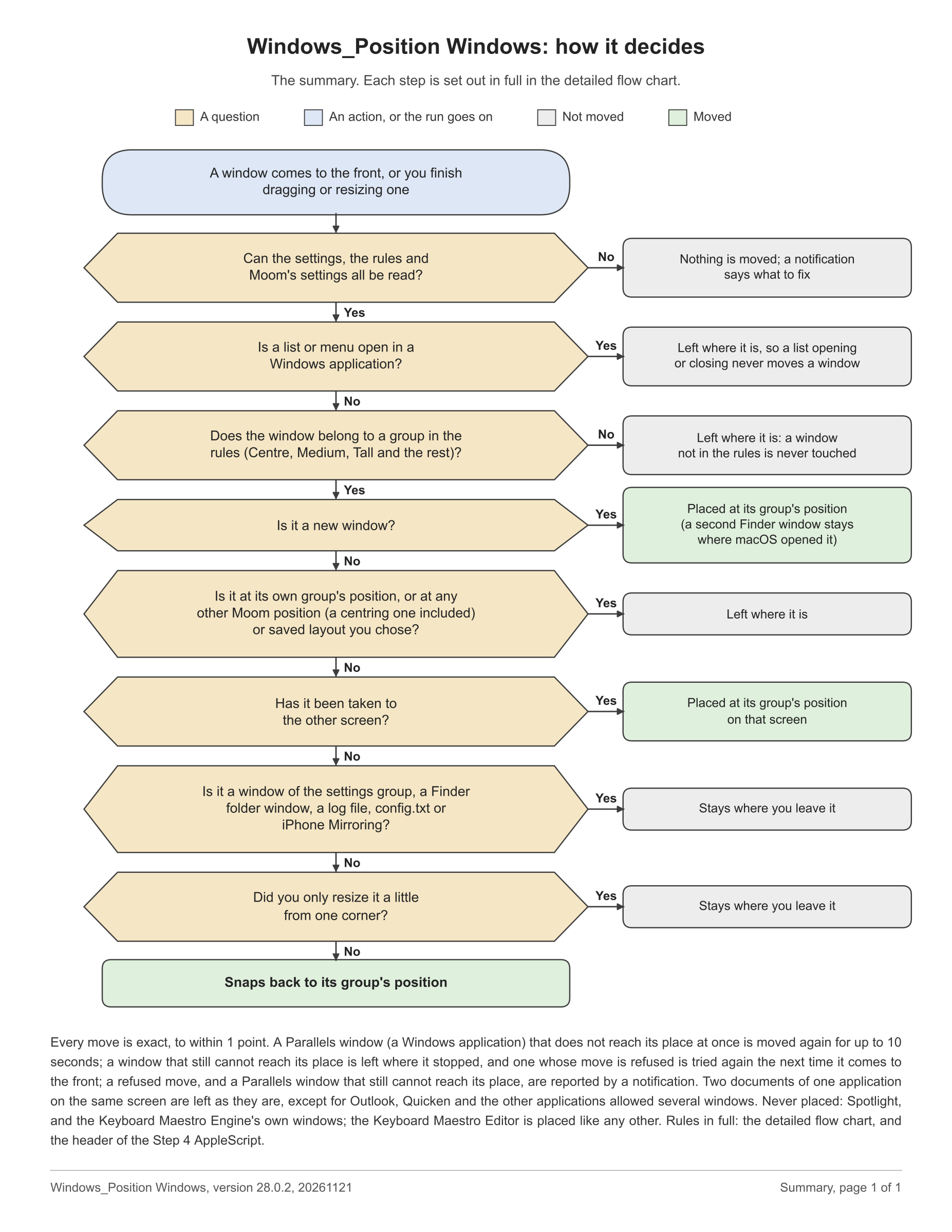
- Open a window, and it is already in place. Each window goes to its own position and size, to the point, the moment it comes to the front. No hot key, no click, no tidying.
- Drag it away by mistake, and it snaps back. You can exempt any window you like from this, and a small resize from one corner is kept: if you meant it, it stays.
- Choose another Moom position, and it stays there. The macro respects your choice. A window at any Moom position or saved layout is left alone.
- Move it to another screen, and it is placed there properly, at the right size for that screen.
- The same size on every screen, with or without the Dock, on the laptop or at the desk.
- One rule list for everything: Mac apps, Finder, Outlook dialogs, Settings windows, and even Windows apps running in Parallels Desktop. One place to look, one place to change.
- It tells you when something is wrong. A short notification points to a debug log that records every decision, so a fix takes minutes.
Start small
You do not need my whole rule list. A window that matches no rule is simply left alone, so you can start with a handful of apps and windows and add more as you go. Moom needs only the commands that your rules name.
How it works
Moom defines every position; the macro does the moving. Moom acts on whatever window is in front at that instant, so the macro never asks it to move anything. Instead, it reads Moom's settings file, works out the exact frame with Moom's own arithmetic, and moves the right window by its window ID with a small Swift program, move_window.
No Moom? An idea for you (not built)
Moom is only the source of the positions. It stores each command as shares of the screen (left, bottom, width, height). A second JSON could hold those shares for each position, in place of the Moom entries, and move_window would still do the moving. This needs a change to the part of the Step 4 script that reads Moom's settings. I have not built or tested it, but I would love to see someone try.
Requirements
Tested with Keyboard Maestro 11.1.1, macOS 27.2 and Moom 4.6. To build move_window you need Apple's Swift compiler (Xcode or its Command Line Tools).
Setting up
- In Moom, create the commands that your rules name, with the same names, in the folders "macOS - Move & Resize" and "macOS - Chain" (both set in Step 2).
- Build move_window into ~/Documents/Code/Windows/bin, where the Step 4 script runs it from, or change that path in Step 4:
swiftc -O -o bin/move_window move_window.swift - Import both macros. Windows_Initialize Position Windows Variables empties two global variables when the Keyboard Maestro Engine starts.
- In Step 2, set
debugLogFileto a path of your own. - In System Settings > Privacy & Security > Accessibility, give permission to the Keyboard Maestro Engine and to System Events. Allow the Keyboard Maestro Engine to control System Events when macOS asks.
- Write your rules in Step 3 (
Local_WindowPositions). The Step 2 and Step 3 comments explain every key. - For the first run, set
debugLogtotruein Step 2 and do what any notification says.
Known limits
- The script uses Medium only with my own two displays, which it knows by serial number. On any other Mac, groups that say Medium or Full use Full.
- move_window uses an undocumented macOS function (
_AXUIElementGetWindow) to find a window by its ID. A macOS update could stop it from working. - When many windows change at once, Keyboard Maestro has sometimes stopped all macros with "More than 50 simultaneous macros - aborting everything". I am watching this.
The macros (both in one file)
Windows_Position Windows.kmmacros (247.4 KB)
move_window, the helper program (source)
Swift Code
// move_window: moves one window, found by its window ID, to a given frame.
//
// Usage: move_window WINDOW_ID X Y WIDTH HEIGHT [centre]
//   points, origin at the top left of the main display (as Accessibility and
//   macOS's window list use them).
//
// With "centre" (a Moom chain of a frame then Centre, such as Tall,
// 2026-11-16): if the window will not take the size asked for (a settings
// window of fixed width, for example), it is centred on the frame at the
// size it keeps, as Moom's own Centre step would do.
//
// The window's owner is read from macOS's window list; the window itself is
// found among that application's Accessibility windows with the undocumented
// _AXUIElementGetWindow, which gives an Accessibility window's window ID.
//
// A move is done when macOS's window list has shown the window at the target
// frame (within one point on every side), unchanged, for 0.2 seconds. Parallels
// windows can show the new size, fall back to the old one and then settle, so
// one good reading is not enough. If the window has not settled within 1.5
// seconds, the move is tried again, up to twice. There is no other way of
// moving: on failure the program writes one line to stderr and exits 1.

import ApplicationServices
import CoreGraphics
import Foundation

let settleTime = 0.2      // seconds the window must stay at the target frame
let attemptLimit = 1.5    // seconds to wait for that before trying again
let retries = 2
let positionWait = 0.5    // seconds, at most, for the new position before sizing again
let pollInterval: useconds_t = 20_000

@_silgen_name("_AXUIElementGetWindow")
func _AXUIElementGetWindow(_ element: AXUIElement, _ windowID: UnsafeMutablePointer<CGWindowID>) -> AXError

func fail(_ message: String) -> Never {
    FileHandle.standardError.write(Data((message + "\n").utf8))
    exit(1)
}

let usage = "Usage: move_window WINDOW_ID X Y WIDTH HEIGHT [centre]"
let arguments = CommandLine.arguments
guard arguments.count == 6 || (arguments.count == 7 && arguments[6] == "centre"),
      let windowID = CGWindowID(arguments[1]) else { fail(usage) }
let centreIfRefused = arguments.count == 7
let numbers = arguments[2...5].compactMap(Double.init)
guard numbers.count == 4 else { fail(usage) }
let target = CGRect(x: numbers[0], y: numbers[1], width: numbers[2], height: numbers[3])

guard AXIsProcessTrusted() else { fail("No Accessibility permission for this process") }

func listedFrame() -> CGRect? {
    guard let info = CGWindowListCopyWindowInfo([.optionIncludingWindow], windowID) as? [[String: Any]],
          let bounds = info.first?[kCGWindowBounds as String] as? NSDictionary
    else { return nil }
    return CGRect(dictionaryRepresentation: bounds)
}

guard let info = CGWindowListCopyWindowInfo([.optionIncludingWindow], windowID) as? [[String: Any]],
      let pid = info.first?[kCGWindowOwnerPID as String] as? pid_t
else { fail("Window \(windowID) is not in macOS's window list") }

var windowsValue: CFTypeRef?
guard AXUIElementCopyAttributeValue(AXUIElementCreateApplication(pid), kAXWindowsAttribute as CFString, &windowsValue) == .success,
      let windows = windowsValue as? [AXUIElement],
      let window = windows.first(where: { element in
          var id: CGWindowID = 0
          return _AXUIElementGetWindow(element, &id) == .success && id == windowID
      })
else { fail("Window \(windowID) is not among its application's Accessibility windows") }

func setFrame(_ frame: CGRect) {
    var origin = frame.origin
    var size = frame.size
    let position = AXValueCreate(.cgPoint, &origin)!
    let sizeValue = AXValueCreate(.cgSize, &size)!
    // Size, position, size again, then position again: Finder refuses position
    // first (the Trash window, 2026-11-15), and a window too low for its new
    // size is cut short until it has been moved. Each later step waits until
    // macOS's window list shows the step before it done (at most positionWait):
    // Finder takes about 0.25 seconds to move the Trash window, most windows
    // about 0.03. The last position is for a window moved to another screen:
    // macOS lands it off by the difference in height until its size is set.
    AXUIElementSetAttributeValue(window, kAXSizeAttribute as CFString, sizeValue)
    AXUIElementSetAttributeValue(window, kAXPositionAttribute as CFString, position)
    waitFor { abs($0.minX - frame.minX) <= 1 && abs($0.minY - frame.minY) <= 1 }
    AXUIElementSetAttributeValue(window, kAXSizeAttribute as CFString, sizeValue)
    waitFor { abs($0.width - frame.width) <= 1 && abs($0.height - frame.height) <= 1 }
    AXUIElementSetAttributeValue(window, kAXPositionAttribute as CFString, position)
}

// Waits until macOS's window list shows the window meeting the test, for at
// most positionWait.
func waitFor(_ test: (CGRect) -> Bool) {
    let start = Date()
    while Date().timeIntervalSince(start) < positionWait {
        if let listed = listedFrame(), test(listed) { return }
        usleep(pollInterval)
    }
}

func atTarget(_ frame: CGRect?, _ goal: CGRect = target) -> Bool {
    guard let frame else { return false }
    return abs(frame.minX - goal.minX) <= 1 && abs(frame.minY - goal.minY) <= 1
        && abs(frame.width - goal.width) <= 1 && abs(frame.height - goal.height) <= 1
}

// Waits until the window has stayed at the goal for settleTime; false if
// that has not happened within attemptLimit.
func settled(_ goal: CGRect = target) -> Bool {
    let start = Date()
    var atTargetSince: Date?
    while Date().timeIntervalSince(start) < attemptLimit {
        if atTarget(listedFrame(), goal) {
            if atTargetSince == nil { atTargetSince = Date() }
            if Date().timeIntervalSince(atTargetSince!) >= settleTime { return true }
        } else {
            atTargetSince = nil
        }
        usleep(pollInterval)
    }
    return false
}

// With "centre": the frame the window settles at, once it has stopped
// changing for settleTime (within attemptLimit), or nil.
func stoppedFrame() -> CGRect? {
    let start = Date()
    var last: CGRect?
    var since = Date()
    while Date().timeIntervalSince(start) < attemptLimit {
        let now = listedFrame()
        if let now, let last, atTarget(now, last) {
            if Date().timeIntervalSince(since) >= settleTime { return now }
        } else {
            last = now
            since = Date()
        }
        usleep(pollInterval)
    }
    return nil
}

for _ in 0...retries {
    setFrame(target)
    if !centreIfRefused {
        if settled() { exit(0) }
        continue
    }
    guard let kept = stoppedFrame() else { continue }
    if atTarget(kept) { exit(0) }
    if abs(kept.width - target.width) <= 1 && abs(kept.height - target.height) <= 1 { continue }
    // The window kept another size: centre it on the frame at that size.
    let centred = CGRect(x: (target.midX - kept.width / 2).rounded(), y: (target.midY - kept.height / 2).rounded(),
                         width: kept.width, height: kept.height)
    var origin = centred.origin
    AXUIElementSetAttributeValue(window, kAXPositionAttribute as CFString, AXValueCreate(.cgPoint, &origin)!)
    if settled(centred) { exit(0) }
}

func text(_ frame: CGRect) -> String {
    "\(Int(frame.minX)),\(Int(frame.minY)),\(Int(frame.width)),\(Int(frame.height))"
}
fail("Window \(windowID) is at \(listedFrame().map(text) ?? "an unreadable frame"), not \(text(target)), after \(retries + 1) tries")
How a window is placed (one-page flow chart)
Try it, cut it down, make it yours. Questions and improvements are very welcome.
While I find it to be extremely helpful, I hope you do as well!