Hi everyone,
Is it possible to detect “normal” keys like TAB or F10 while the Prompt With List action is running?
I would love to execute another macro if TAB is triggered by the user.
Hi everyone,
Is it possible to detect “normal” keys like TAB or F10 while the Prompt With List action is running?
I would love to execute another macro if TAB is triggered by the user.
If you mean "Do hot key triggers work when the Prompt with List dialog is up" then yes, they do.
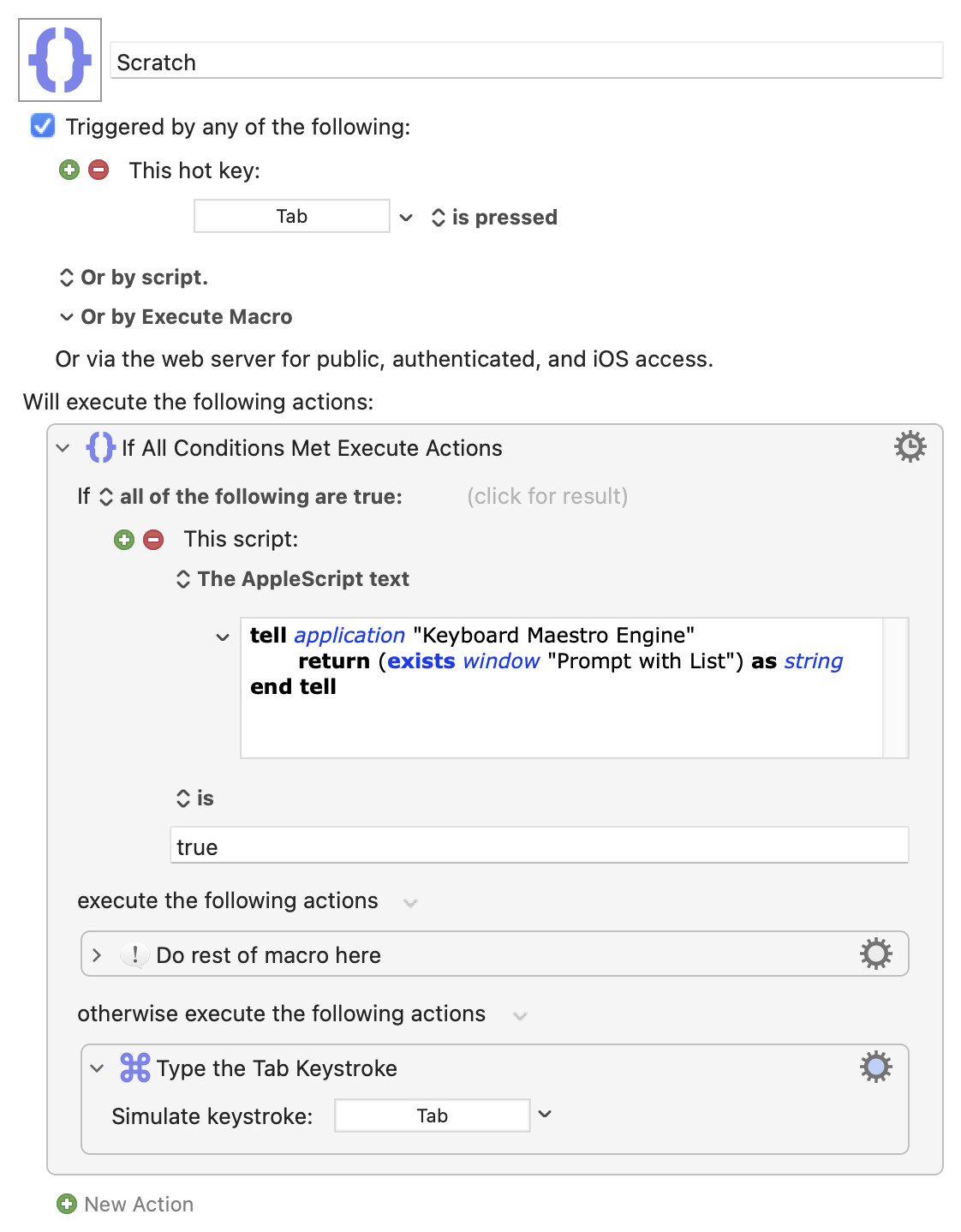
If you want to have that trigger only be available when the dialog is showing, then I don't think so unless you enabled the macro, put up the prompt, and later disabled the macro again. But you could always trigger a macro then test in that to see if the prompt is up:
I wouldn't use that with a "Tab" hot key, though -- I use "Tab" far too often to have it fire a macro, and cause a slight delay, on every press!
Nice, thanks for the KM prompt window detection script.
With this setup, I agree that TAB is not a good fit.
It would be nice if we were able to natively detect keys in the same macro while the Prompt window is open, though.
You can't -- the macro's execution is paused until you either pick from the list or cancel the Prompt.
Another way round that is to launch an asynchronous macro immediately before you execute the "Prompt" Action -- for example, this method of moving the insertion point to the end of the pre-filled prompt text.
If you explain what you are trying to do then I'm sure people will chime in with ideas.
Nice trick, Thanks Nige_S!
In the meantime, I took another direction for my system.
Coordinating hotkeys to work with just the Prompt With List window is an interesting idea.
It looks like you may have settled on a solution.
If not, you might consider making a dedicated Macro Group with hotkey macros.
Instead of enabling/disabling actions, as @Nige_S suggests, use Activate/Deactivate Macro Group before and after the Prompt.
I have found that activate/deactivate group is a bit quicker than the enable/disable macro(s), especially in the case of multiple macros.
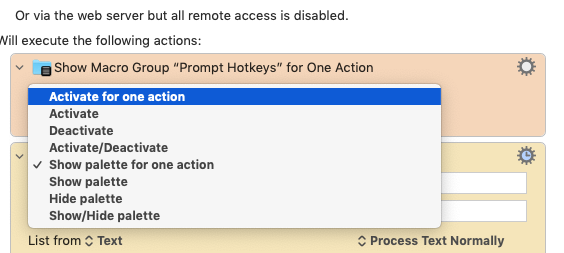
Place a Show Macro Group action with "Activate" or "Activate for one action" before the Prompt action, depending on how long you want the hotkey to be available.
Set the corresponding options in the Macro Group:
Activated/deactivated when:
Activated for one action when:
To Deactivate the Macro Group and also handle the Prompt being canceled:
Uncheck the "Failure Aborts Macro" and "Notify on Failure" options in the menu under the gear icon  of the Prompt From List.
Place a Deactivate and Cancel This Macro in the Then section of an IfThenElse action. Set it to check if "Last action result:" "is not OK". In the Else section, place just a Deactivate action.
For a visual reminder of the the hotkeys, use a palette:
Shows a palette for one action when:
Shows/hides a palette when:
Click the Palette Style editor and check "Trigger"
Change the first "Show Macro Group" action in your main macro to "Show Palette for one action" or "Show Palette".
Position the palette to whatever edge of the Prompt you like and it will remember the position.
Even though the palette will appear first and the Prompt second, they should appear almost simultaneously as if they are a single integrated unit--at least on on my set up, they do.
If you are using the hotkey macro to choose what to do with the results of the PWL, you can do something similar to testing for the value of the %PromptWithListModifiers% token with a SwitchCase action.
In the hotkey macro save a description of the type of action to be peformed to a global variable.
Type a Return or Enter key to Prompt With List with a Type a Keystroke action.(To be extra safe, use the Send To option to type to the Keyboard Maestro Engine). I surround it with Mute and Unmute actions, because the Return causes a System Beep on my set up.
In the main macro use a Pause Until action to wait until the dedicated hotkey Macro Group is inactive.
Use a Switch/Case action that tests the global variable after the Pause action. Use the Otherwise option to set default action if no HotKeys are pressed.
Here is a demo with the hotkey related actions colored orange and yellow. Green actions are for processing PWL output based on the pressed hotkey.
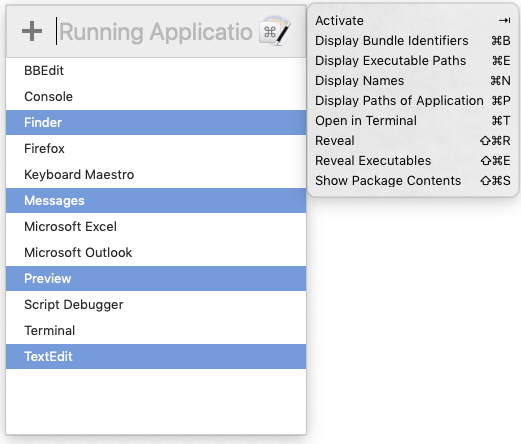
The macro displays running apps in a Prompt With List and a palette of hot key macros that type Return into the Prompt With List.
To use just the hotkeys without the palette, change the first action from "Show Palette for one action" to either "Activate" or "Activate for one action".
The AppleScript after Prompt looks up info about the selected apps and outputs a JSON dictionary with these keys:
Values are linefeed separated text.
A "Set Variables to JSON" action in the main macro converts the keys to variables prefixed with "local": localBundleIDs,localExecPaths,localNames,localPaths.
Actions in a Switch/Case action process the info in the variables based on the described action in the global variable (set by a hotkey macro).
USAGE:
Enable the two macro groups and their macros.
In the "Prompt With Hotkey Coordination" Macro Group, run the macro titled "Prompt for Running App Info".
A Prompt selection with no HotKeys activates the first selected app.
"Activate" (TAB) does the same thing as the default.
"Open in Terminal" (⌘ + T) opens a Terminal window to the parent folder of first selected app's executable as the working directory.
All other hotkey commands act on multiple selections.
Prompt With Hotkey Coordination.kmmacros (51.6 KB)
Thank you so much for the extensive answer @CRLF !
It’s a bit overkill for my specific case but it’s amazing to see that it’s possible to combine a Prompt With List window and a macro palette.
I bookmarked your explanation for the next time I might encounter a similar situation.
Cheers!