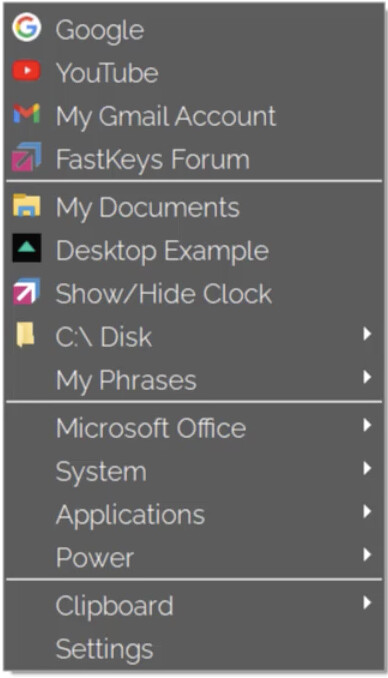
I started using FastKeys on Windows and discovered a great function, Start Menus, which allow you to invoke a menu of chosen links, macros, folders (with structure available) and preferred files, like in the screenshot.
You could do pieces of this very easily in Keyboard Maestro. You could probably do all of it in Keyboard Maestro, though not very easily—the navigable folders in particular will be a challenge.
There used to be a number of apps that can do this for you—DragThing was one of my favorites, but it's discontinued.
Our company makes an app called Butler that can do probably 99% of what I see in the screenshot, but it's a very complicated program to learn to use well, and I wouldn't recommend it unless you want to invest the time to do so—it was designed for another era of "power users" who loved spending a ton of time learning all the things their apps could do. In today's world, it would probably be described as bloated and overly complicated.
You might look at BetterTouchTool, which I believe has a similar feature. Somewhat like Butler, though, it's a large powerful program with a ton of features that take a while to figure out.
Getting back to Keyboard Maestro, the simple way would be to use a Prompt With List, and you just add the items you want to get to to the prompt. But the sub-folder navigation won't be via pop-out sub panels, but opening new lists for each additional folder you drill into.
Your Prompt would need some way to distinguish apps and documents (which will just open) from folders (which require sub-navigation). It's probably doable, but adds some complexity to the macro. Maybe others will have better ideas...
In addition to aps, files and folders, it also handles favorite URLs, and email addresses. And presents either an HTML prompt or a list prompt with shortcuts.
Apologies for adding something tangential to the thread, but I appreciate when someone has a product they sell and knows when to discourage someone from purchasing it.
While I'd always recommend Keyboard Maestro for this sort of thing, since you'll be using it for so much more besides, you might also like to take a look at some launcher utilities -- Alfred, Raycast, LaunchBar and Butler (despite @griffman's reservations) spring to mind.
Best of all, they can all work with Keyboard Maestro, and combining KM with a launcher utility gives you far more functionality than using either alone.
Hi @griffman , experimenting a bit with keyboard maestro prompts with lists, palettes and third party apps, I agree that probably the best thing is to use a combination of all of these. Thanks for the apps suggestions, but I discovered a neat app, Folder Peek, that basically replicates what FastKeys does with pc folders, but much better and with more options. Probably it's what DragThing used to do. I have BetterTouchTool, but never really used it, and since Folder Peek and especially keyboard maestro work very well for me I think I want deepen my knowledge about that app.
As for macros and shortcuts, the best way is still the way keyboard maestro works, with conflict palettes and macro palettes.
Thank you @mrpasini , your app seems very well thought! I downloaded it and started configuring it, but as I discovered, probably for the moment using conflict palettes and Folder Peek is a good and straightforward combo, enough for my needs. Still I'm curious to learn, when I will have more time, how your macro works and how could it fit my workflow.
Yes, a launcher like one of those could be a solution, even if I'm not sure it could replicate the immediacy of an app like Folder Peek or that native function of FastKeys. Still thanks for the suggestions!
Macros are always disabled when imported into the Keyboard Maestro Editor.
The user must ensure the macro is enabled.
The user must also ensure the macro's parent macro-group is enabled.
System information
macOS 26.6.1
Keyboard Maestro v11.1.1
Replace the items in the green box with those you want to open or launch—you can drag them in from Finder, and the path will appear. If you want separators, copy and paste the lines I have there—the code checks for them and skips processing those.
The macro will then show those items in a Prompt With List box. Choose an app or document, and it will launch/activate or open. Choose a folder, and after a brief pause, that folder's contents will appear in another Prompt With List. This will continue until you select an app or document, or press Escape.
It's basic and fugly, but it does work. I personally wouldn't use it :), but it was fun figuring out how to make the prompt continually reappear with new data each time.