As a start here is what I am trying to do and the problem.
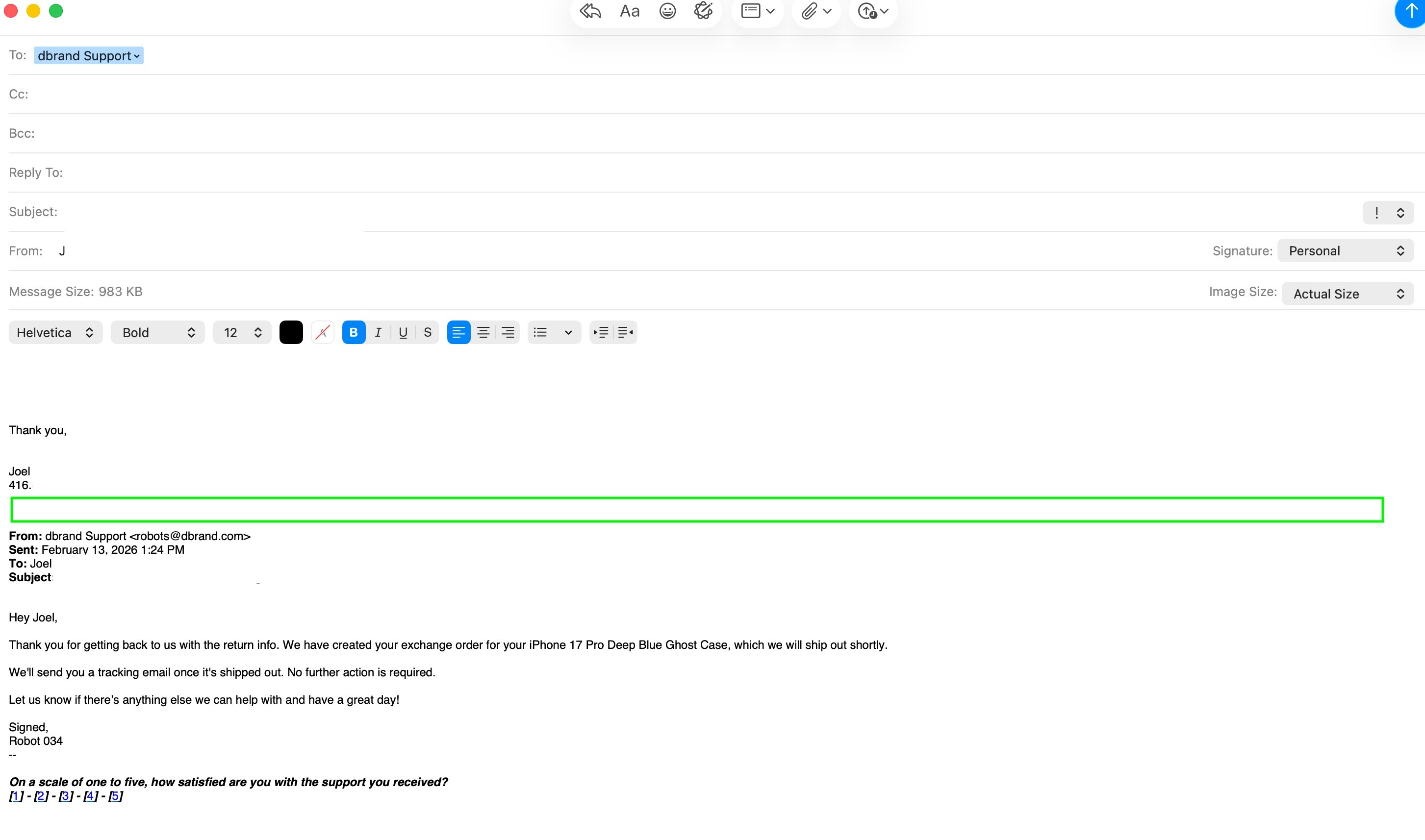
I am trying to replace the Apple styled header with an Outlook styled header as noted by the green box in the below image (note: I will discuss the red box below).
If I use RegEx to search and replace for the Apple styled header and replace it with an Outlook styled header that contains formatted text i) I can successfully replace the text in header (see the green box) BUT ii) I lose the "line separator" that was previously present (see the red box) and iii) the Outlook styled header looses its formatting (see the green box, the From:, Sent: To: and Subject: are no longer bolded), as can be seen in the below image.
a) If I copy the text form the e-mail to the clipboard and copy it back to the e-mail without doing anything to the clipboard text then all the formatting is perfectly restored (i.e., dividing line / red box, etc.) and resembles the first image! There is also a coloured icon in the top left corner of the text in the clipboard, see the purple box in the below image.
b) If I copy the very same text from the e-mail to the clipboard, make the change to the Apple styled header and copy it back to the e-mail then the formatting is lost per the second image! There is also a black and white icon in the top left corner of the text in the clipboard (i.e., the coloured icon has been replaced by a black and white icon, see the purple box in the below image.
c) With respect to 3b) I also note that most of the formatting up to and including the replaced RegEx is lost while the formatting below the replaced Apple header appears to be maintained (i.e., there is text below the posted images that have maintained their colour formatting).
The icon shows which app the Clipboard contents came from -- Mail in the first, KM in the second.
For the rest of it -- the second quickest way to get close to what you want to do is to Forward the email, copy the contents of that, close the draft, Reply to the email, delete the contents and Paste, move the insertion point to the top and get rid of the 3rd and 4th line.
The first quickest way to make your emails look like they were sent from Outlook is... to use Outlook.
Remember that what you are doing, in the way that you are doing it, is faking an Outlook reply. That's why you lose the separating line -- that's styling on an HTML div, not text you can copy to the Clipboard.
A Clipboard S'n'R looks for text to replace, ignoring styling. More correctly, the replaced text inherits any styling from the found text. Try putting this into a TextEdit document:
I already have the first header fully covered / solved. The below group of macros takes care of the that problem in case anyone else is interested, including the "dividing line".
I am now working on the second header (i.e., in case the sender responded using Apple mail) . This can be seen in teh first image I posted (i.e., the green box is the second header).
The above proposed solution doe snot deal with the second level header.
And what would be the fun it that?
Agreed, it took me a while to figure out how to do it when dealing with the first header.
Appreciate the understanding.
As the found text is not styled then the replaced text will not be styled. Got it! Important thing to know!
So essentially I am back to i) using Outlook or ii) three RegEx copy / pastes as noted in my above post!
The other point worth noting is that Outlook is not the perfect solution because unless the "second level header" is reformatted teh e-mail thread will still have Apple style headers. Hence the effort.
The found text may or may not be styled -- it depends on what you are searching. In this case it probably is styled, since you are Copying from the email body, so your replacement text will have that style -- but that won't be obvious if said style is the email default!
Oh -- I thought you were only changing the current reply line. If you are changing all of them to fit your (or rather Microsoft's) conceit of what a reply line should look like then I suggest you bounce some replies to and fro between Outlook and Mail-with-your-macro (or even Mail with and without your macro).
I worry that by converting the email body to styled text you're removing the semantic HTML that helps the clients make sense of the structure of the email, which may cause problems in the future. (Analogous to how you can format a web page using only <p> tags with different classes and styles to make it look like there's different headings, body text, lists, and so on -- but you lose a lot of meaning if you don't use <h1> for your first level header, <ul> for your unordered lists, etc.)
I did some testing and the part that I don’t understand is that the part of the text that the RegEx Search And Replace does not touch / replace looses its formatting as well.
I used a RegEx to search and replace for the portion of the email from the “red box” down hoping / thinking that the top portion would maintain its formatting, including the dividing line, and that I could copy this back to the email.
I was both disappointed and surprised that this portion of the text which was not replaced / touched by the RegEx lost its formatting (i.e, the dividing line disappeared).
It seems that merely being searched even without being replaced strips away some formatting, such as the dividing line. Why is this, what is the reason?
I prefer Outlook’s approach because I find the dividing line easier to identify the separate responses and I like the retention of the cc recipients, it is more informative.
The change I am trying to make is to the header, I want to maintain all other aspects formatting of the e-mail to your very point.
It has nothing to do with the S'n'R -- try Copying a similar block containing the divider and Pasting it into TextEdit.
The horizontal line comes from a style on an HTML div -- there is no actual line, it's just how your email client is rendering the HTML. That doesn't carry over to styled text so it is "lost" when you Copy to the Clipboard and start treating it as RTF (rather than HTML).
Try it yourself -- manually Copy the block then use KM's "Display System Clipboard" Action.
This is what I mean about you losing semantic data -- you are going from "here is my reply, here is what I'm replying to" to "here is my reply which includes all the text from before". Visually similar, semantically different.
Have you tried changing the S'n'R from "All Matches" to "First Match", so it only matches the first?
Agreed. Copying the text in a Mail response that includes the dividing line into the System Clipboard and pasting it from the System Clipboard into Text Edit results in no dividing line.
But -- and here is where I get lost -- if it has nothing to do with Search And Replace then why:
i) If I copy the Mail message into the System Clipboard and then paste it back into the Mail message all the formatting, including the HTML dividing line is there.
ii) If I copy the Mail message into the System Clipboard, run it through and Search And Replace and then paste it back into the Mail message the dividing line disappears. The only difference is the Search And Replace.
I understand that the replacement text inherits the formatting of the text it replaces (which you clearly demonstrated yesterday) but the Search And Replace is somehow impacting the HTML dividing line because it is the only difference between i) and ii) above.
I have tried changing the gear icon to first match only an dit makes no difference.
You're forgetting our previous conversations about clipboard flavours. Mail -> Clipboard -> Mail will use the absolute best flavour for Mail (probably, though I haven't checked, com.apple.WebKit.custom-pasteboard-data), while KM's S'n'R will work with the "styled text" RTF version.
When asking about S'n'R it helps to provide both sample input and desired output text else people have to guess and you get a lot of "Well, it works for me...". Plain text should be good enough in this case, people can always apply their own formatting for testing.
There's nothing that can be done about that line anyway (unless you're going to change to working with raw HTML). I'm talking about the "it changes all the attribution lines and I only want to change the first" problem.
I took a bit of brute force approach and got it working though it is not as elegant as I would like. The solution was to put the dividing line back once everything else is completed -- not elegant, but it works.
It is on my list of items to revisit based on i) amount I actually use this and ii) as my skills get better (which I hope they will). Perhaps I just need to get use to Apple head style!
Should anyone be interested, the full macro is here:
As you may / may not have figured out yet, I am determined to become proficient so I kept working on the subroutine to remove the secondary / deeper Apple styled header and stumbled across the below:
How simple it is compared to the earlier subroutine above (i.e., no system clipboard needed at all) and the rest of the macro (need to capture any date)!
I suggest / think that it can be looped to convert all Apple styled headers to Outlook styled headers subject to the assumption that all conversations may / may not be between the same people (i.e., I could have been brought into the conversation mid stream) which is why I have yet to loop it.
I suggests / think that I may be able to replace the entire macro by two loops of this subroutine as the first two headers are definitely between the same people.
One area for improvement / input is the Step 2 teal coloured action, is there a better way than repeating 25 tabs (note: I searched the internet but could not find one)?
What do you think about the simplicity of this approach?
I prefer macOS Mail's interface over Outlook's interface; and
I prefer Outlook headers over macOS Mail's headers (i.e., I find macOS Mail's headers lack information after 2+ exchanges in terms of who was included on the thread, who said what, etc.)
I have been quietly working on the macro and have significantly advanced its accuracy, methodology and robustness.
I thought that I would share it in case anyone else is interested and attach the following items:
A document detailing the architecture, functionality and thought process behind the macro which can be found here
A Python Script that does most of the heavy lifting (I developed it with Claude and Copilot) which can be found here
The only item missing is the Named Clipboard which I do not know how to upload but am hoping someone can assist me. It is critical to the Outlook styled header rebuild as it contains the grey dividing line that separates e-mails. While I may not be able to upload it, I can certainly tell you how to create it.
Include a "Set Named Clipboard" Action in your macro, maybe wrapped in an "If" so you don't set it if it already exists, or in a separate macro that your documentation tells the user to run once before using the main.
It'll never work for me (your docs hint at the "why") so I can only read the macro. I stopped at:
Am I missing a "Copy" or "Set System Clipboard" Action prior to that? If not, why are you deleting something I previously copied -- I may have wanted that!
I can't find any mention of that Global in your documentation, and a quick search of that for "install" or "setup" (and variants) shows nothing either. I can guess what I should do but, given the (overwhelming!) completeness of your documentation, the lack of explicit instructions seem a strange omission.
As to the documentation -- I'm going to keep a link to that so I can see how I should be doing things. Wowser! But can I suggest a table of contents and a TL;DR summary at the top?
The Named Clipboard contains the "dividing line" which as you explained to me is macOS Mail "tag generated field" and cannot be reproduce in RTF. The contents in the Named Clipboard appear blank!
The only way I know of reproducing it is manually as I did. Though I could provide instructions for this I think I will create a video and post to here as it will be clearer and easier fro others.
I am very curious, why will it never work for you?
With all the assistance you have provided me I would welcome the opportunity of providing something that you can / will use?
Appreciated. It is a holdover from an earlier test version. Now removed!
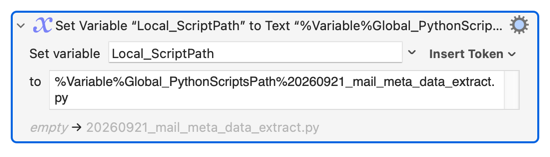
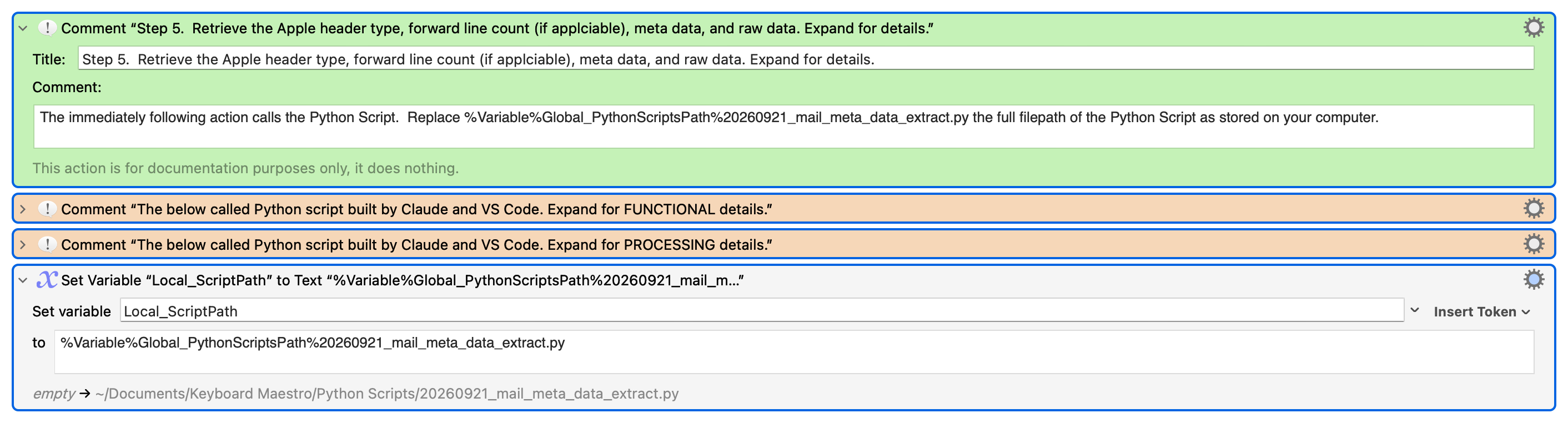
Global_PythonScriptsPath is the path for the folder where I am currently storing all my Python Script . I did not include it in the document as i) I did not want to assume that everyone had to or would follow approach and ii) the document focuses on the metadata extraction, which this is not.
That said, your point is well taken and I have expended to commentary in the Step 5 to explain this further.
The attribution line is localised -- one reason I hinted at using Data Detectors previously instead of rolling your own.
The point is that if your macro uses a Global, any reference to that Global will return nothing if that Global has not been given a value. So, for example:
It's way more important to document Globals than Locals, and a good idea to check for validity in your macro. And this Global variable is certainly part of the "architecture, functionality and thought process" here
Don't bother on my account!
Email used to be a thing of beauty -- proper top-quoting giving context to every response and in-line quoting when multiple points needed to be addressed.
Then the office -- and particularly the Office -- drones got their hands on it, no-thought-required bottom-quoting of entire emails (and all previous replies!) became the norm, and it all went to shit...
I fought against that for years by using Mail and the QuoteFix plugin, in the hope that others would see how much better email was when done properly -- stupid me!
And now Mail plugins are dead and I have to use Outlook (no Apple Mail support for Exchange Shared Mailboxes), I've given up on the Golden Age ever returning and am now part of the problem. But since I also know that most people are too busy replying ASAP to emails to properly read what they're replying to, I no longer care...
Apologies, I missed your previous hint at using Data Detectors.
I just now checked and I must be missing something in that I don't see any Data Detectors in the macOS the Attribution Line when I hover my mouse over the Attribution Line. It was suggested in one tutorial / video I saw highlighting and CONTROL + CLICK / right button mouse click the Attribution Line would reveal the Data Detectors but this too failed.highlighted text.
I would much rather access and use Apple's Data Detectors than create my own -- even though they are already created -- but how do I access them?
Point taken and understood.
Will post an updated version of the document later in the day in case anyone wants to the macro.
I could not agree more. I cannot tell you how many hours I spend reformatting e-mails so that they are readable and the responses "are tied" to the relevant item/ paragraph.
Agreed!
Amazing plugin! It does exactly what I want to do!
I am saddened to read this part of your e-mail!
I was all set to download the plugin and give it a go.
What was the reason for killing Mail plug in?
Again, I agree with you but am being a bit more resistant, hence the macro.
+++++++++++++
As noted above I would appreciate any assistance or insight you can provide with:
Accessing macOS Mail's Attribution Line Data Detectors, both for Forward and Reply.
Apple switched from the Plugin architecture to Extensions -- I assume for security reasons, but a web search will tell you more. For whatever reason, nobody's made an equivalent for "new" Mail.
As always, I am here to learn so please help me understand this better as I have spent the last few hours looking into this:
As far as I can tell Mail's Data Detectors are contained in NSDataDetector which is an Objective-C/Swift class in the Foundation framework. As I do not know how to code in Swift and my Apple Script skills are very limited, I do not know how I could / would easily implement this. Is there a way as there is no supported mechanism to call it directly from Python without writing a native extension or shelling out to a separate Objective-C tool.
As to its ability per both Claude and ChatGPT NSDataDetector is purpose-built to detect actionable data — phone numbers, postal addresses, calendar dates, URLs, and transit information — for use in UIKit/AppKit affordances (tap-to-call, add-to-calendar, etc.). It has no concept of email thread structure. It cannot recognise "On Monday, April 14, 2025, at 3:22 PM, James Cooper <jbc@example.com> wrote:" as an Attribution Line, nor can it recognise the "Begin forwarded message:" block as a Forward Header. Those are email client conventions, not data types Apple has ever modelled in NSDataDetector.
The only meaningful item that the NSDataDetector can detect is the date fragment embedded within an Attribution Line (the "April 14, 2025 at 3:22 PM" portion), but it has no awareness of the surrounding structure — the sender name, the email address, or the "wrote:" terminator — and no concept of what the whole construct signifies in an email thread. So even the partial overlap with its date-detection capability is not useful here.
With the above in mind -- and I have no idea whether it is accurate or not -- is it even possible to use Mai's Data Detectors?
I am further considered your concept that I have localized the Data Detectors and would very politely like to explorer that further.
While I agree that the custom Python regex patterns were purpose-built, they operate directly on the raw MIME data stored within the mail headers. While I am not referencing the DSDataDetector variables names (which may not be possible) I am pulling the raw underlying data.
Why is this a limitation or weakness*?
NOTE: If 2. above is correct then this would the only way of doing it (i.e., Mail's Data Detectors cannot be used)!
Agreed, an hour of reading suggested largely, if not exclusively, for security!
And who knows, with a little luck and lot of learning, this may the lead to the first replacement.