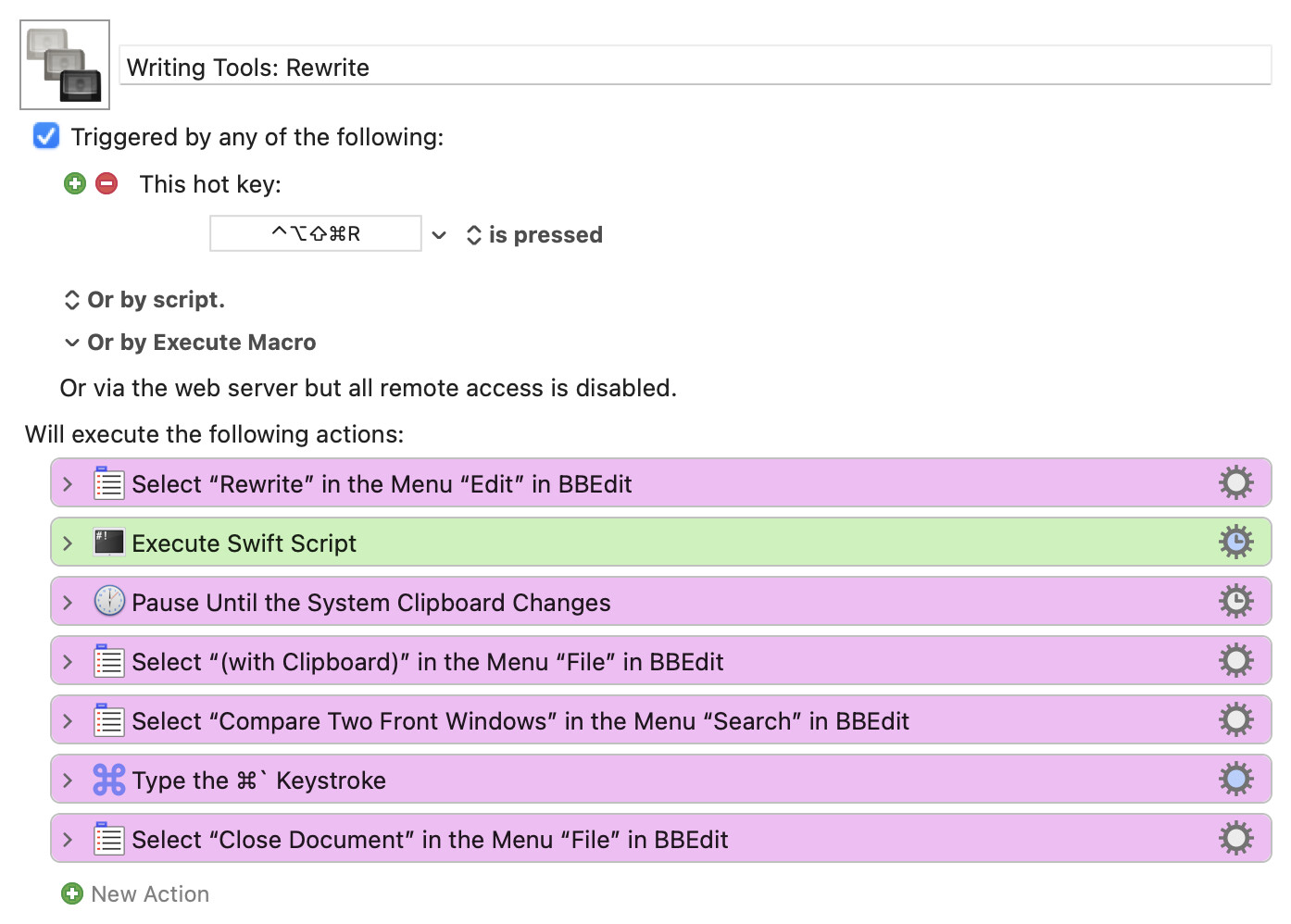
In Proofreading With Writing Tools, Dr. Dre (@drdang) details his macro to tap into the Writing Tools in macOS available in BBEdit. His macro uses BBEdit's Find Differences command to show the original text and the AI-proofread text side by side so you can examine the proposed changes.
He lamented that there is no way to tell when the proofreading process has completed and popped up its revision in a separate window. His solution was for the macro to wait for a left mouse button click to proceed with the BBEdit command to display the original and proofread clipboard texts together.
I installed the macro and at first it ran as advertised. But I soon found my clipboard didn't always have the proofread text on it so something else would show up in the comparison.
I worked up an alternate version of his macro to avoid that.
I began by changing the Wait Until action to watch for a change in the clipboard rather than a mouse click. That approach still requires the user to click on the copy button to actually put the revised text on the clipboard but at least waits for the data.
Then I thought it would be helpful to remind myself to click the Copy button to continue.
At first I just used a notification but it was a little obscure running briefly in the corner of the screen when I was waiting for the proofreading window to appear elsewhere.
Then I remembered the Swift dialog contributed in How to Create a Popup Without a Notification? that pops up a window and closes it after a specified time. Perfect for a reminder in a way Didplay Text and Custom HTML Prompt are not, both of which take away focus and can't be automatically dismissed in this workflow.
I liked the result so much I made a second macro to Rewrite the original text, changing the background color of the reminder.
Here's copies of both of them:
Writing Tools: Proofread Macro (v11.0.4)
Writing Tools- Proofread.kmmacros (8.8 KB)
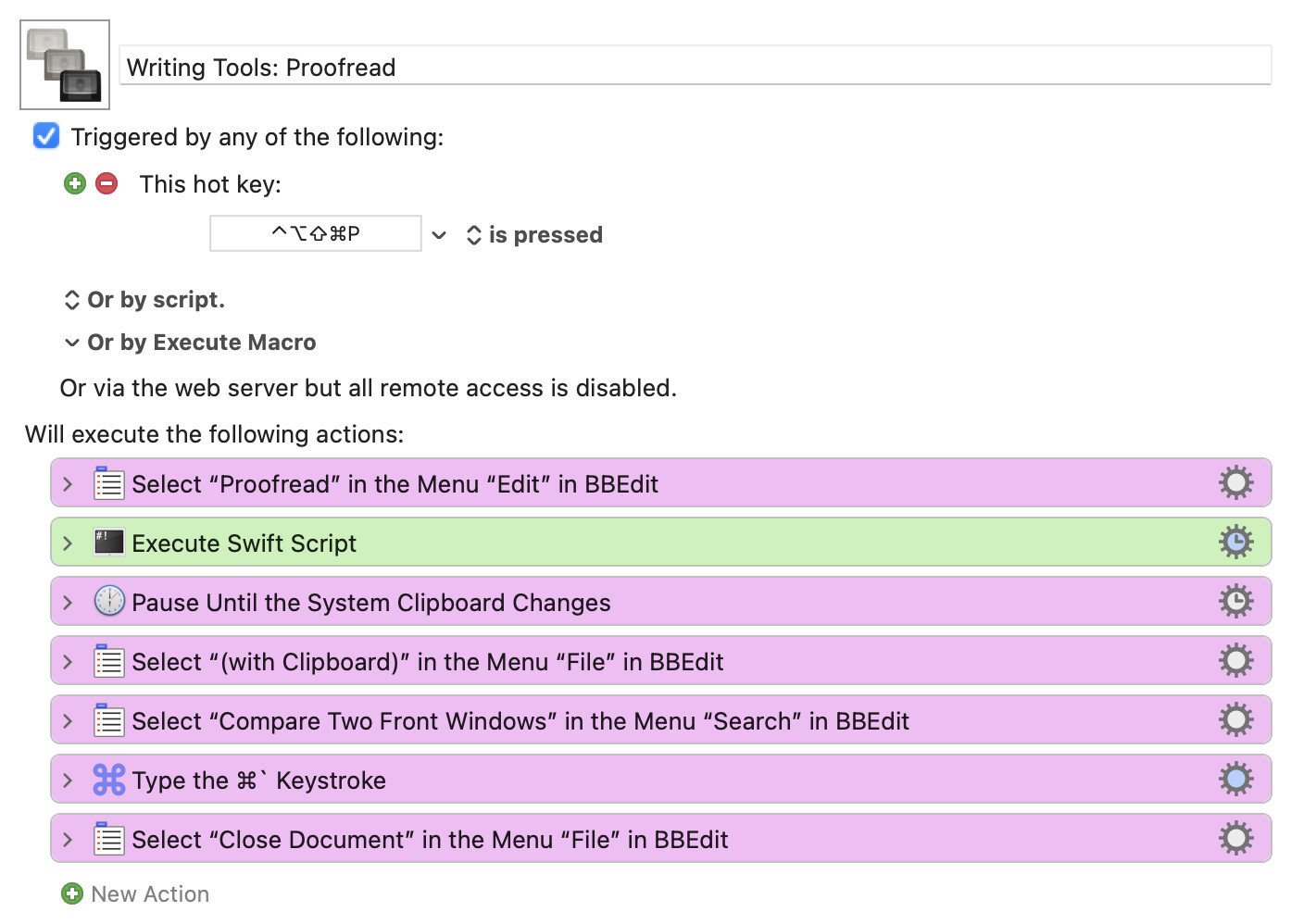
Writing Tools: Rewrite Macro (v11.0.4)
Writing Tools- Rewrite.kmmacros (8.8 KB)