For both cases -- check your PATH environment variable in each situation. So in Script Editor do do shell script "printenv" and compare the PATH= line to what you see when doing printenv in Terminal.
Also, if you want python3 then state that in your KM action: #!/usr/bin/env python3.
The easy answer is "Don't -- use the full path instead" (second section of the linked Tech Doc). So in Script Editor on my system:
do shell script "python3 -V"
--> error
do shell script "/usr/local/bin/python3 -V"
--> "Python 3.7.0 (default, Aug 22 2018, 15:22:29)
    [Clang 8.0.0 (clang-800.0.42.1)]"
Assuming you still want to use python3 you can find the path in Terminal with which python3.
If you really want to add to the PATH variable, it's just like you would in the Terminal -- though slightly trickier because you have to escape the "-marks:
do shell script "PATH=\"/usr/local/bin:$PATH\";python3 -V"
Your latest message looks more confusing then the second one
It may take days to understand all the tricky parts in the provided documentation.
I have already found the PATH in the Terminal where python3 is and I have no idea how to apply the same PATH to Script Editor to make the file run correctly.
@Nige_S is giving good advice here, but I'm going to butt in anyway.
First, why are you running a Python script in Script Editor? If it's going to be part of a larger AppleScript, that makes sense, but it looks to me as if you're trying to use Script Editor as a way of testing a script that you really want to run in Keyboard Maestro. If that's the case, it's a bad idea for two reasons:
Running shell scripts in AppleScript often leads to quoting problems. See @Nige_S's recent answer.
The environment in which AppleScripts run is not the same as the environments of either Terminal or Keyboard Maestro. So testing in Script Editor in addition to Terminal just adds another complication.
While using #!/usr/bin/env python or #!/usr/bin/env python3 as your script's "shebang" line can be very useful if you understand what it's doing, it can screw you up if you don't. It's better to have your shebang line use the full path to the Python executable you want to run (this, I see, is the advice @Nige_S just gave you as I was typing this up). That could be #!/usr/bin/python3 (if you're using Apple's Python 3), #!/opt/homebrew/bin/python3 if you're using Hombrew's Python 3), or some other path if you installed Python 3 some other way. Just use the path that came from running which python3 in the Terminal.
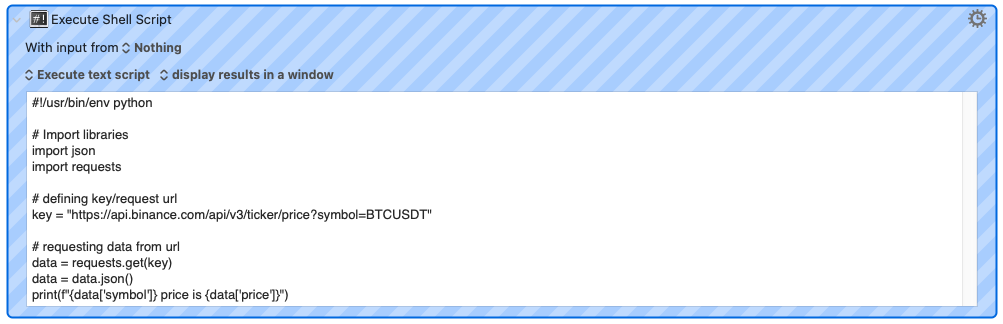
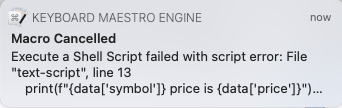
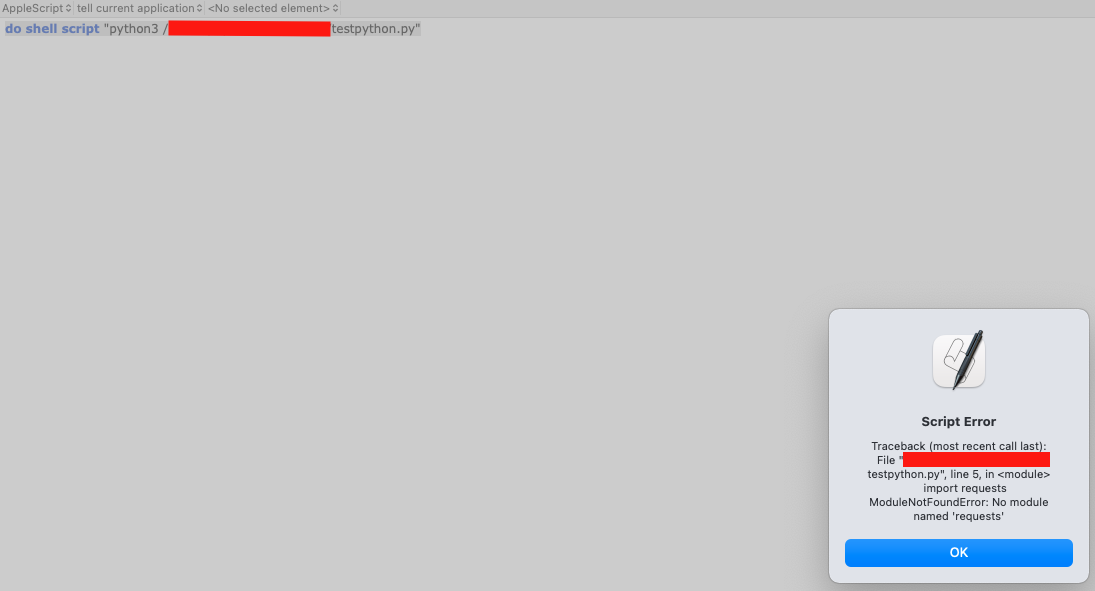
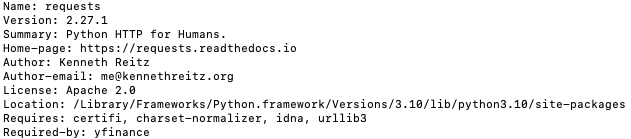
Also, it looks like you have an installation of Python 2 on your machine in addition to Python 3. The error message from Keyboard Maestro in your original post comes from using print as a function—a Python 3 construct—in Python 2. And it appears that you have the requests library added to your Python 2 installation but not your Python 3 installation. So you've been using two different Pythons across three different environments. That's a difficult juggling act!
My interpretation (guess) of the problems you've been having are:
In Keyboard Maestro, you are running the Python 2 executable at /usr/bin/python. This comes with the requests module, so you're not getting an error message from that import statement. You're getting an error because you're trying to use a Python 3 style print function in Python 3.
In Script Editor, you are running the Python 3 executable at /usr/bin/python3. This installation doesn't come with the requests module, so you're getting an error when you try to import it.
In Terminal, you are running a Python 3 executable installed God-knows-where, but it comes with the requests module. Hence, no errors.
@drdrang That is correct, a Python script is going to be a part of pretty large AppleScript that contains Javascript, Python, KM actions and some other 'alchemy' as it is pretty comfortable for me to combine all this stuff using AppleScript. Possibly, will stick to other scheme, in the future, after educating myself more...
@Nige_S@maxnnina Thank you very much for your suggestions, going to use them to dig deeper as I'm not an IT guy so please bare with me