It is horrible to start with Keyboard Maestro (vs.9.2) when you are used to QuicKeys.
I have made already some macros for applications. That works.
But how can I make a pallette and put an macro on it? And make a key to open en close the pallette?
The logic of QuicKeys fails alas.
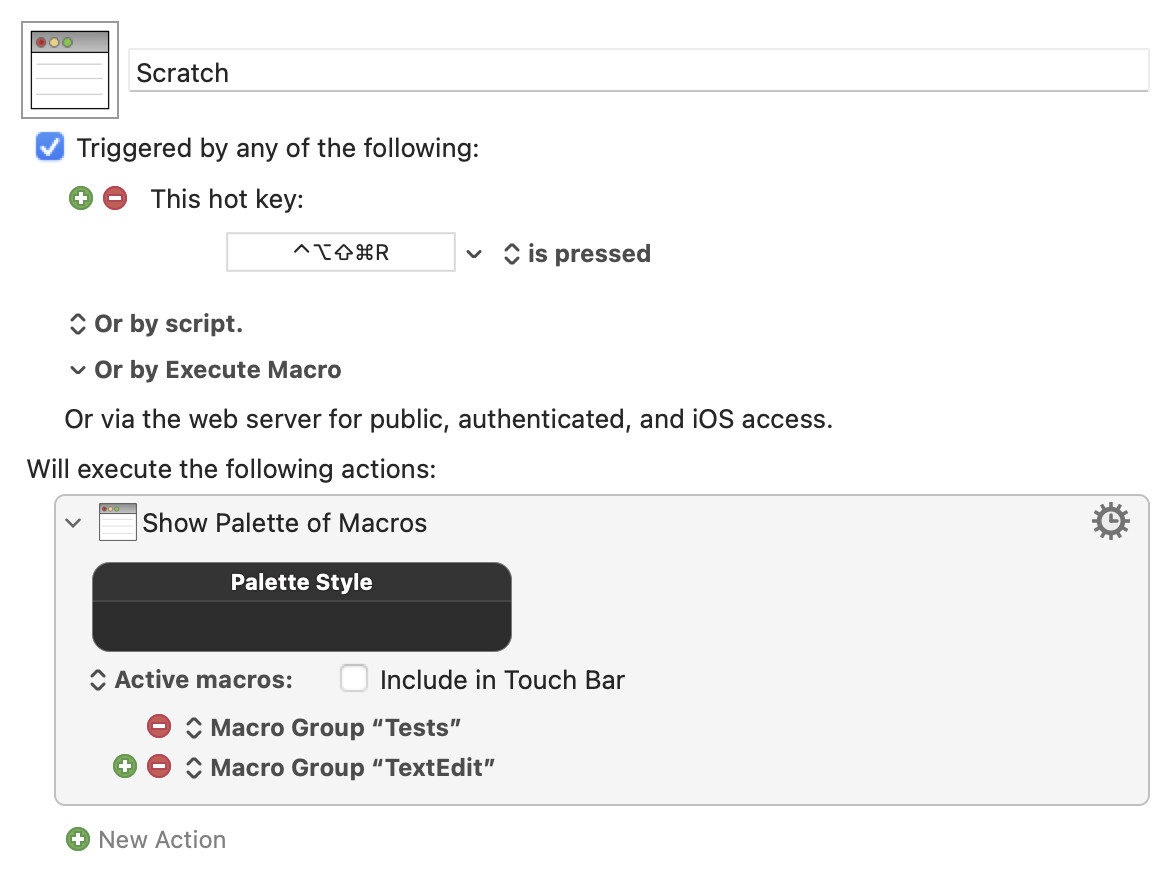
Use the "Show Palette of Macros" Action -- use the "+" button to add whole Macro Groups or individual macros, and pick whether to show them all, only those that are enabled, or only those that are currently active.
Put the "Show Palette of Macros" Action in a new macro that has the hot key trigger of your choice.
Putting the above together, this lets me press ⌃⌥⇧⌘R to show a palette containing all currently active macros of my Macro Groups "Test" and "TextEdit":
My guess is that you don't have it because you are still on KM version 9.2. Version 10 and 11 introduced quite a few features so you'll have to watch for those in people's answers here.
Keyboard Maestro works differently to QuicKeys. You need to forget what you have learnt using QuicKeys and read the Keyboard Maestro Quick Start so you understand how Keyboard Maestro works.
QuicKeys tended to build lots of things into single actions that then made tasks easier if the action could cope with what you want to do. But if it was anything else, you were out of luck. Keyboard Maestro tends to break things down into separate parts which you put together. Then tends to be slightly more verbose, but much more general in its nature.
In any event, in the included Macro Library, there is an Application Palette example (not sure if that is in Keyboard Maestro 9). And you can show any macro group as a macro palette by adjusting the macro group settings to show a palette.