I'm looking for a way to switch directly to the next currently active/running application with a single keyboard shortcut.
I use a multi-monitor setup. On one monitor I mainly use full-screen applications and switch between those with Mission Control. On my other monitor I use normal application windows and have the Dock visible.
What I want is not the normal ⌘-Tab behaviour. I do not want to see the macOS application switcher/preview and then choose an application.
Instead, I would like to assign a shortcut such as ⌘ >. Each time I press it, Keyboard Maestro should immediately bring the next currently running/open application to the foreground.
So for example, if several applications are open in the Dock, pressing the shortcut once should activate the next background application, pressing it again should activate the next one, and so on.
I don't want to define specific application names in the macro, because the open applications will change dynamically.
In short: one key press = immediately activate the next running application, with no app switcher shown.
It's possible, but will probably be complicated, because as soon as you activate an app, the ordered list of apps changes. (You can get this list with the %Application%Foreground% token in Keyboard Maestro.)
For example, assume this is your list of most-recently-used apps:
Safari
TextEdit
Mail
Music
A macro to activate the next application is incredibly simple; there's an Activate Next Application action. However, if you used such a macro to activate TextEdit, Safari then becomes second in the list:
TextEdit
Safari
Mail
Music
Run the macro again, and it would activate Safari, which isn't what you want—you want it to skip Safari and activate Mail, right?
That's doable but a bit tricky ... but now let's add some complexity: You started with the first list, then activated TextEdit and then Mail. So the ordered list of apps is now like this:
Mail
TextEdit
Safari
Music
Mail is now active, but before switching again, you launch Preview. Your list now looks like this:
Preview
Mail
TextEdit
Safari
Music
What should happen when you activate the macro the next time? Are you expecting it to jump to Music? Or to Mail? Or somewhere else?
Because activating an application changes the ordered list, you need to keep track of the application list manually if you want to move through the list in order, irrespective of actual last used order. And when you introduce a new app to that list, then things get messy.
So can you clarify exactly how you'd like this macro to behave?
You can also do this without Keyboard Maestro — if you fast-press Command-Tab, it will toggle between the last two used apps without even showing the switcher.
that cmd tab is not working for me.
Is it also possible when i switch between de apps de mouse is moved to the screen on which the app screen is active?
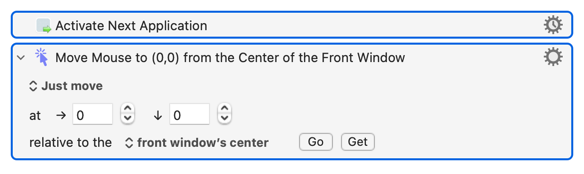
Just follow your "Activate Next Application" with a "Move or Click the Mouse" Action -- for example, this will put the pointer in the middle of the app's active window:
Thank you Nige_S! Is it also possible when press the shortcut and circle throught my open application is show a red border line arround the application?
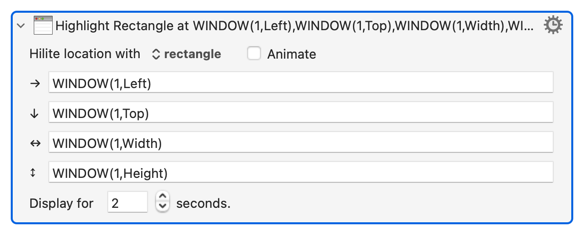
You can't show a border around an application. Do you mean around the frontmost window of an application? In which case, follow what you've already got with an "Highlight Location" Action with the rectangle sized to the front window:
Simply put it is to build a custom HTML prompt with the specifications he listed and then use Keyboard Maestro’s Custom HTML prompt action to spawn the HTML prompt which will provide the red border you seek.
The custom HTML prompt can be built by Claude or any other AI engine, just put in the specs and it will build the prompt for you. Save it on your computer and then use the Keyboard Maestro action to spawn it.
You will need the dimensions of the window you want to frame it and, based on my experience, a timer built into the prompt so that it closes (add instructions that the window close after 10 seconds or whatever timeout you want).
You would likely be better off making the window dimensions and timeout variables read by the prompt so that it works with windows of all dimensions.
My guess is that the Action uses the Accessibility API. So the highlight will be the current Accent Colour (System Settings -> Appearance -> Theme -> Colour).
There's no easy way to change that with AS or shell commands (unless you're willing to reboot every time!), but if you're prepared to go third party you could try osx-colors (never tried it myself).
Apologies -- the HTML stuff was aimed at @Joel (who I know understands it).
Second apologies -- I completely missed that you wanted the highlight to be red!
You can see from the above that the easy way to do that is to set your Accent Colour to red -- but that'll apply everywhere, making the default dialog button red for example, so may not suit.
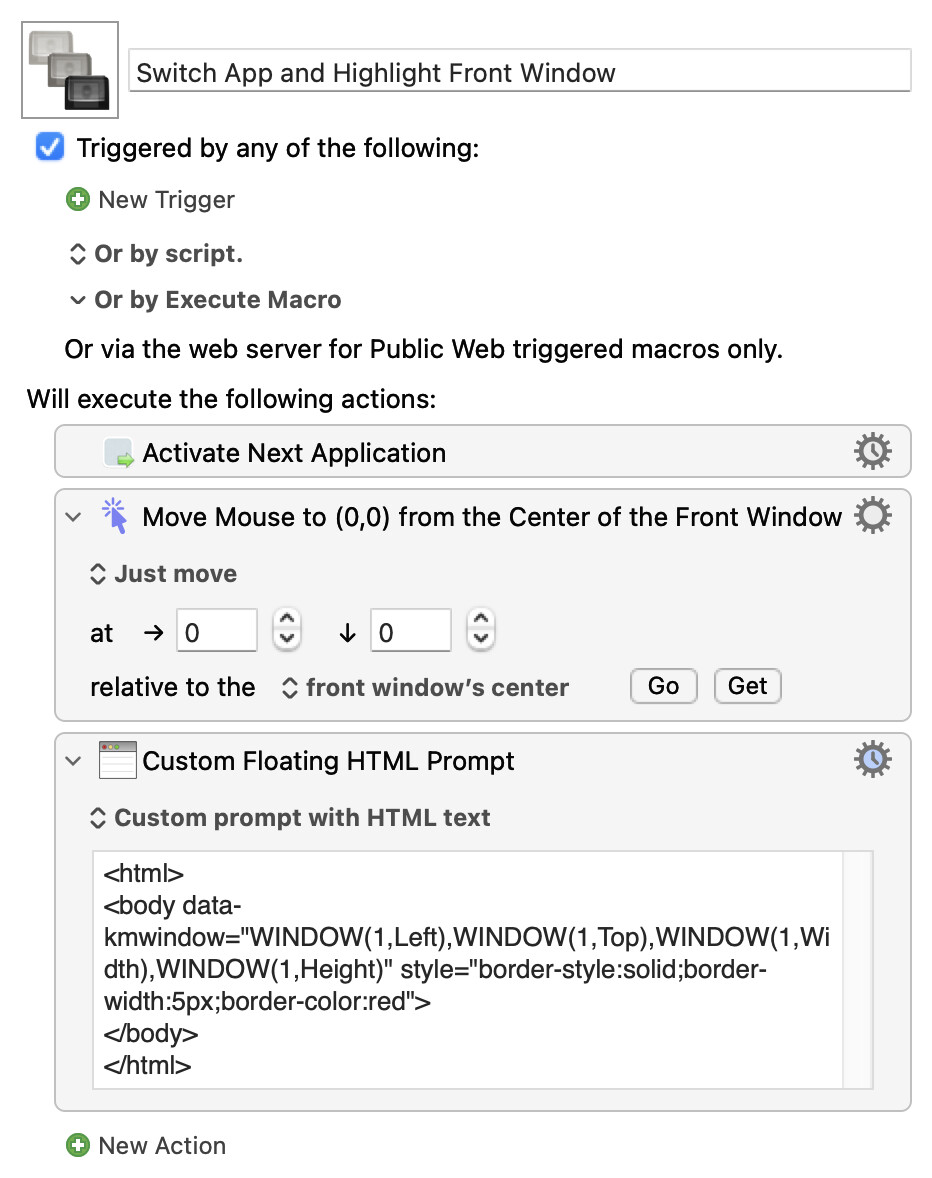
Here's an example of using a "Custom HTML Prompt" to do the highlighting. It uses the Action's timeout to remove the Prompt after 2 seconds -- one problem with using a Prompt for this is that it will block interaction with the window behind it, so set the timeout long enough for you to see the outline but not so long that it interferes with what you're doing.
@Nige_S, appreciate the insight on the Accessibility API.
Nice little macro, I like the use of the macros timeout feature; though, I would still build the time out into the prompt as it will enable the user to run the prompt asynchronously and not hold anything up (note: Asynchronous should not be used with the action's timeout as the red border will not close).
Thanks again. Only it works great with apps that are open and not minimized. When the app is minimized it shows the border but not show and switch to the app.
The Prompt is almost certainly the last Action of this macro. There is nothing to "hold up", so you're wasting resources (spawning a new, asynchronous, process) to no purpose
An async Prompt will be more difficult to close "early" -- with a synchronous Prompt you just cancel the macro. Looking ahead I can see that while OP will sometimes need time to "find" the active window on their screen(s) (since putting the pointer in the middle of it isn't enough, they need an outline too) it will often be obvious that this isn't the app they want and they'll instantly run the macro again to go to the next. So we'll (eventually) need an "early close" of the Prompt or we could end up with two or three highlight rectangles
One way around point 2 would be to make the Prompts non-floating, so a newly-promoted app/window would be in front of the old Prompt. But it may not completely hide it -- and there's been a couple of recent threads where apps have been slow to activate their frontmost window, in which case you could have the Prompt drawn and then the window raised above it and covering it completely...
You cannot minimise an application -- you hide it.
You minimise windows.
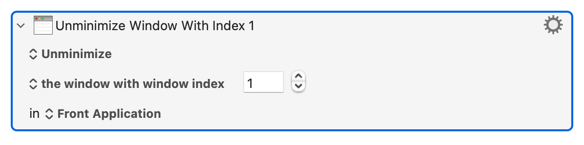
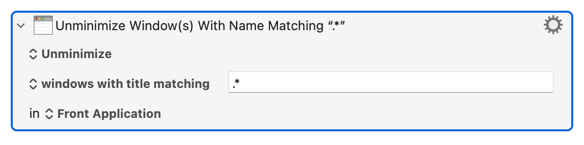
A macro will only do what you tell it to do. If you want it to also unminimise the front window -- add an Action to do that. A quick search of the Wiki's Actions list will show 16 mentions of "window", most of which are obviously wrong and the most generic of the rest is "Manipulate a Window" -- look at that and you'll see it includes options to "Minimise" and "Unminimise".
You don't need to check the window's state -- if you always "Unminimise" it will unminimise a minimised window and do nothing to one that is not minimised.
One wrinkle is that (for me, anyway) there is no "frontmost" window when all an app's windows are minimised, and indexing changes from "stacking order" to "least recently opened/created". That makes it difficult to "unminimise only the last window I minimised" when there are two or more minimised windows.
...immediately after the "Activate" Action will do the trick. If you might have one or more minimised windows then the easy method is to unminimise them all:
...and work through them if the one you want isn't frontmost (once you're in an app it should be pretty obvious which is the active window).
If you want to only unminimise the last-minimised window (if there is one) it'll be trickier (and slower to execute). And you'll also need to let us know what version of macOS you are using so we can test solutions.
You need to nail down the behaviour you want. Do you want to skip hidden applications? Or apps which have no unminimised windows? Or would it be better to go to such an app but not draw the rectangle (since there's no window to highlight)?
More that it doesn't make sense within the macOS paradigm, so KM has nothing to hook into. That doesn't mean it can't be done -- but it'll need a lot more work!