Apple's iCloud Private Relay feature is a great way to improve privacy and security while you are browsing online. Its effect is similar to a VPN, but neither Apple nor the target website know both your IP address and the URL you are visiting.
However, some websites insist on seeing this information, often because they use it for identification purposes. You can reveal your IP address for a single page by right-clicking the Reload arrow in Safari's URL field, but some websites include redirections that keep this from working. Our university's SSO mechanism is one example. In these cases, you want to turn Private Relay on and off quickly, but Apple does not provide a quick way to do so.
So I wrote a macro that lets you toggle Private Relay on and off with a single keypress or mouse click. It opens the System Settings window and clicks the right buttons to toggle that status; you can see it at work while it is running. You can map this to a single keypress (I use Fn-F6 because of its 'Do Not Disturb' moon icon), or you can trigger it from a menubar icon. I even designed a cute icon for it.
It currently works for macOS 15.2. You might need to tweak it slightly for newer macOS releases since the System Settings UI tends to change a bit. Or just check back at the URL below; I may have already done that for you:
I appreciate your work. But how would the target website know that the IP address is not your real address? Consider that a large portion of internet users live behind a firewall and their "real" IP address is always invisible to the world.
Some work/education networks block QUIC (which Private Relay relies on) so you can't avoid their network access monitoring/auditing. Services might require that you have an IP address from a certain range, eg the work wireless network, or use a VPN (which Private Relay can conflict with). And so on.
Apple have a page about preparing for users who use Private Relay. Most work/education environments will say "No, you can prepare yourself by turning it off" when the user is a member of staff trying to access business services...
I find it funny that one of the first macros I created was one that turns off iCloud Private Relay.
My trigger is when my mac connects to my employers wireless network. If I do not, I will get errors throughout the day.
I reviewed your macro and got some new ideas which I have incorporated into my macro – thank you!
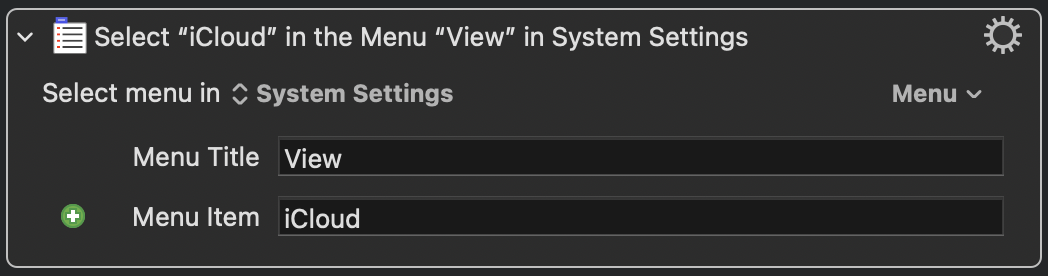
I also tried the Open URL action suggested by @Nige_S but decided to stick with the method I had for opening the iCloud pane. I am using the Select Menu by Name action (System Settings > View > iCloud). This may be new with Tahoe (?).
I also created more Press Button actions which I saw for the first time in your macro (thanks again). I used these actions as a replacement for the mouse click at found image actions I had for the next series of ‘clicks’. I use the Press Button for “Description:Private Relay, On” and Decrement Button for “Title:Private Relay: On” and Press Button for “Description:Turn Off Until Tomorrow” and finally “Description:Done”.
After trying everything else I could think of, I decided to read the wiki and lo and behold the answer was right there!!
quote:
Note that wireless information requires Location system security permissions in macOS Sonoma, so ensure the Keyboard Maestro Engine has Locations permissions if you are using Sonoma or later.
The Location permissions for my mac were not granted to KM so I turned them on for KM and KM Engine.
HOW:
In macOS Tahoe:
Check Location Services
Open System Settings → Privacy & Security → Location Services.
Make sure the main Location Services switch at the top is turned on.
In the app list, look for Keyboard Maestro and Keyboard Maestro Engine.
If present, turn their toggles on to allow location.
If they show as off and greyed out, click the lock at bottom left, authenticate, then enable them.
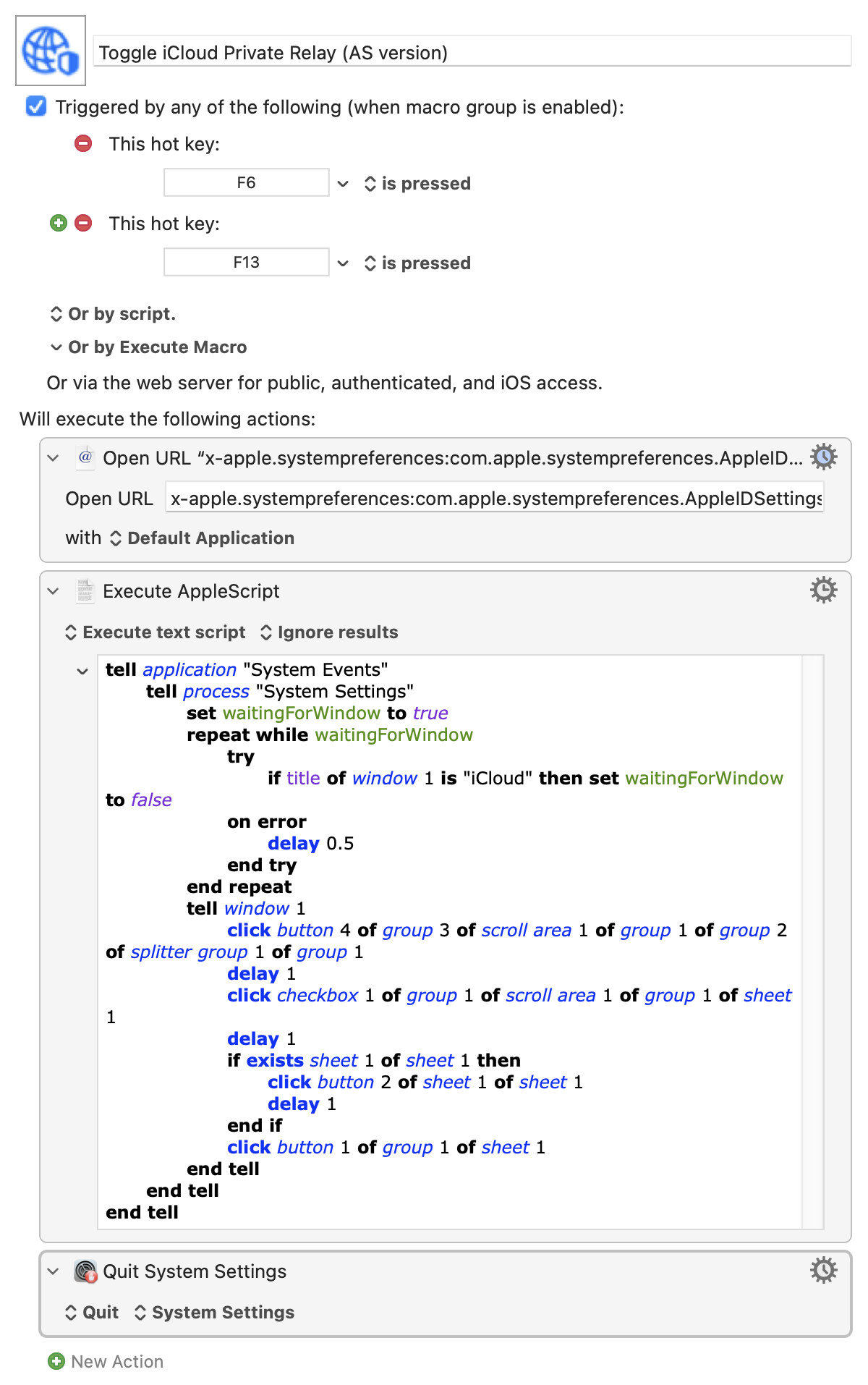
Image detection can be fragile -- other apps leaping to the front during execution -- so here's a version that replaces all the clicky-image bits with a single AppleScript that uses System Events. Unfortunately System Events can't do this in the background, it will re-foreground System Settings if another app gets in the way, but that shouldn't be too annoying.
Note that you are gaining runtime robustness at the expense of more difficult maintenance -- if Apple change the UI element hierarchy you'll have to do more poking around to fix things than simply changing a few images. Most times that's a good exchange since we save far more time by using a robust macro than we spend maintaining it.

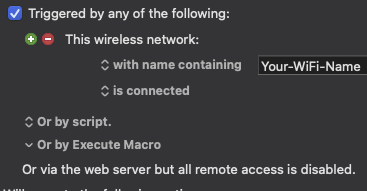

 Note that wireless information requires Location system security permissions in macOS Sonoma, so ensure the Keyboard Maestro Engine has Locations permissions if you are using Sonoma or later.