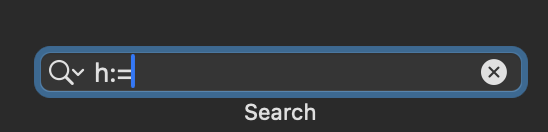
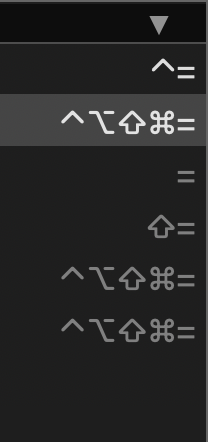
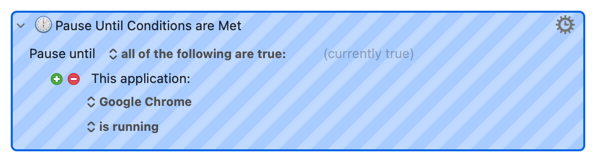
You'll find the other available qualifiers listed on the Search String Wiki page. You can also use multiple terms in the Search box -- they AND together -- so to find all your macros that
"Have a hot key using = but not using ⌥ and has been used in the last 4 weeks"
The qualifier can generally be shorted to its shortest unique name, as shown in the Short Form column.
Qualifier
Short form
Definition
Example
(Otherwise the empty search string matches nothing)
word:
w:
Match that must be at a word boundary
(Use quotes if Word contains spaces)
word:amp
(Matches “Turn on amp” and not “example”)
group:
gr:
Match any macro within the named macro group
(Use quotes if Name contains spaces)
group:"Forum Examples"
—
—
—
—
name:
n:
Match any macro that has a name matching the specified string
n:PDF
(aka universal:)
—
—
—
—
application
app:
Match any macro that is specific to (or excluded from) the specified application
app:Finder
(not necessarily active)
—
—
—
—
deprecated:
dep:
Match anything that uses deprecated features
dep:
(Typed String of “=sig=”)
action:
act:
Match an action with the specified action ID
action:1234
(Action ID of “1234”)
hotkey:
h:
Match any macro with specified HotKey
Match any macro with any HotKey if no HotKey is specified.
Modifier Keys must be one of these: ⌃⌥⇧⌘
h:⌘⌃C
(CMD CTRL C)
h:
(Matches any HotKey) |
created:
cre:
Match any macro that was created less that the specified time ago
cre:1w
modified:
mod:
Match any macro that was modified less that the specified time ago
mod:1d
used:
use:
Match any macro that was used less that the specified time ago
use:1m
size:
siz:
Match any macro that has a storage size more than the specified size
size:10000
note:
not:
Match any action that contains the text in a Note
note:custom
For the created:, modified:, used:, the parameter is a number followed by a letter (s for seconds, m for minutes, h for hours, d for days, or w for weeks).
You can use a negative sign (-) to negate any match (for example, “-name:PDF”).
For any others just now learning this, that's a quick tap of a modifier key. A long press or a press and hold will not insert the modifier key's symbol.