User Input Proforma: Buttons equal width or not

In the Prompt for user input proforma (action:Prompt for User Input [Keyboard Maestro Wiki])

I have ended up with a very very wide form.
I realise that I can control this using Custom HTML but
the automatic process seems to take the "Longest" button text say 15 chars
and use that as the default button size/width for ALL buttons.
so HELP gets 15 chars although it would fit easily into say 8 chars.

So could we have a cog wheel setting(s) that

a: all buttons equal width or not

and if Peter is feeling generous ,

b: a setting for 1 or 2 rows of buttons :slight_smile:
__
I have just played around with this some more and depending on the screen settings, I can end up with a proforma that will not fit on the screen, I cannot resize nor cancel.

1 Like

It's unlikely I'd add either of these options.

I suggest you use shorter button names, and/or use some of the other facilities of that dialog to reduce the number of buttons.

That's disappointing, but I can live with it.
I have tried workarounds with my UI and
I have another suggestion.

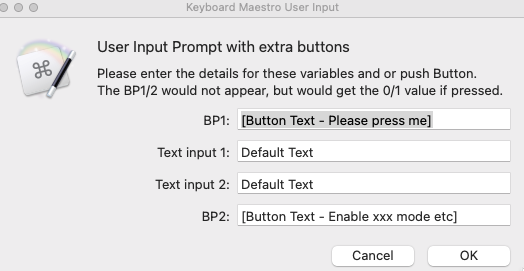
Could we have another "type" similar to Popup Menu , or Checkbox , Slider that is "Button".
This would enable "Button" to be in the vertical list of parameters
Example

The button would not immediately execute, but rather like ordering a coffee at a coffee machine , you press buttons 1,4,7 and then a MAKEIT (i.e. OK) button at the end.

1 Like

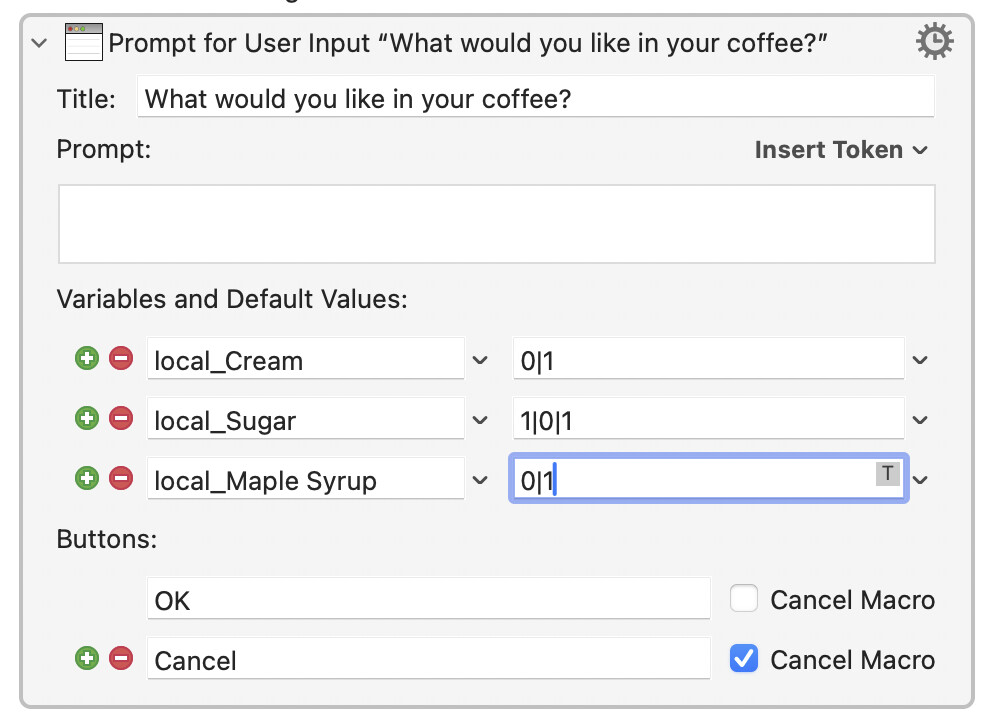
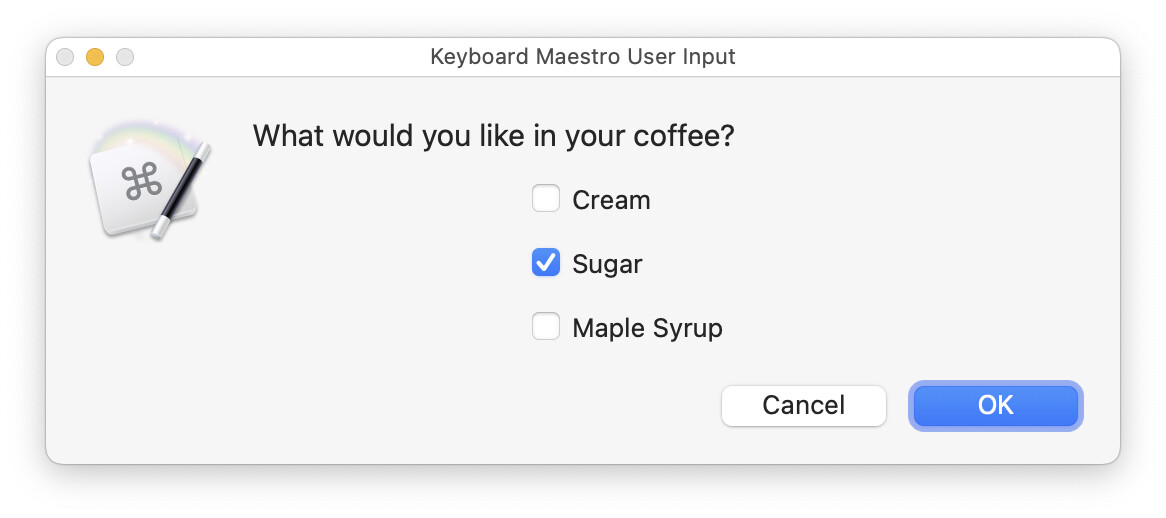
Could you not just use a checkbox? Or would the mis-alignment annoy?

1 Like

Isn't that just like the existing Checkbox option?

I'm not sure how a button would differ from a checkbox in your implementation.

-rob.

1 Like

You are correct that logically it would be the same as a checkbox, but I think the user perception of a checkbox and a button are subtly different.
It would also allow more flexibility in the UI design.

My original design had 7 buttons, OK, Cancel, Help and four others that led to different procedures. This was a suggestion where I could reduce the number of buttons as it was making the display too wide.

Furthermore, I now need to modify my request that the button should show whether it has been pressed or not ( a kind of sticky button shadow?)

I know you're trying to differentiate them, but the more requirements you add, the more you're describing a checkbox :).

I think you may want to invest the time in a custom HTML prompt for this task; you can then get exactly what you need.

-rob.

1 Like

I am trying to avoid having to take that step. i.e. learning the custom html input.

I still think my original request of not making all the buttons the same size was a reasonable one.

The main difference being that a checkbox selects options for later while a button causes something to happen when you press it.

Putting a "standard" button amongst the dialog's other fields, a button that doesn't implement the dialog's choices when pressed, would break expected UX far more than checkboxes or popups. So you'd need an obviously-different button style -- and we're back to a Custom HTML Prompt.

I agree in theory -- compare KM's "Prompt" button behaviour to AppleScript's display dialog, for example:

display dialog "Hello World" buttons {"This is a really long name for a button", "OK"}

...but the fact that it isn't already done suggests that implementing the feature is a lot harder than we think!

Generally (there are always exceptions), giving a user a one-shot, no backsies, choice of 7 different options is an UX design error -- I'd strongly urge you to reconsider! One obvious exception is where users are using that dialog so often that they know what to do -- at which point you can use far more concise, often single-word, button labels and solve your problem that way.

I'd completely overlooked that aspect of the request ... not using a button as a button would indeed be very strange.

As an alternative, in the short term, don't learn them. Have an AI write some for you so you can see how they work.

NOTE: The rest of this post relates to using AI to help solve a problem, and using it as a learning tool. Proceed at your own risk, though this macro does nothing risky and is fully tested.

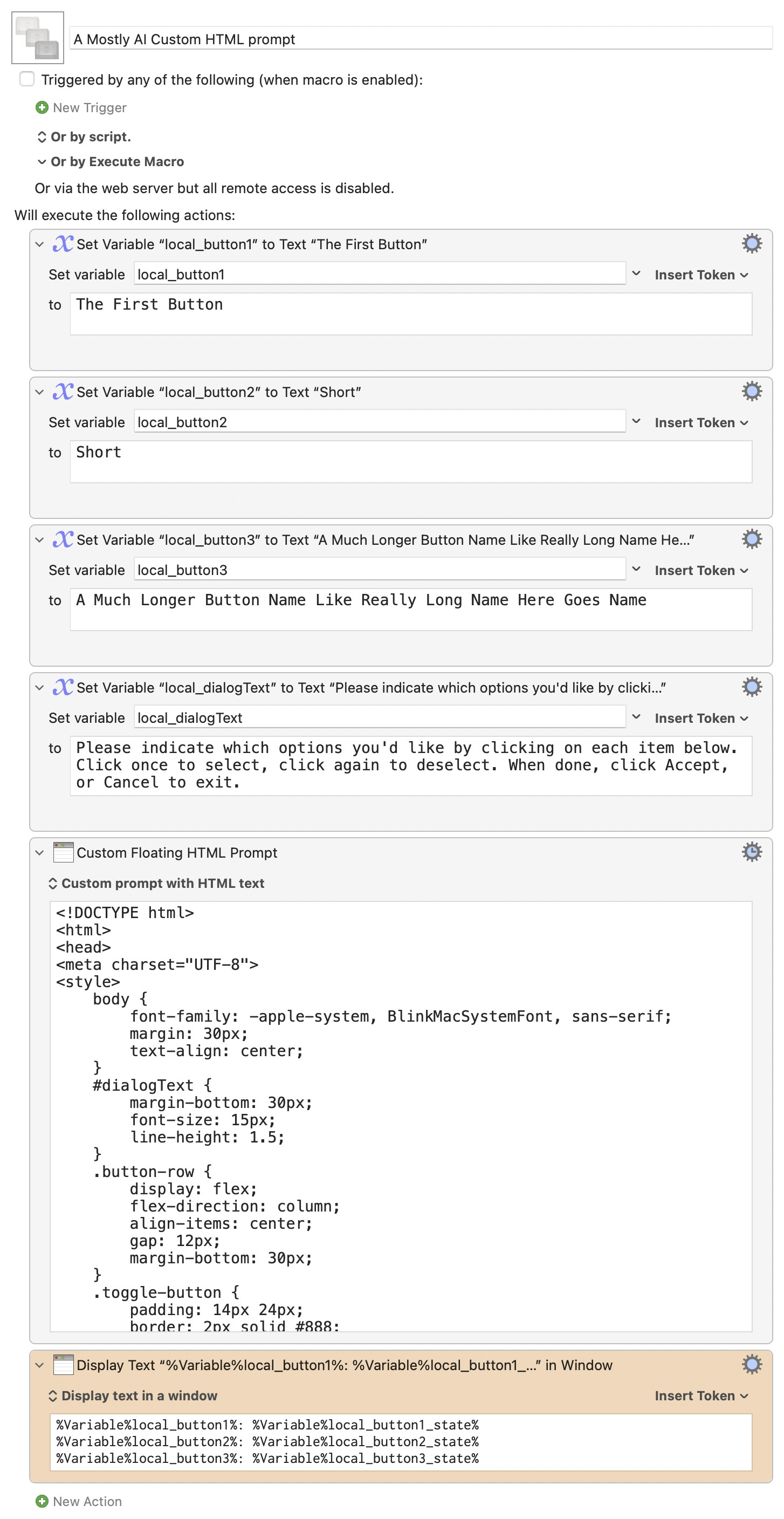
Here's an example I cooked up with ChatGPT:

Download Macro(s): A Mostly AI Custom HTML prompt.kmmacros (7.6 KB)

Macro screenshot

Macro notes
  • Macros are always disabled when imported into the Keyboard Maestro Editor.
    • The user must ensure the macro is enabled.
    • The user must also ensure the macro's parent macro-group is enabled.
System information
  • macOS 15.7.3
  • Keyboard Maestro v11.0.4

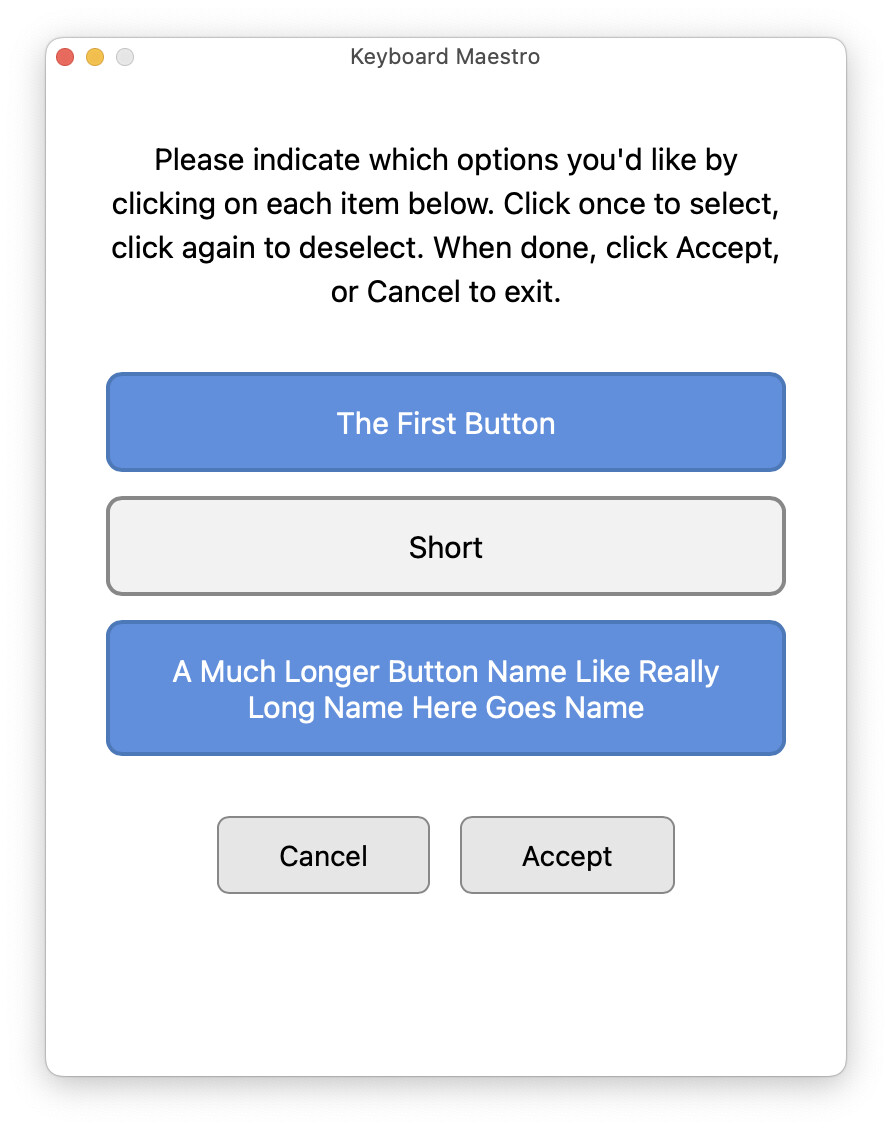
When run, you get an onscreen button selector that handles varying button name lengths, though it does so with same-sized buttons:

Click Accept, and the macro displays the state of each button (On or Off) in a Display Text action. So how did I have AI write this? I prompted ChatGPT with this:

The Prompt

β€”-β€”-β€”-β€”-β€”-β€”-β€”-β€”-β€”-β€”
I need a Custom HTML Prompt for Keyboard Maestro that accepts three variables from Keyboard Maestro as input:

local_button1
local_button2
local_button3

These buttons hold the name that should appear on each of three button-like objects. When the user clicks the button-like object, its shading should change to indicate it's selected. If it's clicked again, its shading should change back to the default.

The dialog will also accept a fourth variable, local_dialogText, that holds the text that will appear above the buttons.

At the bottom, a Cancel button dismisses the prompt without returning anything, and an Accept button returns the button states for the three buttons to Keyboard Maestroβ€”if they've been clicked into an active state, they should return On, otherwise Off.
β€”-β€”-β€”-β€”-β€”-β€”-β€”-β€”-β€”-β€”

The first version didn't quite work, but was closeβ€”the button names were blank, which meant something was wrong with the variable names getting passed into the script. Pretending that I knew nothing of custom HTML prompts, I searched the Keyboard Maestro forums for topics related to passing variables to custom HTML prompts, and found this discussion, which included the right way to do it. I told ChatGPT the right method (the one line of JavaScript), and it revised the script. The prompt now worked fine, but the window sizing was wrong, and the button shading was wonky.

ChatGTP easily fixed the shading, but had no luck with the window sizing. So I used the Keyboard Maestro Wiki to look up the Custom HTML Prompt command, and found the section about how to specify the window size (this is also noted in the prior-linked discussion on variables). I added that one bit to the body tag, and that was that.

If you continue the conversation, you could probably get it to give you variable-width button names, etc. Would you understand 100% of what it had done? No, but you'd have the source code, and you could see that it's mostly HTML and CSS with a few key bits of Javascript that won't vary much from prompt to prompt if you're just using it to set and return variables. The code is probably far from perfect, but as a learning tool, it's nice to start with something that works as a baseline.

This took me about 10 or 15 minutes from start to finish, acting like I'd never used the Keyboard Maestro action before.

-rob.

3 Likes

Rob,
Thank you for spending so much time on it.

I looked at what's available, and there are push on/push off buttons available in the OS, but they really aren't great for this.

I think it I did implement a button, it would act like the buttons at the bottom of the window, ie, it would close the prompt, returning the button as the result, with possibly the option to treat it as a either an OK or a Cancel.

But none of that is likely to happen any time soon, and probably not at all, so finding an alternative solution would be better.

1 Like