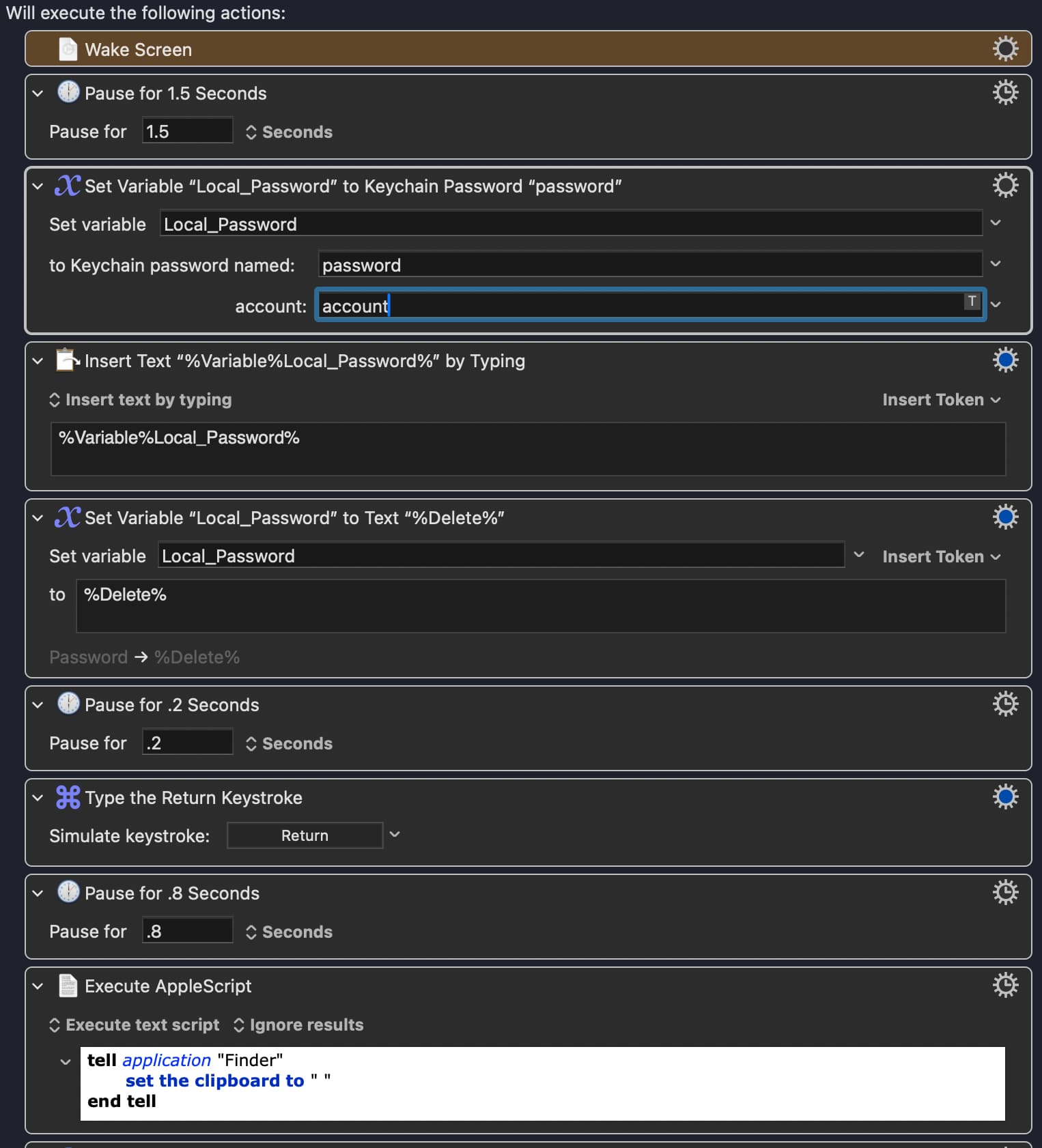
I used this post here to set up my Mac to wake up, login and run a KM macro. The macro utilizes some UI, so I do need to be logged in to get it to work. Some of the downchain links in that post are no longer active, so it’s missing key parts of the setup (at least from what I can tell).
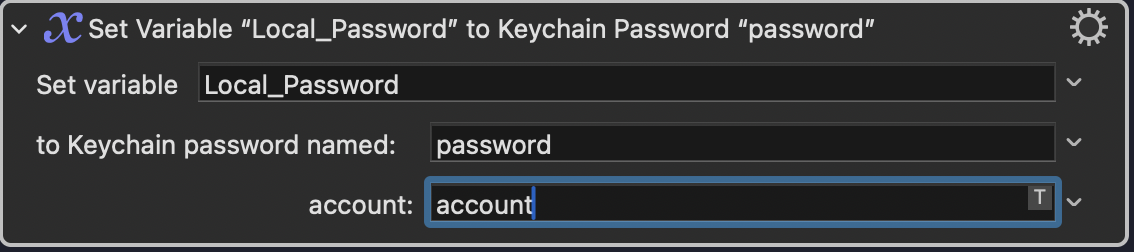
I can no longer seem to access the keychain via the macro below, so the entire macro fails. I am on MacOS 26.
Have there been changes to MacOS 26 that have made this not work? Does anyone have an alternate method to accomplish the same thing? Below is the entire macro. Perhaps “account” has to exist as an account on my Mac?
It should be the (or an) account that is able to use that password in the keychain.
The example shown in the wiki uses the token %UserLoginID%, which is the name of the account that you log into.
Some ideas:
Check that “Keyboard Maestro” and the “Keyboard Maestro Engine” have the necessary permissions in System Settings. If it appears that they have, toggle them off and on again anyway in case MacOS is confused.
You might need to bear in mind that KM has special handling for variables that begin or end with “pw” or “password”.
First off -- it doesn't log in your account, it unlocks your Mac if you are already logged in. So make sure that the upgrade to Tahoe wasn't accompanied by a change of behaviour -- you logging out instead of locking the screen -- or the "System Settings" -> "Privacy & Security" -> "Advanced" -> "Log out automatically after inactivity" option getting turned on.
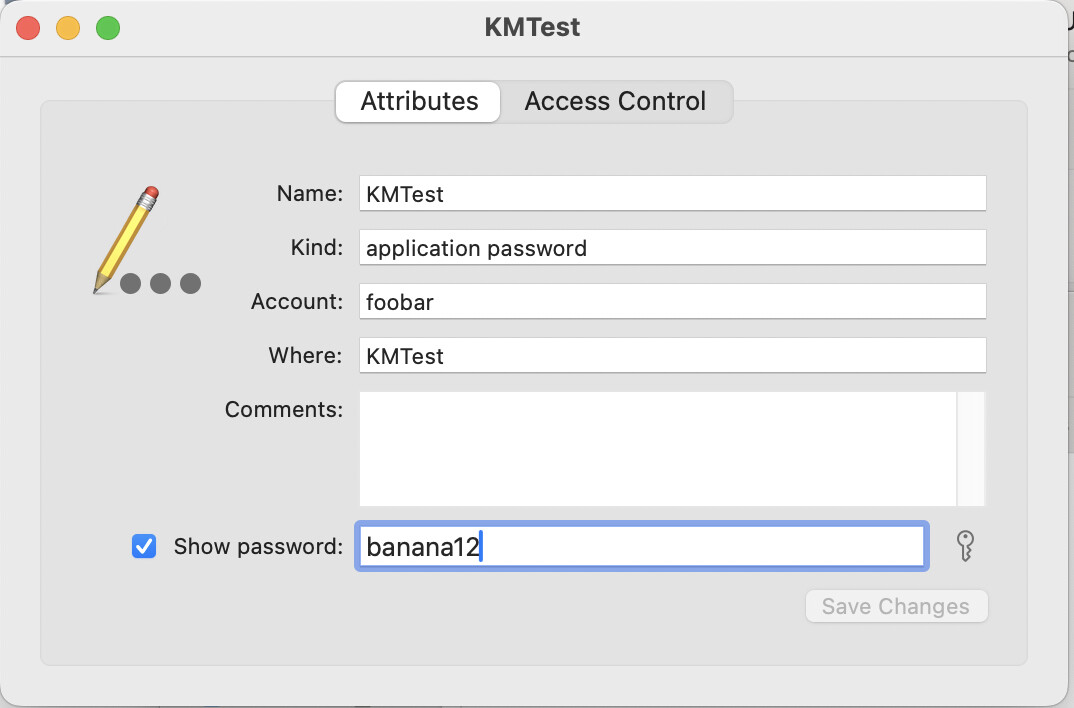
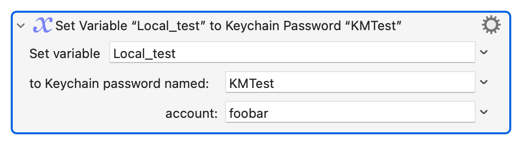
Third off -- the "name" of the password is as the "Name" field for the entry as shown in Keychain Access, the "account" is the account name for the password, not necessarily your login account. So for the Keychain entry
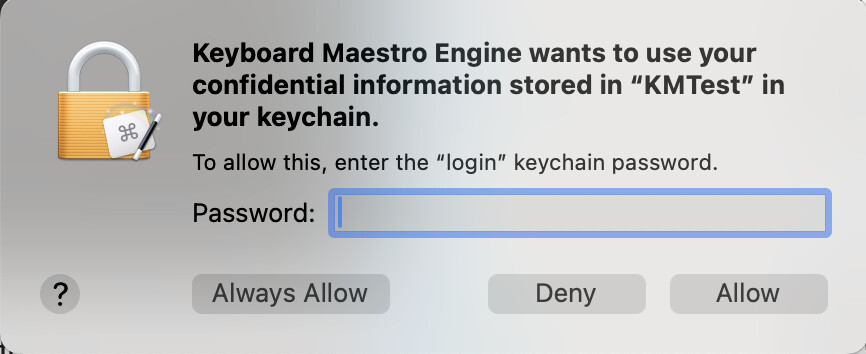
Test in the Editor with a simple macro that pulls the password to a variable and shows it in a "Display Text" action -- if you run it in the Editor that'll also give you the opportunity to "Always Allow" the KM Engine access to your keychain (in case that's been reset by the OS upgrade):
@kevinb thanks, I double checked everything and restarted my Mac. Also, I had “password” in there just for illustration purposes and that was not the name of my Keychain item, but definitely, point taken on using reserved words.
@Nige_S Yes, sorry, wrong choice of words. I was trying to unlock my Mac that I was already logged into. Thank you for the tips, that clarified everything and ensured I was grabbing the right value. Also, the test did did cause the popup and I was able to select “Always Allow” - so I think this was the main issue. Oddly enough, “Wake Screen” no longer worked for me either. The result was that only part of the password was entered. I disabled “Wake Screen” and just send a Return keystroke instead. This wakes the screen and the next keystrokes start entering the password correctly.
Thanks to you both again for your help, it is much appreciated.