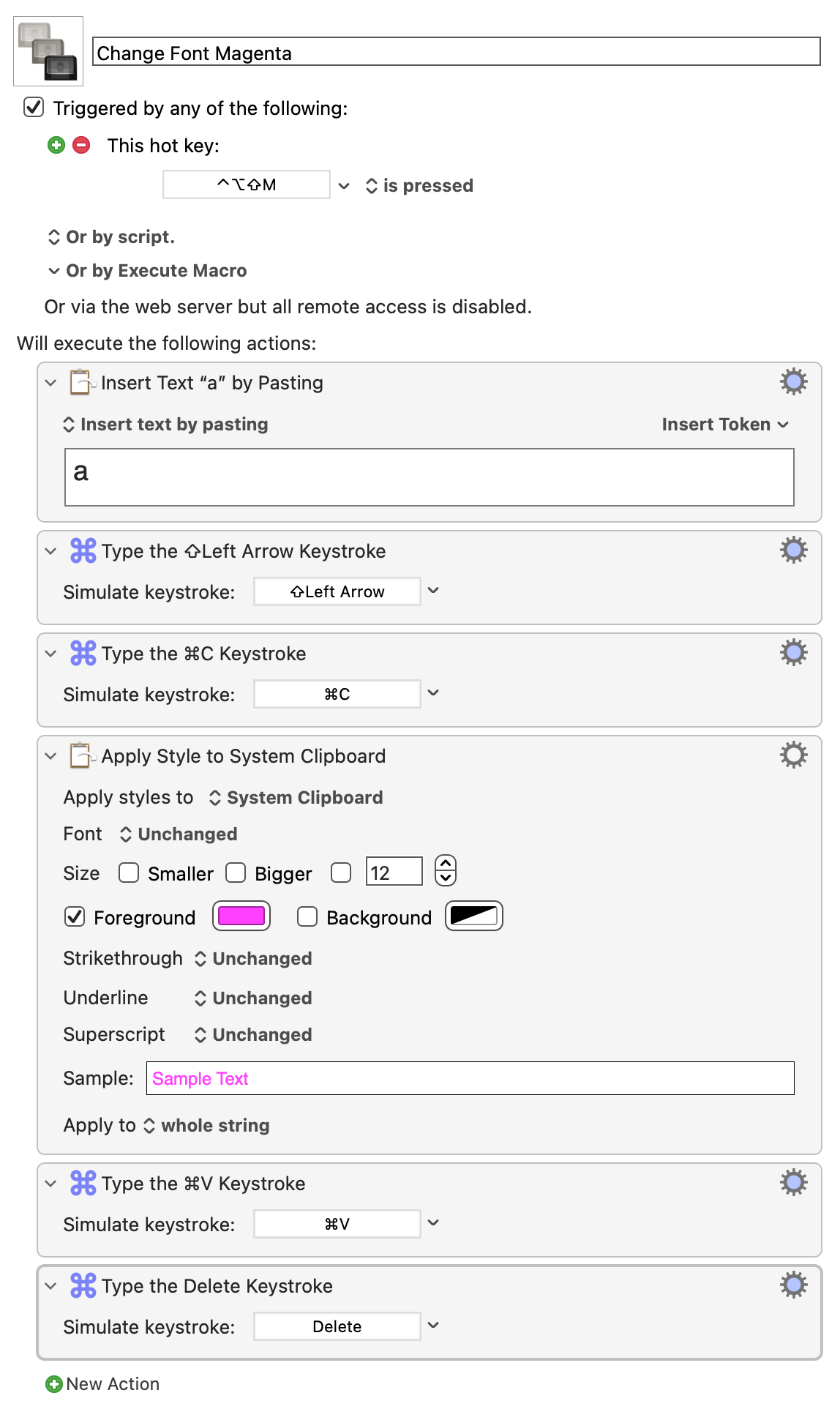
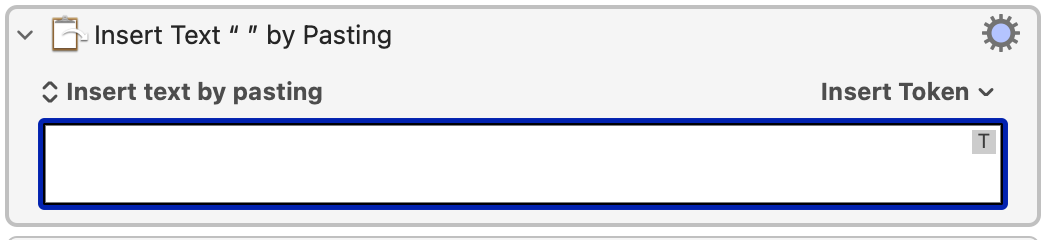
Does anyone have a good idea on how to change the font starting from where the cursor is in a text?
This is the only thing I could come up with. It's a bit cumbersome, but at least it works.
What would mark the end of the range?
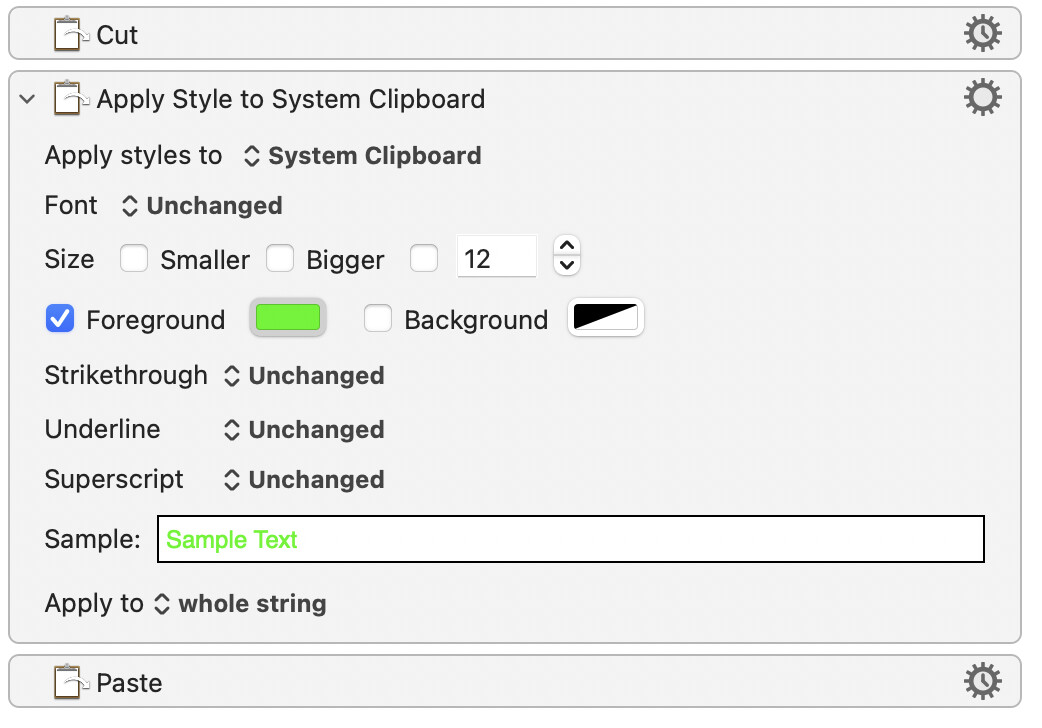
Use one of the conventional Mac text-editing shortcuts to mark the range and then have a macro that does something like this:
Thanks @kevinb Not sure I understand. Isn't that exactly what I'm doing?
The goal would be to find a solution without using the clipboard.
So, for example: you type in the default format, then press cmd + B; now you continue typing in bold, cmd + B again, and you return to the default format.
This would be ideal  The workaround using the clipboard works, but is it really necessary?
I think so, unless you are going use the app's formatting commands (and probably make a different macro for every app).
It's a handy quirk of the text engine(s) and Clipboard that a) the "plain text" paste in the first Action inherits the formatting at the insertion point, and that's carried back to the Clipboard when you Copy the character, and b) the adjusted "formatting envelope" remains in place after you delete the character, ready to by inherited by whatever you type next.
I don't know how reliable that is across all applications, though. Word's "smart" (no, it really isn't!) Copy and Paste does do the formatting as you want but also adds an unformatted space character before the insertion point, for example.
Could you please explain that in a little more detail?
Sorry, I wasn't very clear -- because I know that you know that any app in which you can format text will have menu items, toolbars, palettes, etc you use to do that formatting and, with some work, operating those can be automated with KM.
If you're really lucky there will built-in or customisable keyboard shortcuts for what you want to do. We're rarely that fortunate, though!
I don’t use Word for Mac but do use Word for Windows. I have done exactly what you want using VBA.
If Word for Mac has VBA capabilities, which I should have Googled first, I would be happy to show you.
In essence, VBA is used to create a macro to define the desired formatting, the macro is assigned to a trigger and then it can be triggered directly in Word or Keyboard Maestro.
Of course, this is limited to Word.
Thanks @Joel
VBA? Visual Basic for Applications?
I have no idea what that is 
And Word is pretty much the only word processing app I don't use.
But of course, I would like global macros that work in every app.
Since all the text transformations take place in text fields, the trigger can also be a string.
s space space = Standard Format
m space space = Text magenta
I like this quite a bit so far. It gives off a bit of a Markdown vibe. During the transformation, colored letters flicker briefly, then everything looks just as it should.
I hear 'ya, I was just throwing out an idea.
Thrilled that you are happy with what you have!!
You tell me! I wasn’t exactly sure where you were coming from with this, with the inserted a and simulated keystrokes, so I just went back to basics along the same lines.
So it’s more to do with that than with text colour, which your example suggested to me. Alright, well, yes you can do things exactly as you say in say, TextEdit, Pages, Obsidian… Your opening question wasn’t well defined, and maybe it’s me but… I for one am still not quite sure what problem you are trying to tackle.
Okay, I didn't explain that
I work with text a lot. When it's someone else's text, I format it (of course) after it's been written, the traditional way. I select sections of text and format them.
When I write the text myself, I often already know while I’m writing how the text should look. So I format it as I write—just as I would with Cmd + B (bold). Text passages in the same color (e.g., magenta) mean that this text belongs together somehow, even if it’s 10 lines further down.
Does that make sense?
Ah, and strange enough, even though I've been doing this for a long time, it wasn't until recently that I wondered whether you could assign text colors before you start writing … instead of afterward.
Right… You want to be able to define the colour of text that you are about to type (and reset it afterwards) in a similar way to how one can use ⌘-B for bold or ⌘-I for italic.
It still might help to know which application you use for such editing tasks—just in case it offers any unusual way of accessing text colours that might be utilised (e.g. @Joel’s suggestion of using VBA with Word).
It seems to me that your question is really about text highlighting (it’s not about changing fonts). Check whether your application offers text highlighting, and if so, whether that might be accessed via a macro (this idea assumes that you don’t already use text highlighting for another purpose).
In some text editing environments that use Markdown, you can use the HTML <mark> tag to highlight text. Examples include Obsidian and, indeed, the Discourse platform that this forum uses.
Here is some <mark>highlighted text</mark>.
results in:
Here is some highlighted text.
For use in such a text-editing environment, one could make a macro that pasted (or typed) <mark> at the press of a key shortcut, or </mark> if highlighting had already been turned (the on/off state of highlighting being stored in a global variable).
So… that would be an answer for you if you used—or might consider using—a text editor that supports Markdown. Bold and italic would still be available. Unfortunately, rich text editors on Mac will work on the assumption that you like mousing/trackpadding around.
Have a look for a highlighting option in your application, though, and if you find it, see how easily it might be accessed via a macro.
Edited 2026-06-27 to correct “coloured text” to “highlighted text”.
I think it's more general than that, although the specific example of setting foreground text colour is a good demonstration of how to achieve something that:
@Frankb's come up with a neat trick that should work in almost any text window/area that supports the System's rich text handling -- basically creating an empty, format-inheriting, specific-formatting adjusted, placeholder you can then type in to. And it's a one-shot deal to make changes to any and all the things listed in the "Apply Style" Action's options (although unapplying them after typing that block may be trickier...).
So far, I can confirm that
However, I don't think it's particularly neat. I just automated what you would do manually. To be honest, that's what I always do - when something is beyond my capabilities, I recreate what I do by hand.
I was hoping there might be some kind of script that could do this better. Isn't it surprising that something so simple can't be implemented properly?
Well, luckily it works this way too. Thanks, everyone.
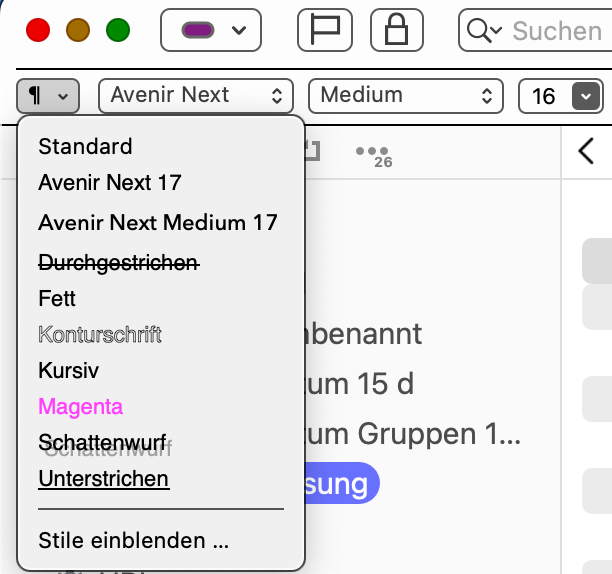
Edit: By the way, you've given me an idea: “The Style Menu.”
That should be easy to automate.
Again: It's just what you do manually, but maybe this is faster. I'll give it a try
Now that the temperature has dropped below 30℃, I can see the role of a in @Frankb’s macro; it’s dummy text that the styling can start working on. Yes, that is a neat trick. I guess Frank couldn’t have included an explanation for fear of being thrown out of the Magic Circle. 
What is obvious to the creator of a macro (or developer of a program) is often not painfully obvious to all users… at all times. Perhaps it ought to have been so in this case, but it wasn’t for me. 

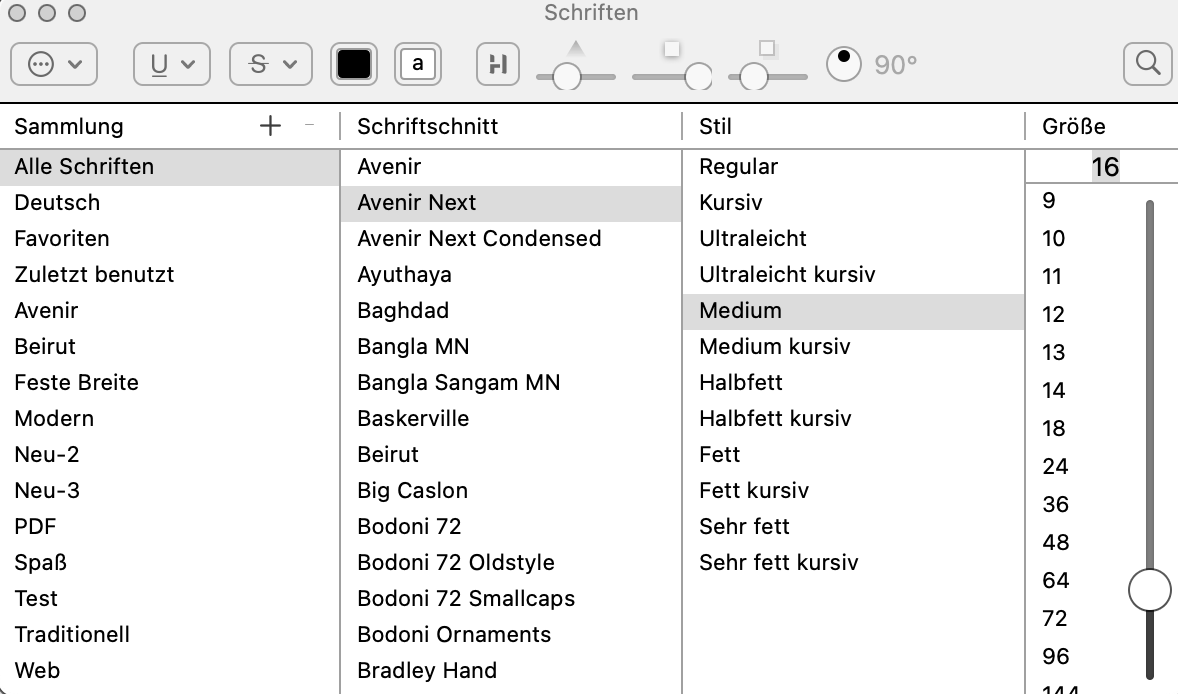
Everything I did is completely useless because this is already handled by default in macOS. I just didn't know, what an idiot I am.
That’s all.
This shortcut works with selected text, but it also works to change the style starting from where the cursor is.
Sure, sorry for the mess I made for no reason.
Great! How did you discover that feature?