Compress, Encrypt, Move, Save PDF and More

I compress / encrypt / manage a lot of PDF during teh day as I have a paperless office and I thought I should contribute to the community.

I don’t know whether others will find this helpful but attached is a Macro that works on PDFs whose functionality includes:

  1. Ability to compress and/or encrypt a PDF
    1. User can select which of these they which to do
  2. Ability to delete or retain the original PDF
  3. Ability to move the resulting PDF to a new folder or the original folder
  4. Ability to rename the resulting PDF or write over the original PDF
  5. Ability to process multiple selected files
  6. And more

In designing the PDF I opted for something that is i) fast ii) offers different levels of compression and iii) reliable so went with Ghostscripter which is a command line based tool (which you need to have loaded to work, and which I understand is industry standard). It also occurred to me that building the above flexibility into one macro using Adobe / PDFPen / etc. would have been much harder!

Installing Ghoscript is easy via terminal (Google “how to install Ghostscripter, it took all of 5 minutes):

  1. Install the Xcode Command Line Tools (1 line in terminal)
  2. Install Homebrew (1 line in terminal followed by 2 echo lines)
  3. Install Ghostscripter (1 line in terminal)

I hope this helps a few people, would be interested in comments / thoughts?

Thanks.

Compress PDF.kmmacros (18.8 KB)

1 Like

You've forgotten to post the macro...

@tiffle Appreciate you letting me and apologies to all. I have uploaded the macro in the OP!

1 Like

It's "Ghostscript", without the "er" on the end -- search engines should be able to work that out, but it would be better if you edited your OP. And maybe include a link to the Ghostscript web site for people who are interested.

Nice script! However...

-- Define the full path to the Ghostscript executable:
property gsPath : "/opt/homebrew/bin/gs"

...as an Intel Mac user I feel very left out :frowning:

There's no need for this:

	-- 2. Smart Check for existing compression
	set lowerName to do shell script "echo " & quoted form of originalName & " | tr '[:upper:]' '[:lower:]'"
	set alreadyCompressed to (lowerName contains "compress")

...because contains is case insensitive.

It's generally a bad idea to have a KM loop that calls an AppleScript on each iteration, as each invocation of "Execute AppleScript" requires the AS environment to be instantiated, used to run the script, then be torn down. You can get away with that here because the time spent doing the script far exceeds the time spent on overhead, but it would be more efficient to get the list of selected items and pass that to the AS to internally loop through.

This really are minor nitpicks, though. Good job!

Are you anticipating the user wants different choices for each PDF in a multi-file selection? You take it up a notch and (with the loop as written) return the previous choice to KM then, on the next iteration, set that previous choice to be the default items for the prompt...

And, looking ahead -- how about user choice on the other gs options as well :wink:

@Nige_S

It's "Ghostscript", without the "er" on the end -- search engines should be able to work that out, but it would be better if you edited your OP. And maybe include a link to the Ghostscript web sitefor people who are interested.

Apologies, fixed in the OP

Nice script! However...

Appreciated. I hope tp get a lot better at this over time, I am just learning AppleScript (coding skills are limited to VBA).

-- Define the full path to the Ghostscript executable:
property gsPath : "/opt/homebrew/bin/gs"

...as an Intel Mac user I feel very left out :frowning:

Appreciate the heads up, will try to address this when I learn how! No idea why!

There's no need for this:

	-- 2. Smart Check for existing compression
	set lowerName to do shell script "echo " & quoted form of originalName & " | tr '[:upper:]' '[:lower:]'"
	set alreadyCompressed to (lowerName contains "compress")

...because contains is case insensitive.

I learnt something new.

It's generally a bad idea to have a KM loop that calls an AppleScript on each iteration, as each invocation of "Execute AppleScript" requires the AS environment to be instantiated, used to run the script, then be torn down. You can get away with that here because the time spent doing the script far exceeds the time spent on overhead, but it would be more efficient to get the list of selected items and pass that to the AS to internally loop through.

This really are minor nitpicks, though. Good job!

I understand, I never thought of that! SO much to learn!

Are you anticipating the user wants different choices for each PDF in a multi-file selection? You take it up a notch and (with the loop as written) return the previous choice to KM then, on the next iteration, set that previous choice to be the default items for the prompt...

Is the idea ask the user up front whether all selections for all files will be the same and, if yes, then save those values and bypass having the user ask to repeat their section on subsequent iterations?

And, if yes, what, if any, user inputs would you exclude from this (i.e., password, file name, file path, etc.)?

And, looking ahead -- how about user choice on the other gs options as well :wink:

Yes, it is in the plan and used here in the sense that I am specifying the DPI (72 dpi) and sampling method (Bicubic) to get a good balance of clarity and compression. I need to get a better handle on them myself but this is a start.

And thank you for the suggestions and kind words! So much to learn!!

When the Mac moved to Apple Silicon the Homebrew devs updated the package install path to /opt/homebrew/bin from the old /usr/local/opt

Of course, while most people will accept the defaults when they install Homebrew you can't guarantee that! You can find brew's path prefix with echo $(brew --prefix)/bin

AppleScript -- indeed, most of macOS by default -- uses case-insensitive matching. If you want case-sensitive in your AS just put your test inside a considering case block:

"Hello World" contains "hello"
--> true
considering case
	"Hello World" contains "hello"
end considering
--> false

Completely up to you and your workflow! But it's a common UX design to have dialogs/options be set to "last chosen", especially in batch operations -- of course, some people see that as an annoyance rather than a feature and would rather start from scratch :wink:

1 Like

Got it! This was also my first instance of XCode CLI + Homebrew + Ghostscript. As you can tell, I am tackling a lot of new ground!

Got it! Thank you!

Hmmm, perhaps we are talking about two different things. I am talking about foregoing the dialogue boxes all together once the initial file is processed (or, in the alternative i) asking the user at the start whether all files will be processed the same and, if yes, then collecting those settings before processing any files) while I think you are talking about having the dialogue box defaults changed to the settings the user used on the first pass, am I right on this?

I am leaning towards my approach as it wold simplify and speed up things a lot especially were the user to use the default naming convention (i..e, file name + _gs compressed and encrypted) and path.

Very interested in your comments / thoughts.

Yes and no :wink:

As written, your macro asks the same question(s) for every selected file. I don't know if that's intended, to allow the user to select different options per file, or an unintended consequence of feeding the files to the script one by one.

If it's the first then a common UX pattern would be "make the choice for the preceding item the default for this item" which lets people choose for item 1 then mash Return to apply the same to items 2, 3, 4... No need to select "Compress Only" every time when the list selection keeps defaulting to "Compress + Encrypt".

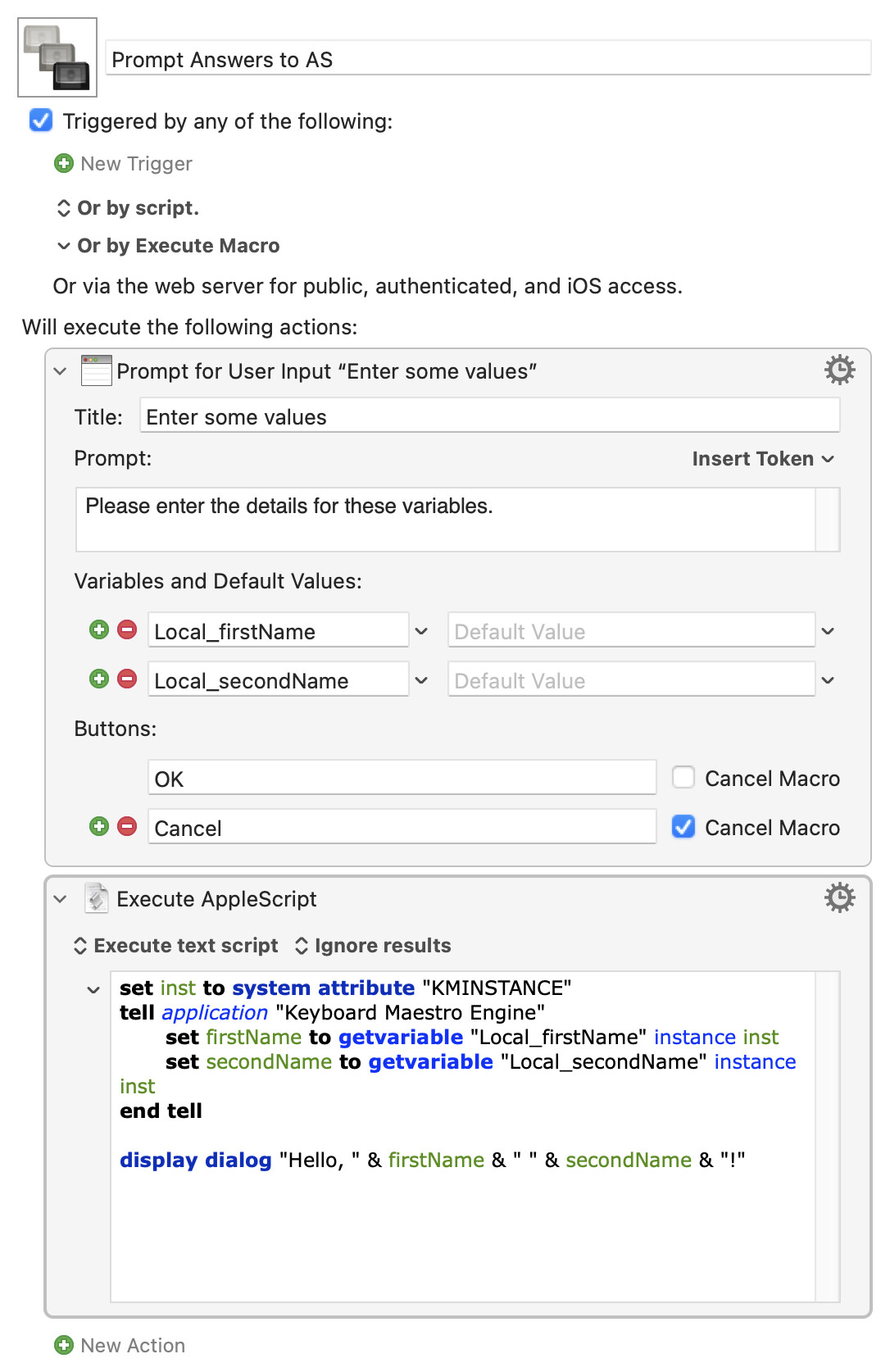
If it's the second and you expect them to pick options just once and apply those to all selected images -- consider moving the question out to a KM "Prompt for User Input" Action. That would also allow you to include some of the other gs options in a single dialog, feeding those values into the AppleScript. Silly demo:

Prompt Answers to AS.kmmacros (3.1 KB)

And there's nothing to stop you combining both approaches, of course -- maybe applying gs options across the batch but asking for output file names within the script!

There really is no "right" answer -- do whatever you're comfortable with that works for your workflow.

@Nige_S

I absolutely love that idea and will work towards implementing it (ie., collecting all the information and feeding into the AppleScript).

Two follows ups:

  1. I am unsure about although I am unsure about how best2. to handle file name and path unless a default file naming convention and common file path are used. Any thoughts?

  2. I am not skilled enough either in AppleScript or KM to that today (BUT I will work towards it). The biggest unknown is moving the collected data from KM to AppleScript. What is teh best way to get competent at this, any thoughts?

HUGE THANK YOU FOR ALL THE HELP?, IT IS GREATLY APPRECIATED

What's wrong with what you've got for point 1-5 in your OP? You can split the incoming file paths into "parent path" and file name, so you can easily save to either the original folder or a (single per batch) new folder. The only real issue crops up in both approaches -- if the user opts to keep the original and write the processed file to the original's folder, how do you handle name clashes (unlike e.g. zipping a file, your processes don't change the file name)?

The demo above shows the easiest way -- the KM prompt saves data to variables, the AppleScript then asks the KM Engine for the values in those variables (lines 1-4 of the script). It's slightly complicated by using KM local variables, which is why we have to get the executing instance (line 1) then use that in our getvariable calls (lines 3 and 4).

Remember that KM variables are always text in AppleScript's eyes -- 1 is the character "1" to AS. As isn't strongly typed and will do its best to make sense of whatever you give it:

"1" + 1
--> 2

...where the text "1" is coerced to the number 1 so addition can happen, but when you know a variable should be a number it makes sense to explicitly coerce it:

set myText to "1"
set myNum to myText as number
myNum + 1
--> 2

@Nige_S

I took your suggestions and implemented them in the attached version of the macro including batch input / processing of the data, parameter setting, etc.

I want to fine it further with the next refinement including:

  1. Fixing / improving the cascading of the Finder window(s) that display the compressed and/or encrypted files on close;
  2. Inputting Ghoscript setting capability / optionality; and
  3. Porting the data import from AppleScript to Keyboard Maestro to improve my Keyboard Maestro skills (which are severely lacking).

Thanks for the help, it has been invaluable. Would be interested in your comments / thoughts as well as further refinement suggestions.

Welcome others to use it as it i) is a huge time saver, at least for me ii) provide clear and significantly reduce PDF file sizes.

PS. The name of the macro should probably be changed to Compress and Encrypt PDF.

Compress PDF (Batch Processing).kmmacros (38.1 KB)